
This guide covers every menu you can see on your own screen, in the order it appears in your sidebar. Each entry explains what the page is for and the exact steps to carry out its actions. For headteachers and exam coordinators.
1. Signing in
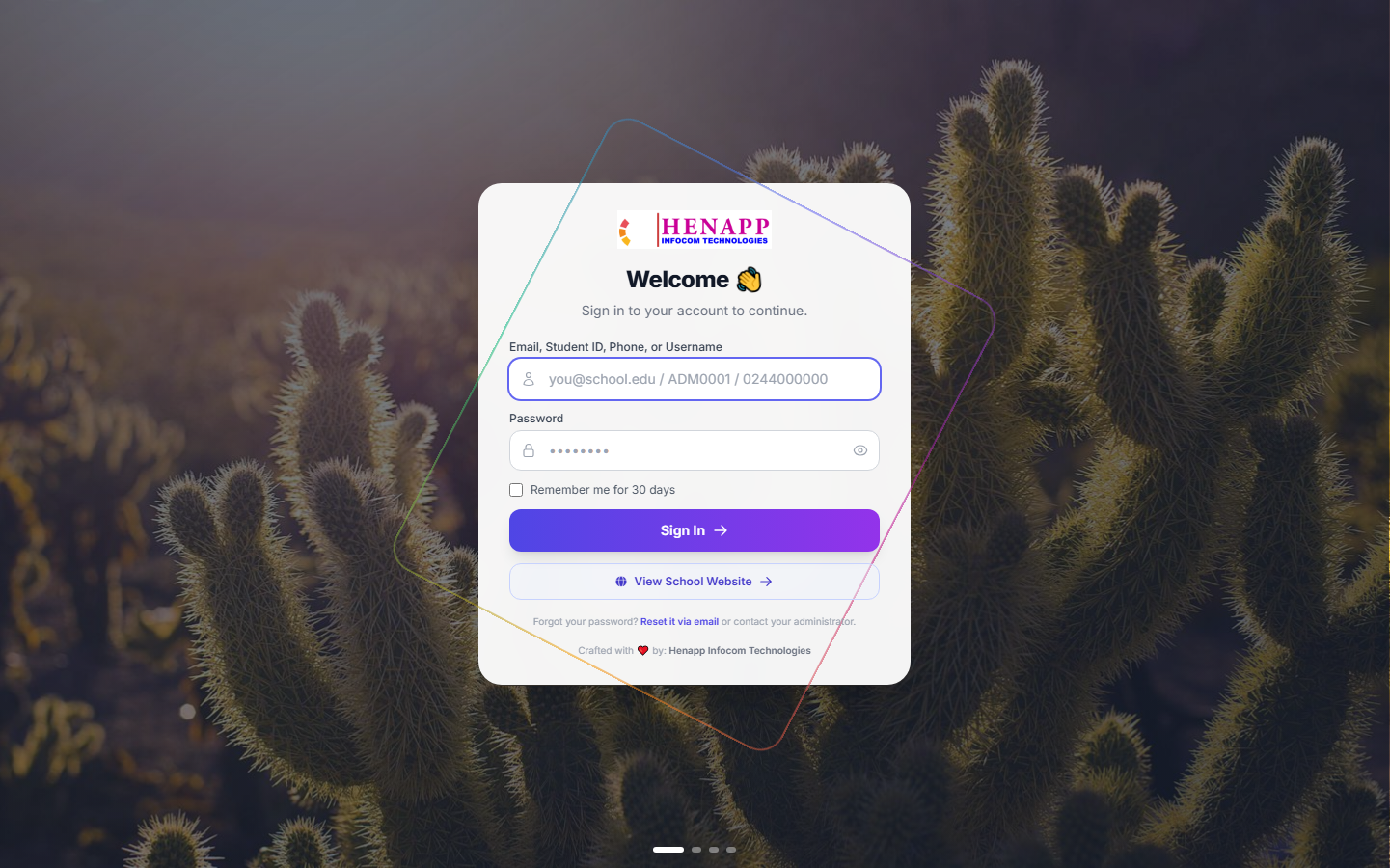
Your school gives you a web address, your email or username, and a first-time password. Open the address in any modern browser — Chrome, Edge, Safari or Firefox — on a phone, tablet or computer.
How to sign in
- Open your school portal address. If you were given a link, tap it.
- Type your email address or username in the first box.
- Type your password in the second box. Passwords are case-sensitive.
- Tick "Remember me" only on a device nobody else uses.
- Click Sign In.
If you forget your password
- Click "Forgot password?" on the sign-in page — if your school has email set up, a reset link is sent to you.
- Otherwise ask the school office to reset it. They can issue you a new temporary password.
The system asks you to set your own password the first time you sign in. Choose something only you know, and never share it — everything you do is recorded against your name.
2. Finding your way around
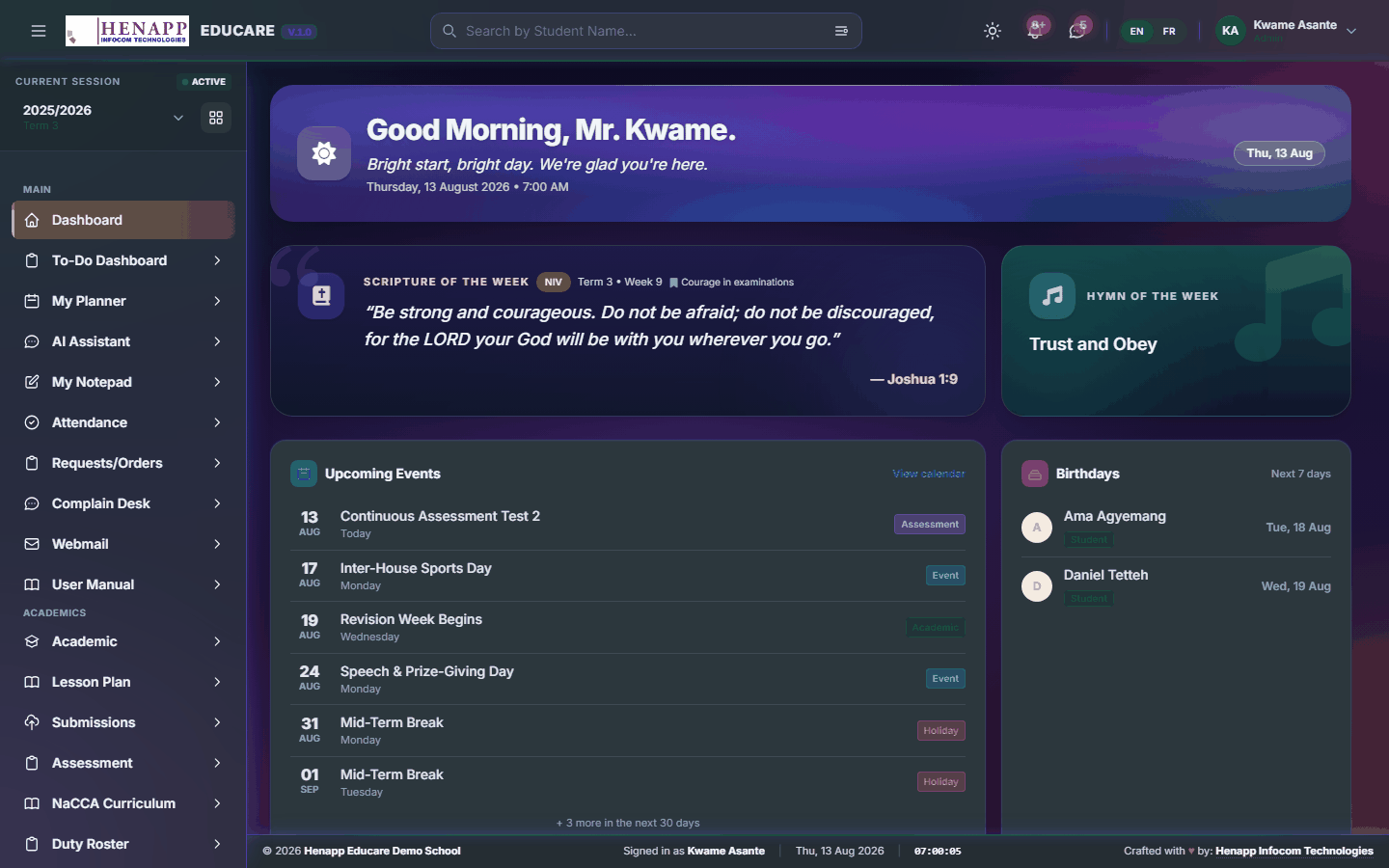
After signing in you land on your dashboard. Everything else is reached from the sidebar on the left and the bar across the top.
The sidebar
- The sidebar lists every part of the system you are allowed to use. What you see here is exactly what this guide covers — nothing more, nothing less.
- Click a heading to open its submenus; click again to close it.
- On a phone, tap the ☰ menu icon at the top-left to slide the sidebar in and out.
The top bar
- Academic year and term selector — nearly every page shows data for the year and term chosen here. If figures look wrong or a list looks empty, check this first.
- Search — jump to any page or person by name.
- Sun / moon icon — switch between light and dark appearance.
- Bell icon — your notifications.
- Your name and photo — profile, and Sign out.
3. Your profile and password
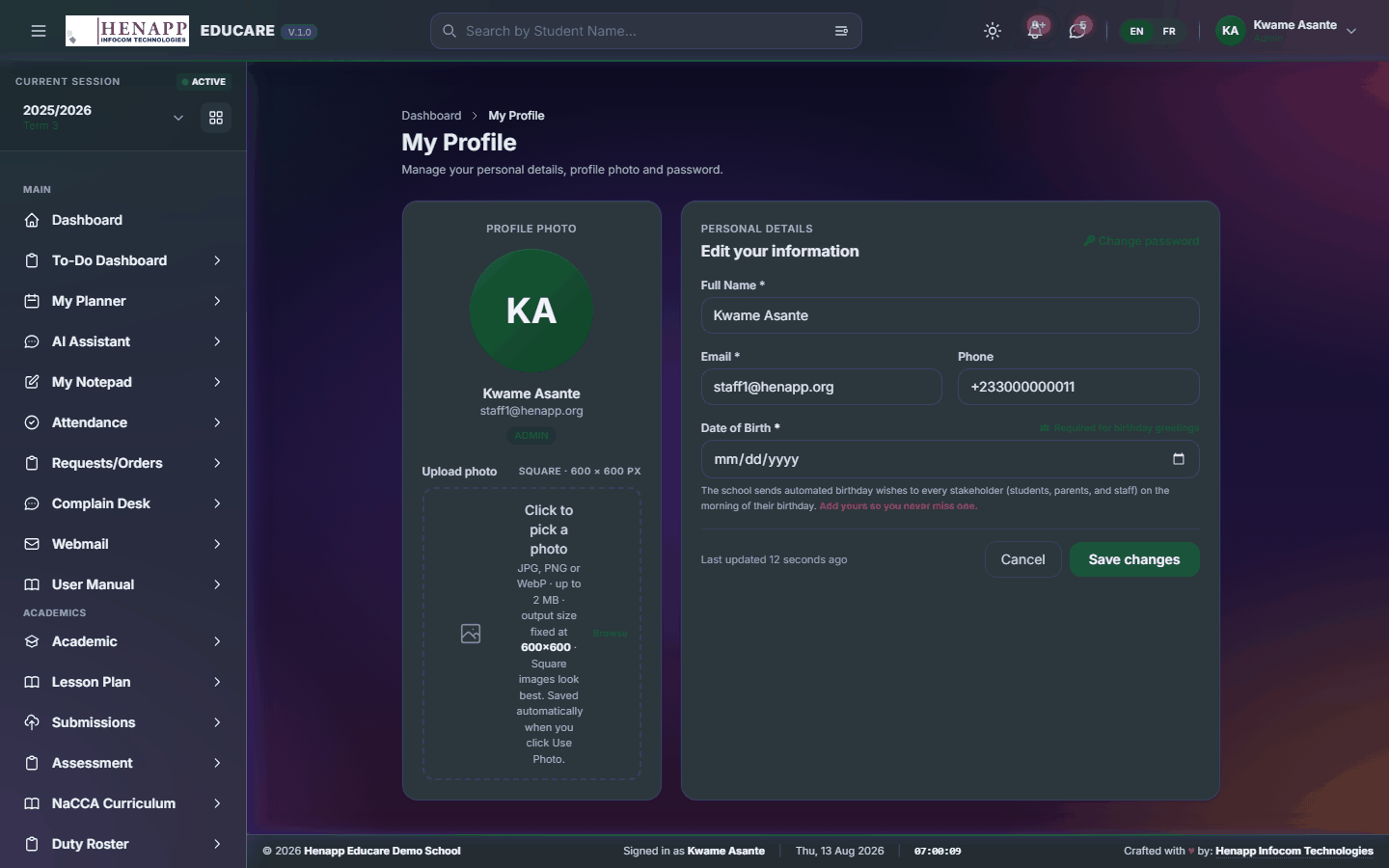
Your profile holds your contact details, your photo and your password.
How to update your details
- Click your name at the top-right, then Profile.
- Edit your phone number, address or other details and click Save.
- Click your photo to upload a new one — a clear head-and-shoulders picture works best.
How to change your password
- Open your profile and find the Change Password section.
- Type your current password, then your new password twice.
- Click Update Password. You stay signed in on this device.
On a school, library or family computer, click your name and choose Sign out when you finish. Closing the tab alone does not sign you out.
4. Dashboard
Your home page. It summarises what needs your attention today and links straight to the pages that answer it.
Find it in the sidebar under Main → Dashboard.
4.1 Dashboard
The first page after you sign in. The cards you see depend on your role — the important thing is that each one is a shortcut: click it to open the page behind the number.

How to use it
- Read the cards along the top for the headline figures for today.
- Click any card or chart to open the full page it summarises.
- Use the academic year and term selector in the top bar to see the same dashboard for a different period.
- Scroll down for your recent activity and anything awaiting your action.
5. To-Do Dashboard
A single running list of everything the system is waiting on you for, gathered from every module.
Find it in the sidebar under Main → To-Do Dashboard.
5.1 To-Do Dashboard
Every outstanding task the system knows about, collected in one place — lesson plans not yet submitted, registers not yet marked, approvals waiting on you, forms not yet returned.

How to use it
- Open To-Do Dashboard from the sidebar.
- Each card is one kind of outstanding task, with a count.
- Click a card to open the list behind it, then work through the items.
- Items disappear from the list on their own once the underlying task is done — there is nothing to tick off here.
You only ever see tasks that are actually yours. Two teachers signed in side by side will see different counts on the same day.
6. My Planner
Your private diary inside the portal — appointments, reminders and personal deadlines that are not school-wide events.
Find it in the sidebar under Main → My Planner.
6.1 My Planner
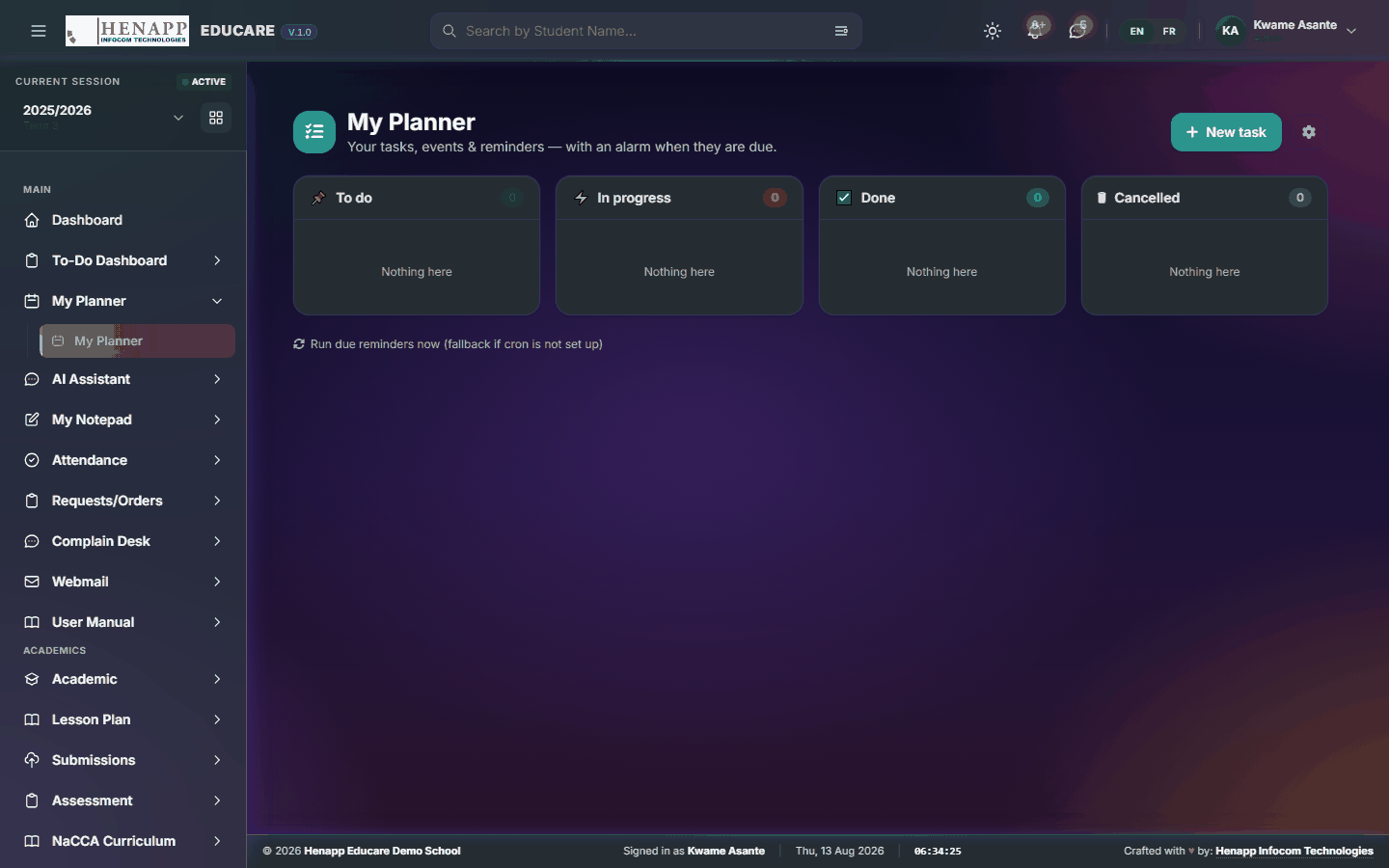
A month, week and day diary that only you can see. Use it for anything you want to remember that is not a school-wide calendar event.
How to use it
- Open My Planner from the sidebar.
- Switch between Month, Week and Day using the buttons above the grid.
- Click any empty day or time slot to start a new entry.
- Give it a title, set the date and time, pick a colour, and Save.
- Click an existing entry to edit it, or use its delete button to remove it.
7. AI Assistant
A built-in assistant that answers questions about your own school data and drafts routine text for you.
Find it in the sidebar under Main → AI Assistant.
7.1 AI Assistant
Ask questions in plain language and get answers drawn from your school data, within the limits of what your role is allowed to see. It also drafts routine wording for you to edit — a notice to parents, a report remark, an SMS short enough to send.
How to use it
- Open AI Assistant from the sidebar.
- Type your question or instruction in the box at the bottom and press Enter.
- Ask follow-up questions in the same conversation — it remembers what you just asked, so "now make it shorter" works.
- Your past conversations are listed down the side; click one to reopen it.
- Start a new conversation when you change subject, so earlier context does not colour the answer.
The assistant can be confidently wrong. Treat a figure it quotes as a prompt to open the real page and confirm, and read any text it drafts before you send it.
It answers only from data your role can already open. It is not a way around a permission you do not have.
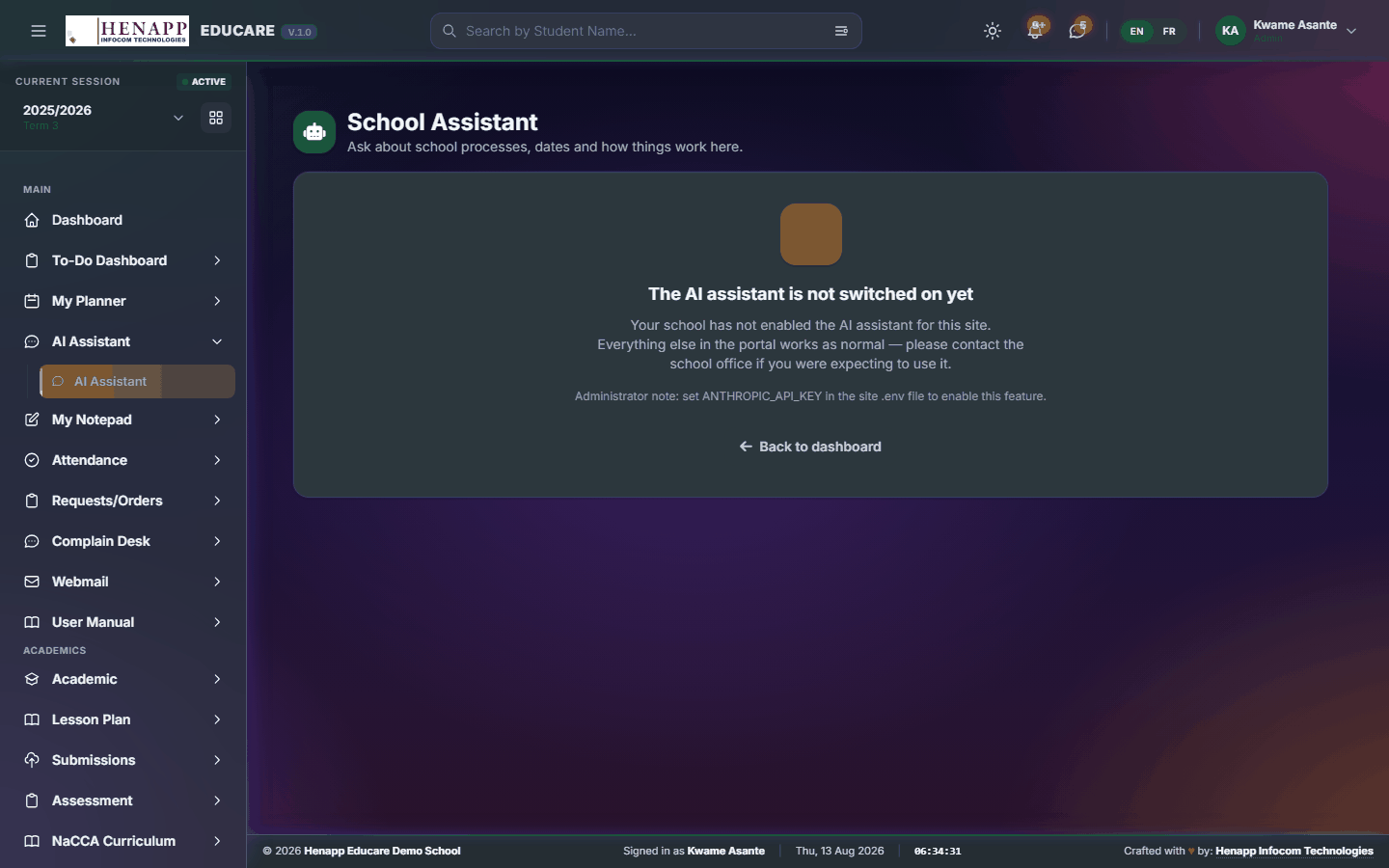
If it says the assistant is not configured, no AI provider key has been set for your school — an administrator sets that under System Settings. The school can hold keys for several providers, and the system moves to the next one automatically if one is busy or over its daily limit, so the feature keeps working.
8. My Notepad
Quick private notes that stay with your account and follow you to any device you sign in on.
Find it in the sidebar under Main → My Notepad.
8.1 My Notepad
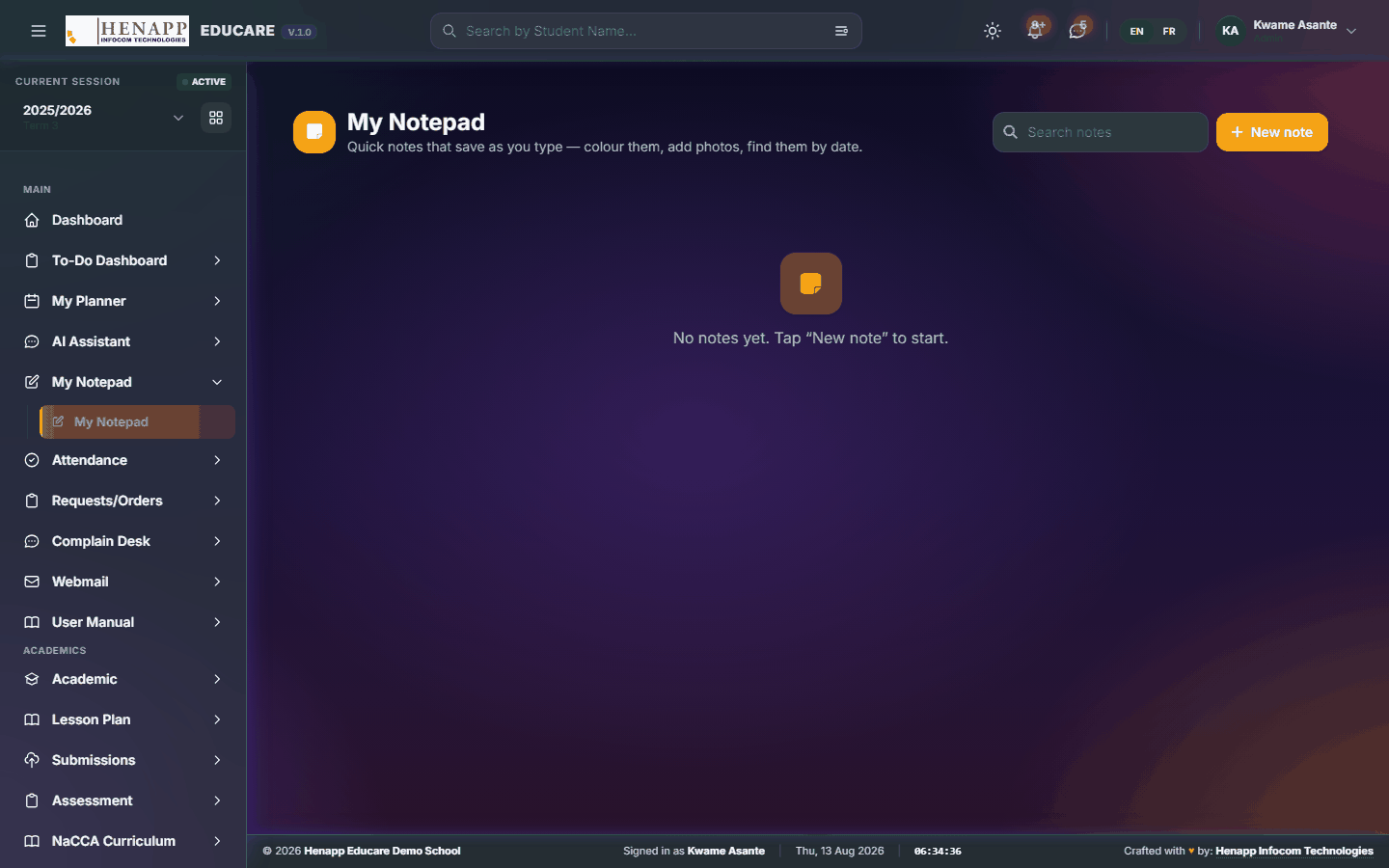
Short private notes — a phone number, a reminder, a paragraph you are drafting. Notes save as you type and are visible only to you.
How to use it
- Open My Notepad from the sidebar.
- Click New Note, give it a title and start typing.
- Pick a colour to group related notes visually.
- Notes save automatically; use the search box at the top to find one later.
- Delete a note from its own menu when you no longer need it.
9. Attendance
Daily presence — both learner registers and staff clocking. Attendance figures feed report cards, so keeping them accurate matters beyond the register itself.
A register always belongs to the academic year and term shown in the top bar. If a register looks empty or the wrong learners appear, check that selector before anything else.
Find it in the sidebar under Main → Attendance.
9.1 Class Register
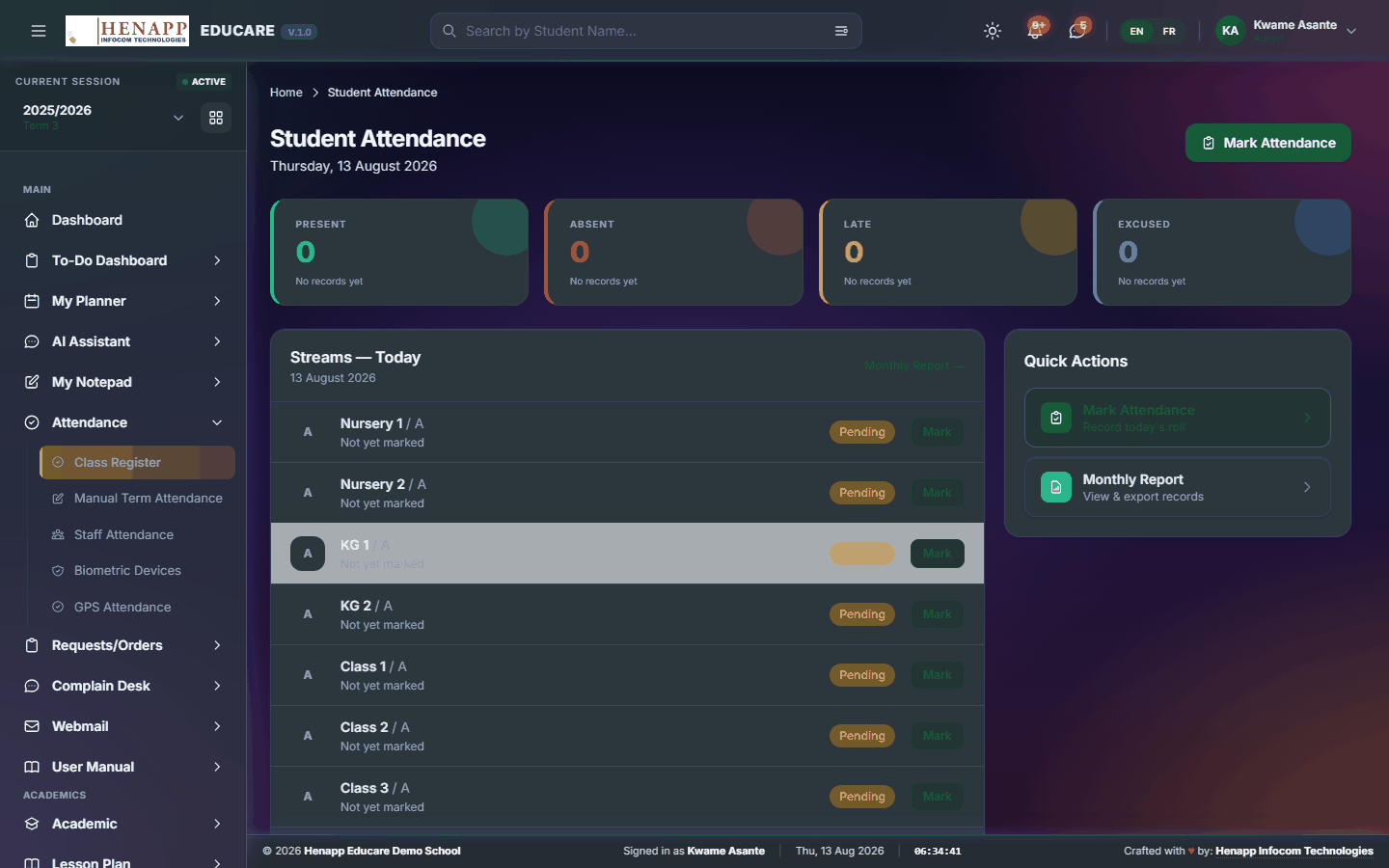
The daily class register — who is present, absent or late. This is the page a class teacher opens every morning.
How to use it
- Open Attendance → Class Register.
- Choose the class and stream, and check the date at the top — it defaults to today.
- Mark each learner Present, Absent or Late. Use the Mark all present button first and then change only the exceptions; it is much faster.
- Add a short reason against an absence where you know it.
- Click Save. You can reopen and correct a register for an earlier date the same way.
Four assignments let someone mark: the class teacher or assistant at grade level, and the class teacher or assistant at stream level. Any one of them is enough.
A teacher who only teaches a subject to the class cannot mark its register. That is deliberate.
Learners enrolled at class level without a stream still appear, but only when the class has exactly one stream. In a multi-stream class every learner must be placed in a stream to show up.
9.2 Manual Term Attendance
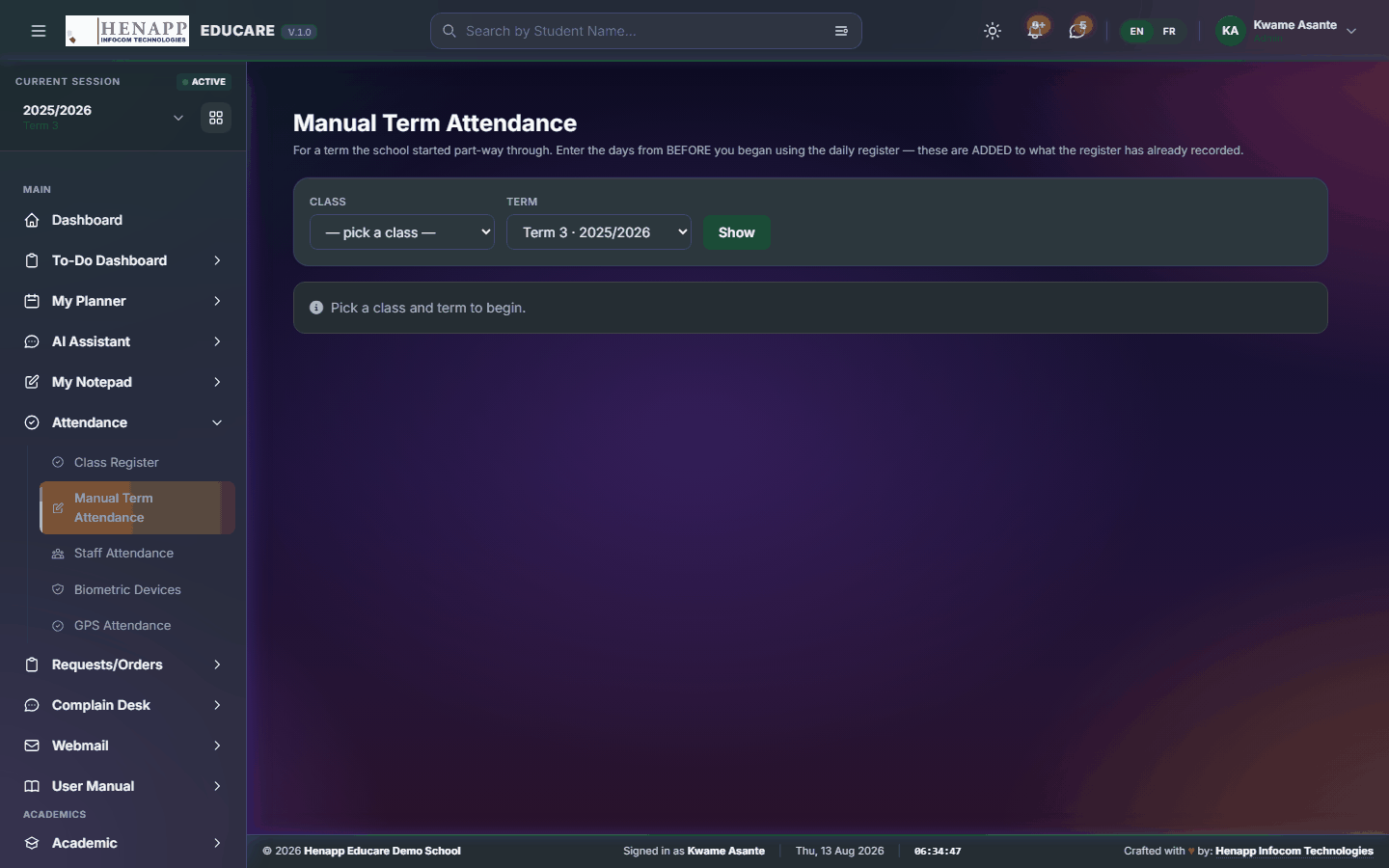
Enter a whole term of attendance as two totals per learner — days present and days the school opened — instead of marking day by day. Use it when a term was recorded on paper and you only need the report-card figures.
How to use it
- Open Attendance → Manual Term Attendance.
- Choose the class, stream and term.
- Set the number of days the school opened for that term.
- Type each learner's days present.
- Click Save. These totals are what the report card prints for the term.
Once you save manual totals for a class and term, report cards use them instead of counting daily registers. Use one method or the other for a given term, not both.
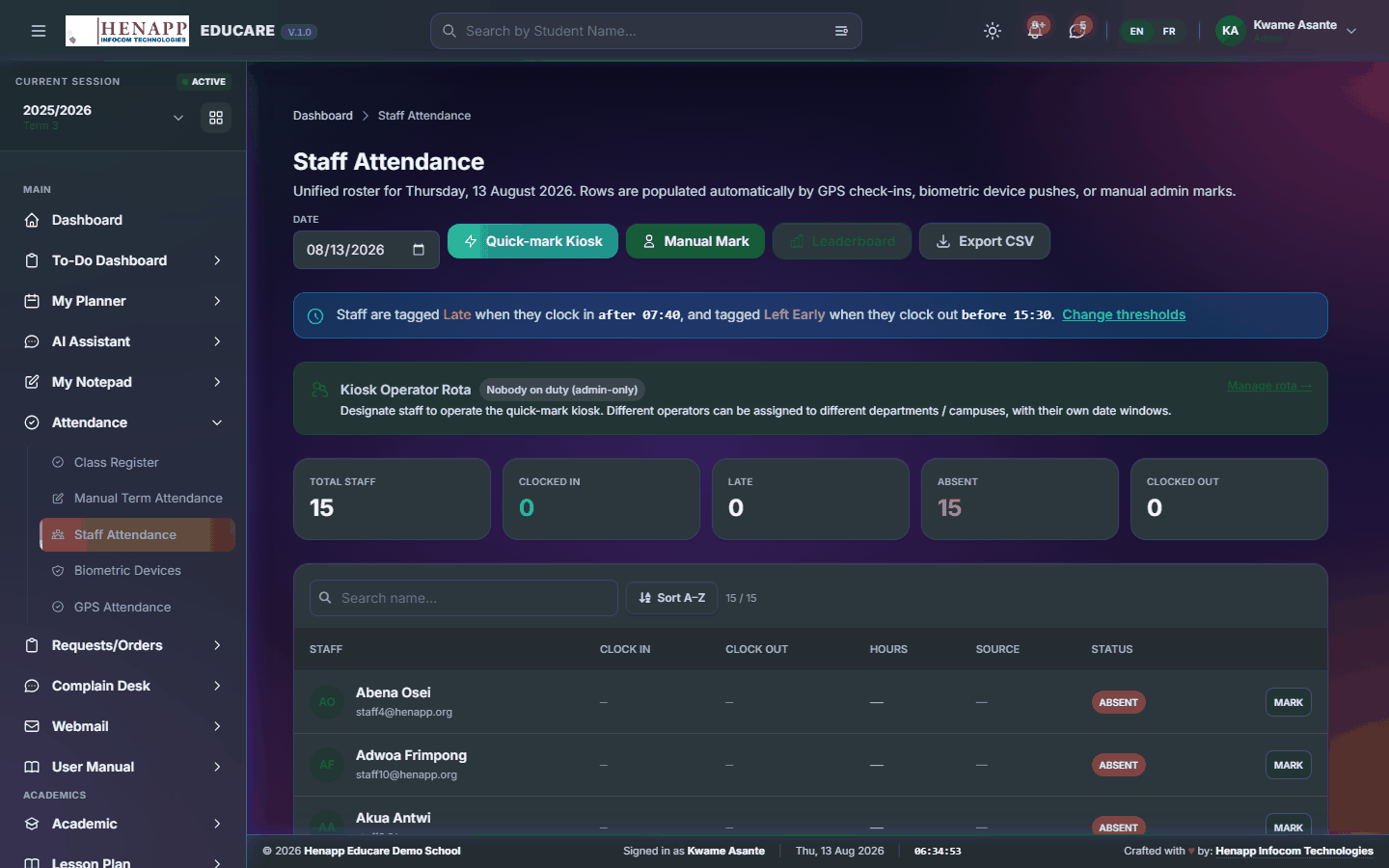
9.3 Staff Attendance
Staff clocking in and out — today at a glance, and the history behind it.
How to use it
- Open Attendance → Staff Attendance for today's board.
- Each staff member shows their sign-in time, sign-out time and status.
- Filter by department or date range to review a period.
- Export the list when you need it for payroll or a meeting.
9.4 Excused Duty
Say who had permission to be away, so an approved absence is not counted as a loss against them.
How to use it
- Open Attendance → Excused Duty.
- Click New Excusal, pick the member of staff and the dates they were away.
- Give the reason — official duty, approved leave, bereavement, whatever it was.
- Save. Those days are then treated as excused wherever attendance is costed, including Time Losses on the payslip.
Leave that has been approved through Leave Requests counts as excused on its own — you do not need to enter it here as well. Use this page for permission given outside the leave process.
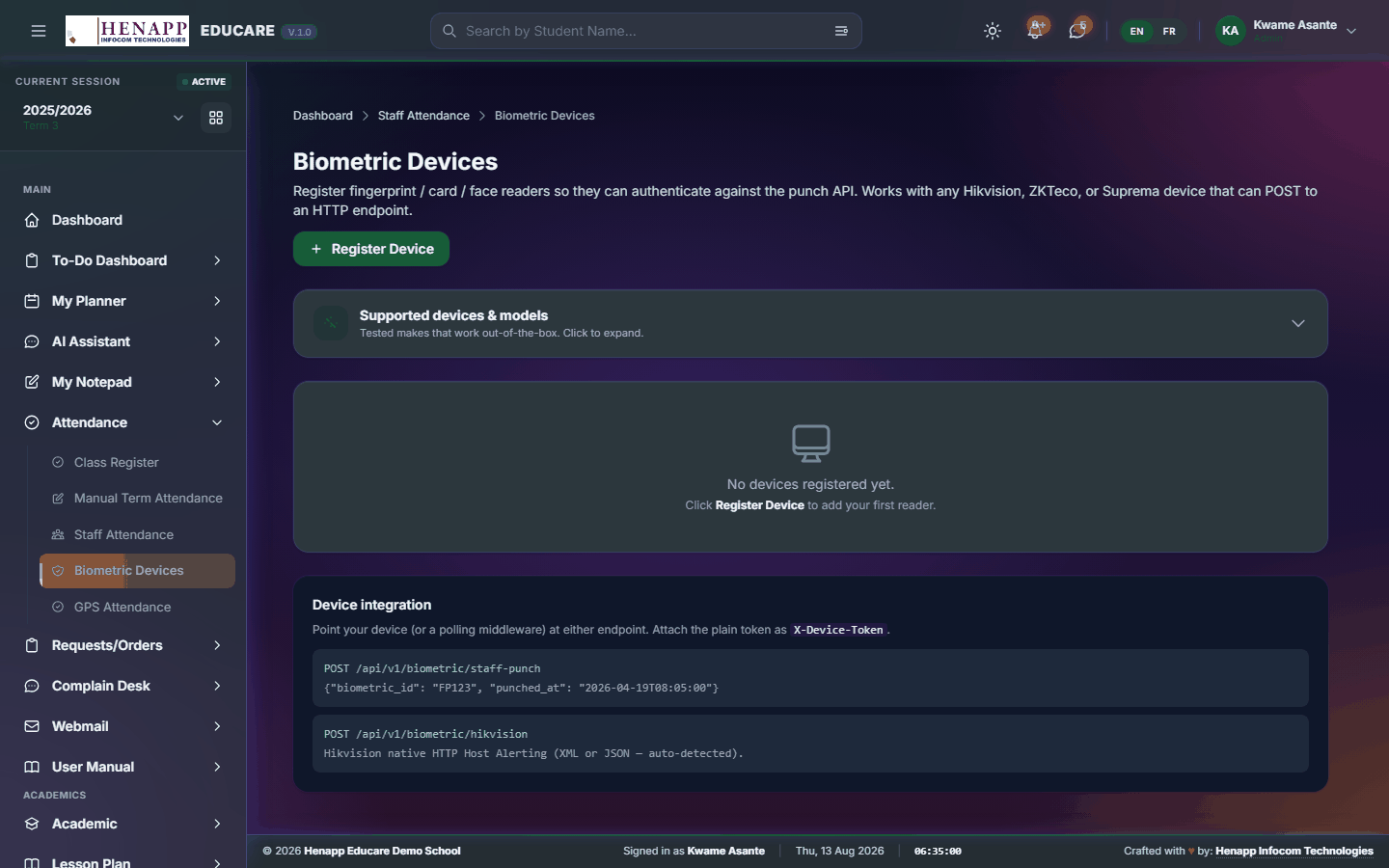
9.5 Biometric Devices
Register the fingerprint and face devices at your entrances so their punches arrive as staff attendance.
How to use it
- Open Attendance → Biometric Devices.
- Click Add Device and enter its name, location and serial number.
- Save, then confirm the device shows as connected.
- Punches from a registered device appear on the Staff Attendance board automatically.
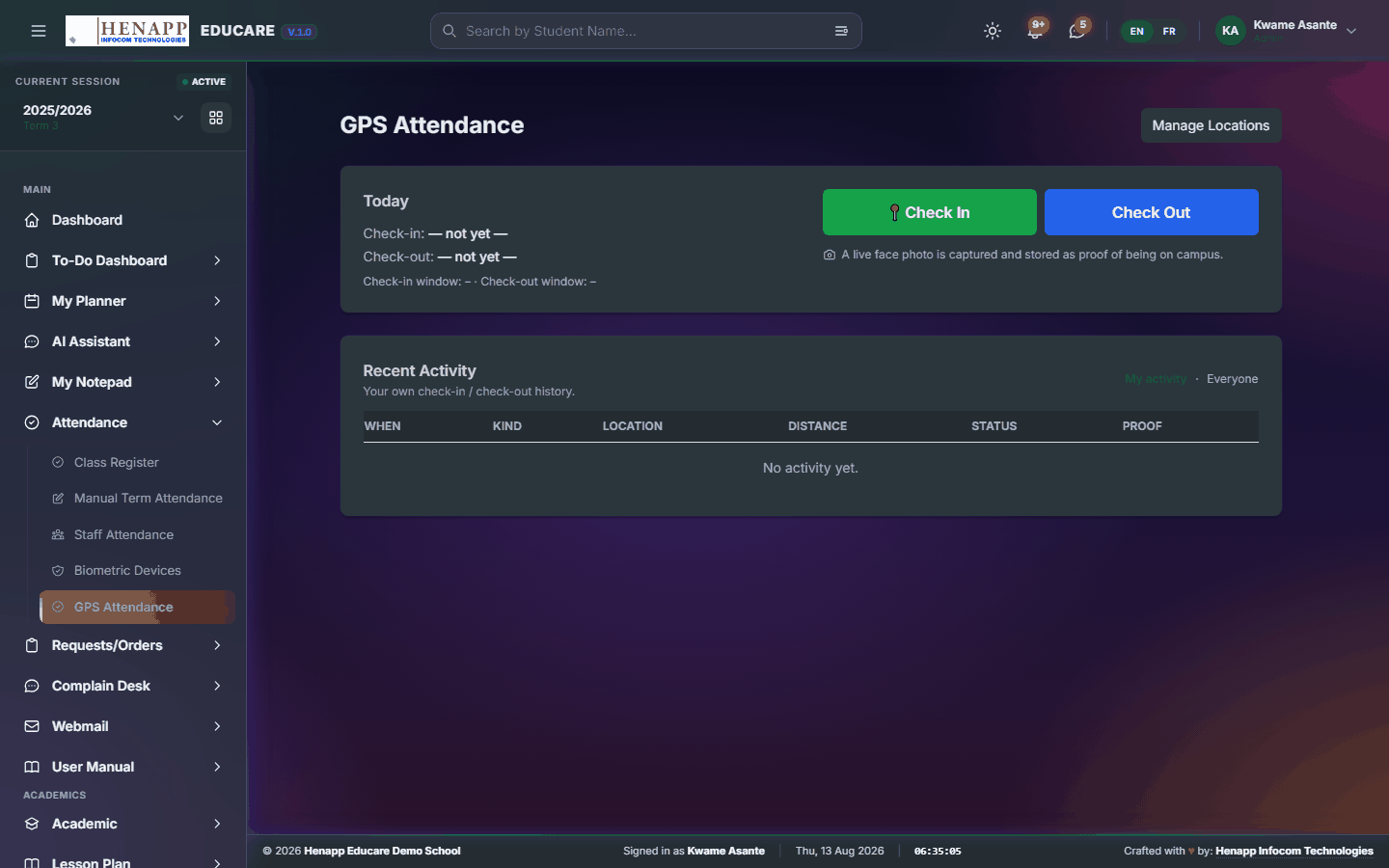
9.6 GPS Attendance
Sign in from your phone by location, for staff who work away from a device — the system records where you were and, if the school requires it, a photo.
How to use it
- Open GPS Attendance on your phone while you are at the school.
- Allow the browser to use your location when it asks.
- Tap Check In on arrival. Take the photo if you are prompted for one.
- Tap Check Out when you leave.
The school sets a radius around its coordinates. A check-in from outside that radius is refused, so allow location access and try again from the premises rather than on the way in.
10. Requests/Orders
The other side of the parent request desk: everything parents have asked for, in one queue you work through.
Find it in the sidebar under Main → Requests/Orders.
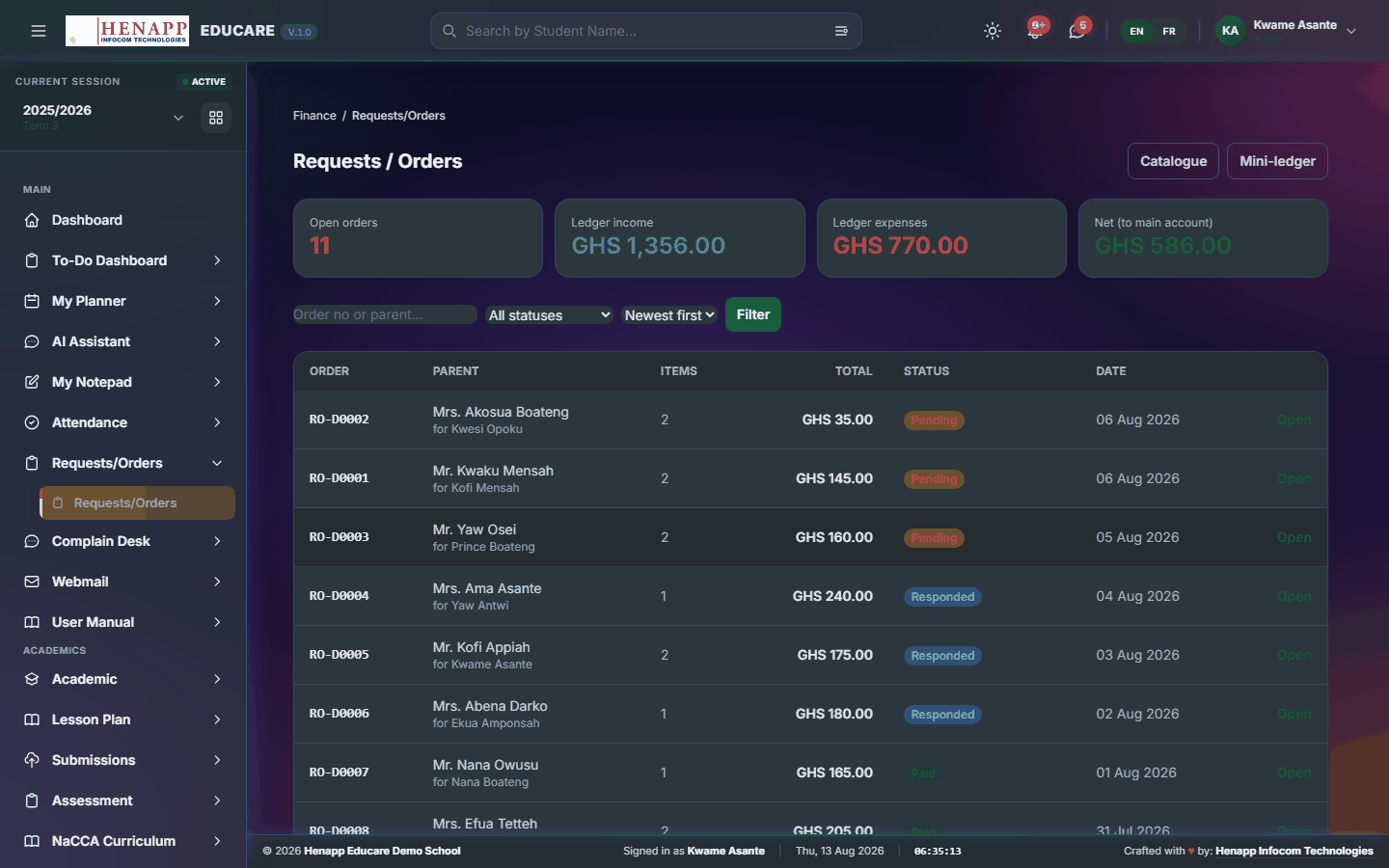
10.1 Requests/Orders
The queue of everything parents have requested. Work down it, approve or decline, and mark items ready.
How to use it
- Open Requests/Orders from the sidebar.
- New requests arrive at the top. Click one to see who asked and what for.
- Approve it to move it forward, or Decline with a short reason the parent will see.
- Where the item is chargeable, raising the charge creates the invoice on the family's account.
- Mark the request Ready when the item can be collected — the parent is notified.
11. Complain Desk
The staff side of the complaints channel — every concern raised by a parent or learner, and its handling.
Find it in the sidebar under Main → Complain Desk.
11.1 Complaints
Every complaint raised by a parent or learner, with its category, age and current handler.

How to use it
- Open Complain Desk → Complaints.
- Open a complaint to read the full thread.
- Assign it to the member of staff who should handle it.
- Reply on the thread — the parent or learner sees your reply and is notified.
- Set it Resolved when it is closed out. Resolved threads stay on file.
This channel deliberately does not send SMS, so a sensitive concern is not exposed on a shared handset.
12. User Manual
This manual. It is built from your own sidebar, so it documents exactly the menus you can see and nothing you cannot.
Find it in the sidebar under Main → User Manual.
12.1 User Manual
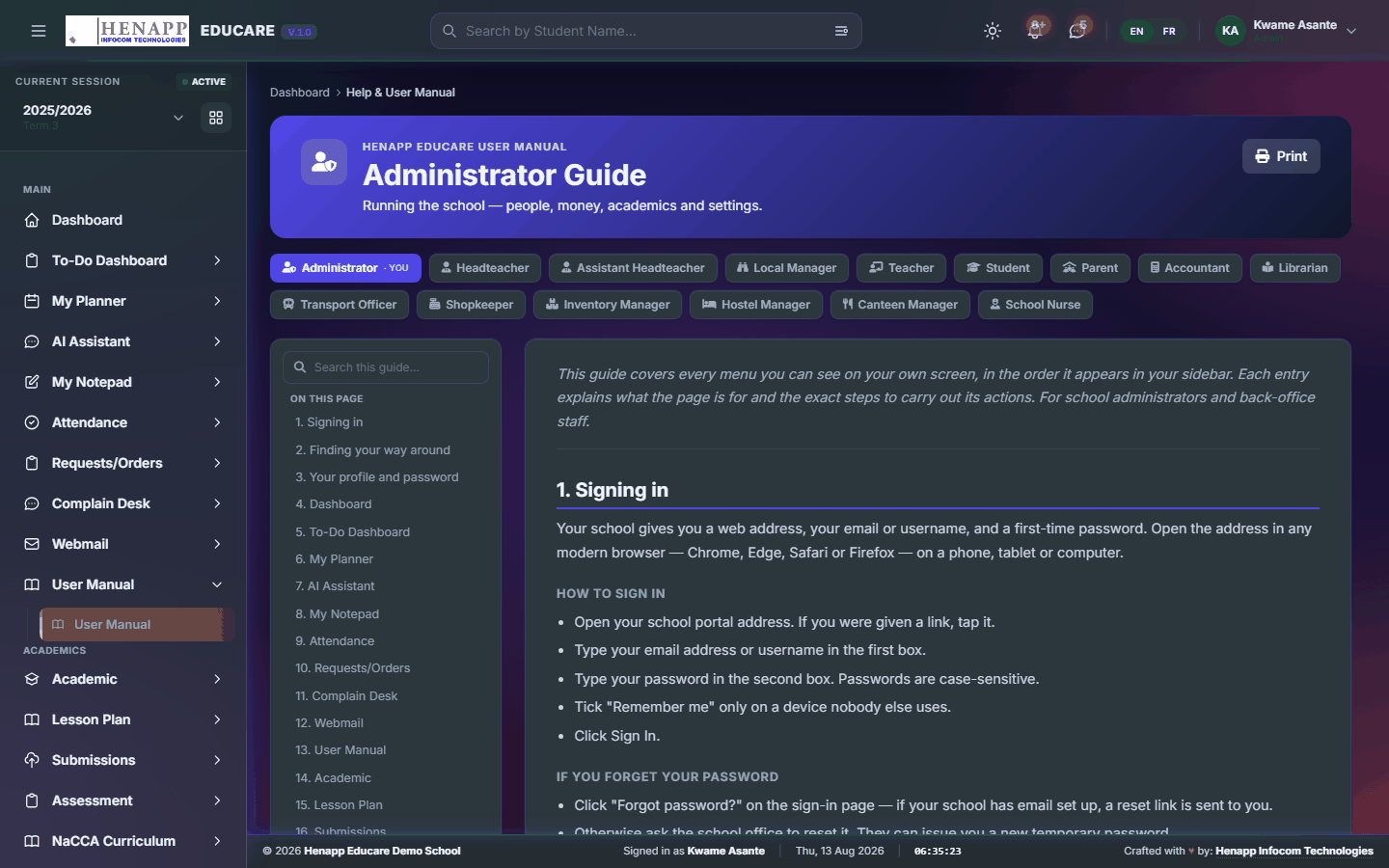
This manual. It is generated from your own sidebar, so every chapter matches a menu you actually have.
How to use it
- Open User Manual from the sidebar.
- Use the contents list on the left to jump to a chapter.
- Type in the search box to filter to the chapters that mention a word.
- Click Print for a paper copy or a PDF.
13. Academic
The structure everything else hangs on — years, classes, streams, subjects, timetables and the academic calendar. Set this up first; every other module reads from it.
Almost every list in the system is filtered by the current academic year and term. If pages look empty at the start of a new year, this is nearly always why.
Find it in the sidebar under Academics → Academic.
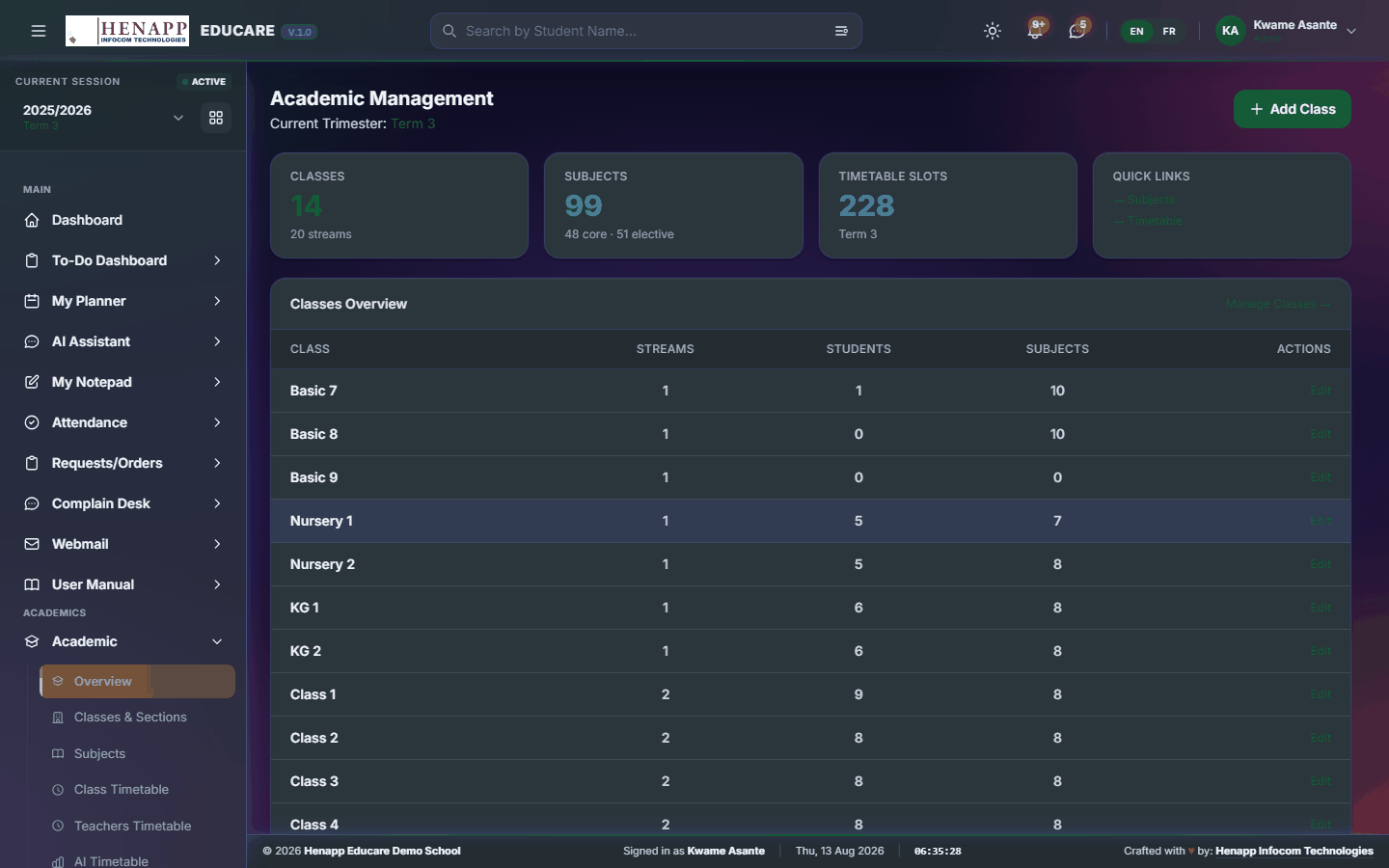
13.1 Overview
The academic home page — years, terms and the structure of the school in summary.
How to use it
- Open Academic → Overview.
- Check that the current academic year and term are the ones you intend to work in.
- Use the cards to jump to classes, subjects or the timetable.
13.2 Classes & Sections
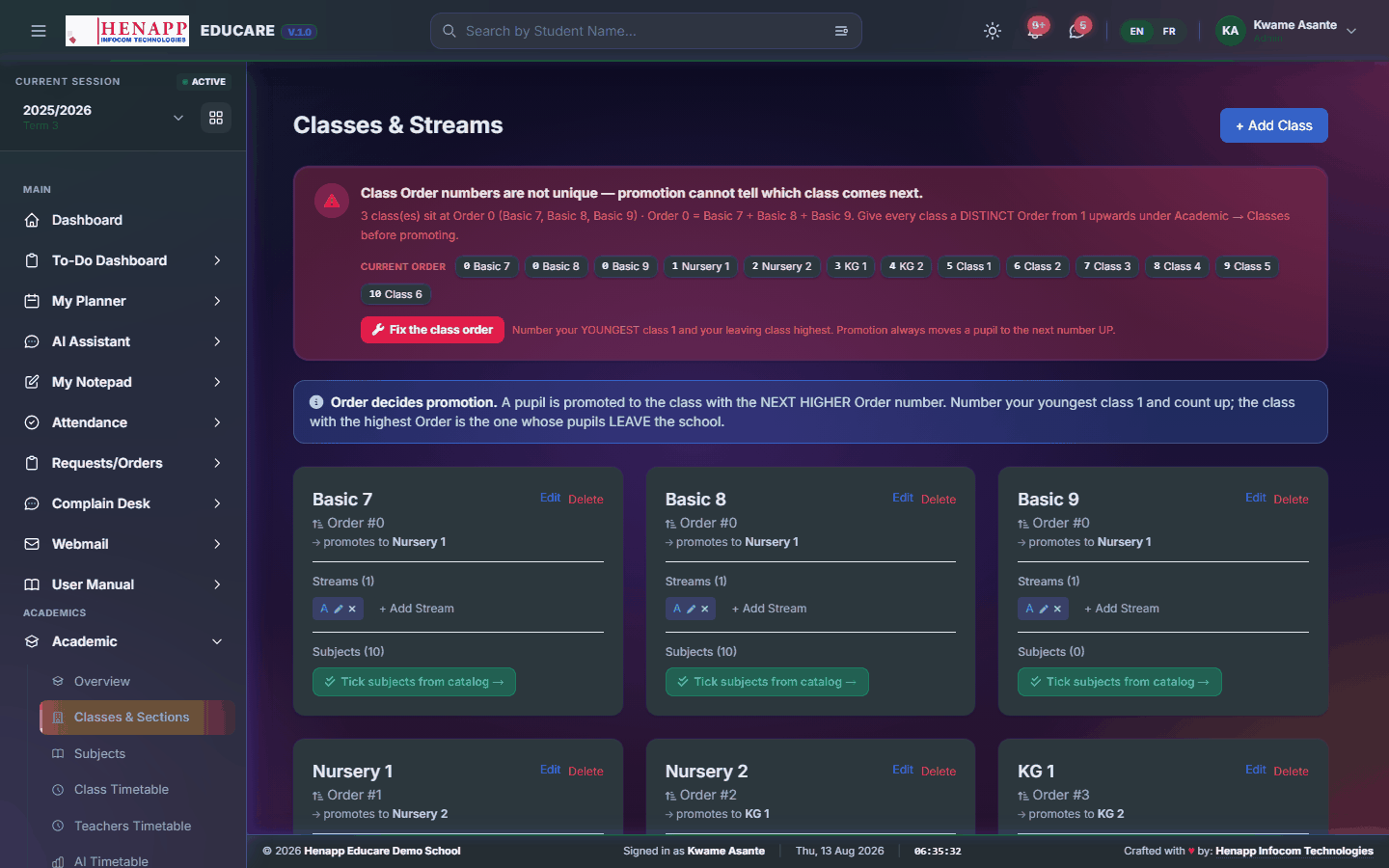
Every class the school runs, and the streams within each — the backbone the whole system hangs on.
How to use it
- Open Academic → Classes & Sections.
- Click Add Class, type the name (for example Grade 5) and give it a sort order so it lists in school order.
- Every class is given a Main stream the moment you save it — a class needs at least one, because registers, scoresheets and reports all work per stream.
- Add more streams (A, B, C) where a class is split, or rename Main to suit your school.
Where streams are taught and reported separately, turn that on against the class. Report cards, class statements and analyses are then produced per stream rather than pooled.
13.3 Subjects
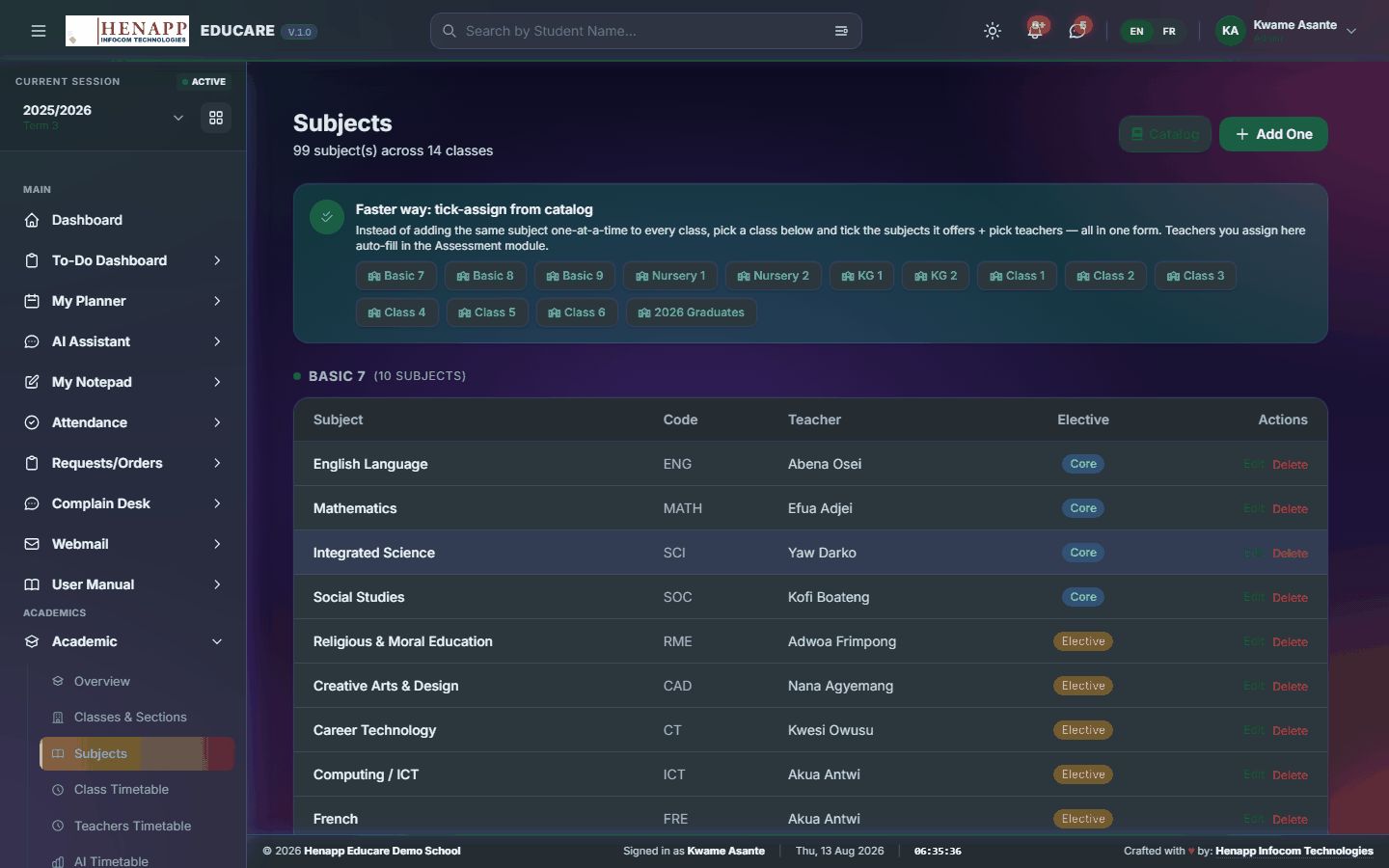
The subjects taught, and which classes take each one.
How to use it
- Open Academic → Subjects.
- Click Add Subject, enter its name and short code.
- Attach the subject to every class that takes it.
- Mark it core or elective — report cards order core subjects first.
- Assign the teacher for each class, which drives timetables, scoresheets and homework.
13.4 Class Timetable
The weekly class timetable — which subject, with which teacher, in which period.

How to use it
- Open Academic → Class Timetable and pick a class.
- Click an empty period to fill it.
- Choose the subject and teacher, then save. Drag a placed period to move it.
- A clash — the same teacher in two rooms at once — is flagged as you place it.
- Print or export the finished timetable for the classroom wall.
13.5 Teachers Timetable
The same timetable seen per teacher — each member of staff's own week.
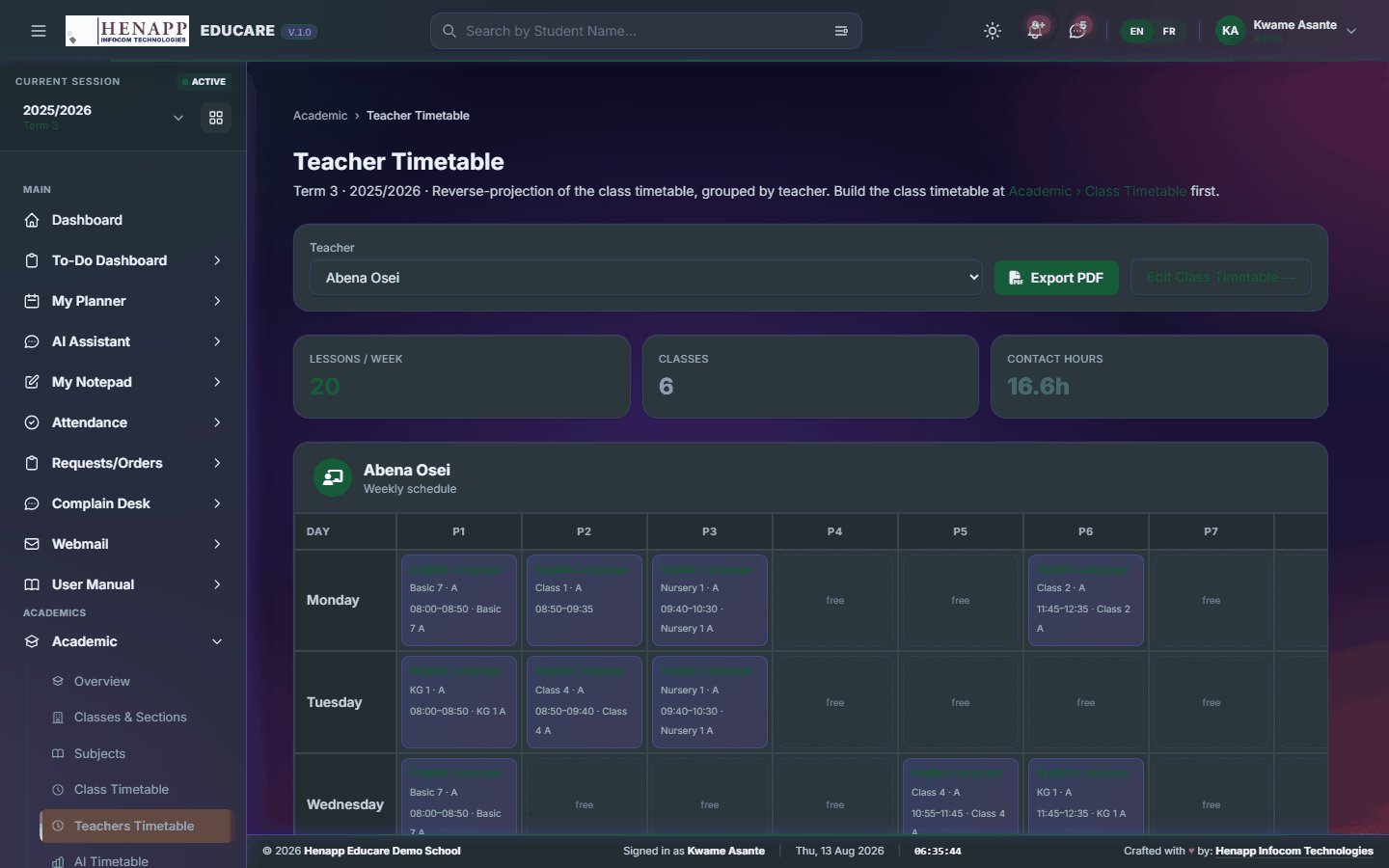
How to use it
- Open Academic → Teachers Timetable.
- Pick the teacher to see their week across all classes.
- Print or export it to hand out.
13.6 AI Timetable
Builds a draft timetable automatically from your classes, subjects, teachers and periods — a starting point to adjust rather than a finished article.

How to use it
- Open Academic → AI Timetable.
- Confirm the periods, break times and teaching load per subject.
- Click Generate and wait for the draft.
- Review it class by class, adjust anything that does not suit, then save it as the working timetable.
The generator satisfies the constraints it is given. Anything it was not told — a teacher who cannot teach on Fridays, a room only free in the mornings — it cannot honour, so read the draft before adopting it.
13.7 Timetable Programmes
The period structure itself — when each period starts and ends, and where the breaks fall. Timetables are built inside this frame.
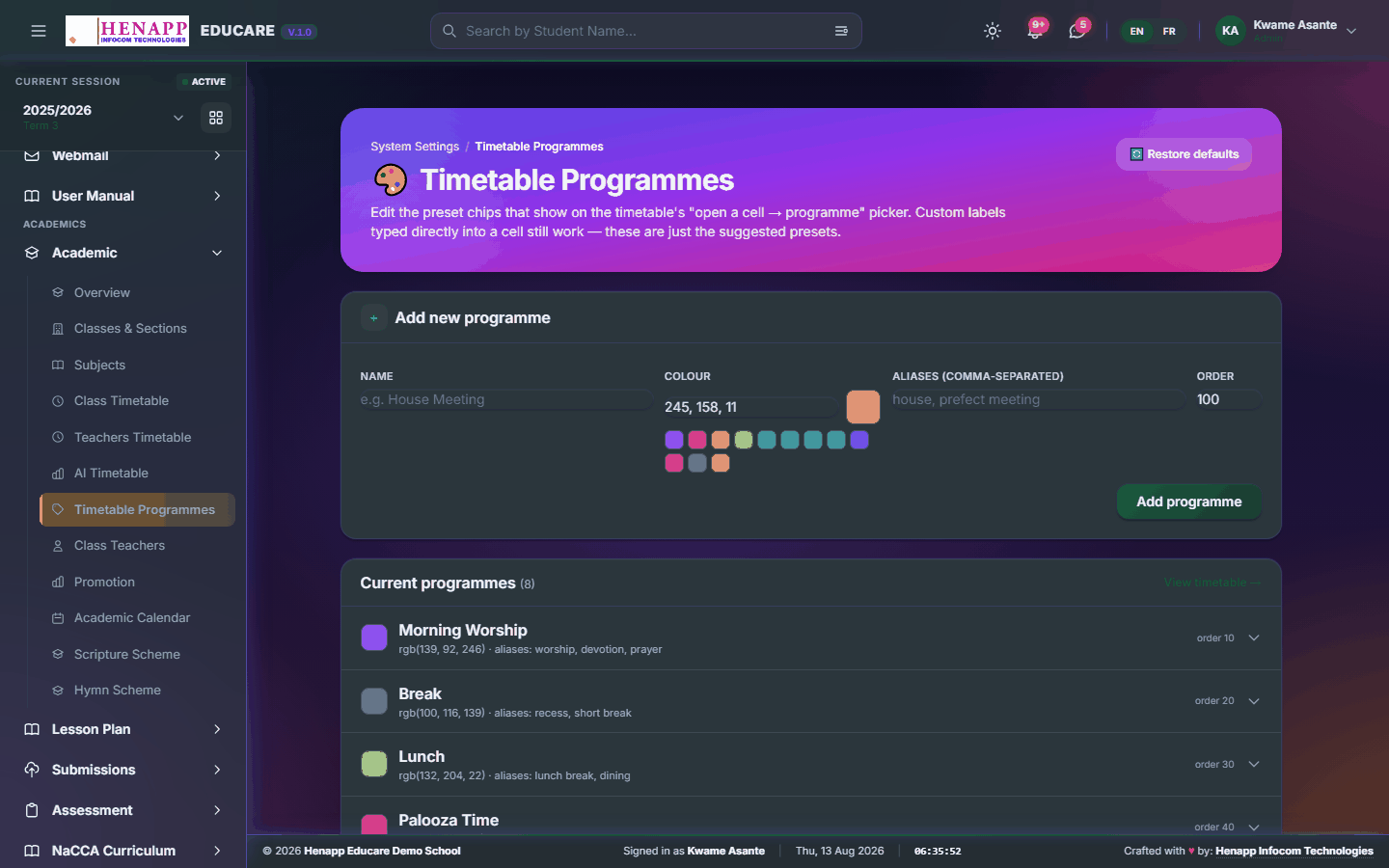
How to use it
- Open Academic → Timetable Programmes.
- Create a programme and add each period with its start and end time.
- Mark the break and lunch periods so nothing is scheduled into them.
- Assign the programme to the classes that follow it — lower and upper school often differ.
13.8 Class Teachers
Who owns each class — the class teacher and their assistant. This assignment is what grants register and class-list access.
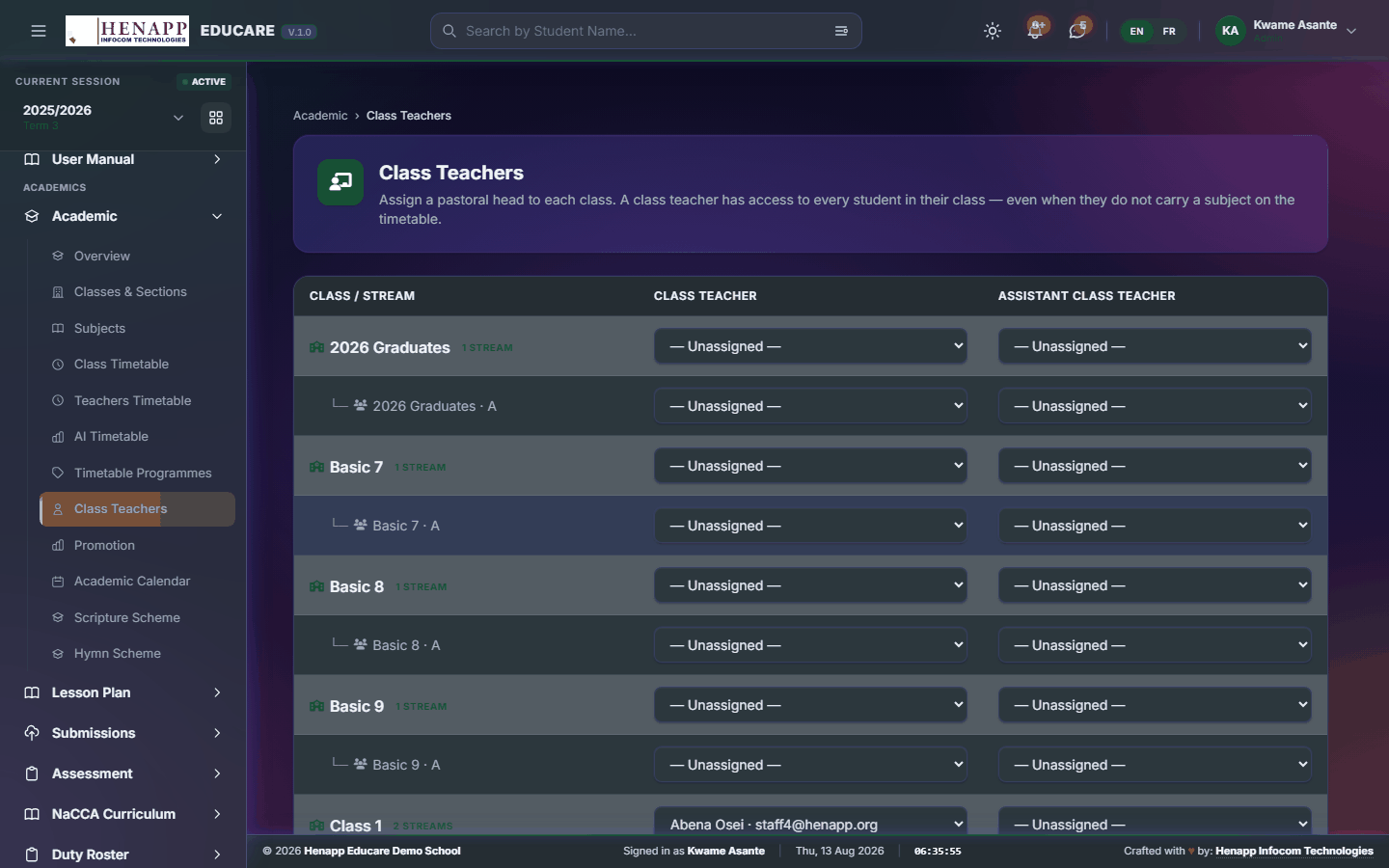
How to use it
- Open Academic → Class Teachers.
- Pick the class and stream.
- Choose the class teacher, and an assistant if there is one.
- Save. Both now have the same register and class-list access.
Marking a teacher here is what lets them mark that register and see that class list. If a teacher reports they cannot mark attendance, check this page first.
13.9 Academic Calendar
The school calendar — terms, holidays, examinations, events — published to staff, parents and the website.
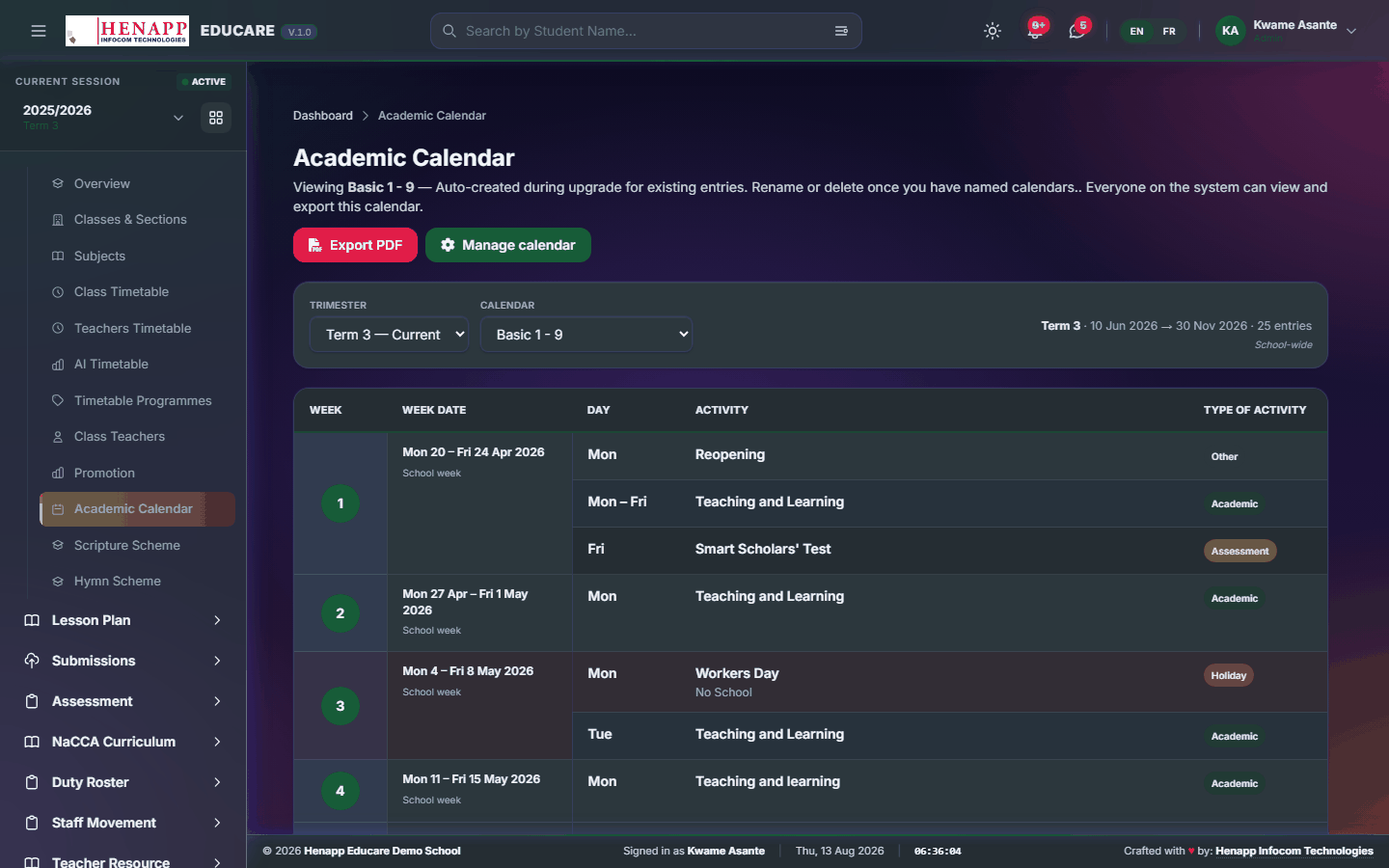
How to use it
- Open Academic → Academic Calendar.
- Click a date to add an event; give it a title, type and whether it runs all day.
- Choose who sees it — staff only, or parents and learners too.
- Save. Published events appear on dashboards and on the public website.
- Use Print for a term calendar on your letterhead.
13.10 Scripture Scheme
The scripture of the week, scheduled ahead and shown on dashboards and the website.
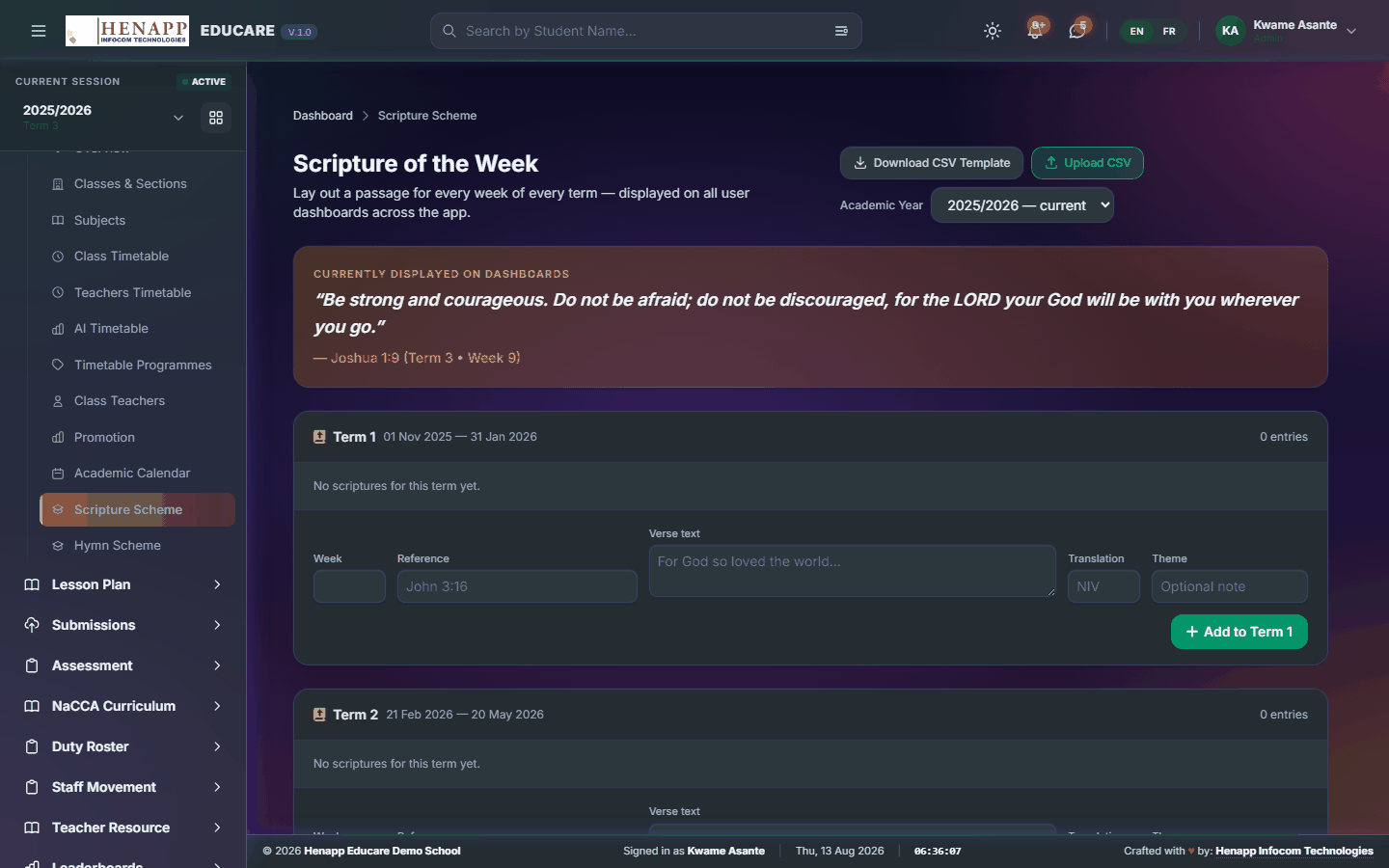
How to use it
- Open Academic → Scripture Scheme.
- Add an entry per week with its reference and text.
- Save. The current week's scripture appears automatically.
13.11 Hymn Scheme
The hymn of the week, with words and, where uploaded, the tune to play.

How to use it
- Open Academic → Hymn Scheme.
- Add the hymn for each week with its number and words.
- Attach an audio file if you have one — a play button then appears with the hymn.
14. Lesson Plan
The teaching-planning chain, from the year's scheme of work down to the notes for a single lesson — and the tracker that shows who has submitted what.
Find it in the sidebar under Academics → Lesson Plan.
14.1 Yearly Scheme
The scheme of work for a whole year: what each subject covers, week by week. Everything below it is planned against this.

How to use it
- Open Lesson Plan → Yearly Scheme.
- Choose the class and subject.
- Click Add Scheme, then set the term and week and describe the content for that week.
- Repeat for each week, or upload a prepared file if your school works from one.
- Save. The scheme becomes the backbone the weekly forecast is checked against.
14.2 Weekly Forecast
The coming week in detail — what you intend to teach, drawn from the yearly scheme.
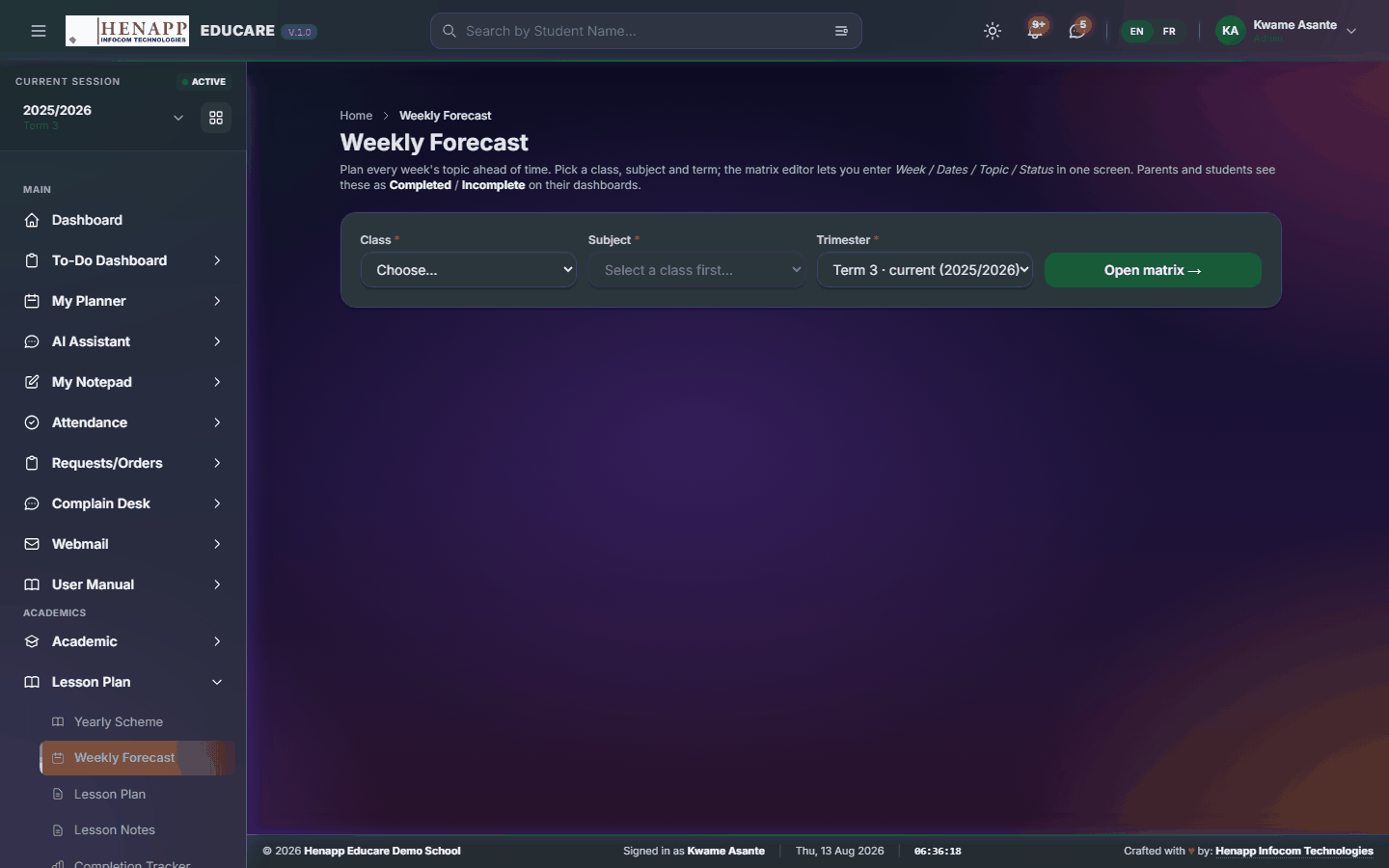
How to use it
- Open Lesson Plan → Weekly Forecast.
- Choose the class, subject and week.
- Fill in what will be covered and the resources you will need.
- Save, then Submit when it is ready for your supervisor.
- A returned forecast comes back with a comment — correct it and submit again.
14.3 Lesson Plan
Your lesson plans themselves — written in the system or uploaded as documents, then submitted for approval.
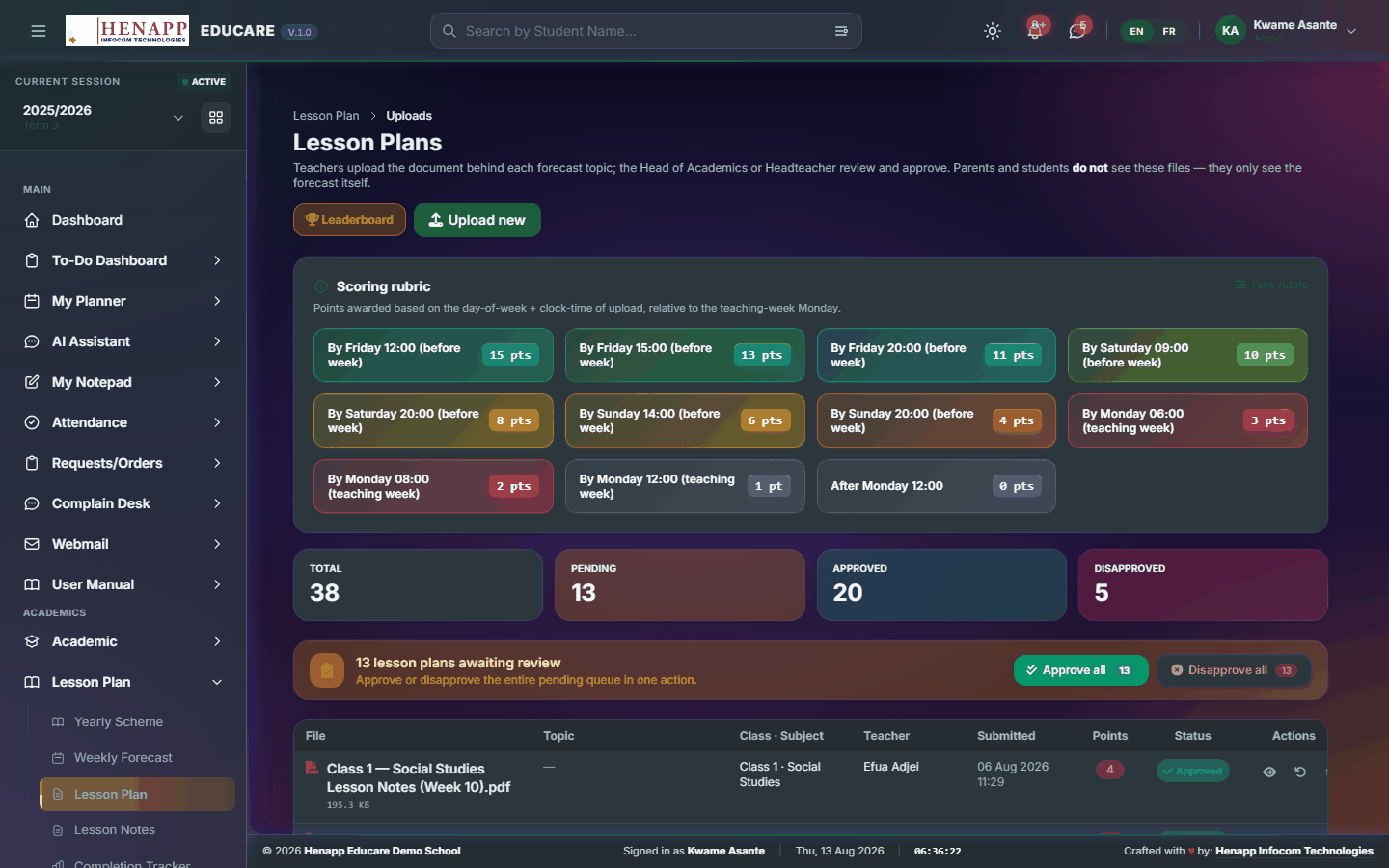
How to use it
- Open Lesson Plan → Lesson Plan.
- Click New, choose the class, subject and week.
- Write the plan, or attach the document you prepared.
- Click Submit to send it for approval. It stays editable while it is still a draft.
- Watch its status: Submitted, Approved, or Returned with comments.
14.4 Completion Tracker
Who has submitted and who has not, across every teacher and subject. This is the supervisor's view.
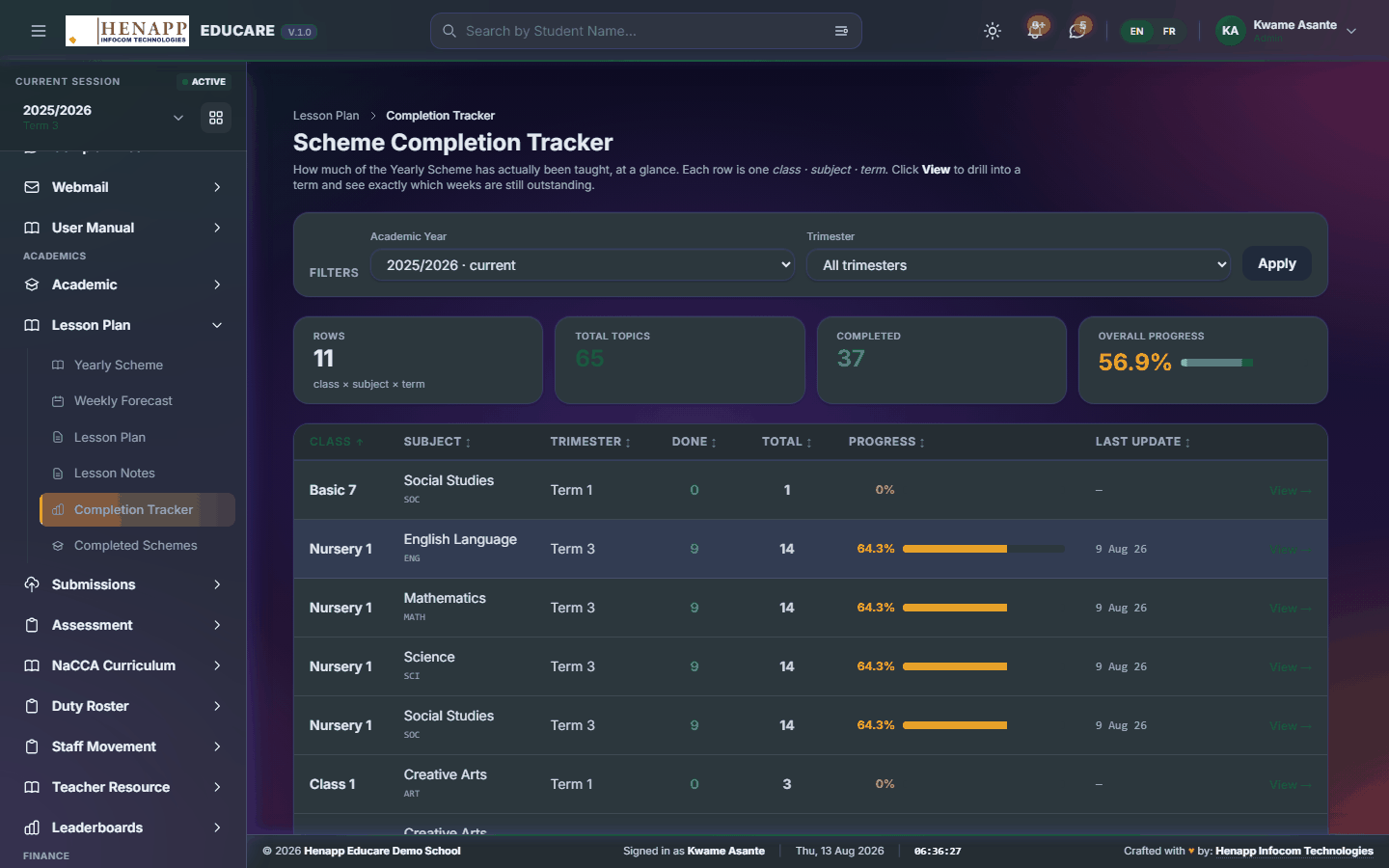
How to use it
- Open Lesson Plan → Completion Tracker.
- Choose the term and week.
- The grid shows each teacher against each expected submission — green where it is in, blank where it is not.
- Click a cell to open that submission and approve it or return it with a comment.
- Export the grid when you need it for a staff meeting.
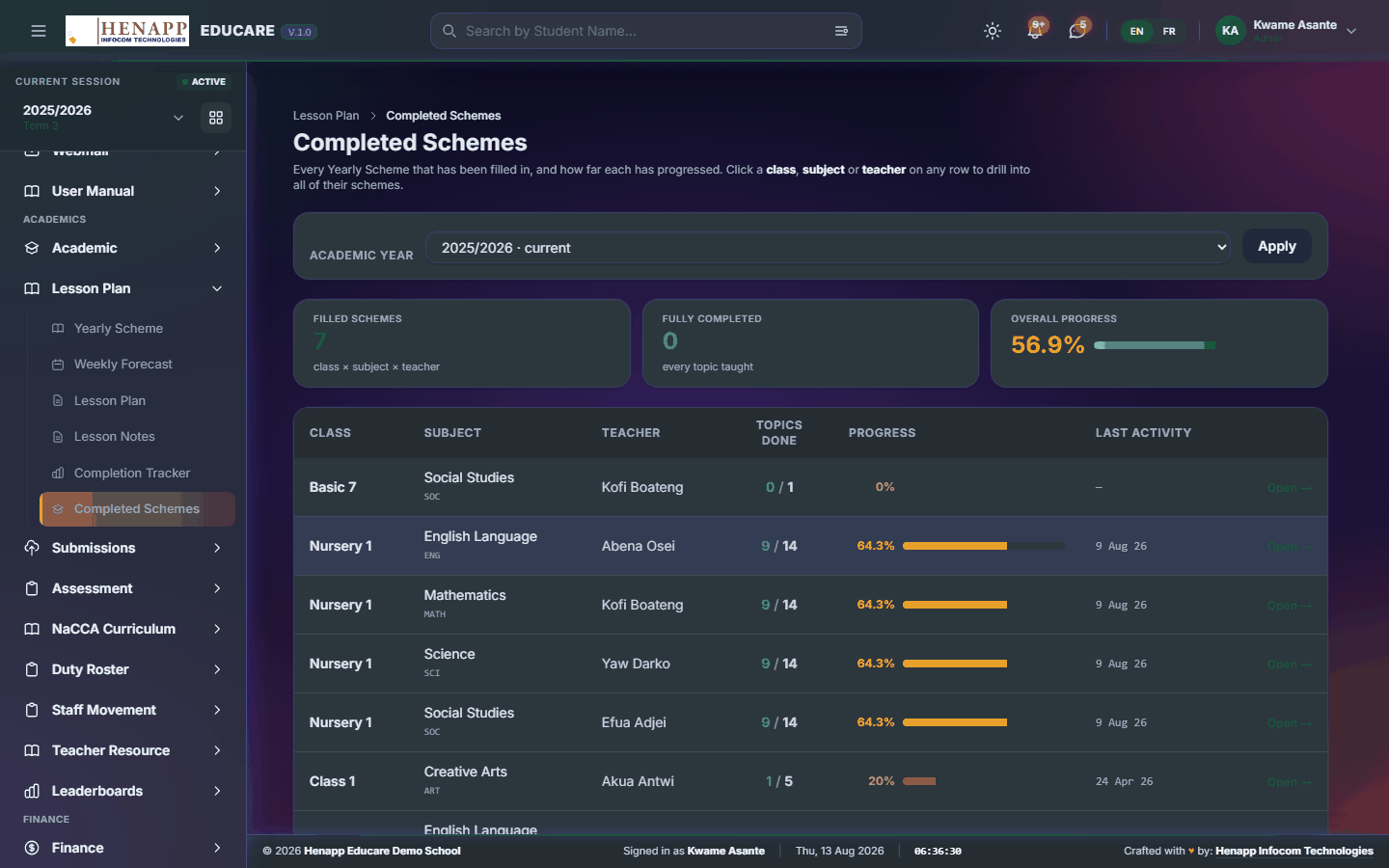
14.5 Completed Schemes
Schemes of work that have been marked complete for the term — the archive side of the tracker.
How to use it
- Open Lesson Plan → Completed Schemes.
- Filter by class, subject or term.
- Open any entry to read what was submitted and when.
15. Submissions
The one board where teachers hand in documents and supervisors see, at a glance, what is still outstanding.
Find it in the sidebar under Academics → Submissions.
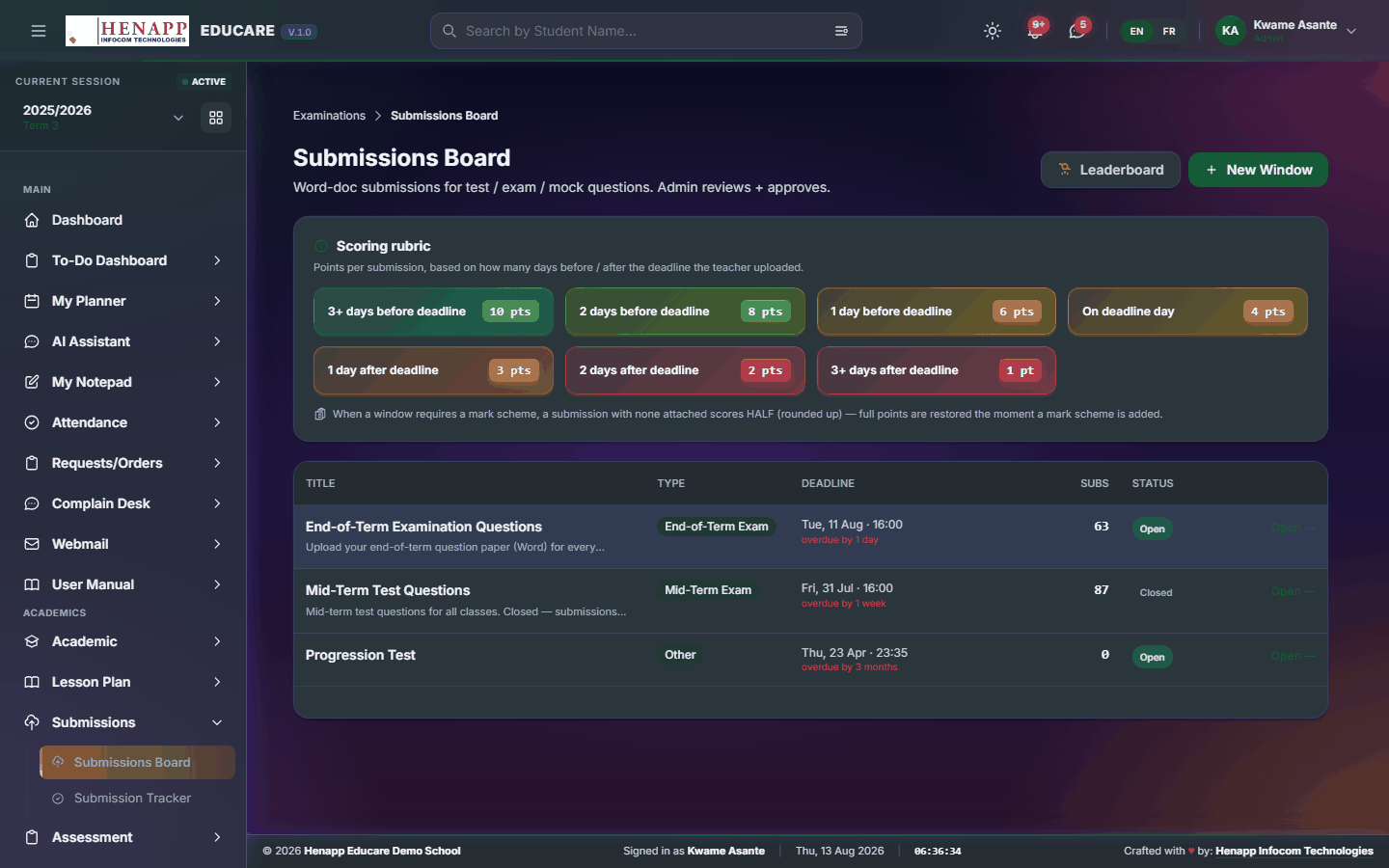
15.1 Submissions Board
One board for handing in documents the school asks staff for — question papers, mark sheets, reports — each with a deadline.
How to use it
- Open Submissions → Submissions Board.
- Each card is something you have been asked to submit, with its due date.
- Click Upload on the card and choose your file.
- Confirm the card now shows as submitted. Re-upload to replace a file before the deadline.
15.2 Submission Tracker
The supervisor's grid: every expected submission against every member of staff, so gaps are obvious without chasing.

How to use it
- Open Submissions → Submission Tracker.
- Choose the term and the submission type.
- Read the grid — submitted, late and missing are colour-coded.
- Click any cell to open the file that was handed in.
- Export the grid for a meeting, or send a reminder to everyone still outstanding.
16. Assessment
Everything between a mark and a printed report card: entering scores, verifying them, setting grade schemes, and producing report cards, cumulative records and promotion decisions.
Set the grade scheme and report-card settings first, enter scores next, verify them, and only then generate report cards. Changing a grade scheme after cards are printed changes what the next print shows.
Find it in the sidebar under Academics → Assessment.
16.1 Dashboard
The assessment home page — where the current term stands: what has been entered, what is still missing, and what is ready to publish.

How to use it
- Open Assessment → Dashboard.
- The cards show entry progress for the current term.
- Click through any card to the class or subject behind it.
16.2 Entries
The four score-entry pages, grouped. Everything a teacher types in during the term lives under here.
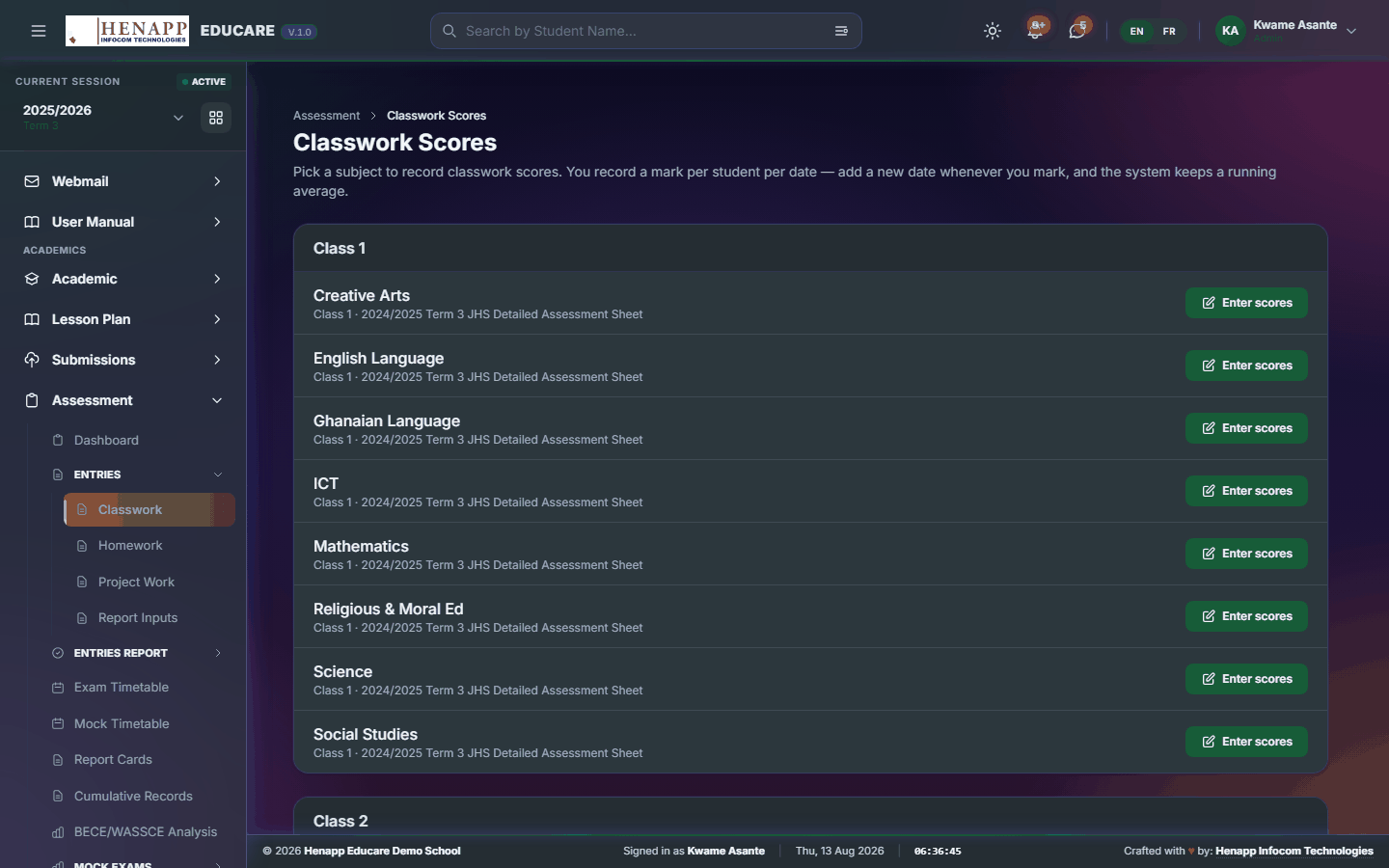
16.2 Classwork
Classwork marks — the continuous-assessment component recorded as the term goes along.
How to use it
- Open Assessment → Entries → Classwork.
- Choose the class, stream and subject.
- Type each learner's mark. Entries save as you go, so you can stop and come back.
- Mark a learner Absent rather than leaving a blank — a blank reads as "not yet entered".
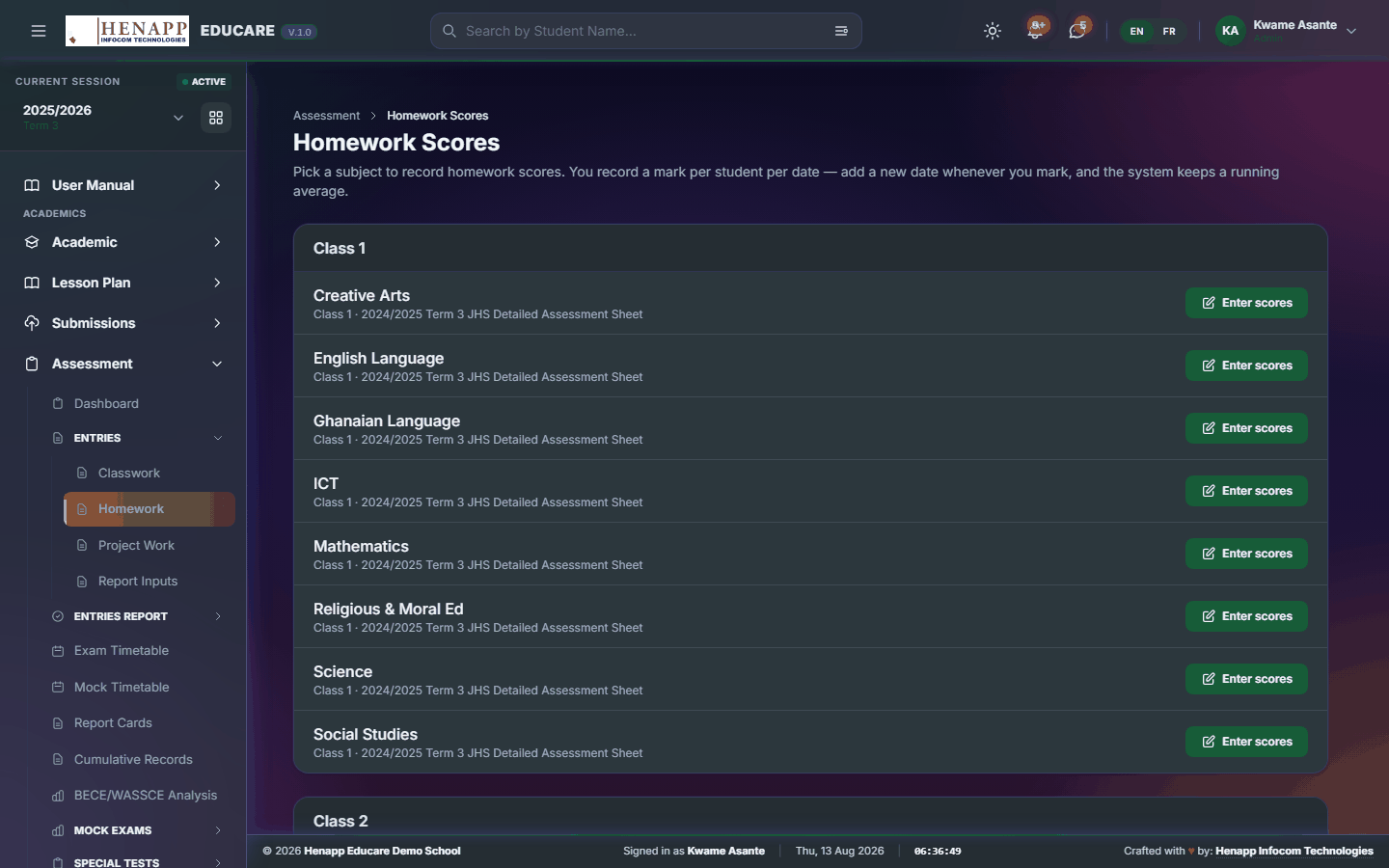
16.2 Homework
Homework marks, recorded the same way as classwork and carried into the same composite.
How to use it
- Open Assessment → Entries → Homework.
- Choose the class, stream and subject.
- Enter each mark; the grid saves as you type.
16.2 Project Work
Project-work marks for subjects assessed by project rather than by written test.
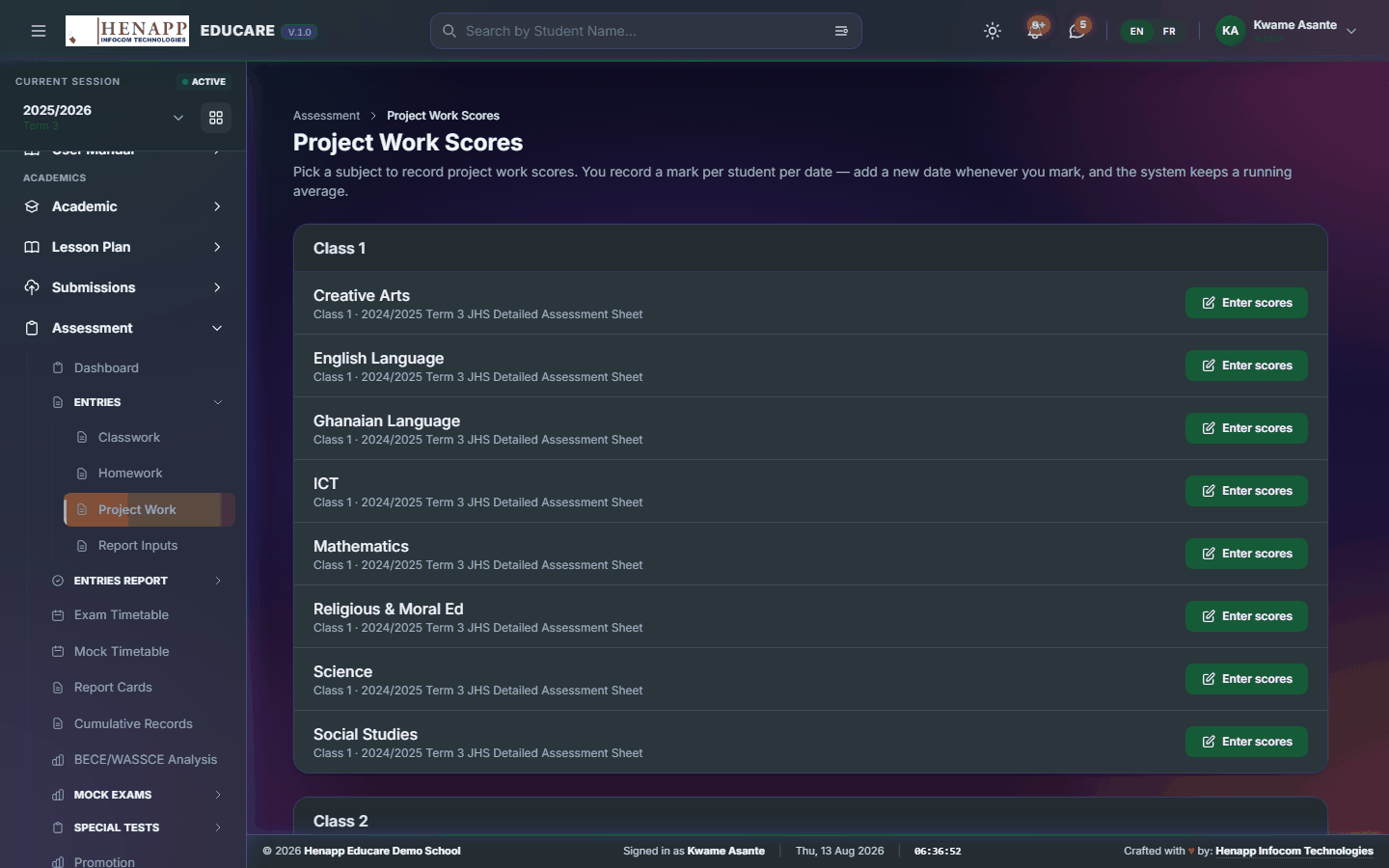
How to use it
- Open Assessment → Entries → Project Work.
- Choose the class, stream and subject, then enter the marks.
16.2 Group Work
Group work — marks awarded to a group of learners together rather than one by one.
How to use it
- Open Assessment → Entries → Group Work.
- Choose the class, stream and subject.
- Put the learners into their groups, then enter one mark for each group.
- Every member of a group receives that group's mark.
16.2 Class Test
Marks for a class test, entered the same way as any other score sheet.
How to use it
- Open Assessment → Class Test Scores.
- Choose the class, stream and subject, then the test.
- Type each learner's mark. The grid saves as you go.
- Mark absentees Absent rather than zero.
16.2 Exam Scores
The main scoresheet — the marks that actually print on the report card, entered per subject for the term.

How to use it
- Open Assessment → Entries → Exam Scores.
- Choose the class, stream and subject to open its sheet.
- Enter the mark for each learner in each column. The maximum for a column is shown in its heading and a higher number is refused.
- Mark absentees Absent rather than zero — an absence is treated as satisfied, a zero counts against the learner.
- The sheet saves as you type; the progress indicator shows how much is still blank.
A sheet exists only where the class, subject and assessment template line up for the current term. If the page says there is nothing to enter, check the term in the top bar, then that you are assigned to that subject.
16.3 Entries Report
The verification side of score entry — what has been completed, and the check teachers run before results are published.
16.3 Output of Work
A summary of the work produced per class and subject, used to confirm coverage before results go out.
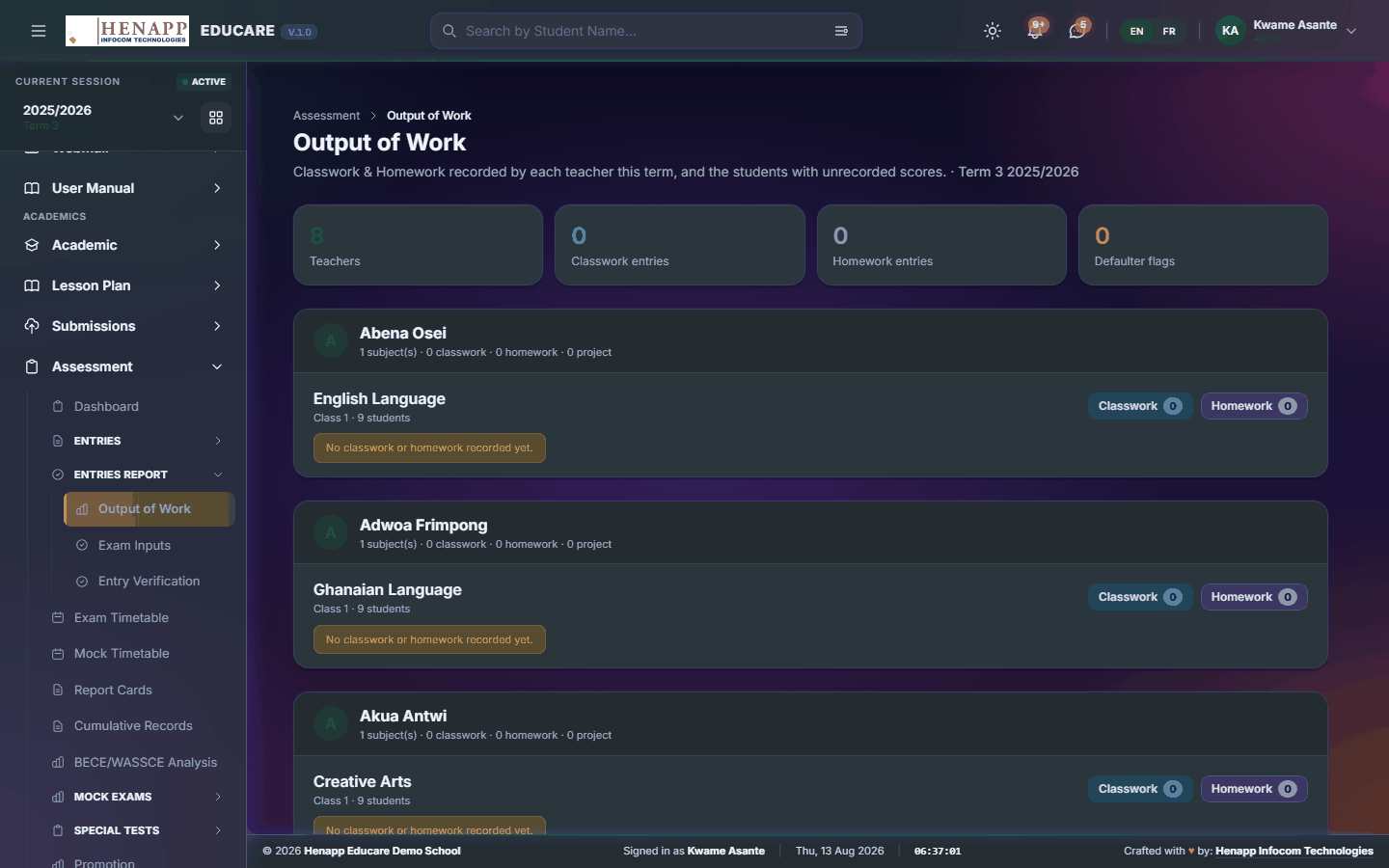
How to use it
- Open Assessment → Entries Report → Output of Work.
- Choose the term and class to see what has been recorded.
16.3 Exam Inputs
Which subjects have a complete set of exam marks and which are still short — the gap list before publishing.
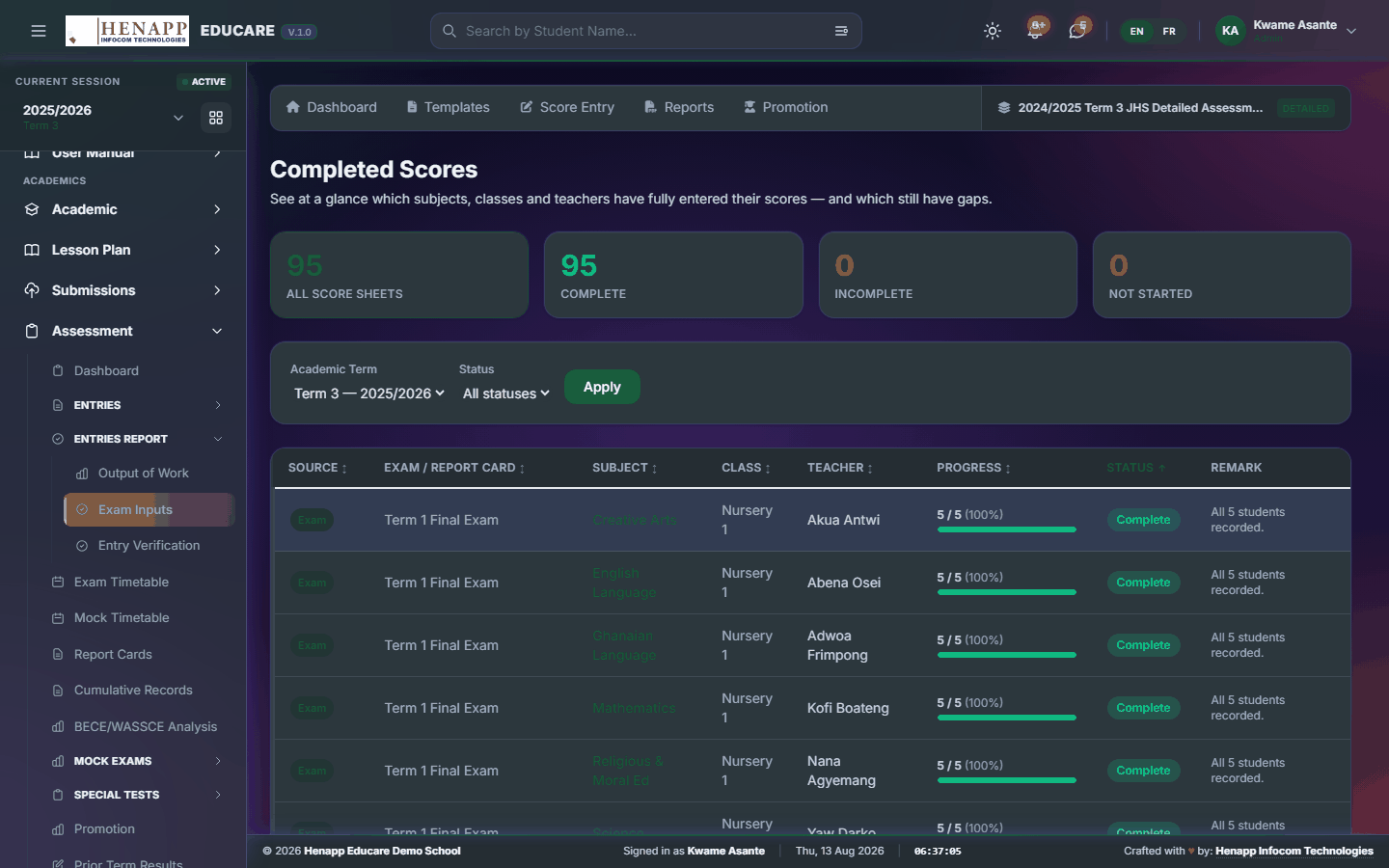
How to use it
- Open Assessment → Entries Report → Exam Inputs.
- Choose the class and term.
- Anything not complete is flagged; click through to the sheet to finish it.
16.3 Entry Verification
A read-only check of the marks recorded against your name, so you can confirm they are right before report cards are produced.

How to use it
- Open Assessment → Entries Report → Entry Verification.
- Choose the class and subject.
- Read down the sheet and confirm each mark.
- Report anything wrong to the assessment office — this page does not edit.
16.4 Report Cards
Where report cards are generated, previewed and published — one learner, a whole class, or the school.
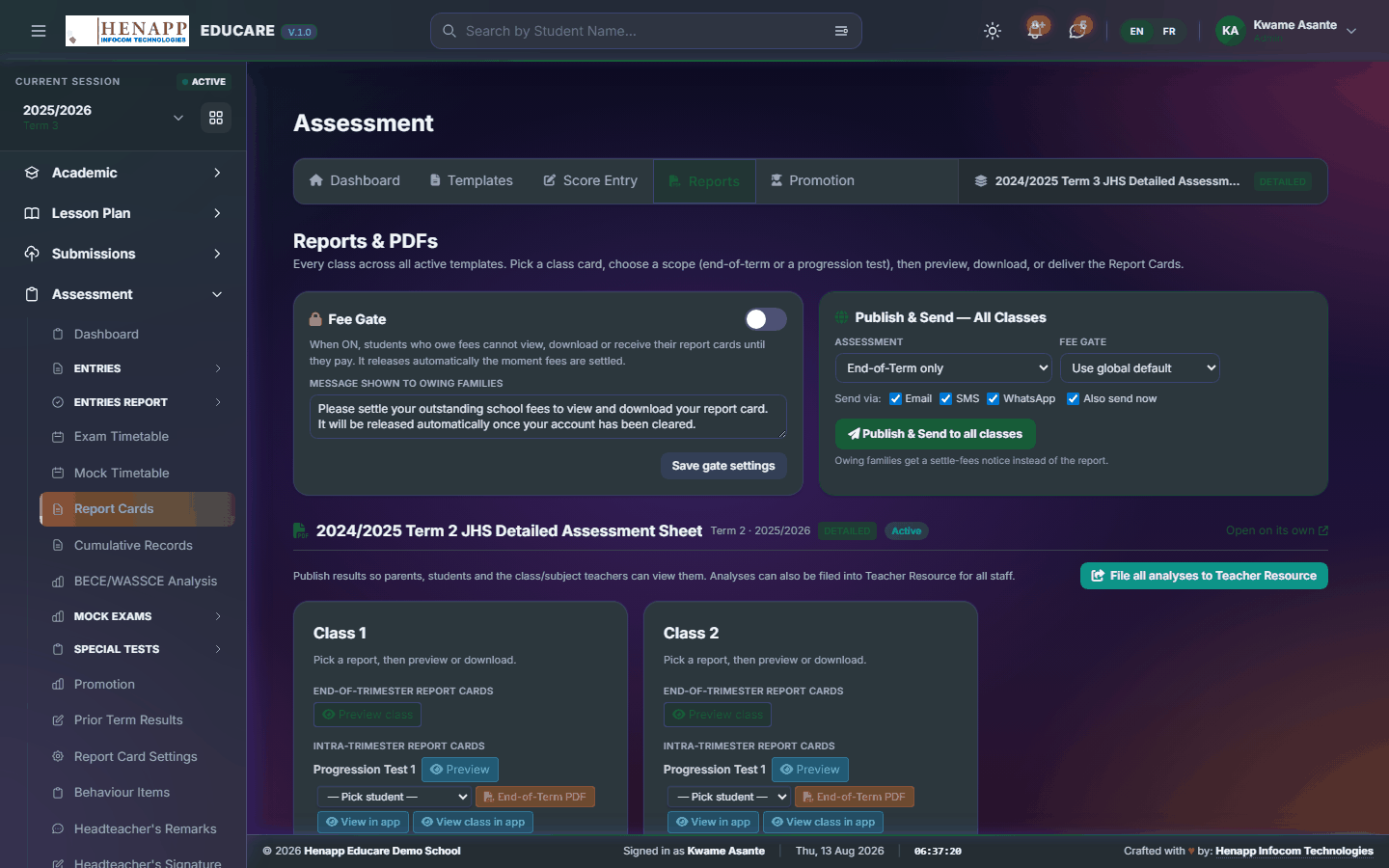
How to use it
- Open Assessment → Report Cards.
- Choose the class, stream and term.
- Preview a single learner first and check the totals, position and remarks read correctly.
- Generate for the whole class when the preview is right.
- Publish to release them to parents, or download the PDF pack to print.
Always preview a single card first. A wrong grade scheme or a missing subject shows up immediately there and saves reprinting the whole class.
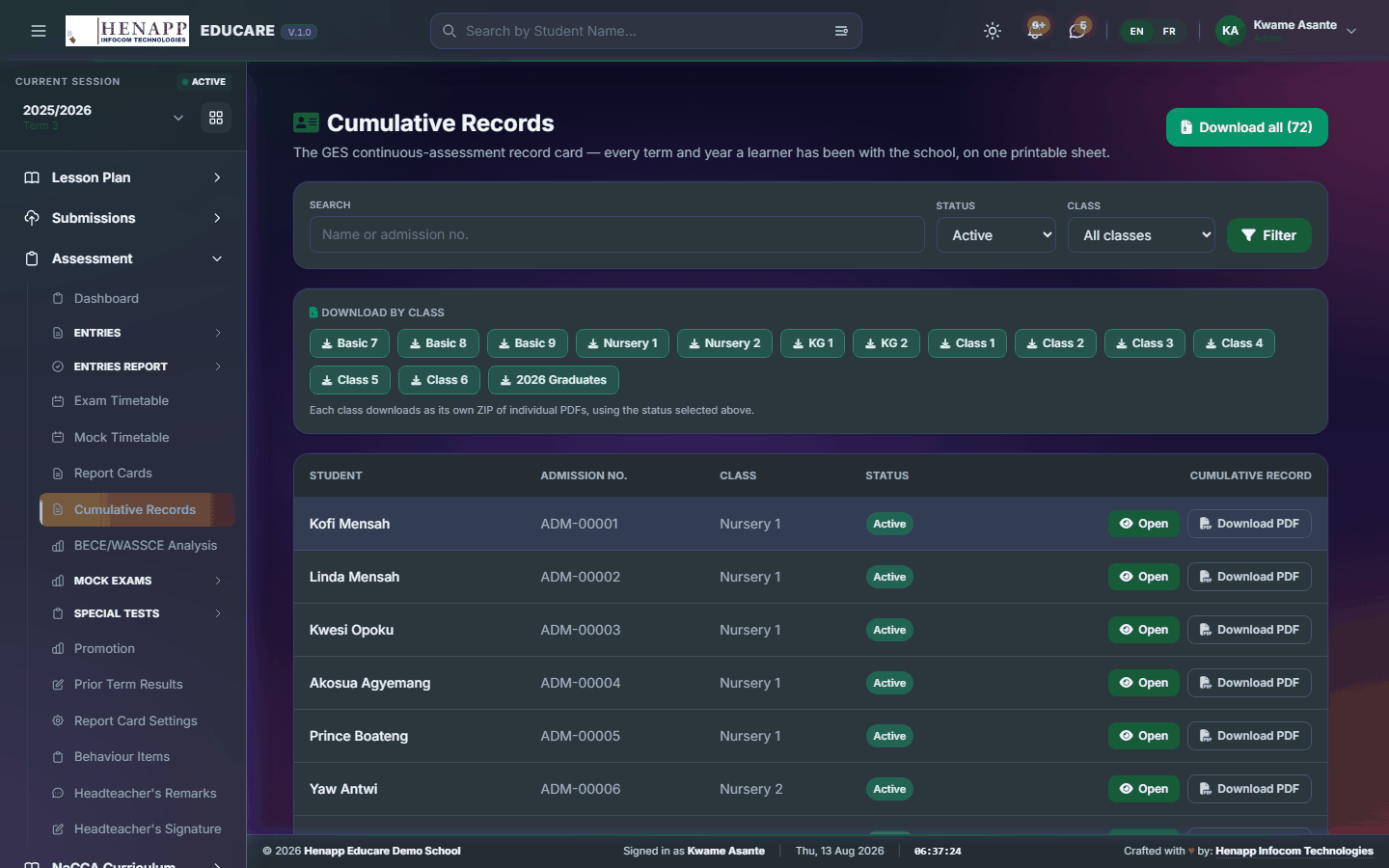
16.5 Cumulative Records
A learner's results across every term and year on one sheet — the record that follows them through the school.
How to use it
- Open Assessment → Cumulative Records.
- Search for the learner, or pick a class to do a whole group.
- Review the record, then export it as a PDF for the file or for a transfer.
16.6 BECE/WASSCE Analysis
Analysis of national examination results — grade spread by subject, pass rates and how each year compares with the last.

How to use it
- Open Assessment → BECE/WASSCE Analysis.
- Choose the year group.
- Enter or import the results.
- Read the charts by subject and grade band, and export the analysis for management.
16.7 Mock Exams
Everything to do with mock examinations, kept apart from the main assessment so mock marks never leak into report cards.
16.7 Mock Analysis
How the cohort performed in the mocks, by subject and grade band — the diagnostic before the real thing.

How to use it
- Open Assessment → Mock Exams → Mock Analysis.
- Choose the mock and the class.
- Read the spread by subject to see where revision is needed most.
- Export the analysis for a staff or parents' meeting.
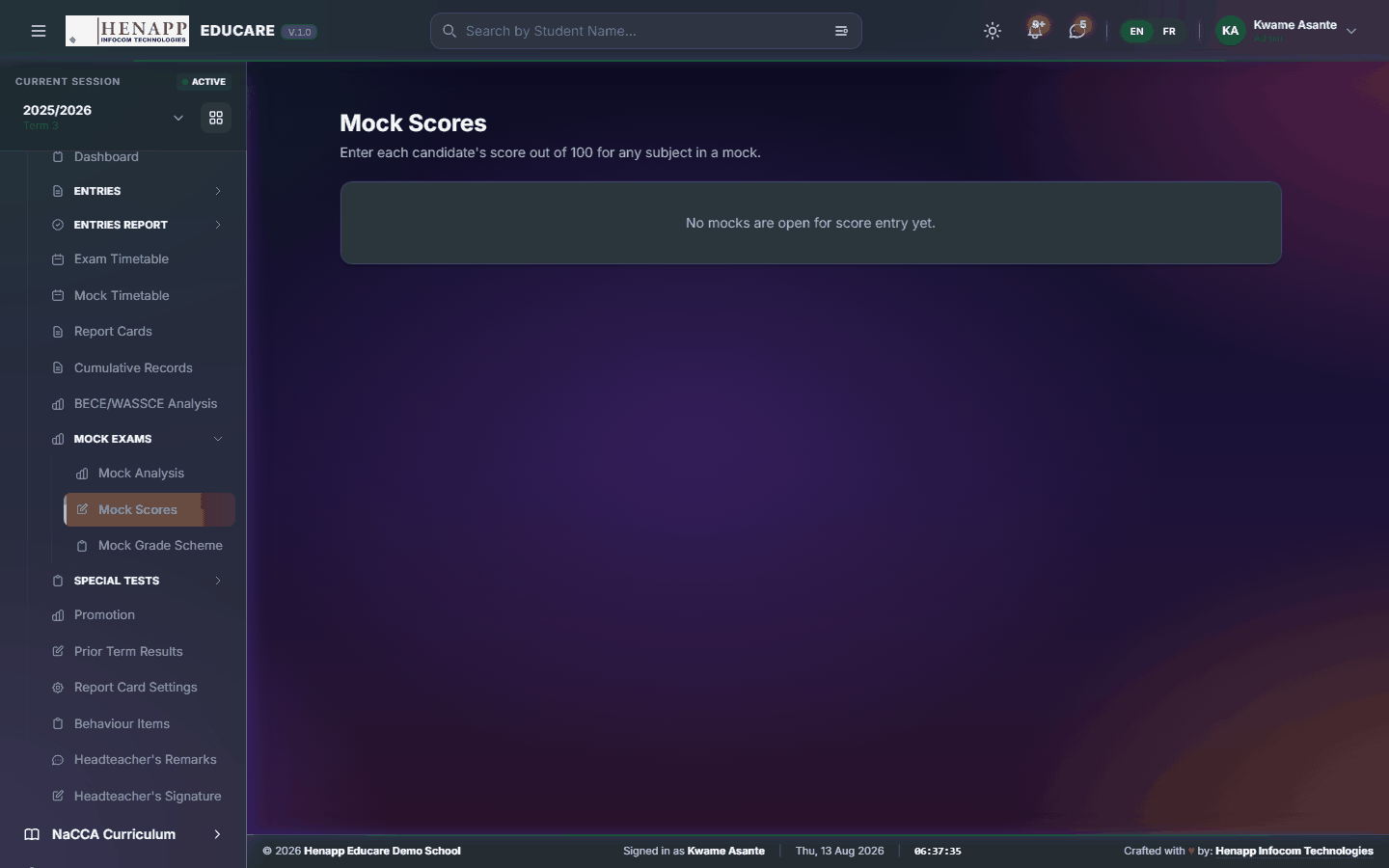
16.7 Mock Scores
Mark entry for mock papers.
How to use it
- Open Assessment → Mock Exams → Mock Scores.
- Choose the mock, class and subject.
- Enter the marks; the sheet saves as you type.
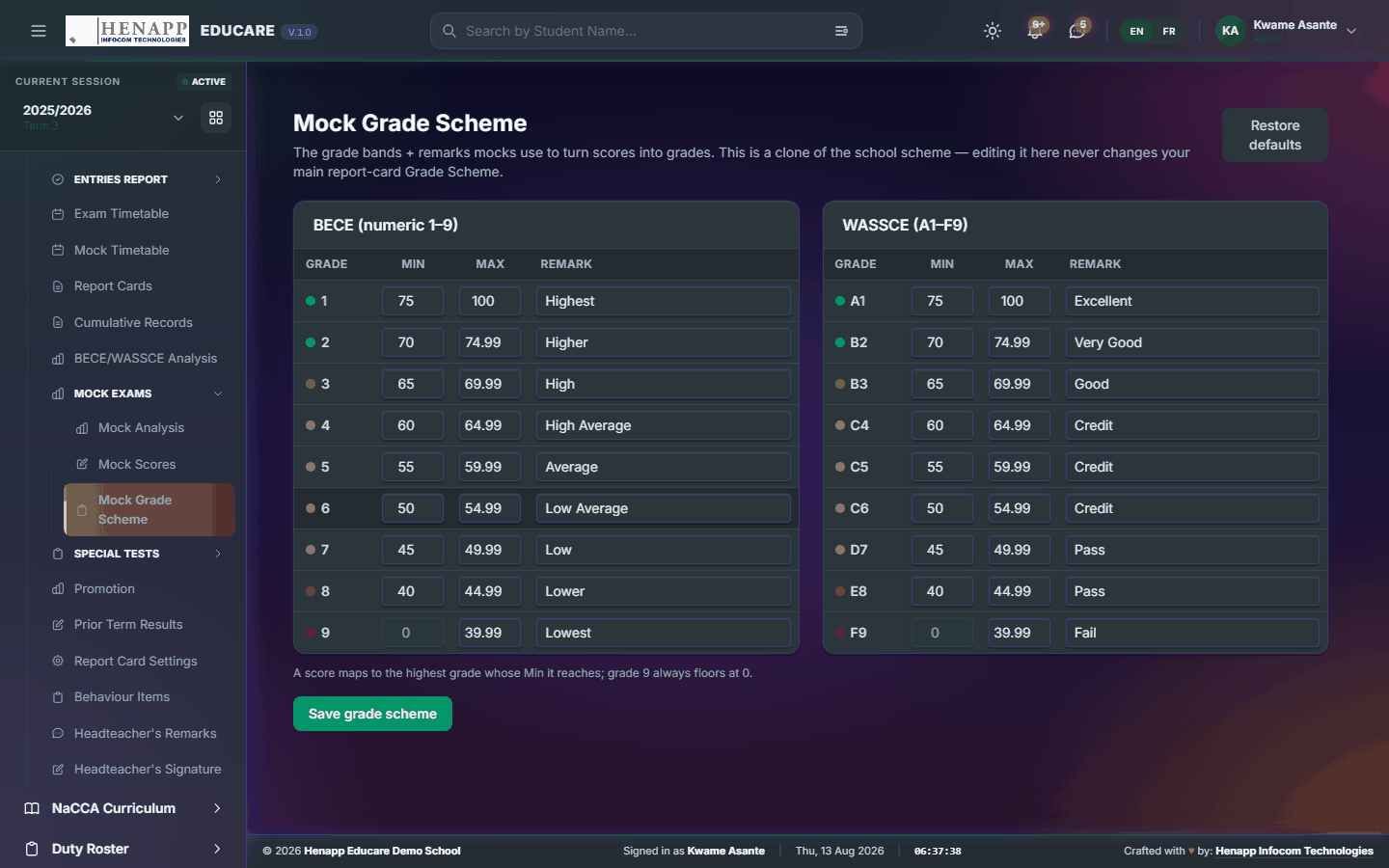
16.7 Mock Grade Scheme
The grade boundaries used for mocks — usually the national bands, kept separate from your internal report-card scheme.
How to use it
- Open Assessment → Mock Exams → Mock Grade Scheme.
- Set the mark range for each grade and the wording that goes with it.
- Save. Mock results are graded against this from then on.
16.8 Special Tests
One-off assessments that sit outside the normal termly cycle — entrance tests, diagnostics, placement papers.
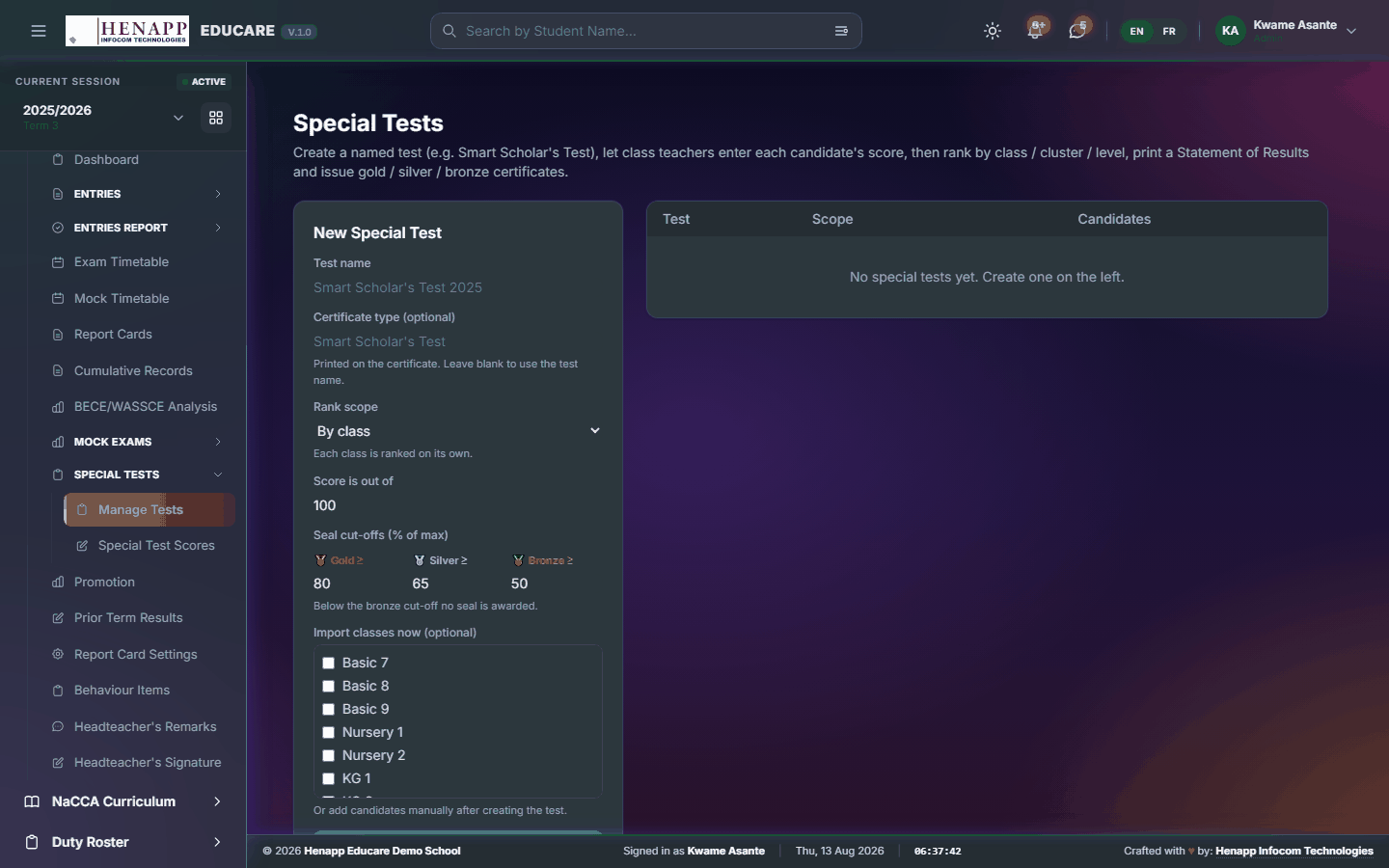
16.8 Manage Tests
Create and manage the special tests themselves.
How to use it
- Open Assessment → Special Tests → Manage Tests.
- Click New Test, name it, and set the class and subject it applies to.
- Set the maximum mark and save.
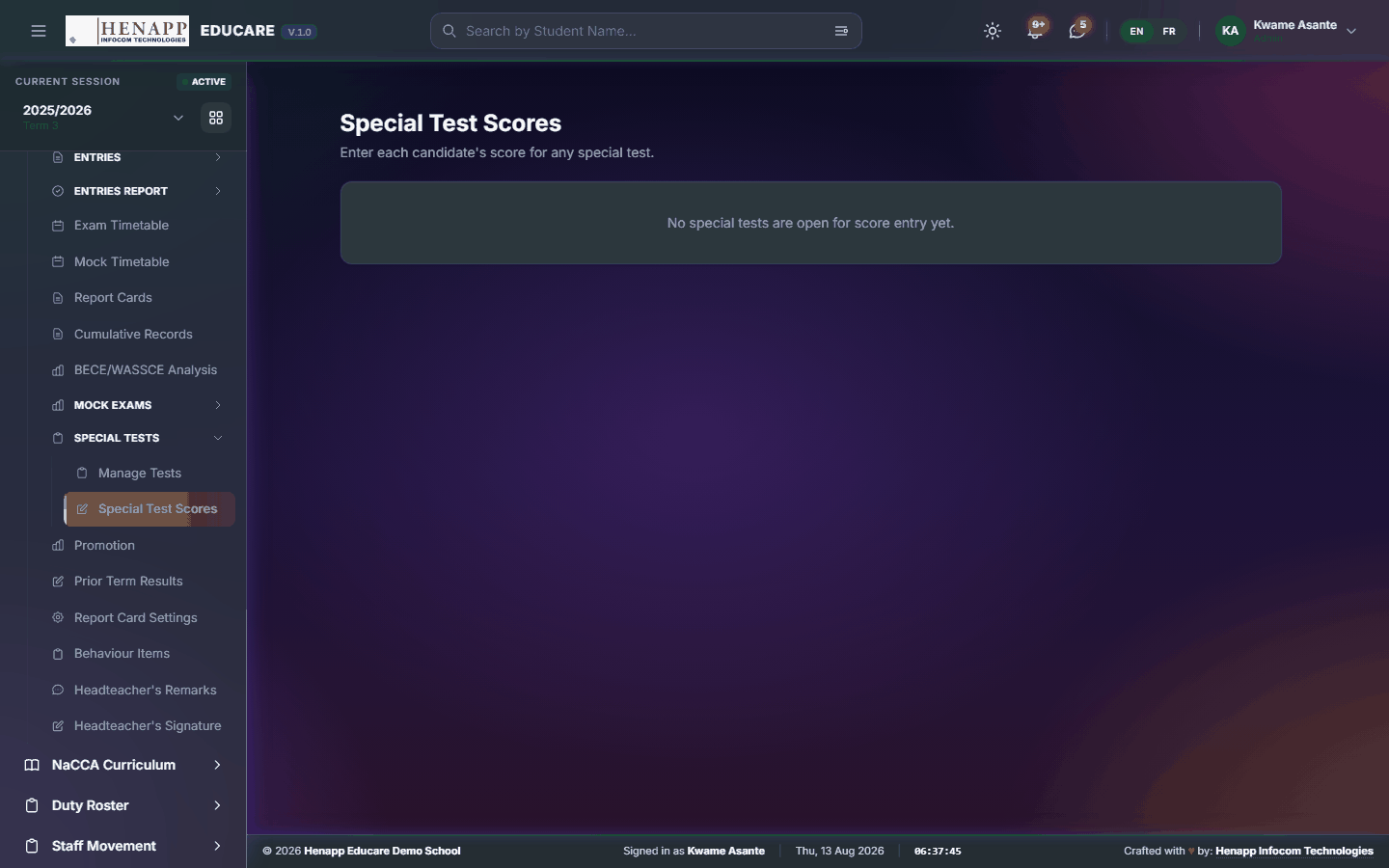
16.8 Special Test Scores
Mark entry for a special test.
How to use it
- Open Assessment → Special Tests → Special Test Scores.
- Choose the test and the class, then enter the marks.
16.9 Class Tests
Set up the class tests a subject runs during the term, so there is somewhere to record their marks.
How to use it
- Open Assessment → Class Tests.
- Click New Test, choose the class and subject, and name the test.
- Set the date and the mark it is out of.
- Save. The test then appears for marks to be entered against.
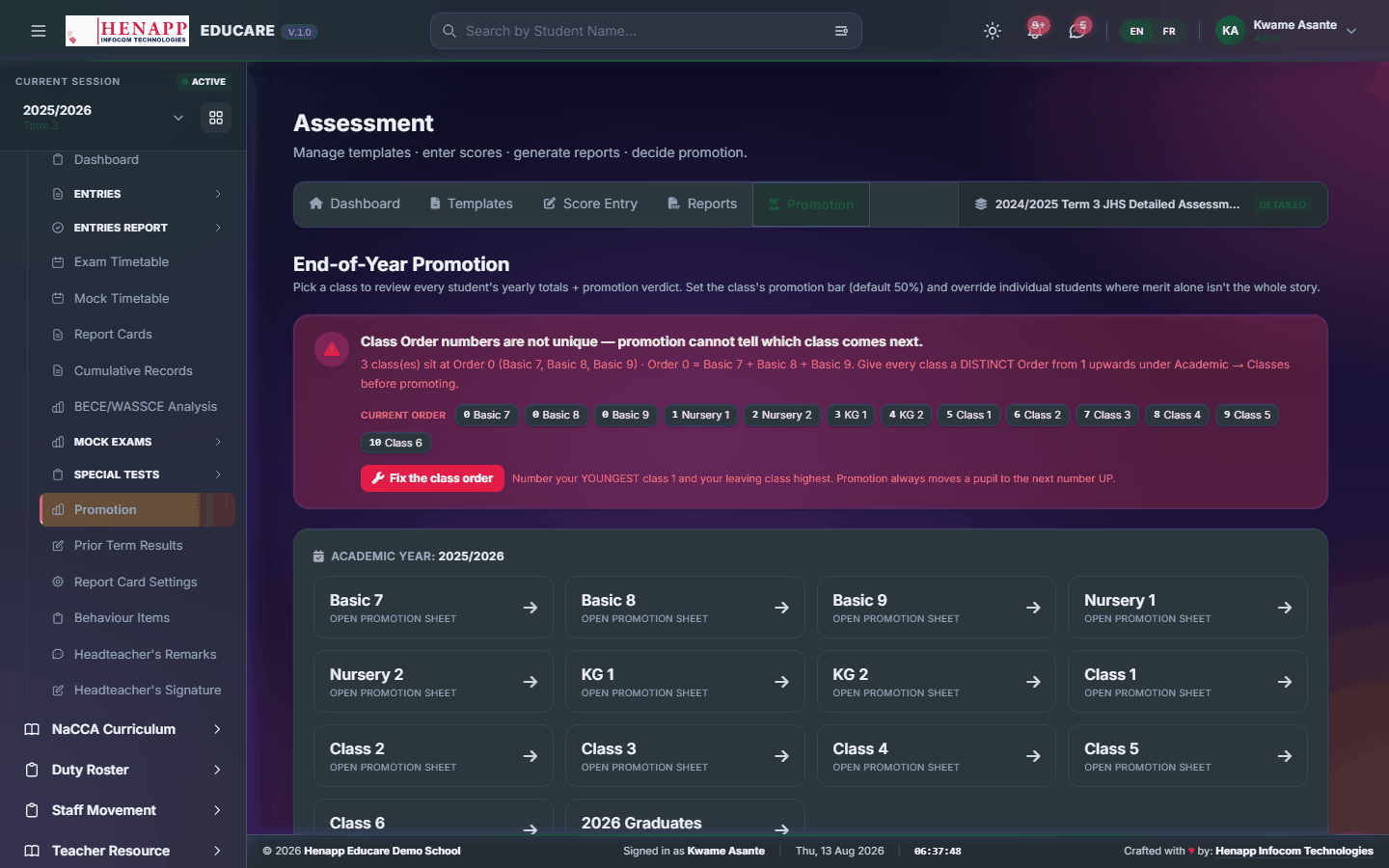
16.10 Promotion
Moving learners up at the end of the year — by pass mark, or class by class where you want to decide individually.
How to use it
- Open Assessment → Promotion.
- Choose the class you are promoting from and the class they move to.
- Set the pass mark, or tick learners individually.
- Review the list carefully — this is the step that changes which class a learner belongs to.
- Confirm to promote. Repeat class by class, working from the top of the school downwards.
Promotion rewrites class membership for the new year. Run it once, in one sitting, and confirm the resulting class lists before anyone starts entering data against them.
Work from the highest class down, so a learner is never promoted twice in one pass.
16.11 Report Card Settings
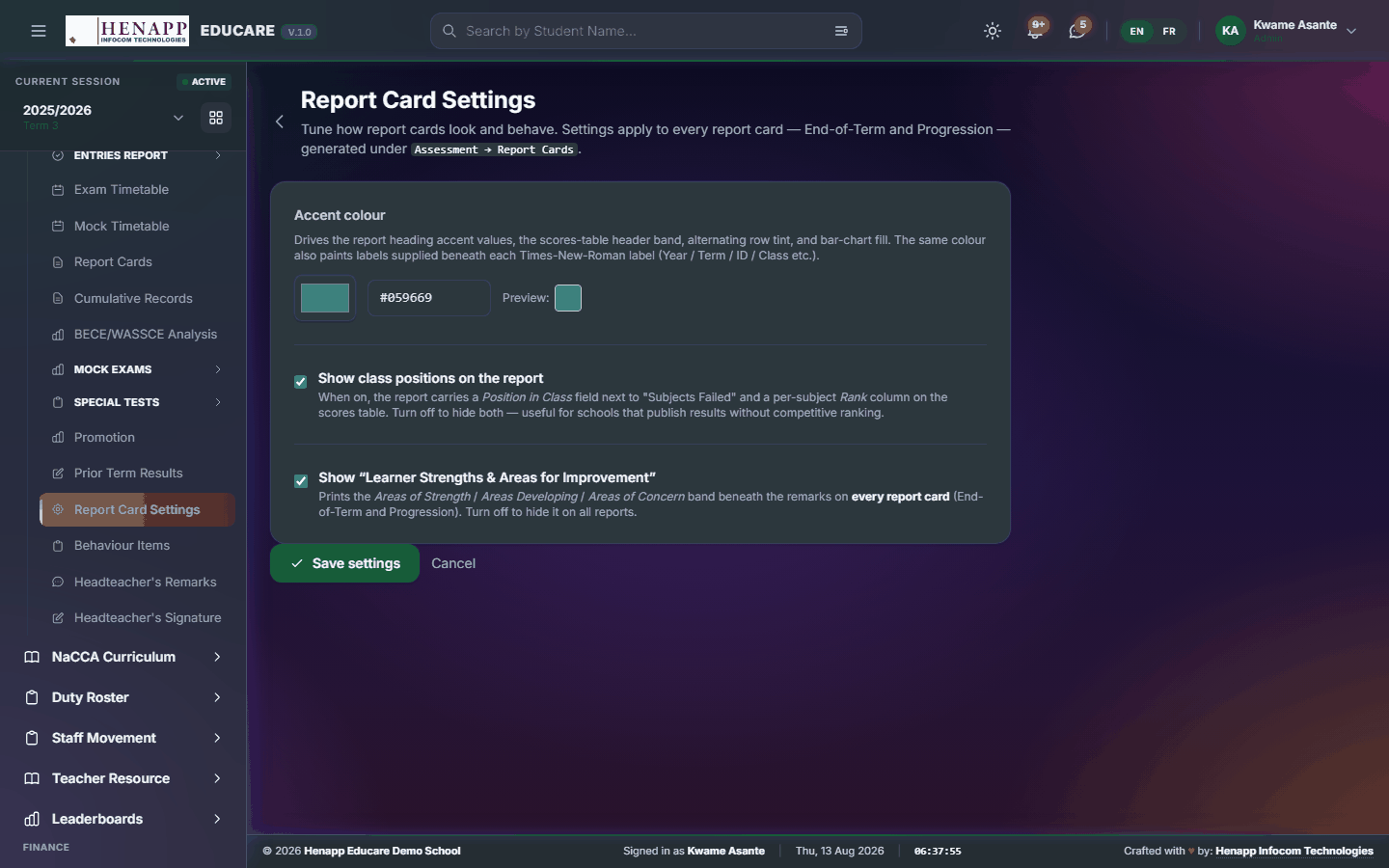
How the report card is put together — which columns appear, how they are weighted, and what prints at the foot of the card.
How to use it
- Open Assessment → Report Card Settings.
- Choose the template for the class group you are configuring.
- Set the assessment columns and their weightings; the totals must come to 100.
- Choose which extras print — attendance, position, effort ratings, the grade key.
- Save, then preview a card to confirm it looks right before a whole class is generated.
The report card is designed to print on a single A4 page. Adding more columns or longer remarks shrinks what is already there rather than spilling onto a second page — preview after any change.
16.12 Behaviour Items
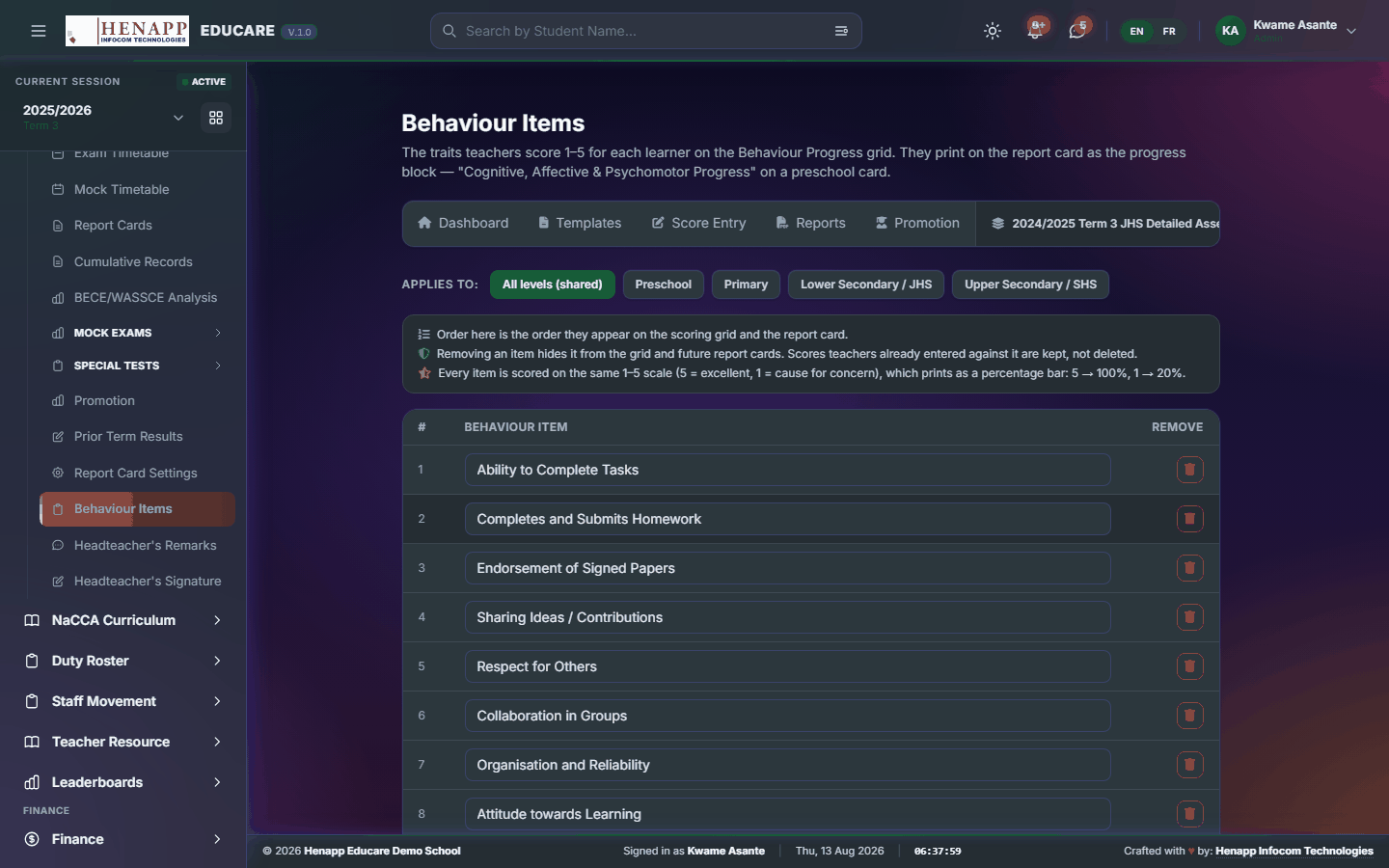
The attitude and effort traits rated on the report card — punctuality, neatness, participation and the like.
How to use it
- Open Assessment → Behaviour Items.
- Add each trait you want teachers to rate.
- Set the rating scale, then save. The traits appear on the scoresheet for teachers to rate.
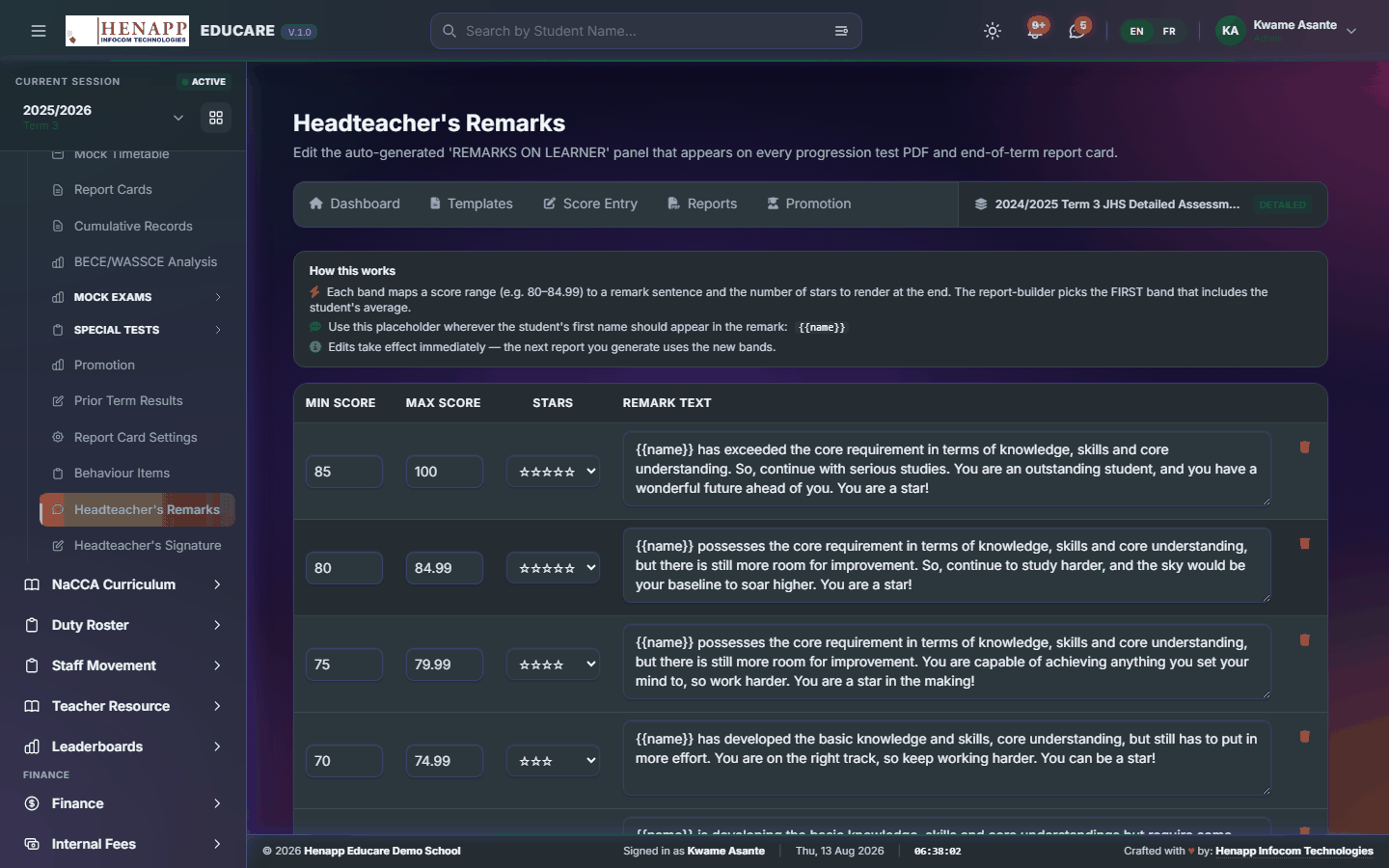
16.13 Headteacher's Remarks
The bank of remarks the head's comment is drawn from, so a whole class can be commented on quickly and consistently.
How to use it
- Open Assessment → Headteacher's Remarks.
- Add remarks and attach each to a grade band or performance range.
- Save. When report cards are generated the matching remark is suggested, and can still be edited per learner.
16.14 Headteacher's Signature
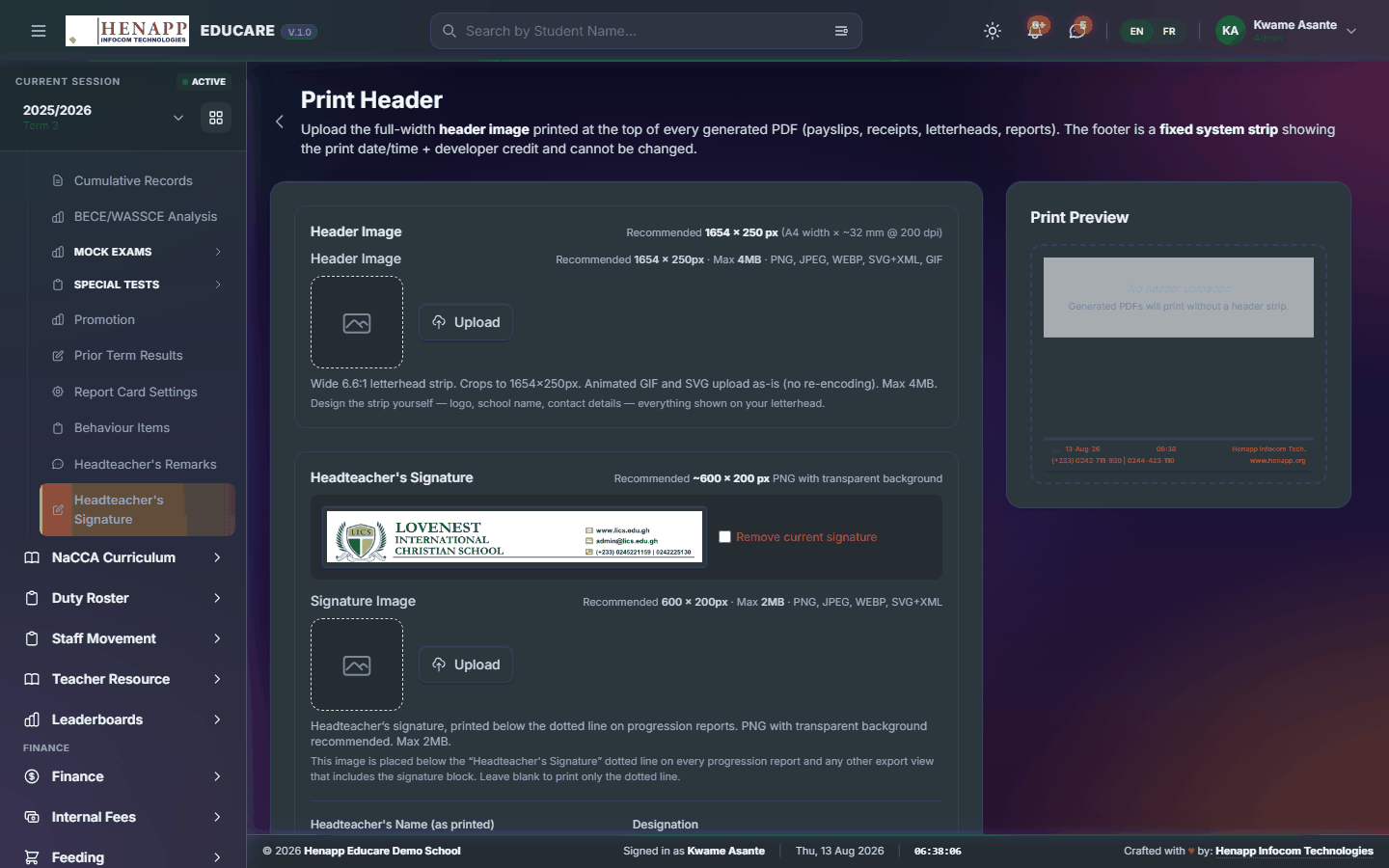
The signature image that prints on report cards, transcripts and certificates.
How to use it
- Open Assessment → Headteacher's Signature.
- Upload the signature — a PNG with a transparent background prints best.
- Save, then preview a report card to check its size and position.
17. NaCCA Curriculum
The NaCCA curriculum as a browsable tree — strand, sub-strand, content standard and indicator — and a generator that turns any set of indicators into ready questions. The questions do not stop there: send them straight into an online exam or a shareable form, or download them with the answer key.
Once questions are generated you have four choices on the same screen: download them as PDF, Word or Excel; add them to a draft online exam, where they are marked automatically; or turn them into a public form anyone can answer from a link.
Find it in the sidebar under Academics → NaCCA Curriculum.
17.1 Curriculum Tree
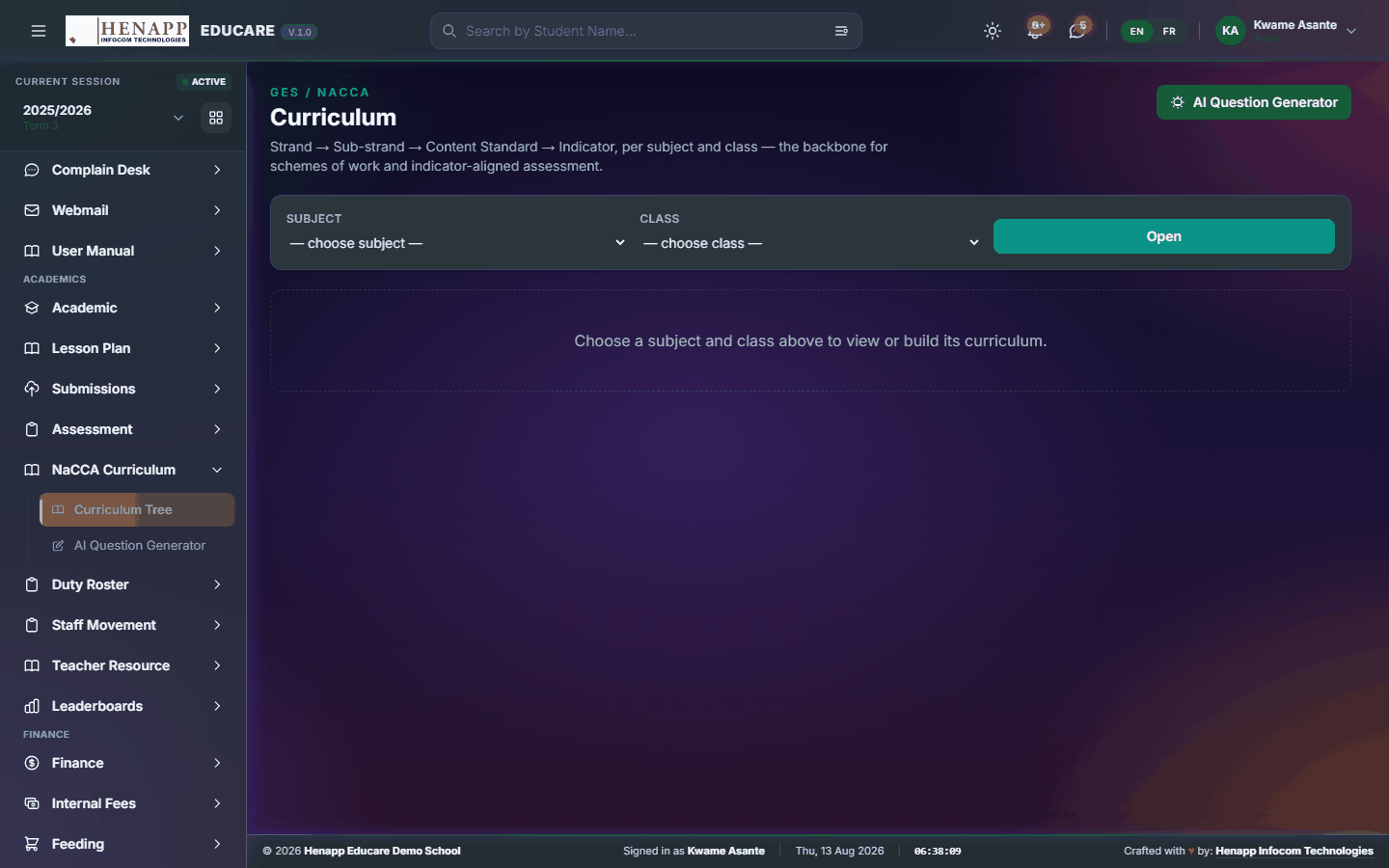
The curriculum as a four-level tree — Strand, Sub-strand, Content standard, Indicator — held per subject and class, so planning and assessment can be tied to the published standard rather than to memory.
How to use it
- Open NaCCA Curriculum → Curriculum Tree.
- Choose the subject and the class at the top. The tree only appears once both are chosen — it is held per subject and class.
- Click a strand to open its sub-strands, then a sub-strand for its content standard and indicators.
- Each entry carries its official code (for example B7.1.1.1.2), which is what the generator, lesson plans and reports quote.
- With edit rights you can add, rename or remove an entry, and import a whole subject from a spreadsheet using the template on the page.
A subject taught in several classes needs its tree for each of those classes, because indicators differ by year group. Import the template rather than typing a whole syllabus in by hand.
17.2 AI Question Generator
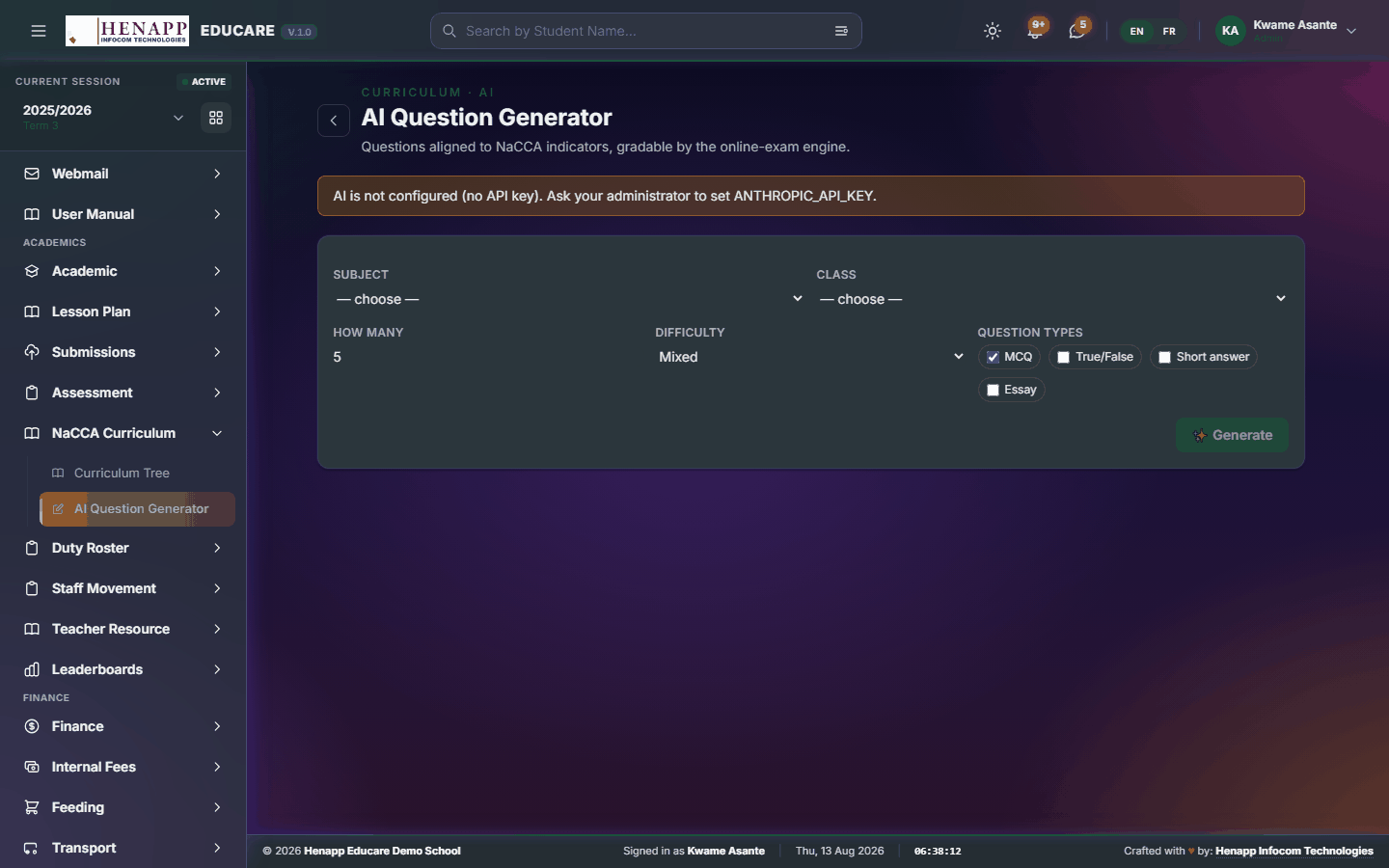
Turns the indicators you tick into ready-made questions with an answer key — then puts them straight into an online exam, a shareable form, or a document. This is where the curriculum, Online Exams and Forms meet.
How to use it
- Open NaCCA Curriculum → AI Question Generator.
- Choose the Subject and the Class. The page then lists that class's indicators as tick-boxes.
- Tick the indicators you want assessed. Leave them all unticked for general coverage of the subject.
- Set how many questions (1 to 20), the difficulty (Easy, Mixed or Hard), and which question types you want — multiple choice, true/false, short answer, essay.
- Click Generate and wait a few seconds.
- Read every question in the review panel before you use any of it. Each one shows its answer, its marks and the indicator it came from.
Generated questions can be ambiguous, wrongly keyed or off-syllabus. You are the teacher — treat this as a first draft that saves typing, not as a finished paper.
Check the marked answer especially. A plausible question with the wrong answer keyed will mark your learners incorrectly, and an online exam marks itself.
18. Duty Roster
Who is on duty, which week — published so staff and management see the same rota.
Find it in the sidebar under Academics → Duty Roster.
18.1 Duty Roster
Who is on duty each week and what the duty covers — published so nobody has to ask.
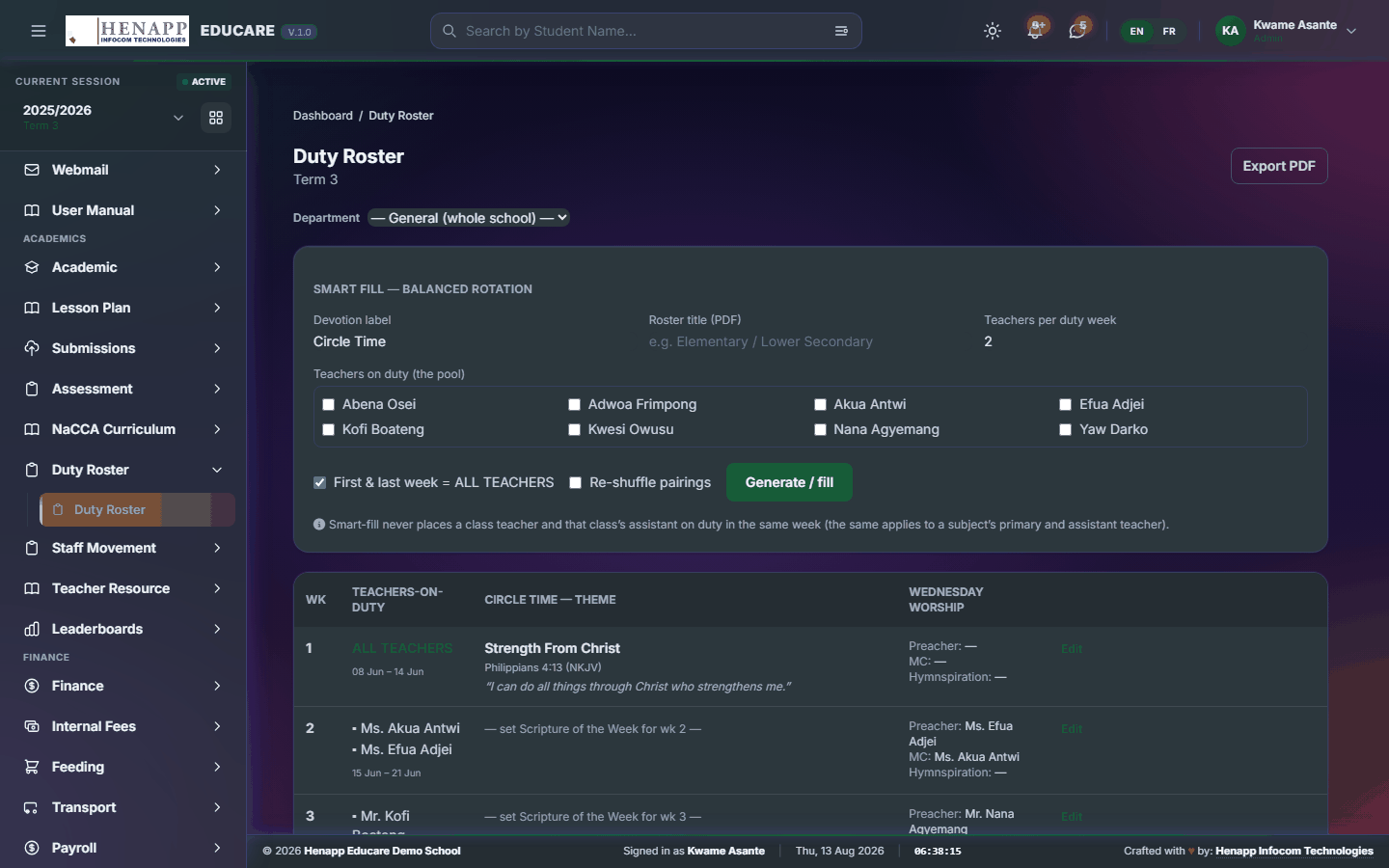
How to use it
- Open Duty Roster.
- Pick the term to see its weeks.
- Assign staff to each week and each duty.
- Save and publish. Staff see their own duty on their dashboard.
- Export the roster as a PDF for the staff room.
19. Staff Movement
Staff leaving the premises during the working day: the request, the approval, the gate record and the reports that come out of it.
Find it in the sidebar under Academics → Staff Movement.
19.1 Requests
Ask permission to leave the premises during working hours, and see the history of your own requests.
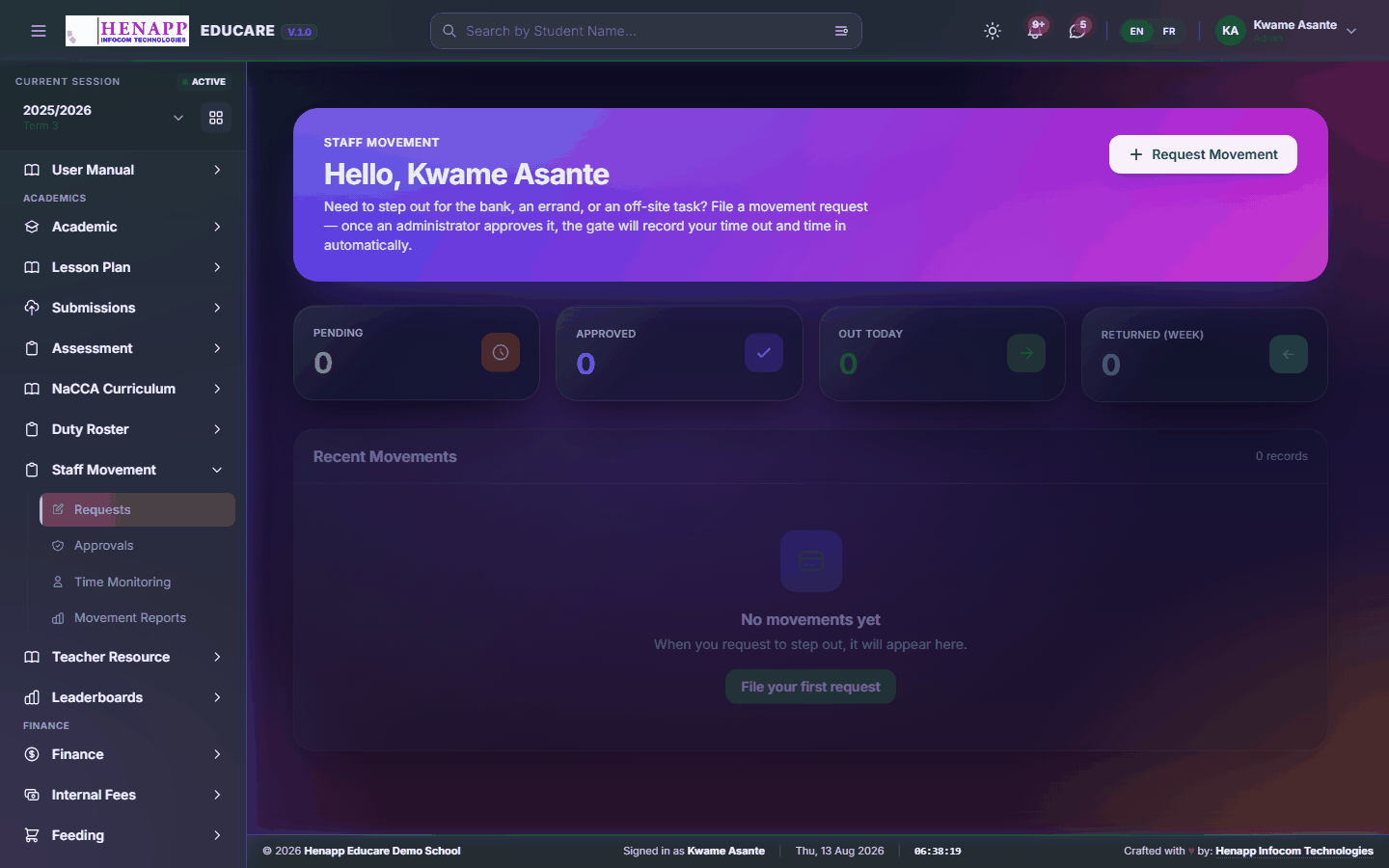
How to use it
- Open Staff Movement → Requests.
- Click New Request.
- Give the reason, the time you expect to leave and to return.
- Submit. Your approver is notified and you are told the outcome.
19.2 Approvals
Movement requests waiting on your decision.
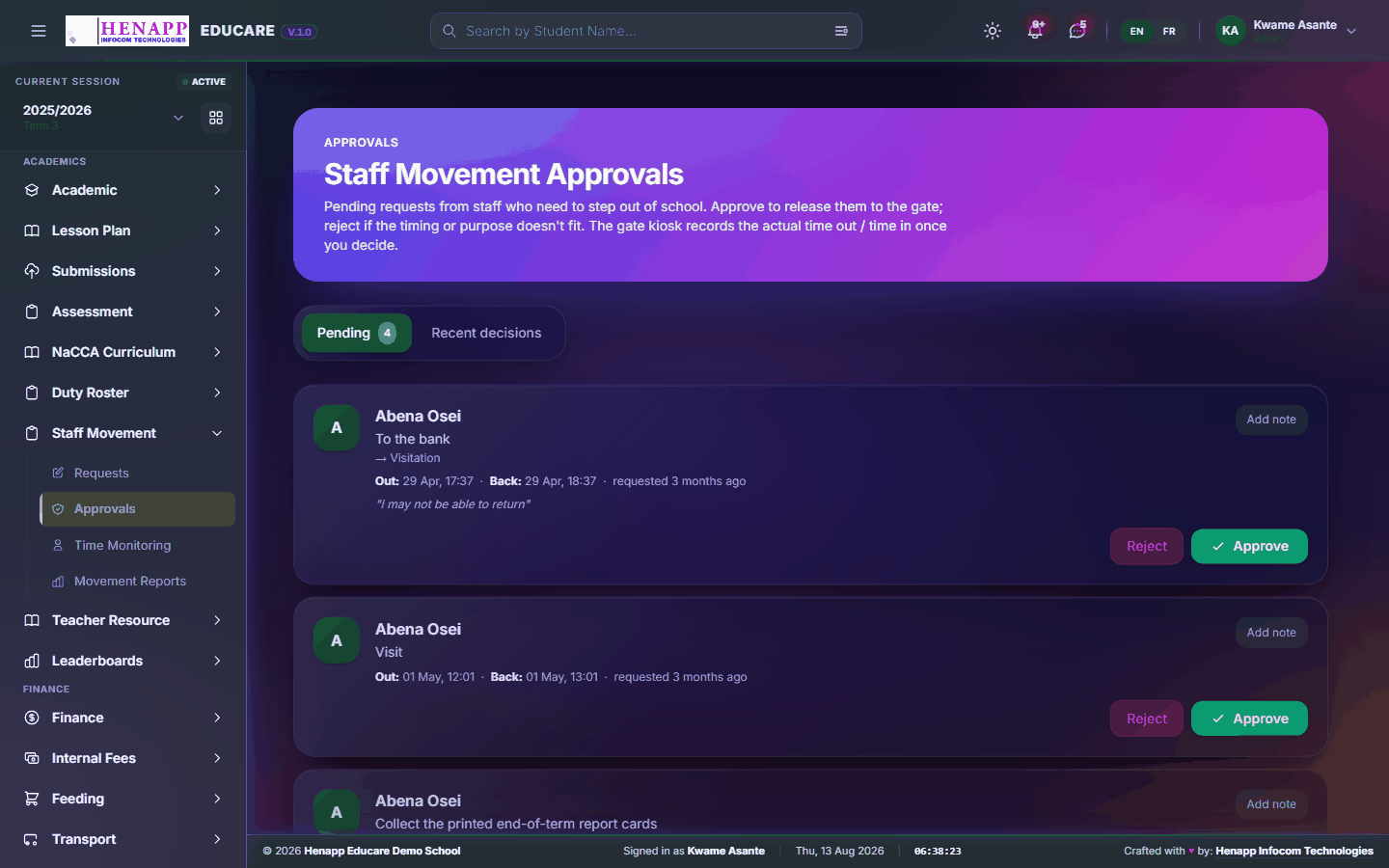
How to use it
- Open Staff Movement → Approvals.
- Open a request to see the reason and the times asked for.
- Approve or Decline, adding a comment where it helps.
- The staff member is notified either way.
19.3 Movement Reports
Movement over a period — by member of staff, by department, by reason.

How to use it
- Open Staff Movement → Movement Reports.
- Set the date range and any filters.
- Read the summary, then export it for management.
20. Teacher Resource
A shared file drive for teaching material — upload, organise into folders, and share with colleagues or a class.
Find it in the sidebar under Academics → Teacher Resource.
20.1 My Drive
Your teaching file drive — upload material, sort it into folders, and share it with colleagues or a class.
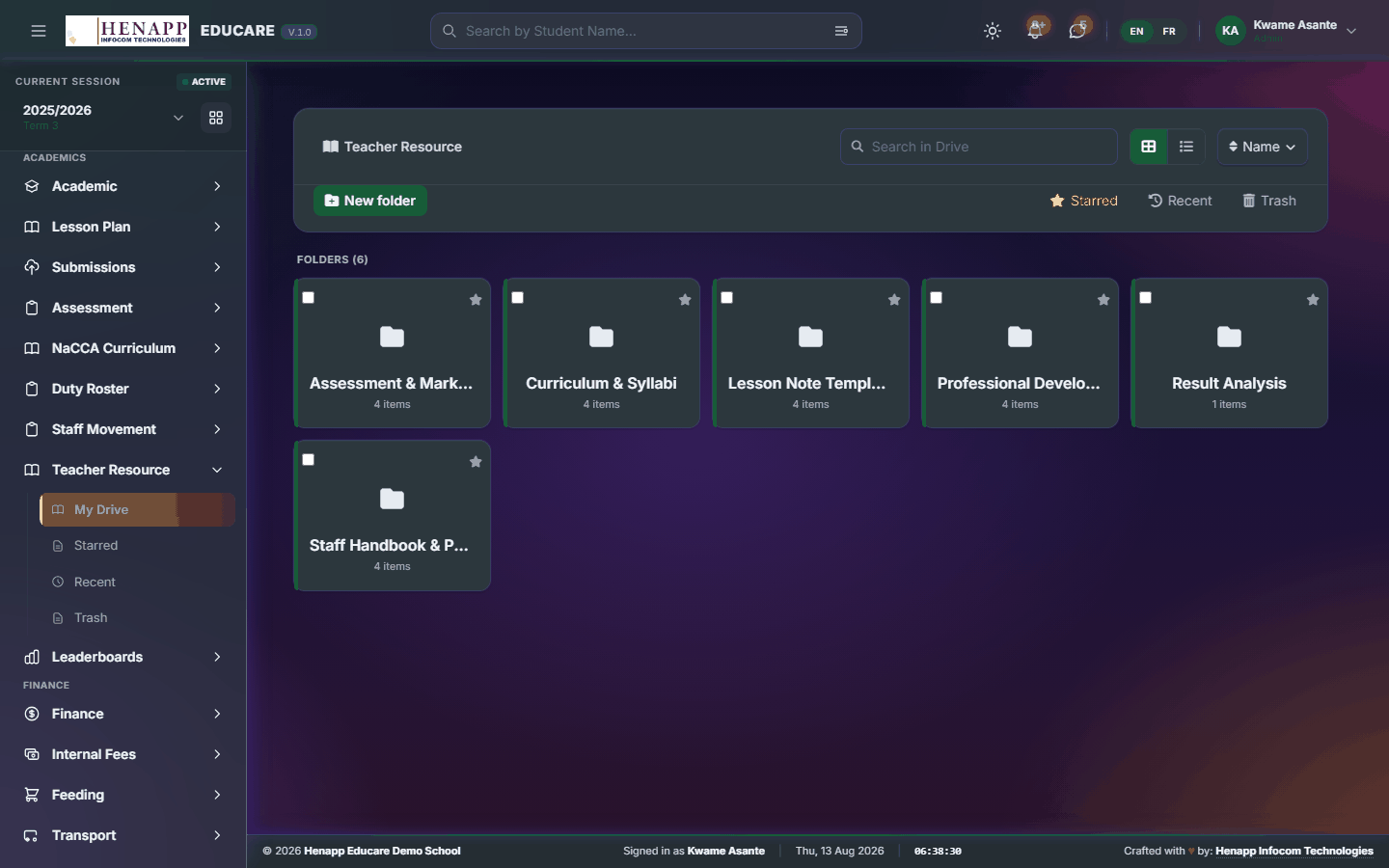
How to use it
- Open Teacher Resource → My Drive.
- Click Upload and choose your files, or drag them onto the page.
- Use New Folder to organise them.
- Use a file's Share option to give colleagues or a class access.
- Click a file to preview it in the browser without downloading.
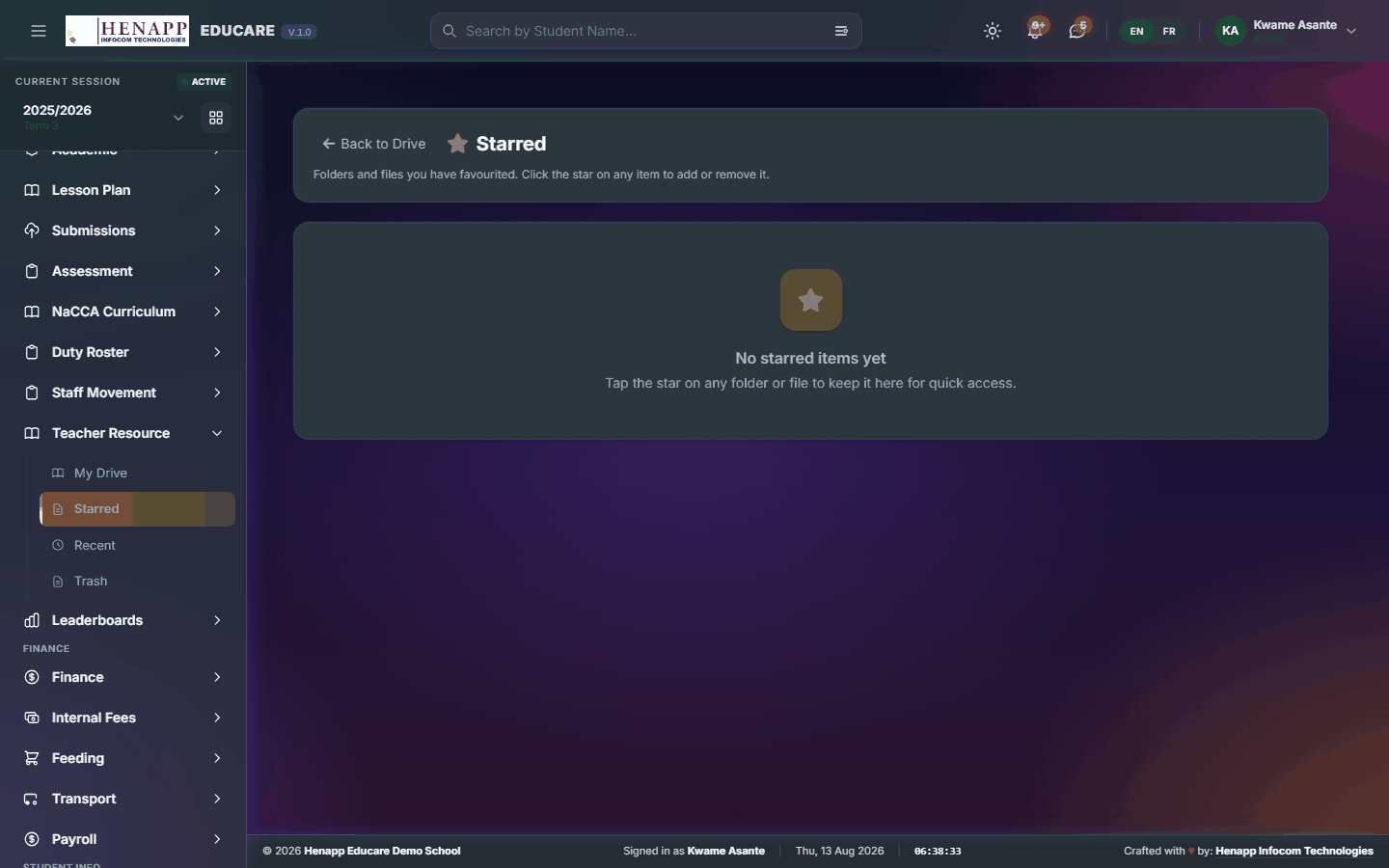
20.2 Starred
The files you have starred, for quick reach.
How to use it
- Star any file from its menu.
- Open Teacher Resource → Starred to see just those.
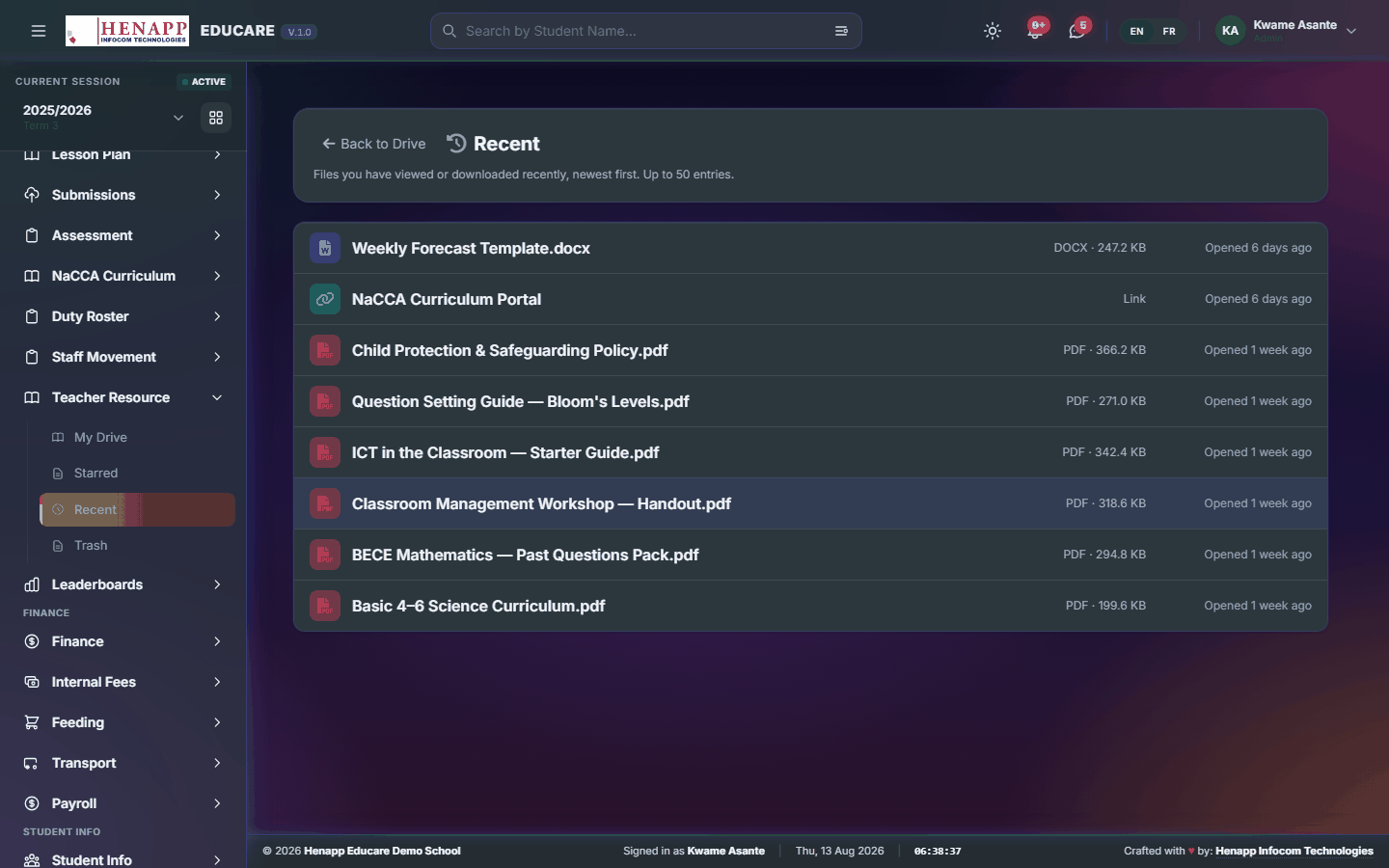
20.3 Recent
What you have opened or changed lately.
How to use it
- Open Teacher Resource → Recent.
- Files are listed most recently used first.
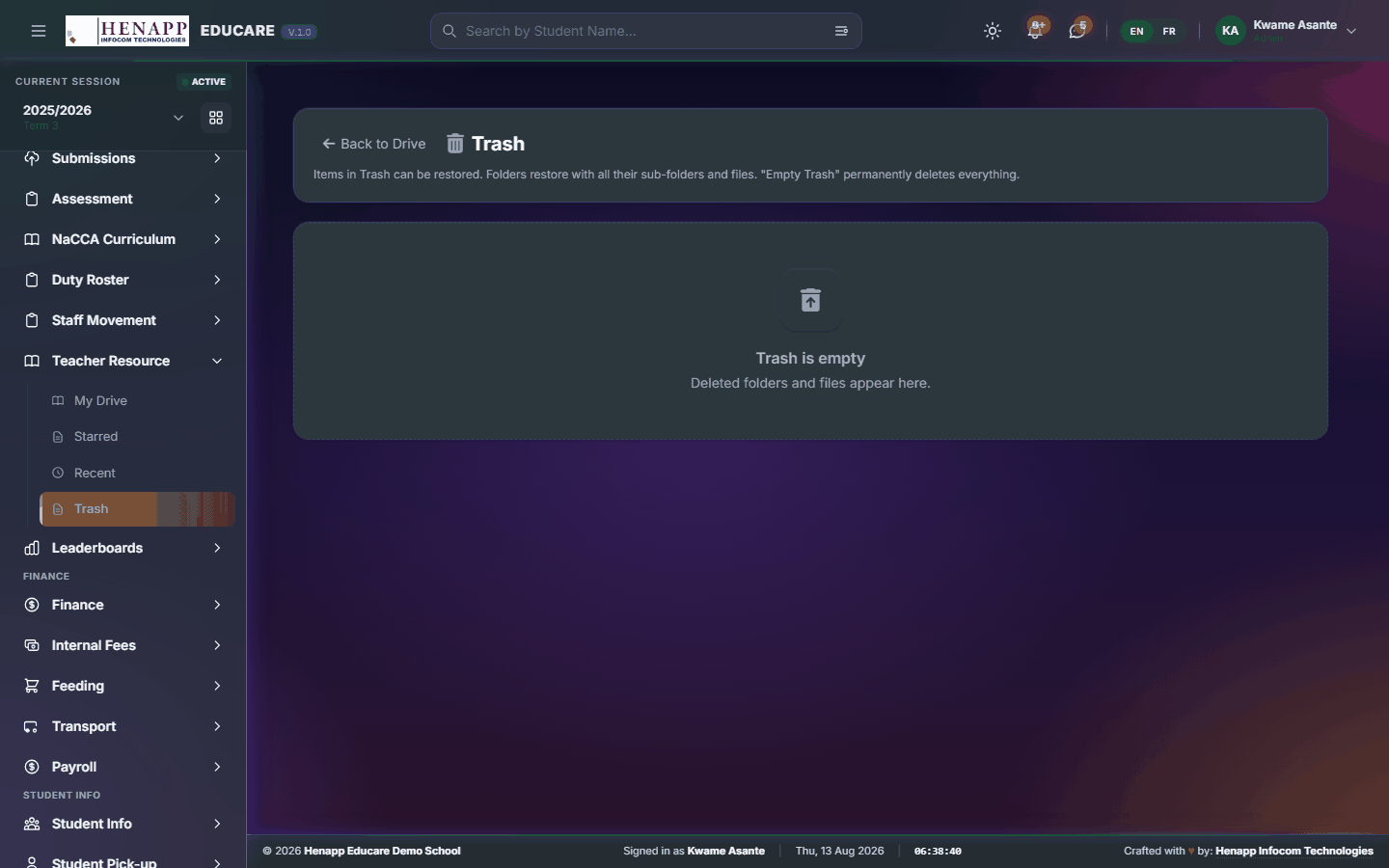
20.4 Trash
Deleted files, kept for a while in case you need them back.
How to use it
- Open Teacher Resource → Trash.
- Restore a file to put it back where it was.
- Empty the trash to remove files for good — that cannot be undone.
21. Leaderboards
Rankings that make participation visible — who is submitting on time, who is teaching online, who is turning up.
Leaderboards are a nudge. A low position usually means a workload or access problem worth asking about rather than a performance finding on its own.
Find it in the sidebar under Academics → Leaderboards.
21.1 E-Learning Leaderboard
Ranks teachers by the online lessons they have published and how much learners engage with them.

How to use it
- Open Leaderboards → E-Learning Leaderboard.
- Choose the term to rank.
- Read the standings; the scoring rubric behind them is set under System.
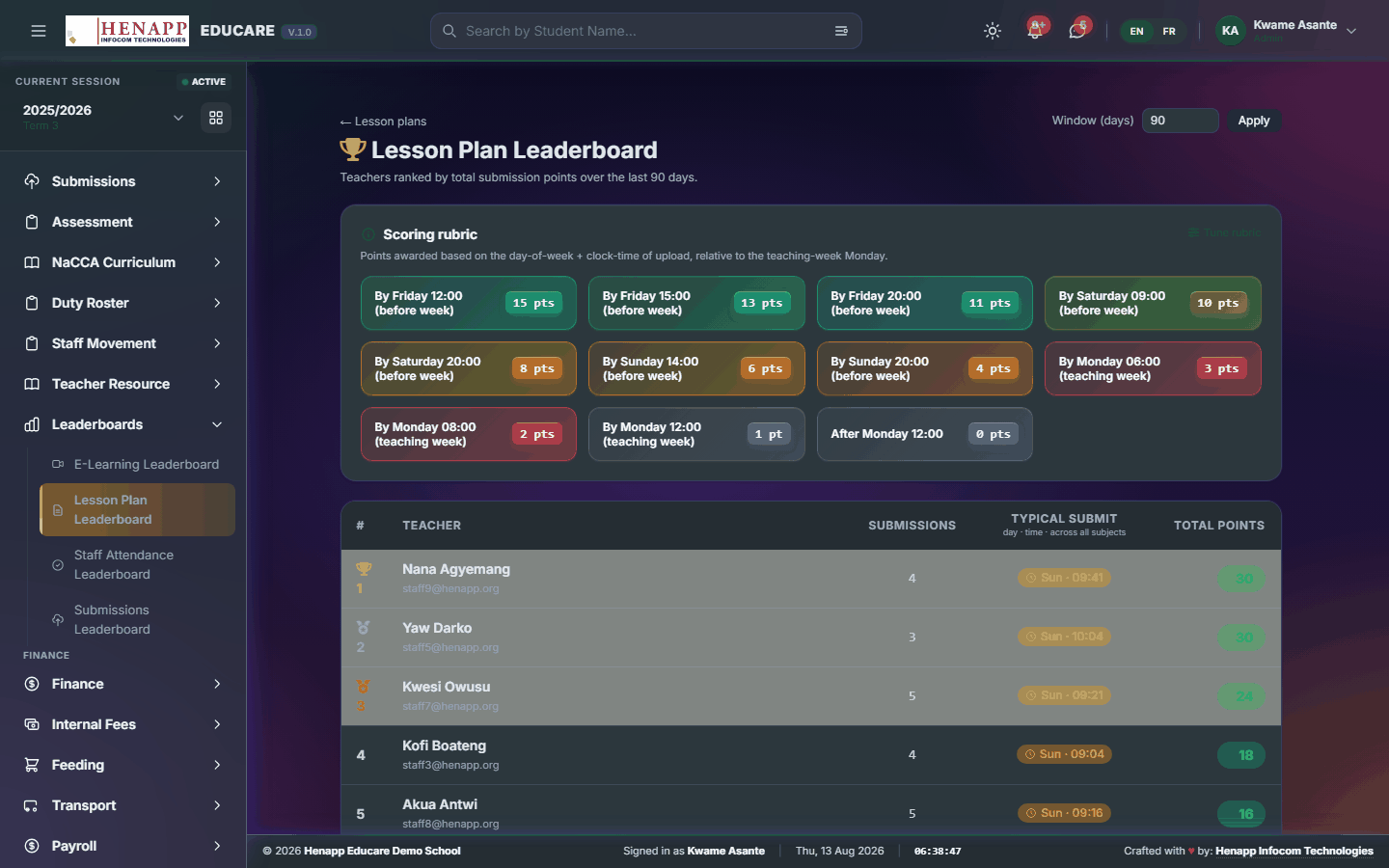
21.2 Lesson Plan Leaderboard
Ranks teachers on submitting lesson plans on time.
How to use it
- Open Leaderboards → Lesson Plan Leaderboard.
- Choose the term and read the standings.
21.3 Staff Attendance Leaderboard
Ranks staff on punctuality and attendance.
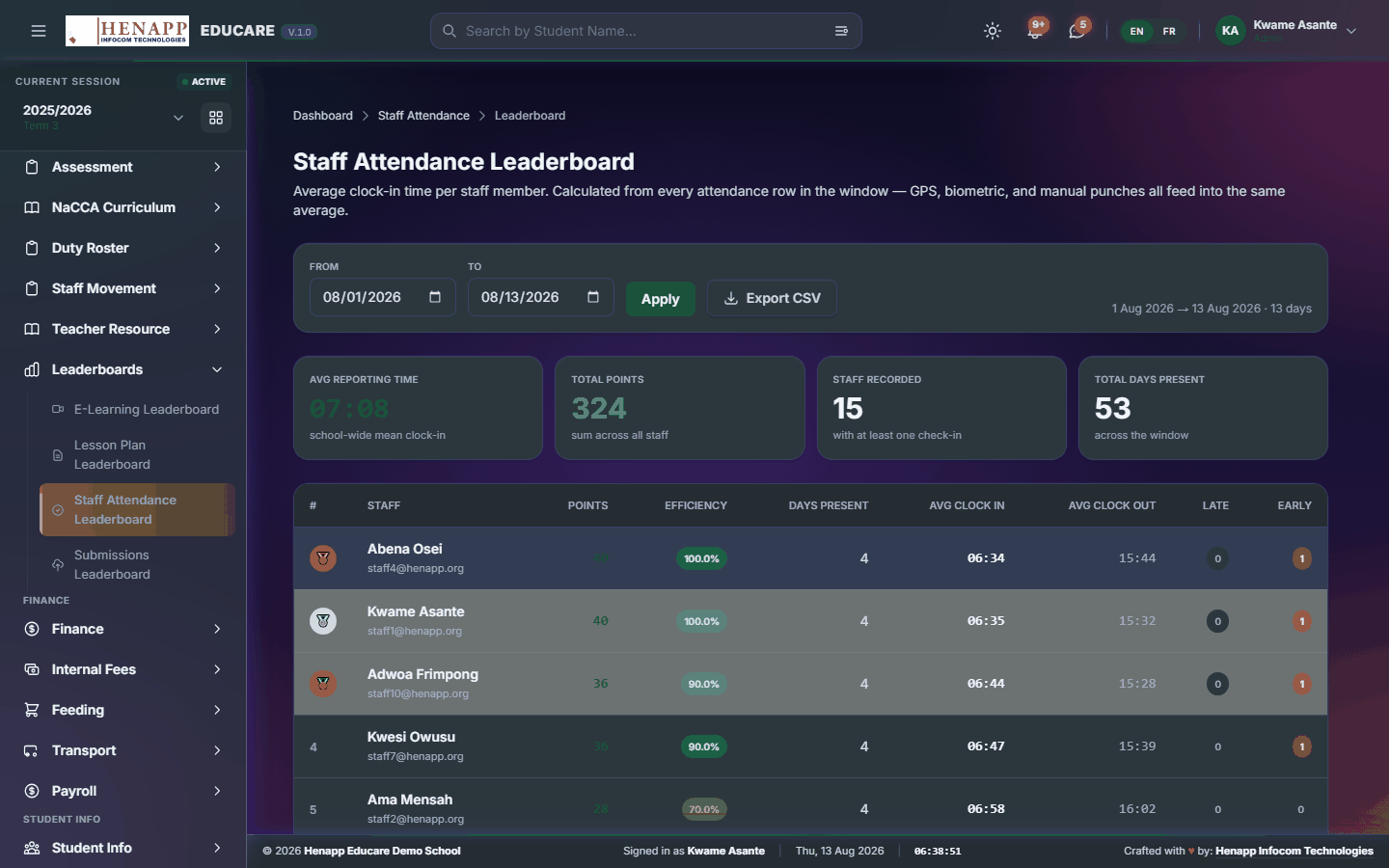
How to use it
- Open Leaderboards → Staff Attendance Leaderboard.
- Choose the period and read the standings.
21.4 Submissions Leaderboard
Ranks staff on handing in requested documents on time.
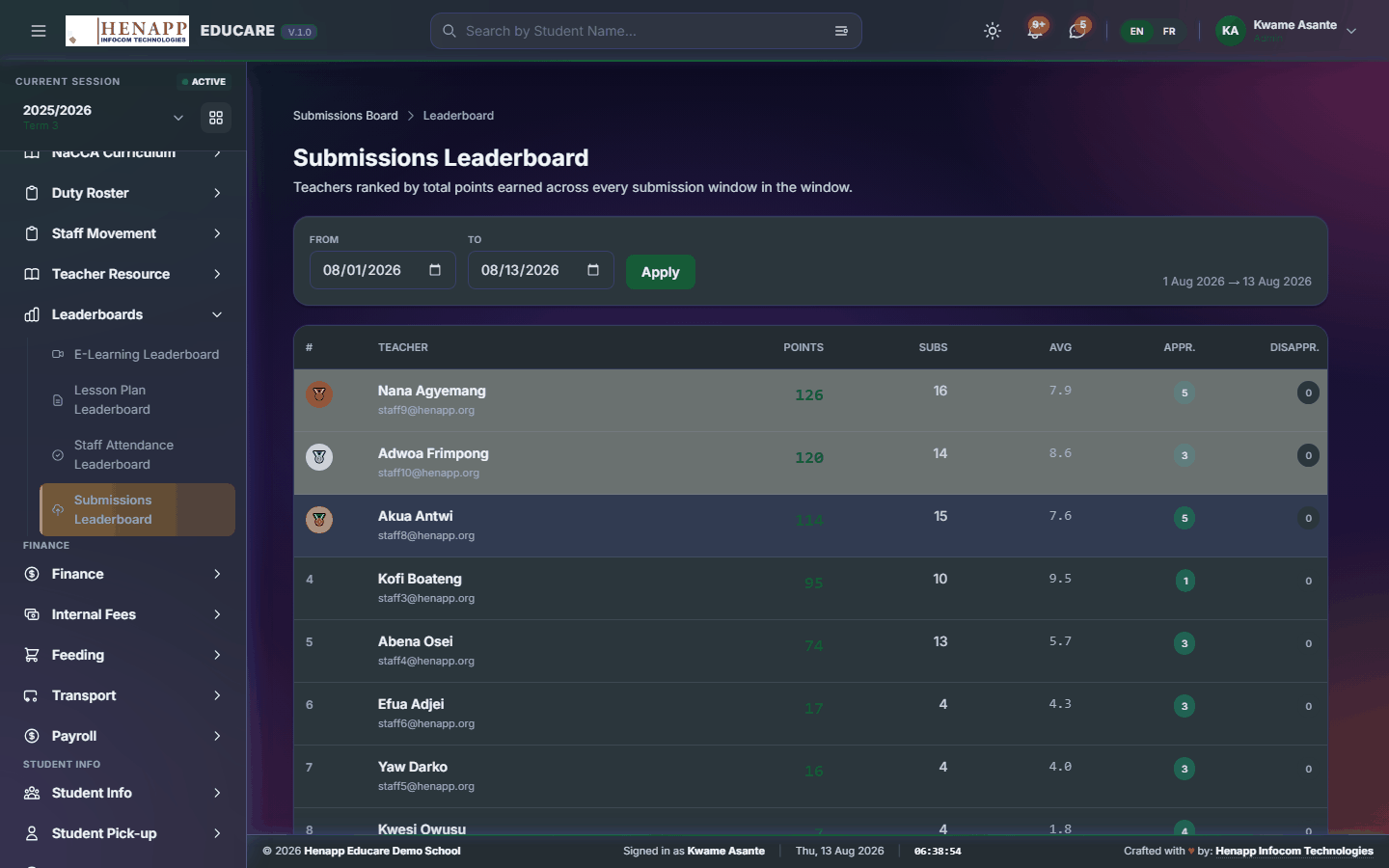
How to use it
- Open Leaderboards → Submissions Leaderboard.
- Choose the term and read the standings.
22. Finance
School money end to end — what families are billed, what has been collected, what the school spends, and the accounting statements that come out of it.
Fee categories, income sources and expense headers should be in place before the first invoice of the year. Changing a category after invoices exist does not rewrite invoices already raised.
Find it in the sidebar under Finance.
22.1 Finance Overview
The finance home page — billed, collected and outstanding for the current term at a glance.
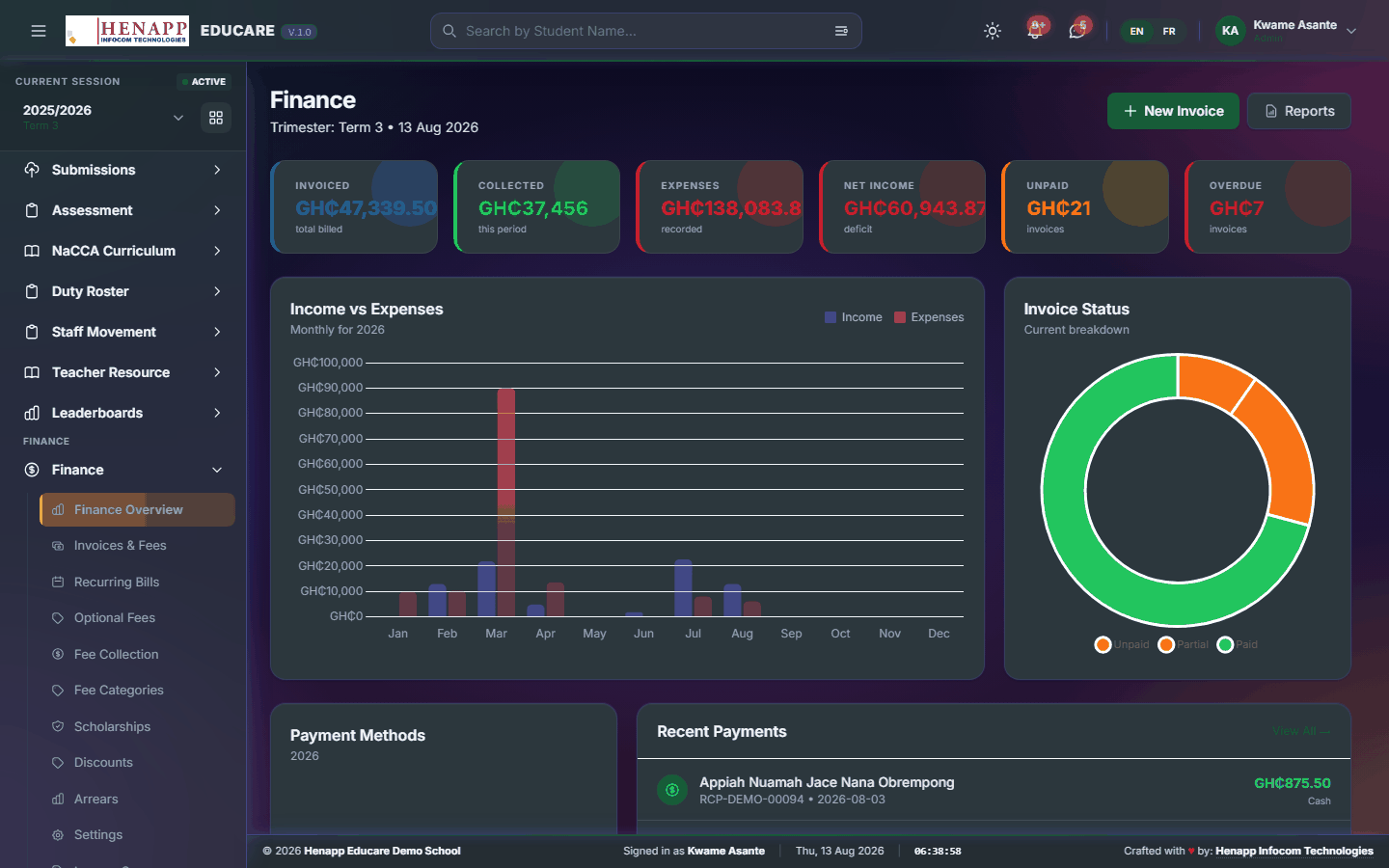
How to use it
- Open Finance → Finance Overview.
- Read the headline figures for the term shown in the top bar.
- Click any figure to open the detail behind it.
22.2 Invoices & Fees
Every invoice raised — create them one at a time or for a whole class at once, and reissue or adjust where needed.
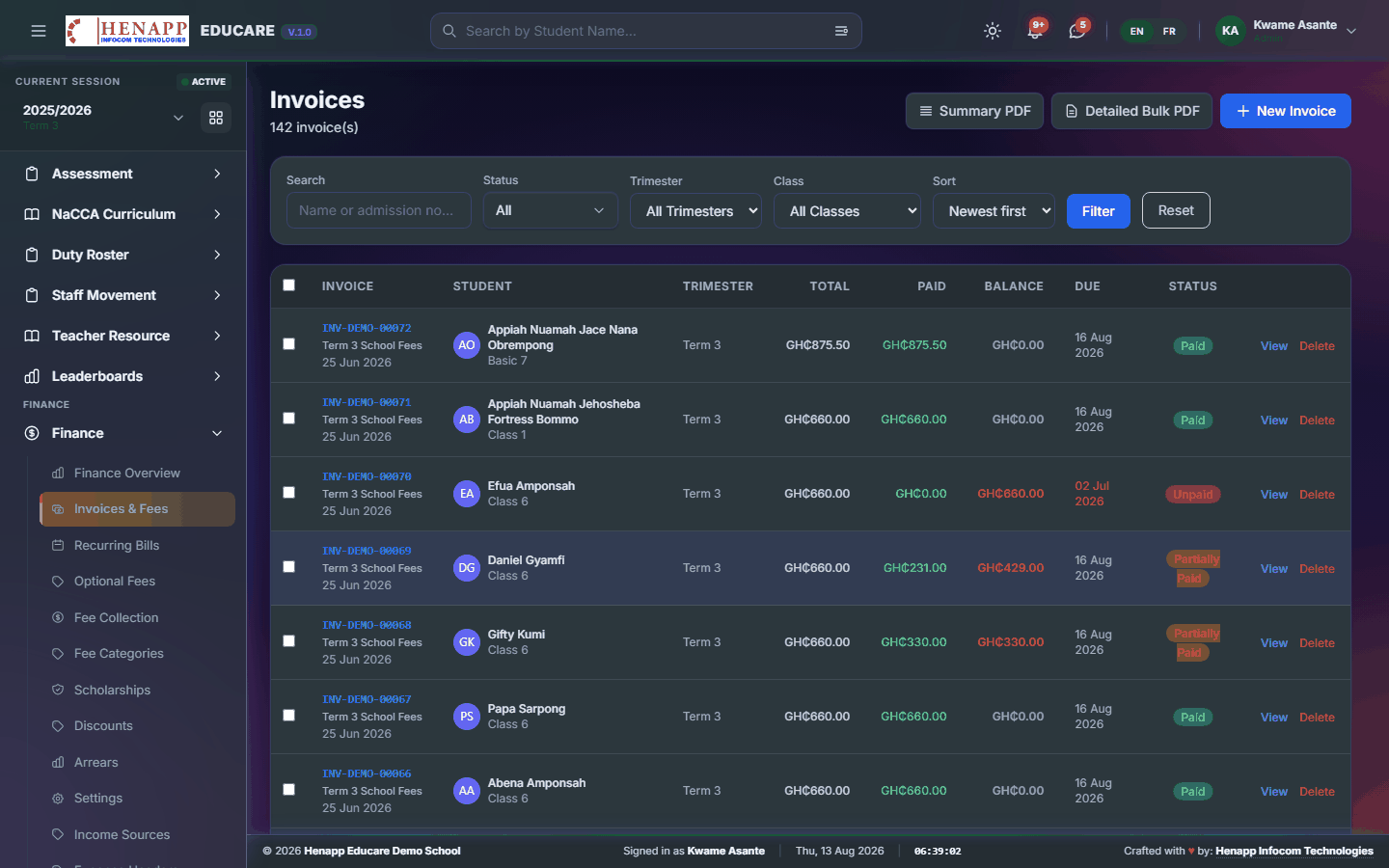
How to use it
- Open Finance → Invoices & Fees.
- Click New Invoice for a single learner: choose the learner, add each fee line, and save.
- Use Bulk Invoice to bill a whole class or the whole school: choose the classes and the fee categories, preview the count and total, then generate.
- Open any invoice to add a line, correct one, or reissue it.
- Print or email an invoice to the family from the invoice itself.
A bulk run can raise hundreds of invoices in one click. The preview shows how many and for how much — read it before confirming, because unpicking a wrong run is far more work than checking.
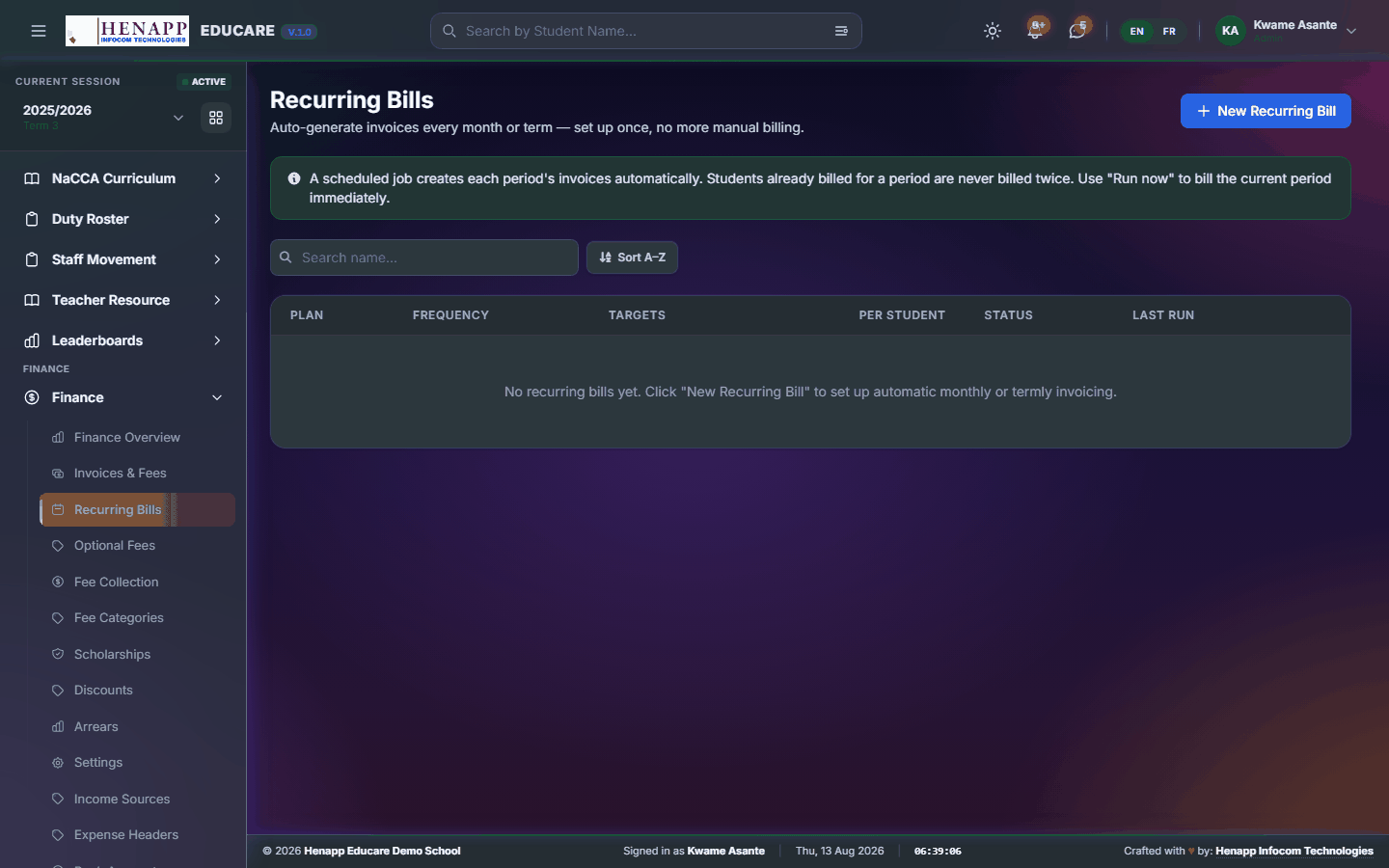
22.3 Recurring Bills
Charges that repeat on a schedule — monthly feeding, termly transport — raised automatically instead of by hand.
How to use it
- Open Finance → Recurring Bills.
- Click New Recurring Bill and choose the fee category and amount.
- Set how often it repeats and who it applies to.
- Save. Invoices are then raised on schedule; review them on the Invoices page as they appear.
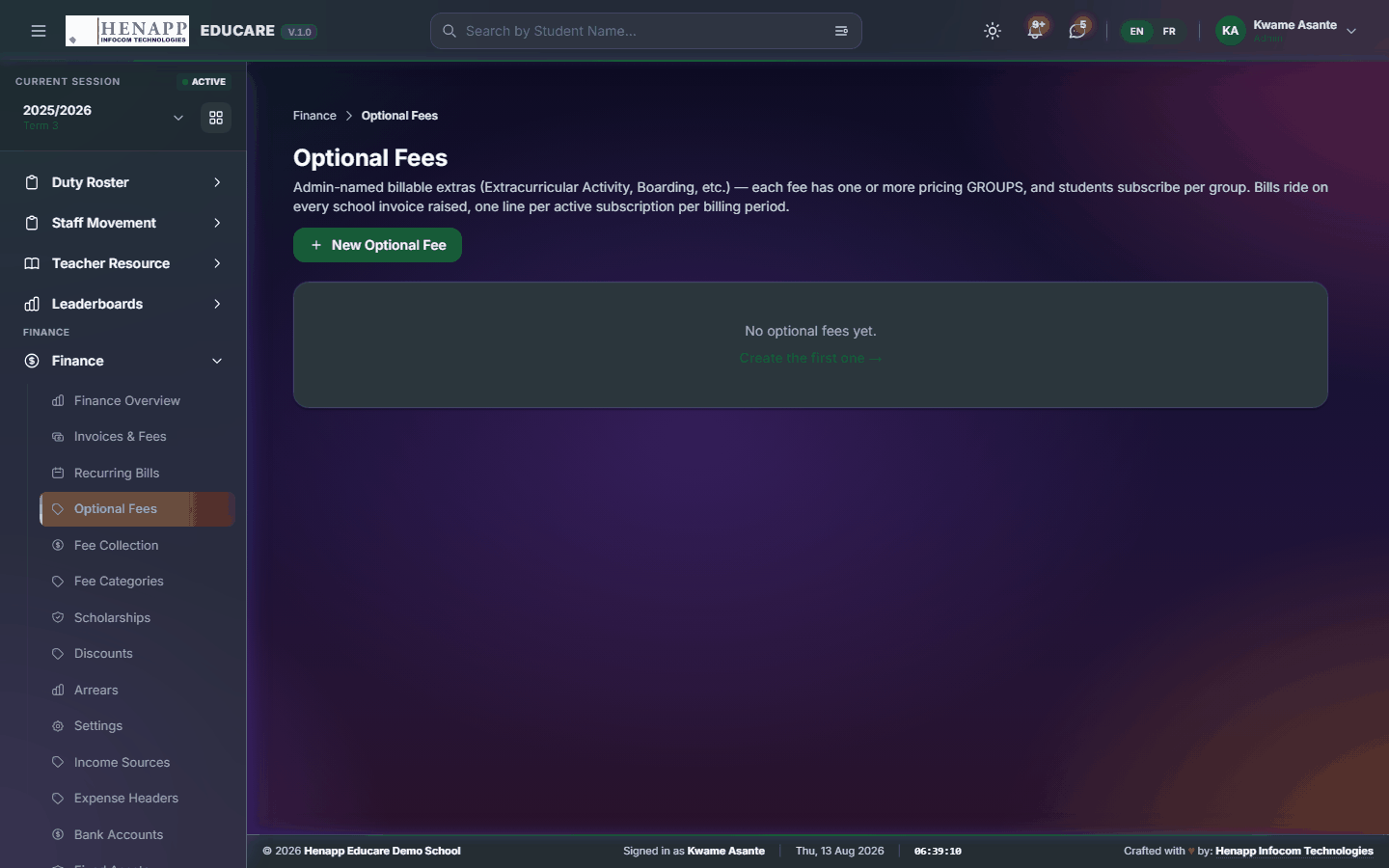
22.4 Optional Fees
Fees a family chooses rather than is charged automatically — an excursion, a club, an activity.
How to use it
- Open Finance → Optional Fees.
- Create the optional fee with its amount and who may take it up.
- Subscribe families individually, or use the bulk subscribe tool for a class.
- Subscribed learners are invoiced; the fee can be attached to an existing invoice rather than raising a new one.
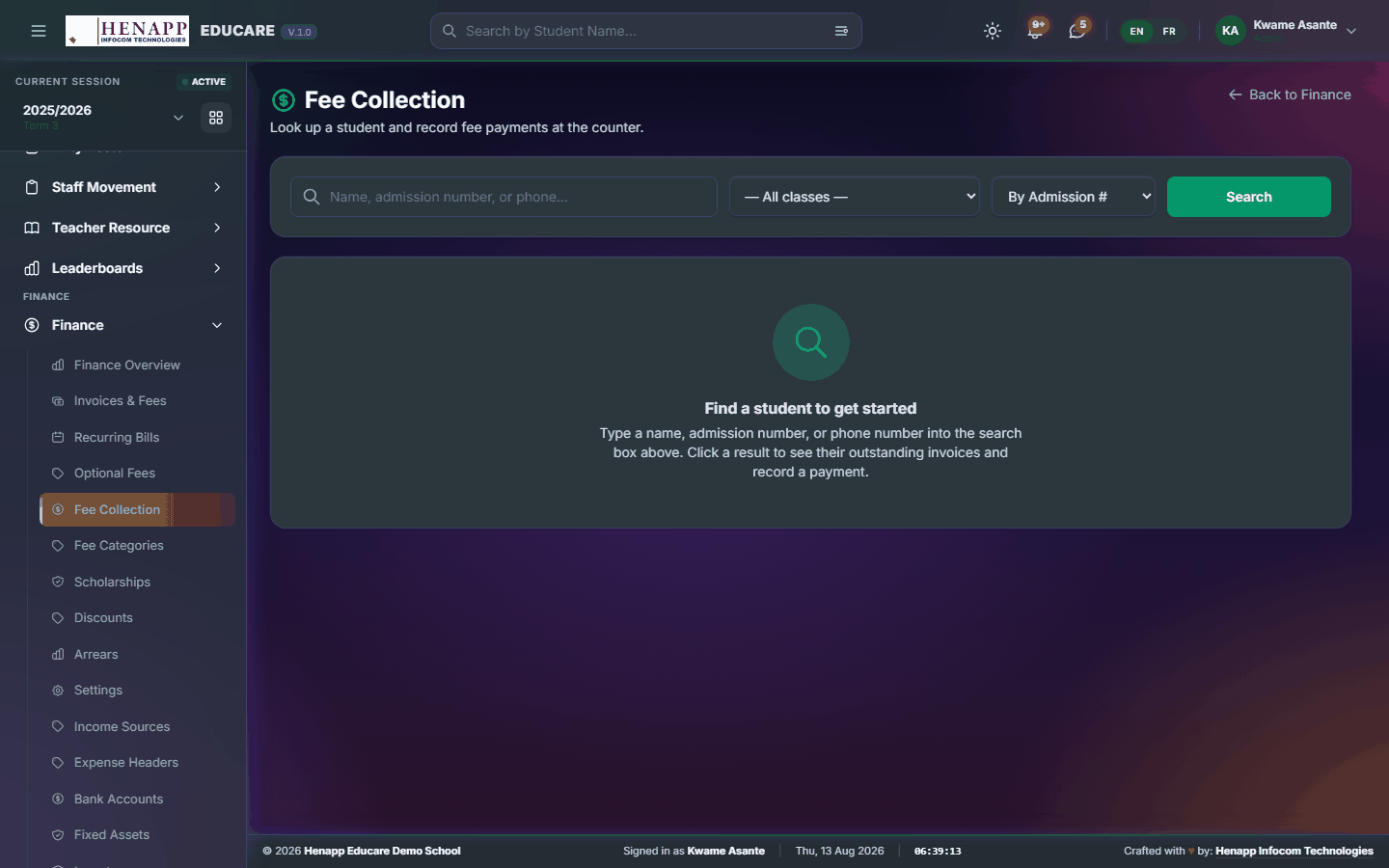
22.5 Fee Collection
Taking payment and issuing the receipt — the counter page.
How to use it
- Open Finance → Fee Collection.
- Search for the learner by name or admission number.
- Their outstanding invoices are listed; choose what is being paid.
- Enter the amount and the method — cash, cheque, transfer, mobile money.
- Save. The receipt number is generated and the receipt can be printed or emailed straight away.
Enter whatever was actually handed over. The balance stays outstanding against the invoice and the next payment picks up from there.
22.6 Payment History
The printed record of everything one learner has ever paid — for the parent who asks, and for the file when a bill is disputed.
How to use it
- Open Finance → Payment History.
- Search for the learner by name, admission number or phone — or pick a class and choose from the roster.
- The page shows a summary for every academic year and term — the class the learner sat in, what was billed, what was paid and what is left — and under it every receipt in date order with who paid it and who received it.
- Narrow it to one academic year, or to a range of payment dates, if the parent only wants that stretch.
- Print it with PDF, Word or Excel. All three come out on the school letterhead with the standard footer.
Received From is whoever actually handed the money over — usually a parent or guardian, sometimes a relative or a sponsor. It is typed at the counter when the payment is taken. Received By is the member of staff who took it.
On receipts taken before that box existed, or where the cashier left it blank, the payment stands in the learner’s own name and prints in grey.
When a term ends unpaid, the balance is carried onto the next term’s bill — so it appears in two terms’ Billed figures, and adding that column down the page would charge the family for it twice. The TOTAL row counts each charge once, adding each term’s own new fees; the Arrears column shows how much of a term’s bill was carried in, so the difference is always visible.
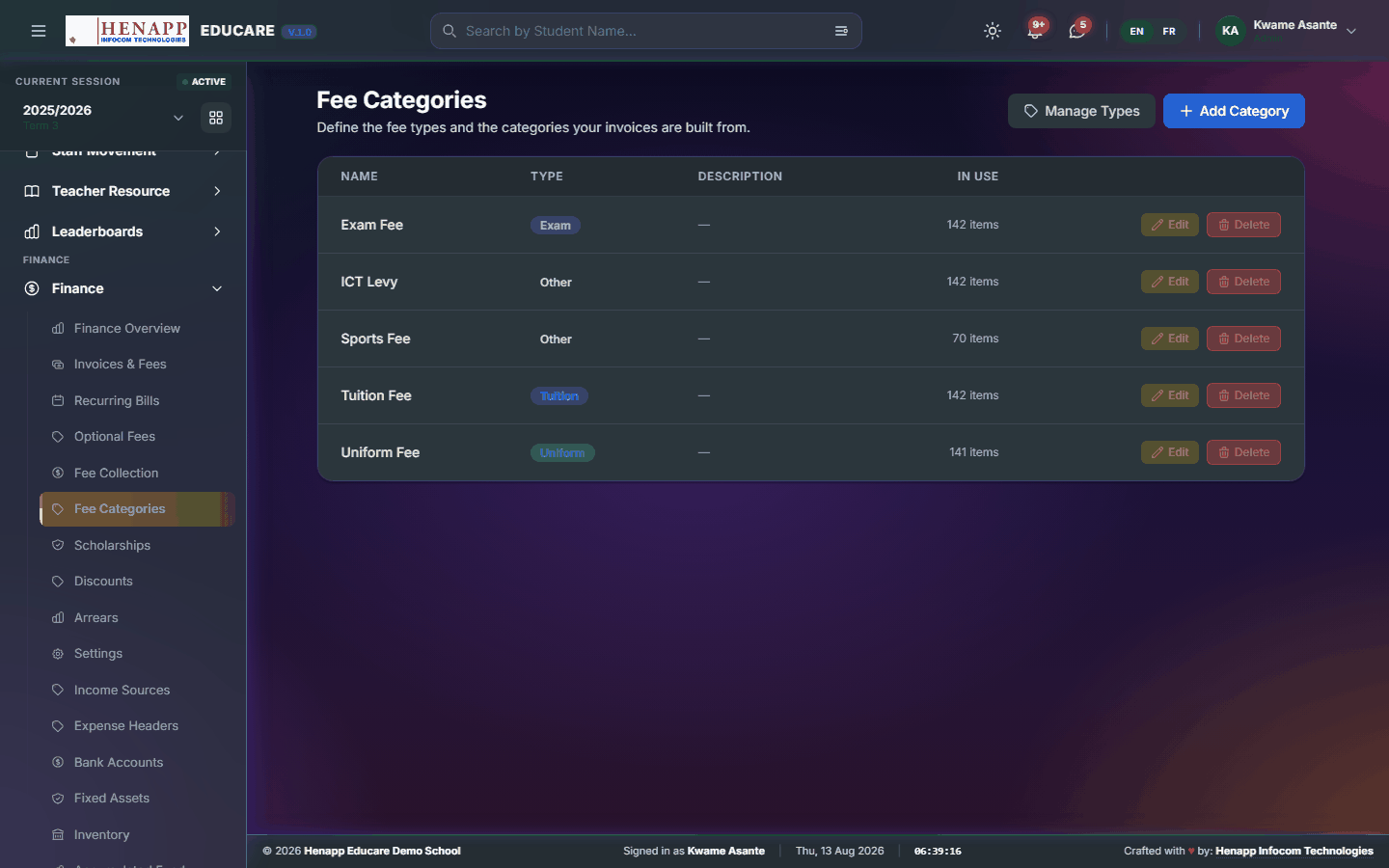
22.7 Fee Categories
The kinds of fee the school charges — tuition, admission, examination, feeding — and what each costs per class.
How to use it
- Open Finance → Fee Categories.
- Click Add Category and name it.
- Set the amount per class, and whether it recurs each term or is charged once.
- Save. The category is then available when raising invoices.
22.8 Scholarships
Full or partial awards that reduce what a family is billed.
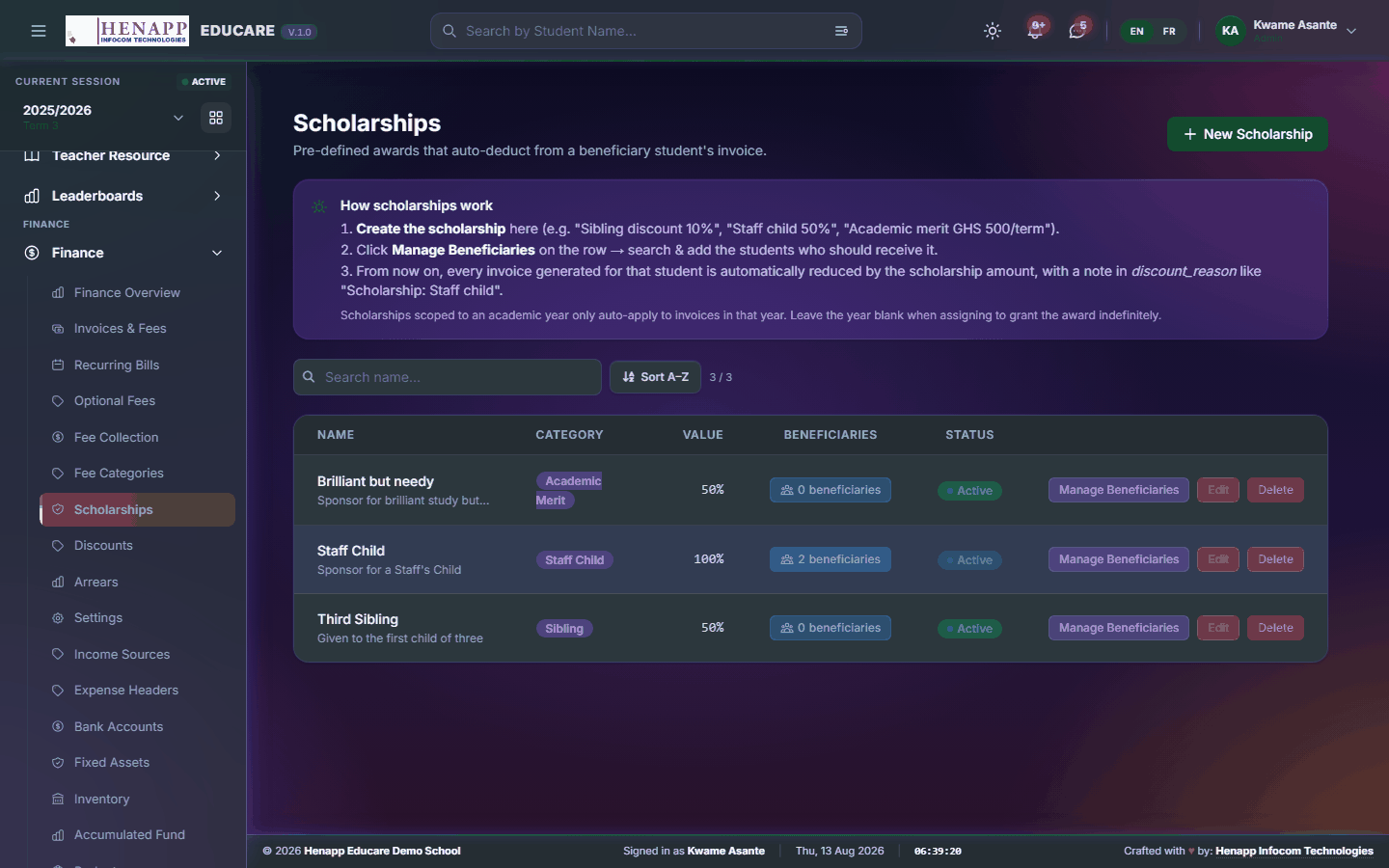
How to use it
- Open Finance → Scholarships.
- Create the scholarship with its name and its value — a percentage or a fixed amount.
- Award it to the learners who hold it.
- Invoices raised from then on carry the reduction automatically.
22.9 Discounts
Reductions applied case by case — a sibling discount, a staff-child rate, an early-payment allowance.
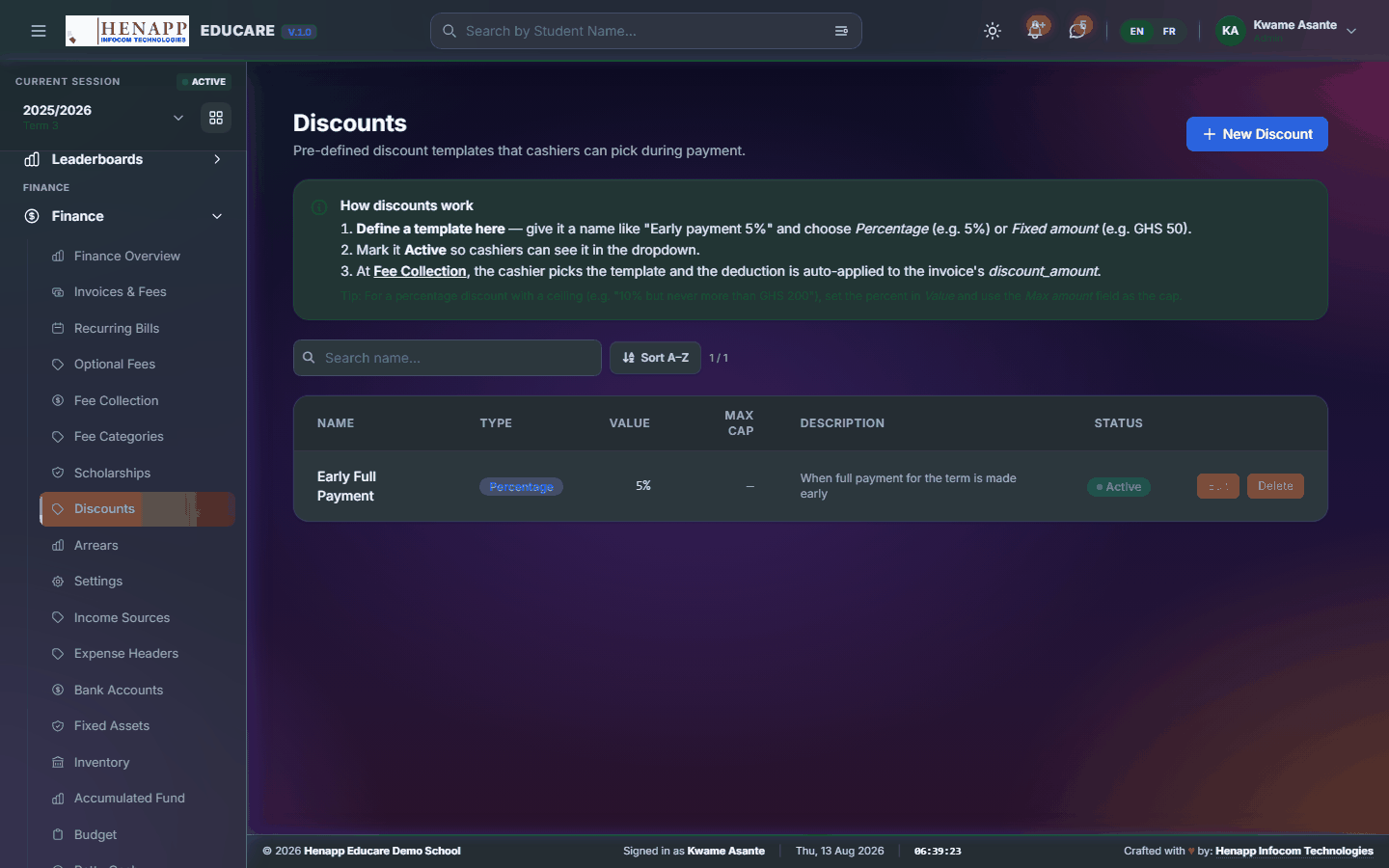
How to use it
- Open Finance → Discounts.
- Create the discount and set its value.
- Apply it to a learner or to an invoice.
22.10 Arrears
What is owed from earlier terms — brought-forward balances and manual arrears carried onto the current account.
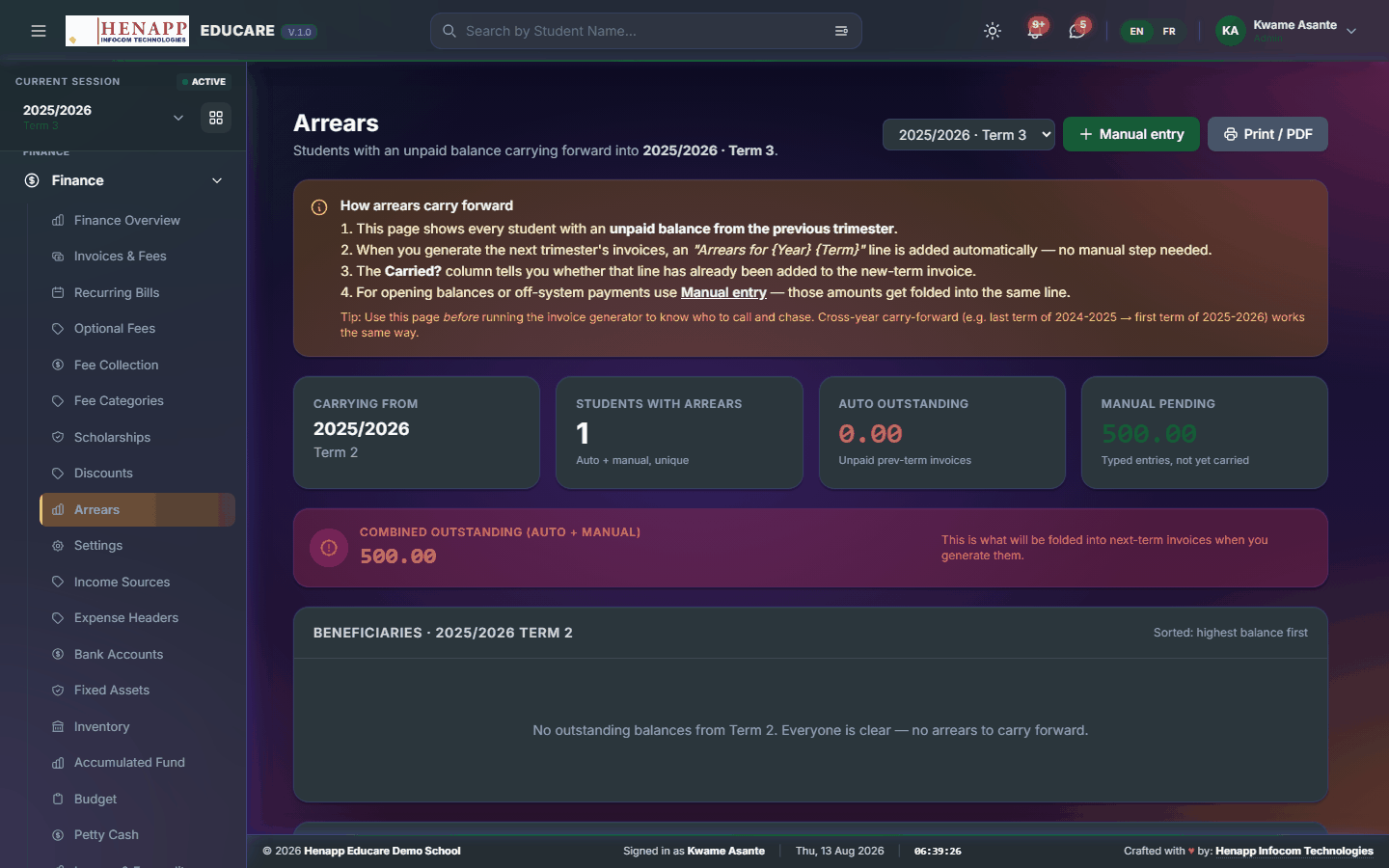
How to use it
- Open Finance → Arrears.
- Review the outstanding balances by class or by learner.
- Add a manual arrear where a debt predates the system.
- Export the list for follow-up.
22.11 Settings
How finance behaves — receipt numbering, currency, what prints on an invoice, and the payment methods you accept.
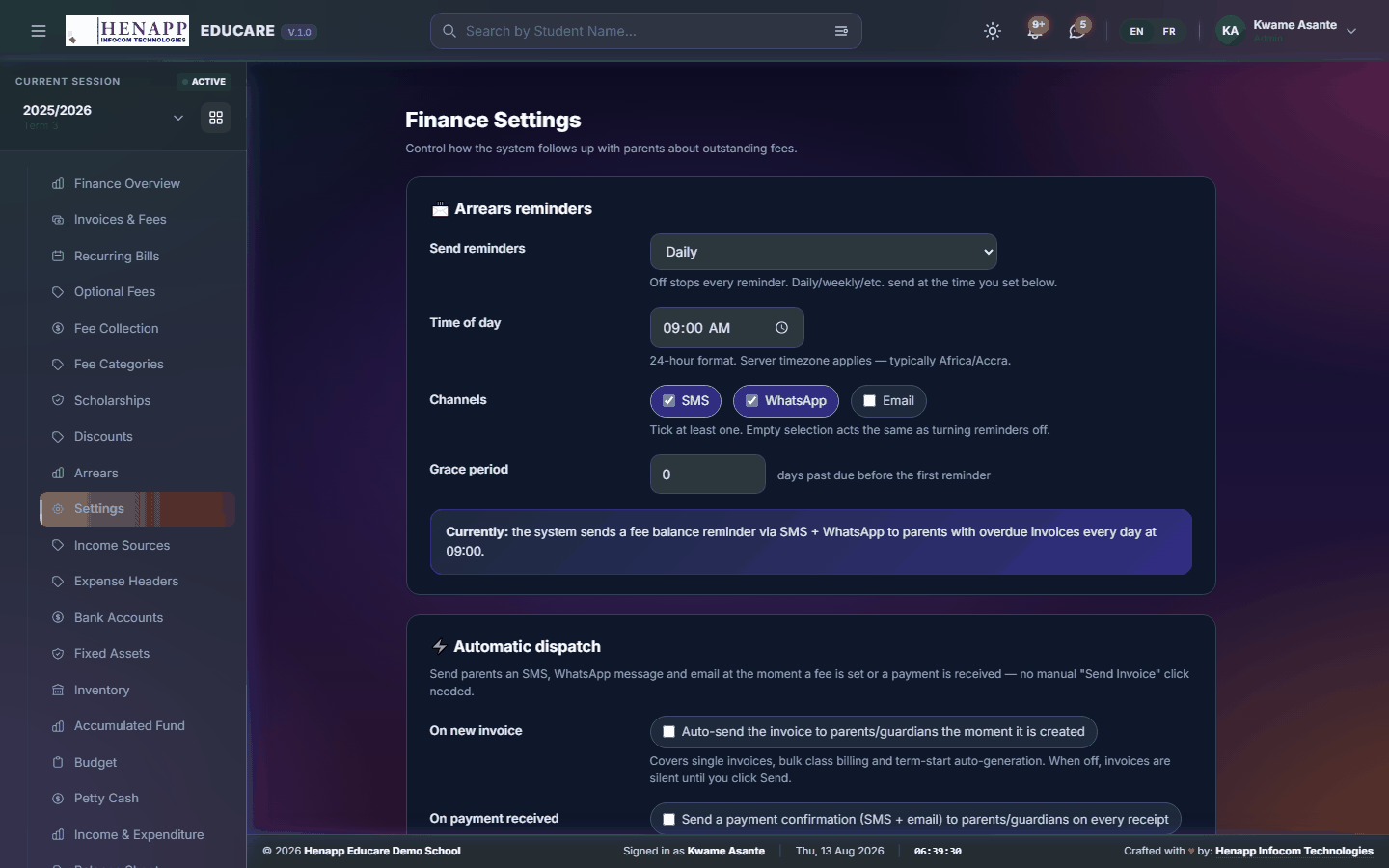
How to use it
- Open Finance → Settings.
- Set the receipt and invoice number formats.
- Choose the payment methods staff may select at the counter.
- Set what prints on invoices and receipts, then Save.
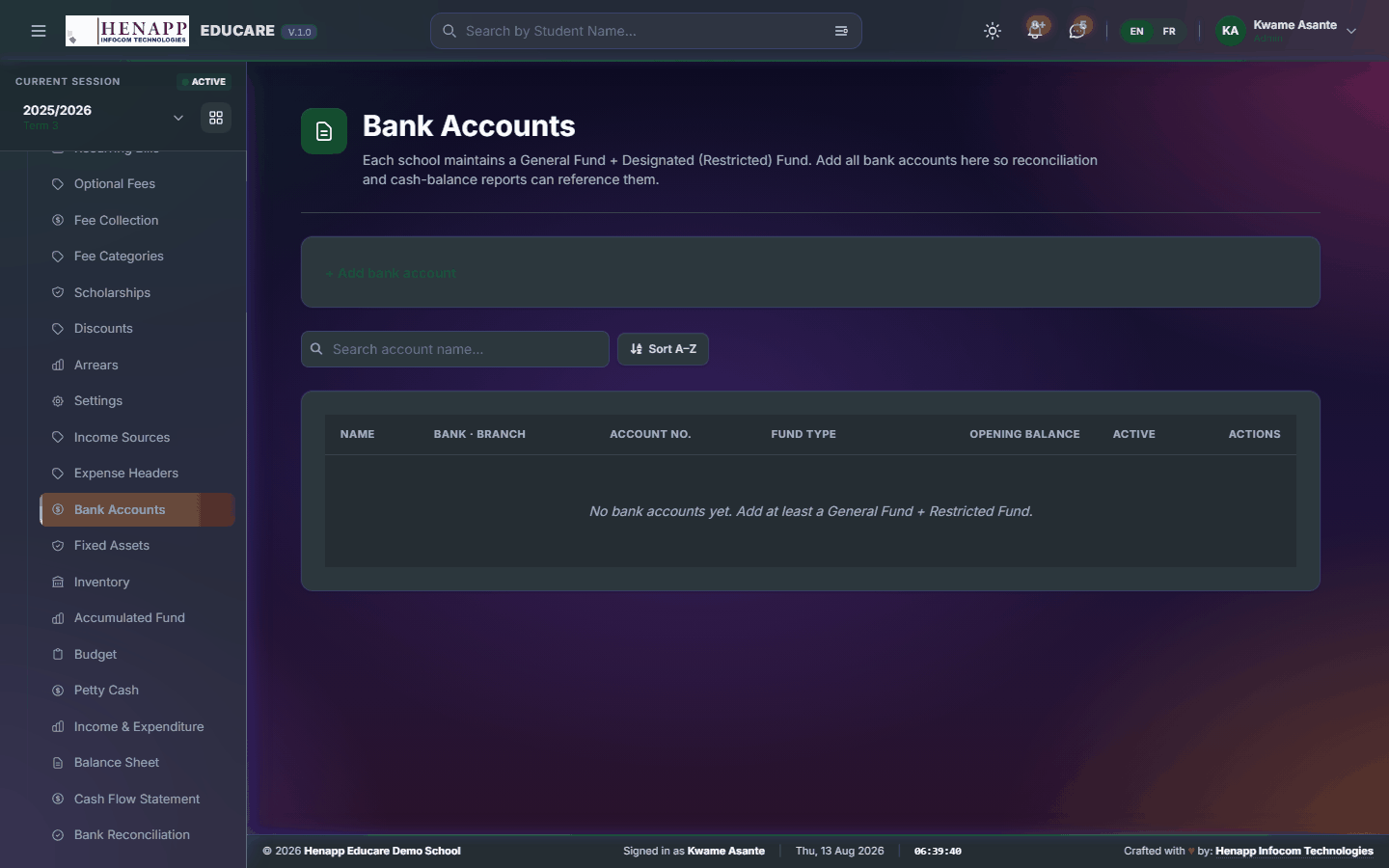
22.12 Bank Accounts
The school's bank and mobile-money accounts, so receipts and payments can be traced to where the money actually sits.
How to use it
- Open Finance → Bank Accounts.
- Add each account with its name, number and opening balance.
- Save. Payments can then be assigned to an account and reconciled against its statement.
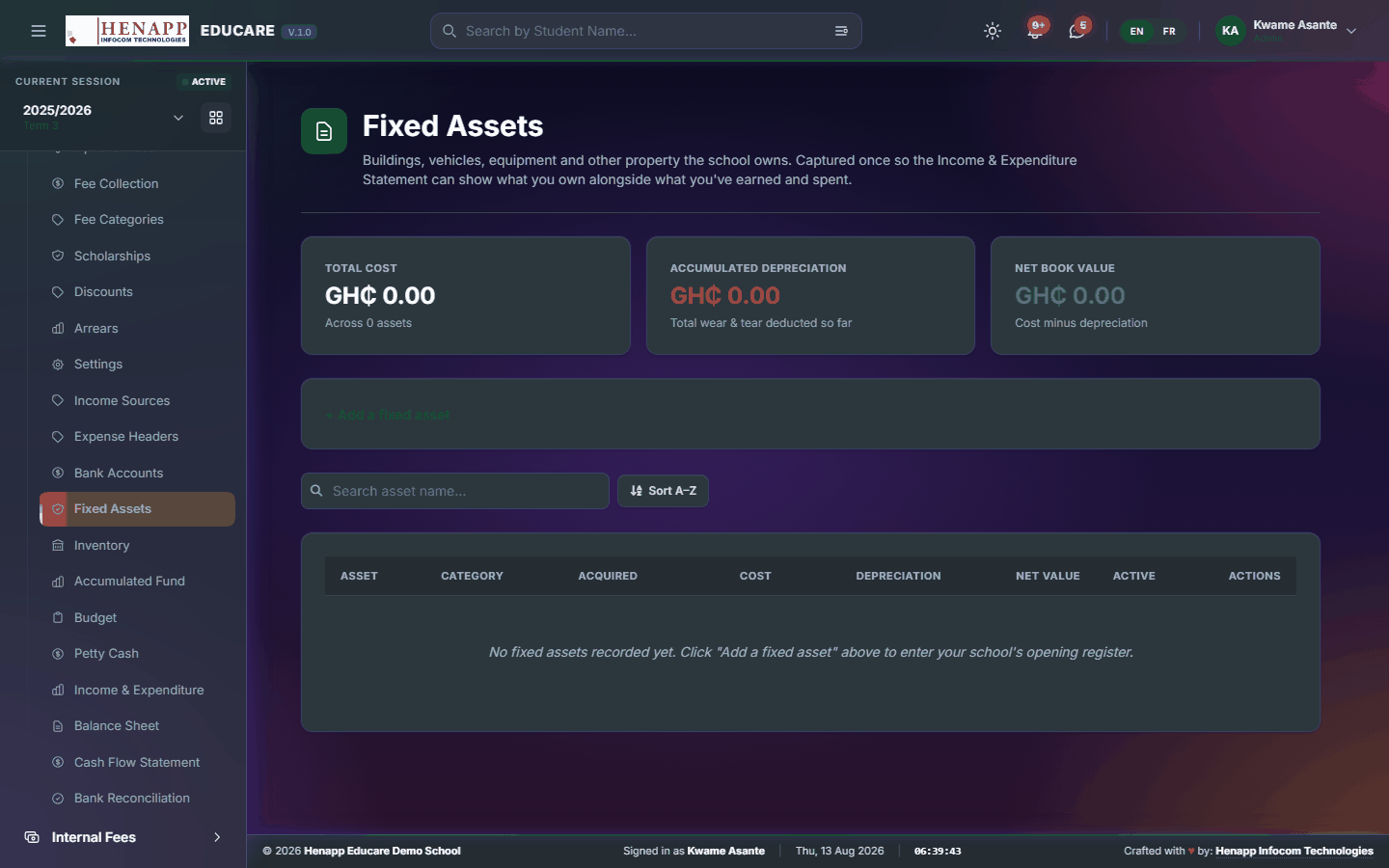
22.13 Fixed Assets
What the school owns — buildings, vehicles, equipment — with its value and depreciation.
How to use it
- Open Finance → Fixed Assets.
- Add each asset with its cost, purchase date and expected life.
- Save. Depreciation is calculated and carried into the balance sheet.
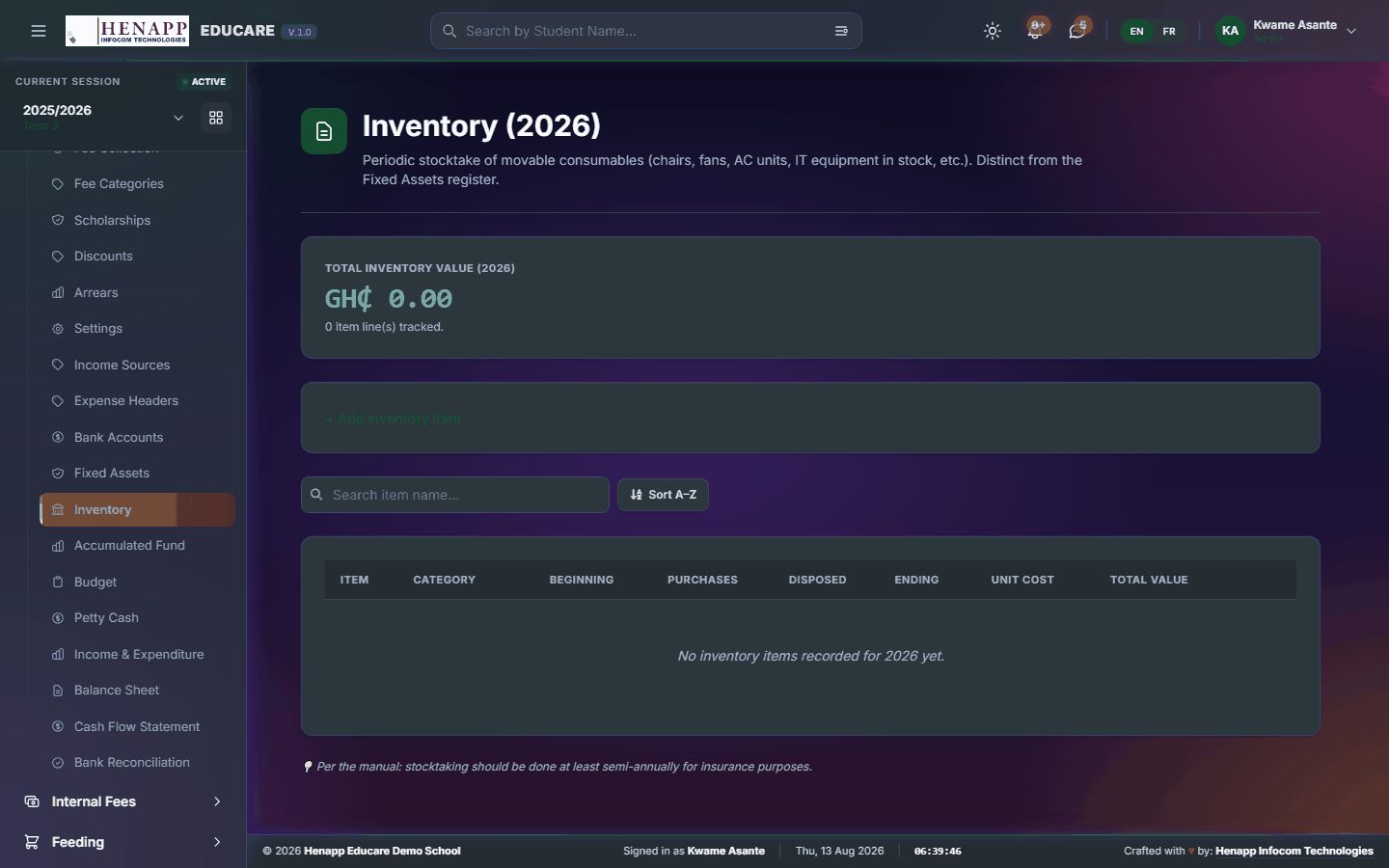
22.14 Inventory
Stock held for sale or use, valued for the accounts.
How to use it
- Open Finance → Inventory.
- Record each item with its quantity and unit value.
- Update quantities as stock moves; the value flows into the balance sheet.
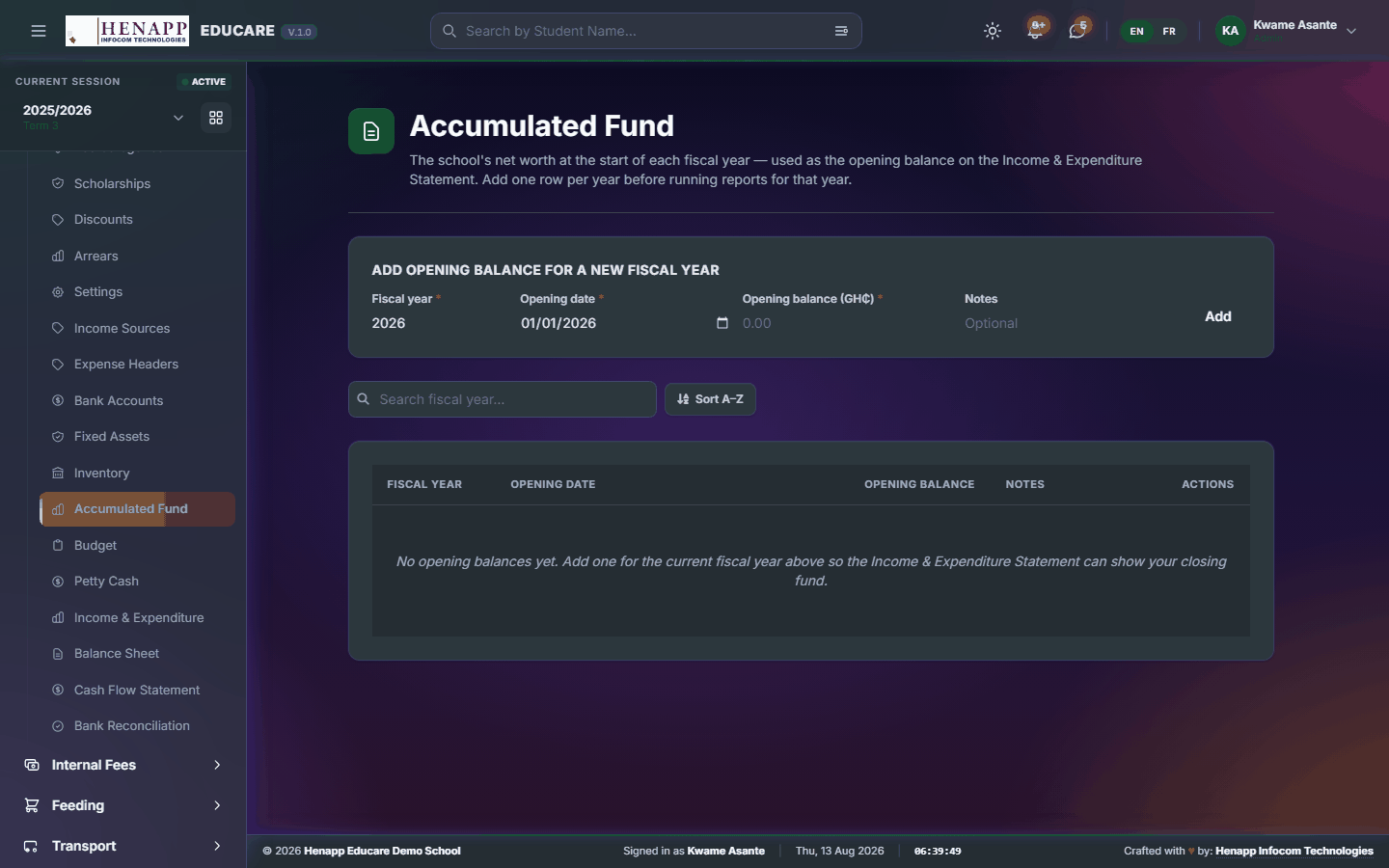
22.15 Accumulated Fund
The school's accumulated surplus carried forward — the equity line of the balance sheet.
How to use it
- Open Finance → Accumulated Fund.
- Enter the opening balance when you first set the books up.
- It is updated from each period's surplus or deficit thereafter.
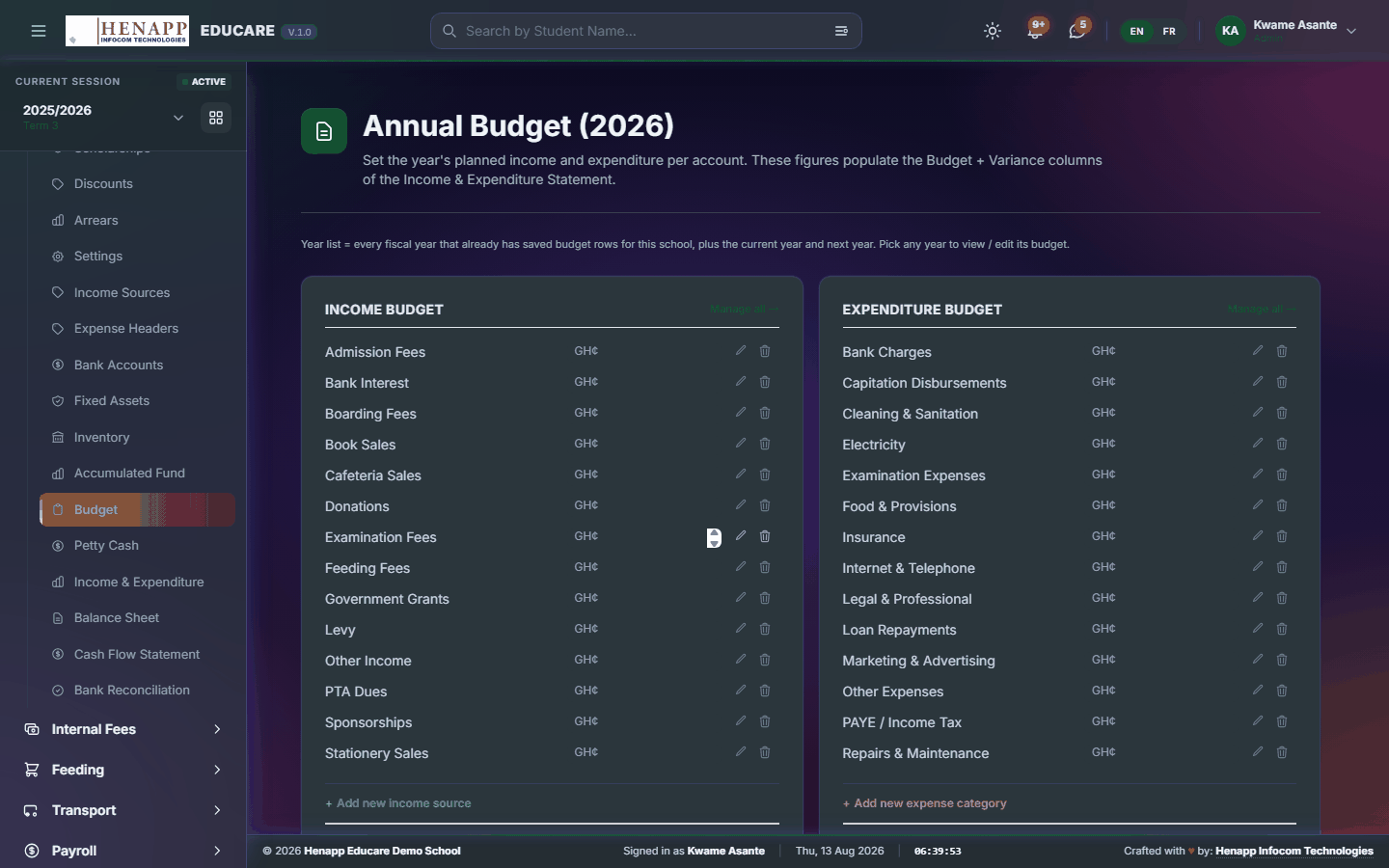
22.16 Budget
What you planned to spend, against what you actually spent.
How to use it
- Open Finance → Budget.
- Choose the period and set a budget figure against each expense header.
- Save. The variance column then shows plan against actual as the period runs.
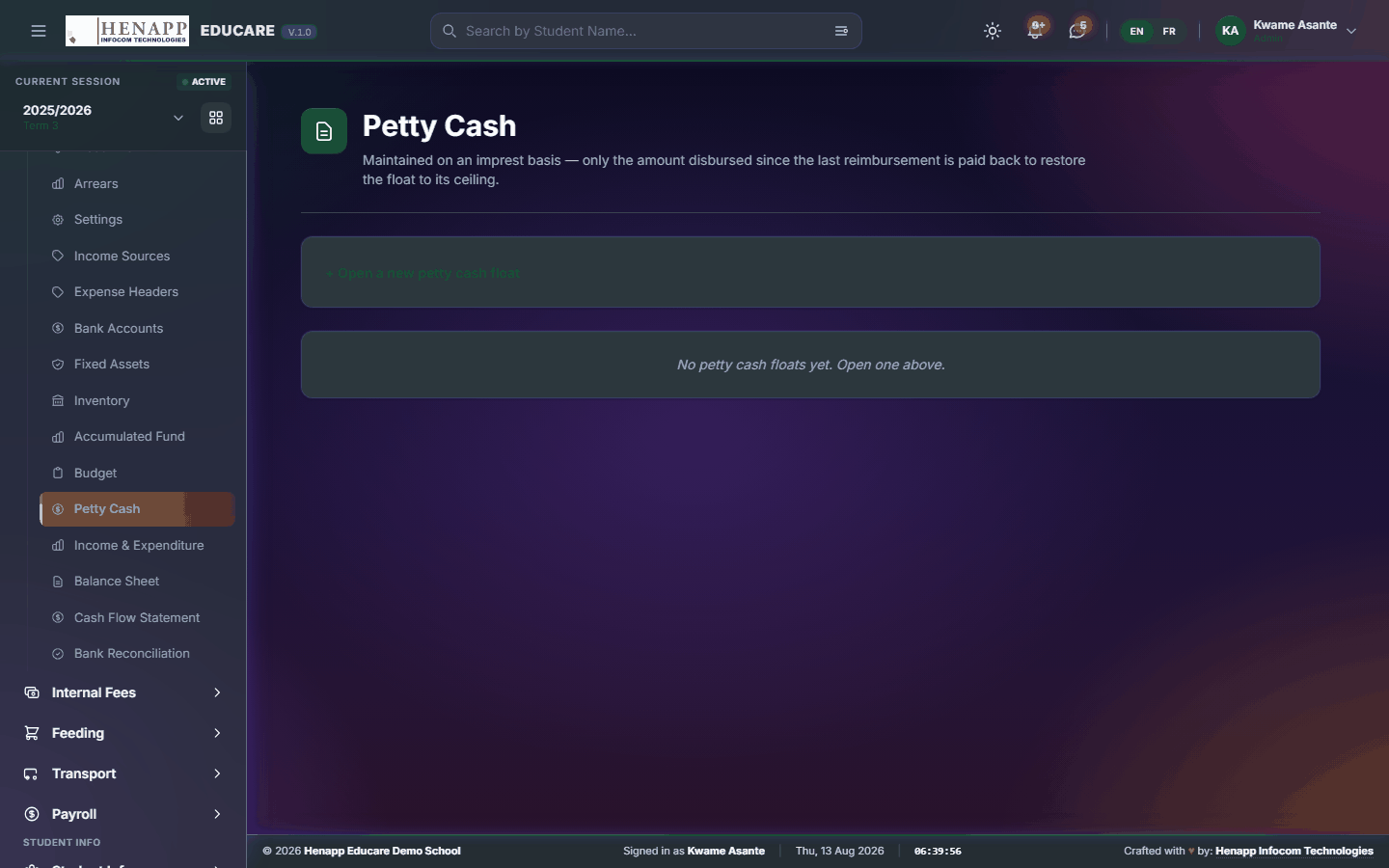
22.17 Petty Cash
The small cash float — what went in, what went out, and what should be in the tin.
How to use it
- Open Finance → Petty Cash.
- Record a top-up when the float is replenished.
- Record each payment with its expense header and a description.
- The running balance is what the tin should hold; reconcile it regularly.
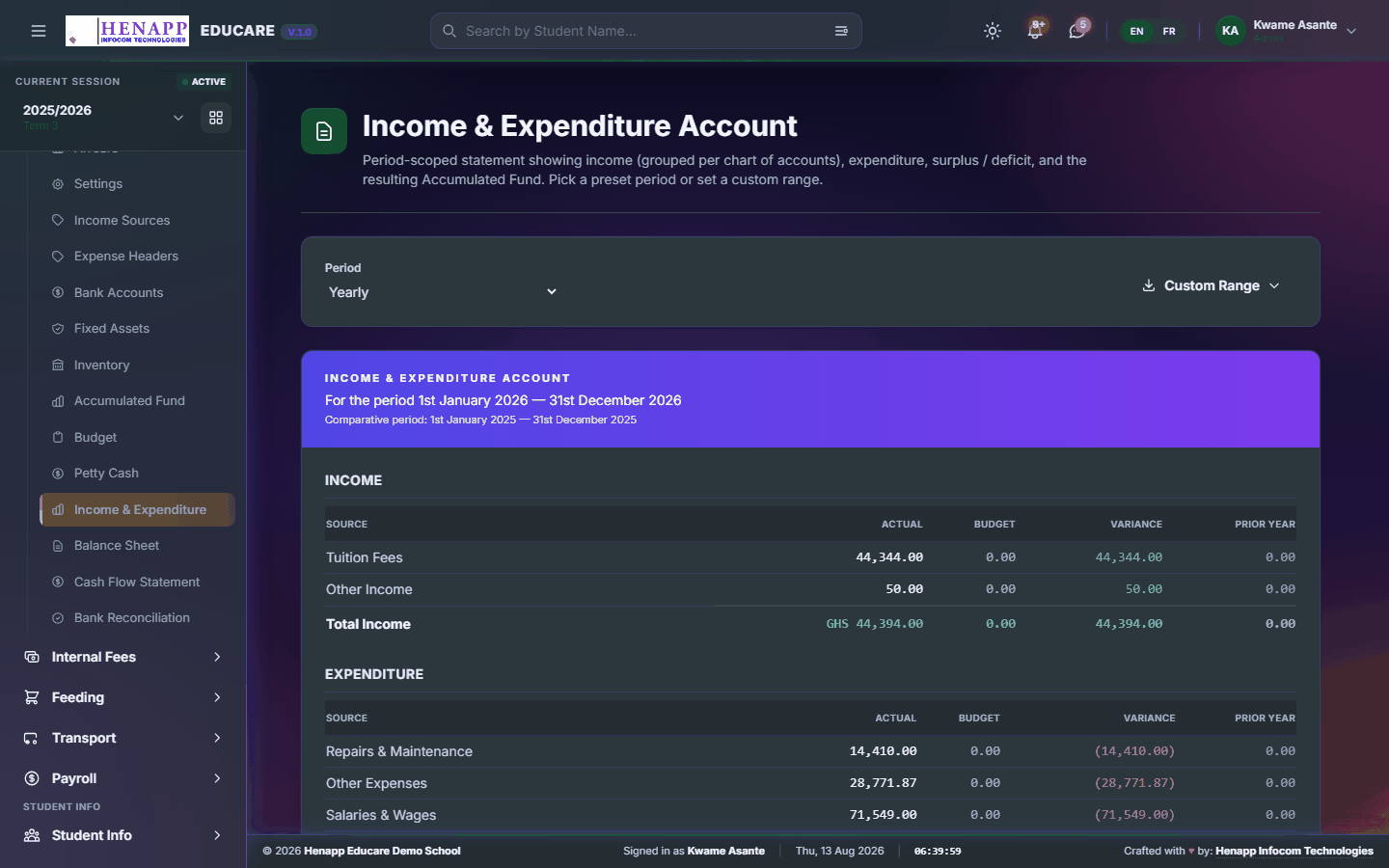
22.18 Income & Expenditure
Income against expenditure for a period, and the surplus or deficit that results.
How to use it
- Open Finance → Income & Expenditure.
- Set the period.
- Read the statement, then export it as a PDF for the board or the auditor.
22.19 Balance Sheet
What the school owns and owes at a point in time.

How to use it
- Open Finance → Balance Sheet.
- Set the date.
- Read the statement and export it.
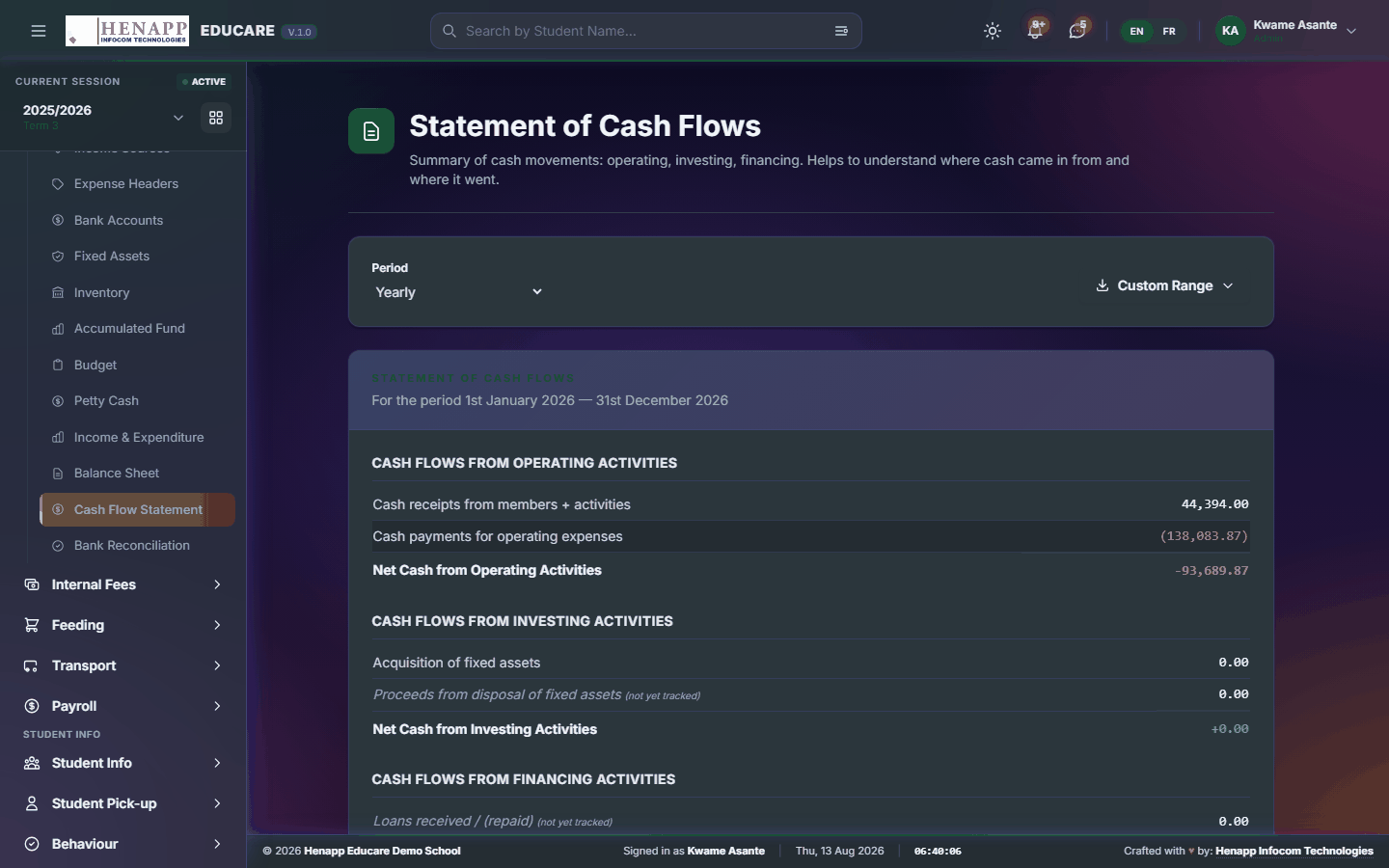
22.20 Cash Flow Statement
Cash actually in and out over a period — which is not the same as income and expenditure.
How to use it
- Open Finance → Cash Flow Statement.
- Set the period, read the statement and export it.
22.21 Bank Reconciliation
Matching the school's records against the bank statement, so differences are found and explained.

How to use it
- Open Finance → Bank Reconciliation.
- Choose the account and the statement period.
- Enter the closing balance from the bank statement.
- Tick off each transaction that appears on both sides.
- Investigate whatever is left unticked, then save the reconciliation.
23. Internal Fees
Charges raised inside the school that sit outside the main fee structure — departmental levies, club subscriptions, one-off contributions.
Find it in the sidebar under Finance → Internal Fees.
23.1 Internal Fees
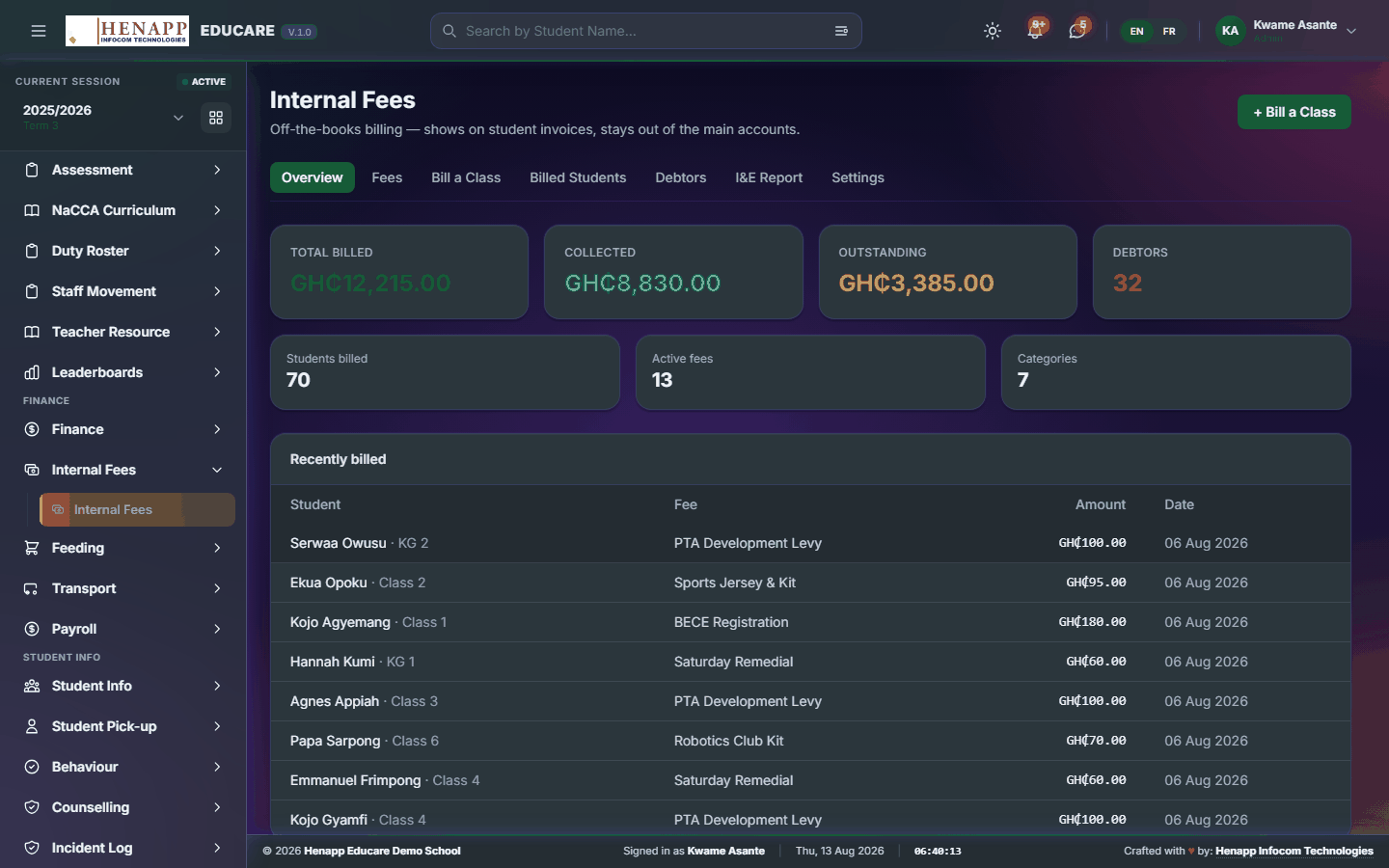
Charges raised within the school outside the main fee structure — a departmental levy, a club subscription, a one-off contribution.
How to use it
- Open Internal Fees.
- Create the fee with its name, amount and who it applies to.
- Assign it to the learners or staff concerned.
- Record payments against it and export the collection list.
24. Feeding
The feeding programme — the weekly menu, who is subscribed, and the daily money collected.
Find it in the sidebar under Finance → Feeding.
24.1 Feeding Overview
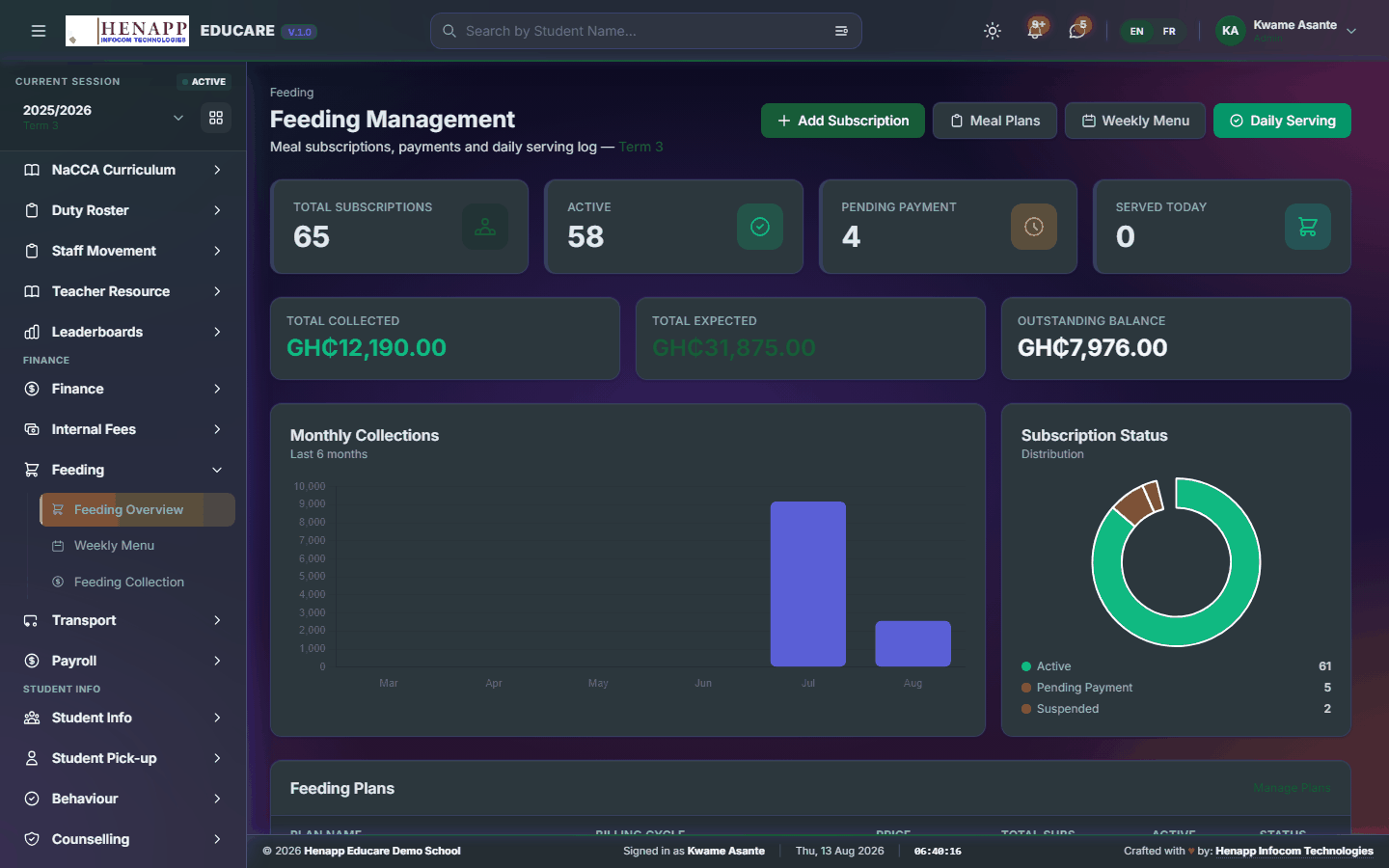
The feeding programme at a glance — who is subscribed and what has been collected.
How to use it
- Open Feeding → Feeding Overview.
- Read the subscriber count and today's collection.
- Click through for the detail.
24.2 Weekly Menu
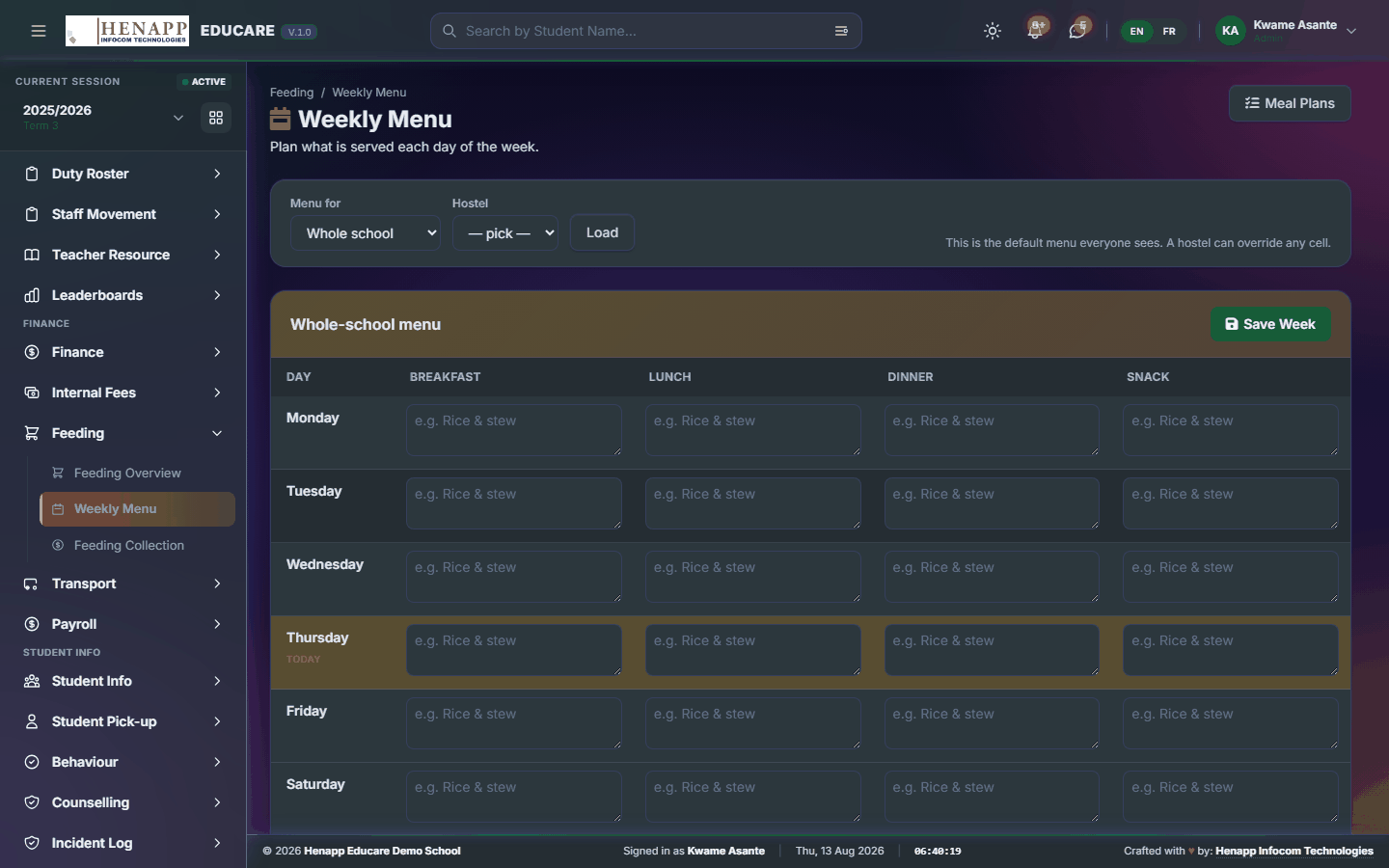
What is being served each day of the week, published to parents.
How to use it
- Open Feeding → Weekly Menu.
- Set the meal for each day.
- Save and publish. Parents see the menu in their portal.
25. Transport
School transport — routes, who rides, and the fares collected.
Find it in the sidebar under Finance → Transport.
25.1 Transport Overview
Routes, vehicles and riders in summary.

How to use it
- Open Transport → Transport Overview.
- Add routes and assign vehicles to them.
- Subscribe learners to a route and set the fare.
26. Payroll
Staff pay — salary structures, allowances and deductions, loans, tax, and the monthly run that produces payslips.
Find it in the sidebar under Finance → Payroll.
26.1 Dashboard
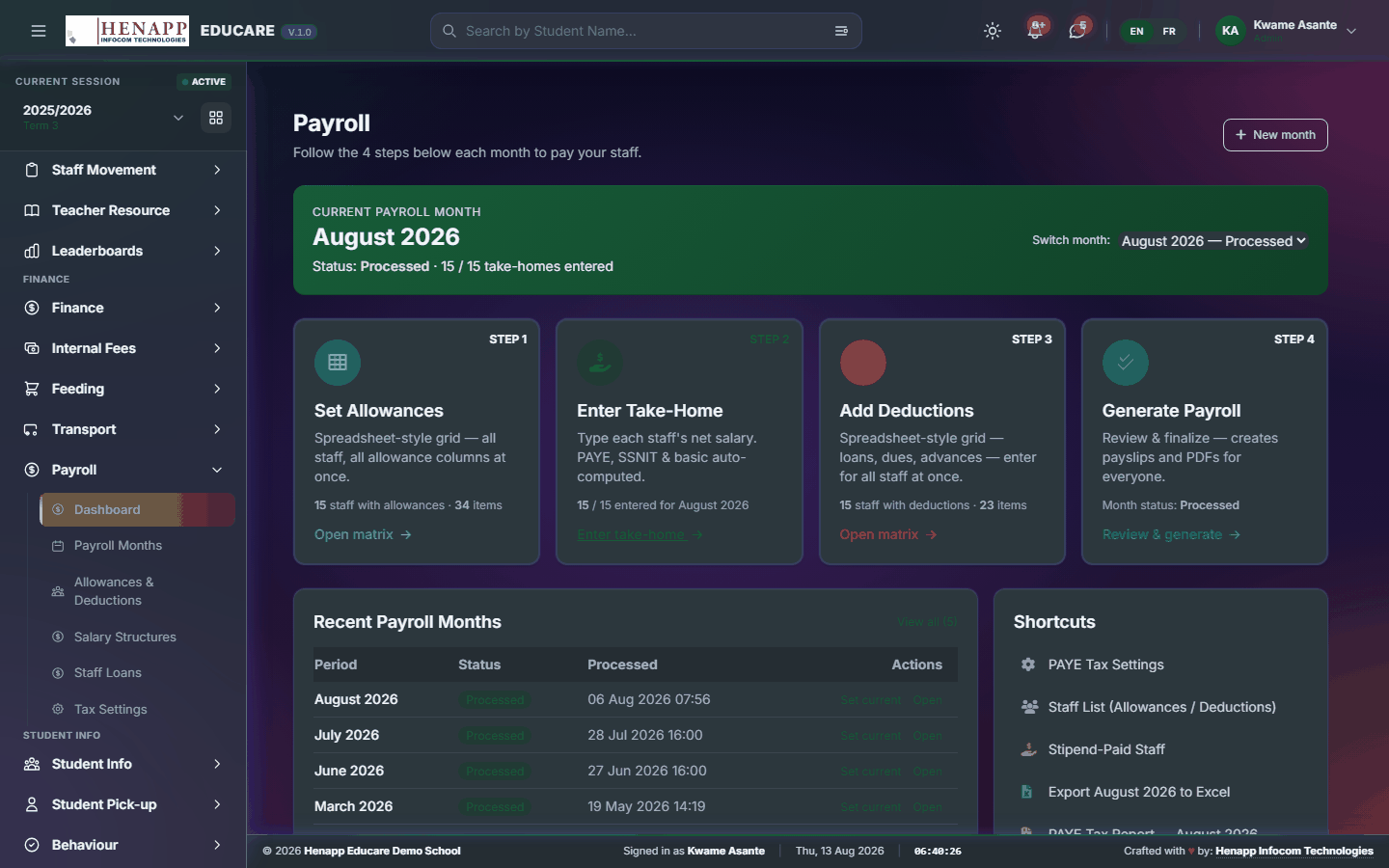
The payroll home page — the current month's position and where it is in the run.
How to use it
- Open Payroll → Dashboard.
- Read the totals for the open month.
- Click through to the month to work on it.
26.2 Payroll Months
Each pay month: open it, process it, produce payslips, and close it.
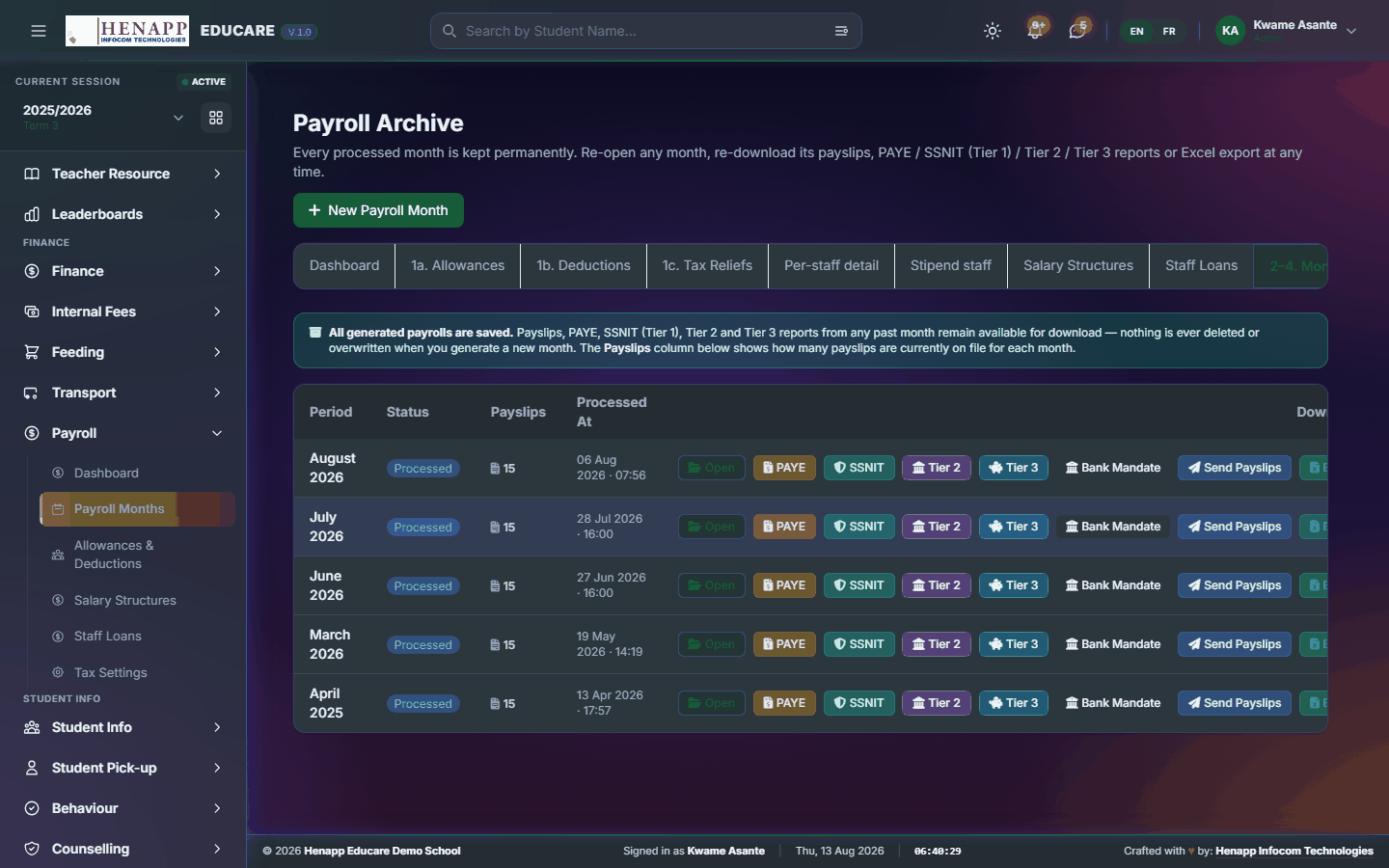
How to use it
- Open Payroll → Payroll Months.
- Click New Month and choose the period, or open the month already running.
- Process the month — the system calculates gross, allowances, deductions, tax and net for each member of staff.
- Review the register line by line before you go further.
- Generate payslips, then close the month once payment has been made.
A closed month is the record of what was paid. Check the register while the month is still open — allowances, deductions and loan repayments are all easier to correct before closing than after.
26.3 Allowances & Deductions
What each member of staff is paid on top of salary, and what comes off it.

How to use it
- Open Payroll → Allowances & Deductions.
- Pick the member of staff.
- Add each allowance and each deduction with its amount, and whether it repeats every month or applies once.
- Save. The next processed month picks the changes up.
26.4 Salary Structures
Pay scales and grades, so staff on the same grade are paid consistently.

How to use it
- Open Payroll → Salary Structures.
- Create each grade with its basic salary.
- Assign staff to a grade — their basic pay then follows the structure.
26.5 Staff Loans
Staff loans and advances, with repayments taken from pay automatically.

How to use it
- Open Payroll → Staff Loans.
- Click New Loan, choose the member of staff and enter the amount.
- Set the monthly repayment and the start month.
- Save. Repayments are deducted each month until the loan clears, and the outstanding balance is shown here.
26.6 Time Losses
What lateness and unexcused absence cost, in minutes and in money, for every member of staff each month.
How to use it
- Open Payroll → Time Losses.
- Choose the month. Each member of staff shows the minutes they were late, the days they were absent without permission, and what that is worth against their own pay.
- Open a name to see the day-by-day working behind the figure.
- Print or export it for a meeting, or leave it — the same summary already prints on each payslip.
Anyone marked on Excused Duty, or with approved leave, is not charged for those days. Days nobody clocked in at all — a holiday, a closure — are not counted against anyone.
26.7 Tax Settings
Tax bands, reliefs and statutory contributions used when a month is processed.
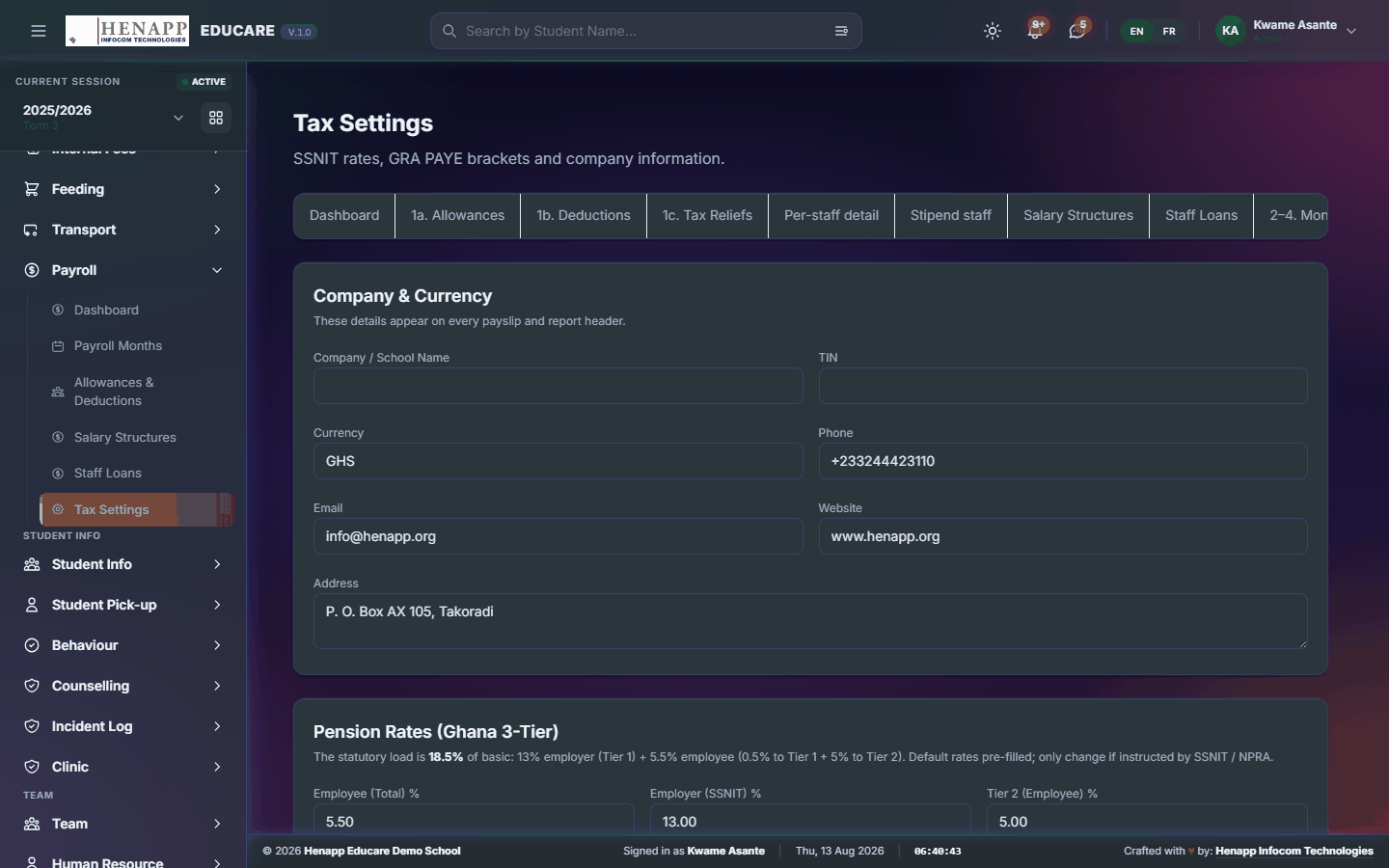
How to use it
- Open Payroll → Tax Settings.
- Set the tax bands and rates.
- Set the reliefs and the pension or social-security rates.
- Save. These take effect from the next month processed, not retrospectively.
27. Student Info
Learner records from application to enrolment — admissions, the student roll, and the family links behind it.
Find it in the sidebar under Student Info.
27.1 Admissions
Applications received, and the path from application to an enrolled learner.
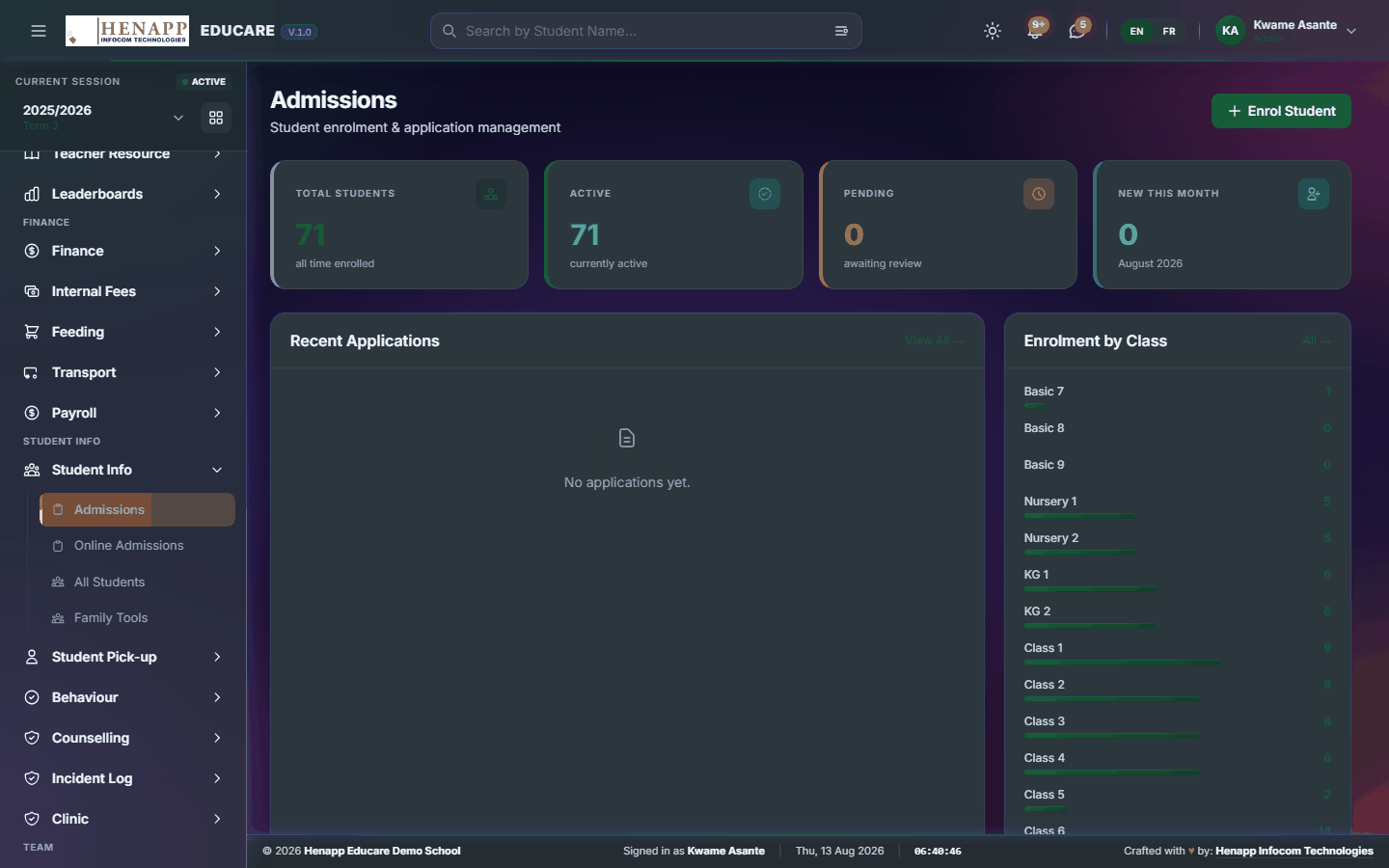
How to use it
- Open Student Info → Admissions.
- Open an application to read it in full.
- Record the outcome of any entrance test or interview.
- Click Enrol to turn an accepted application into a learner record — choose the class and stream they join.
- Decline with a reason where the application is unsuccessful.
27.2 Online Admissions
Applications submitted through the school website, arriving in the same queue as those taken at the office.
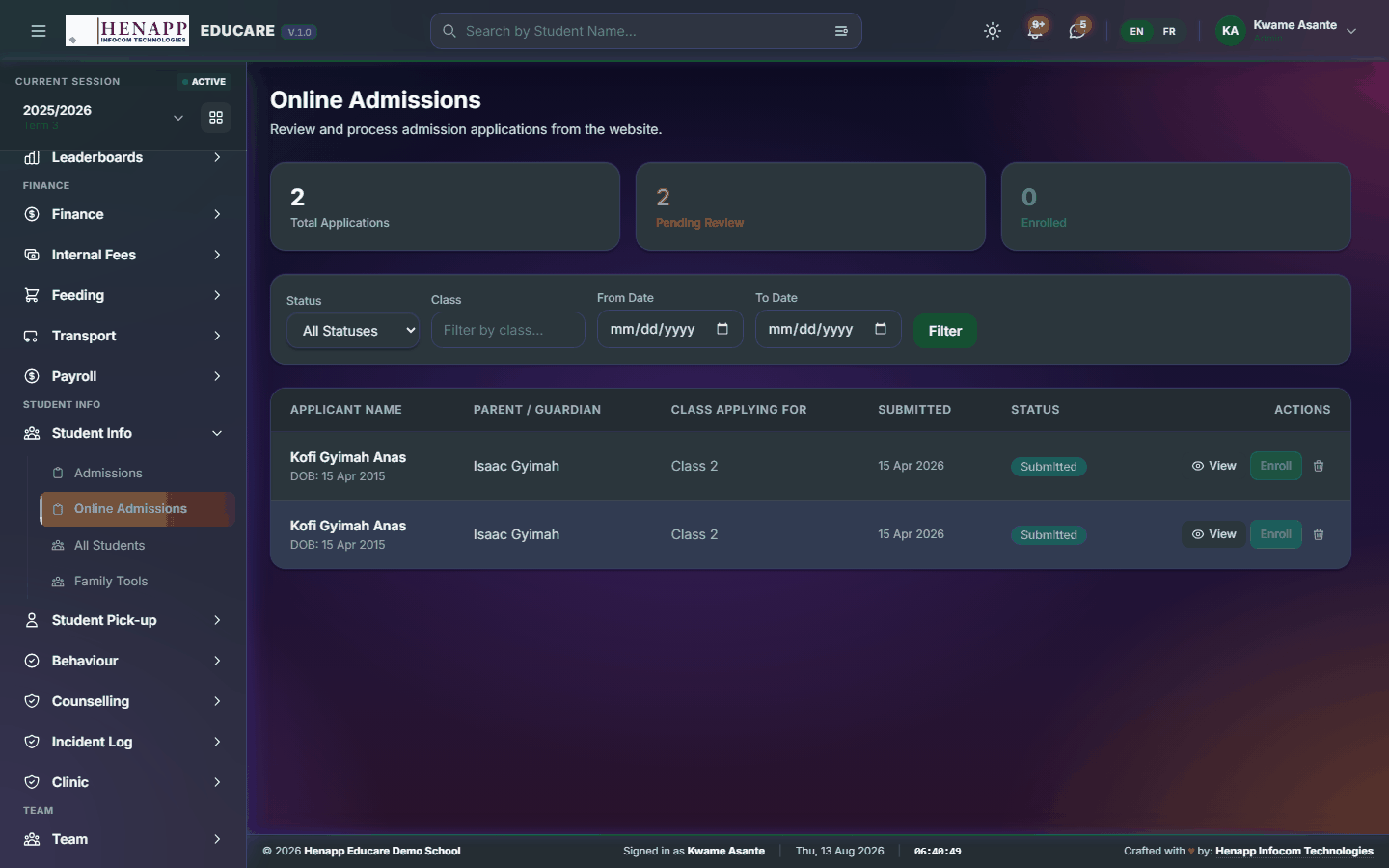
How to use it
- Open Student Info → Online Admissions.
- Review each submission and its attachments.
- Move it forward into the admissions process, or decline it.
27.3 All Students
The student roll — every learner, searchable, with the full record behind each one.
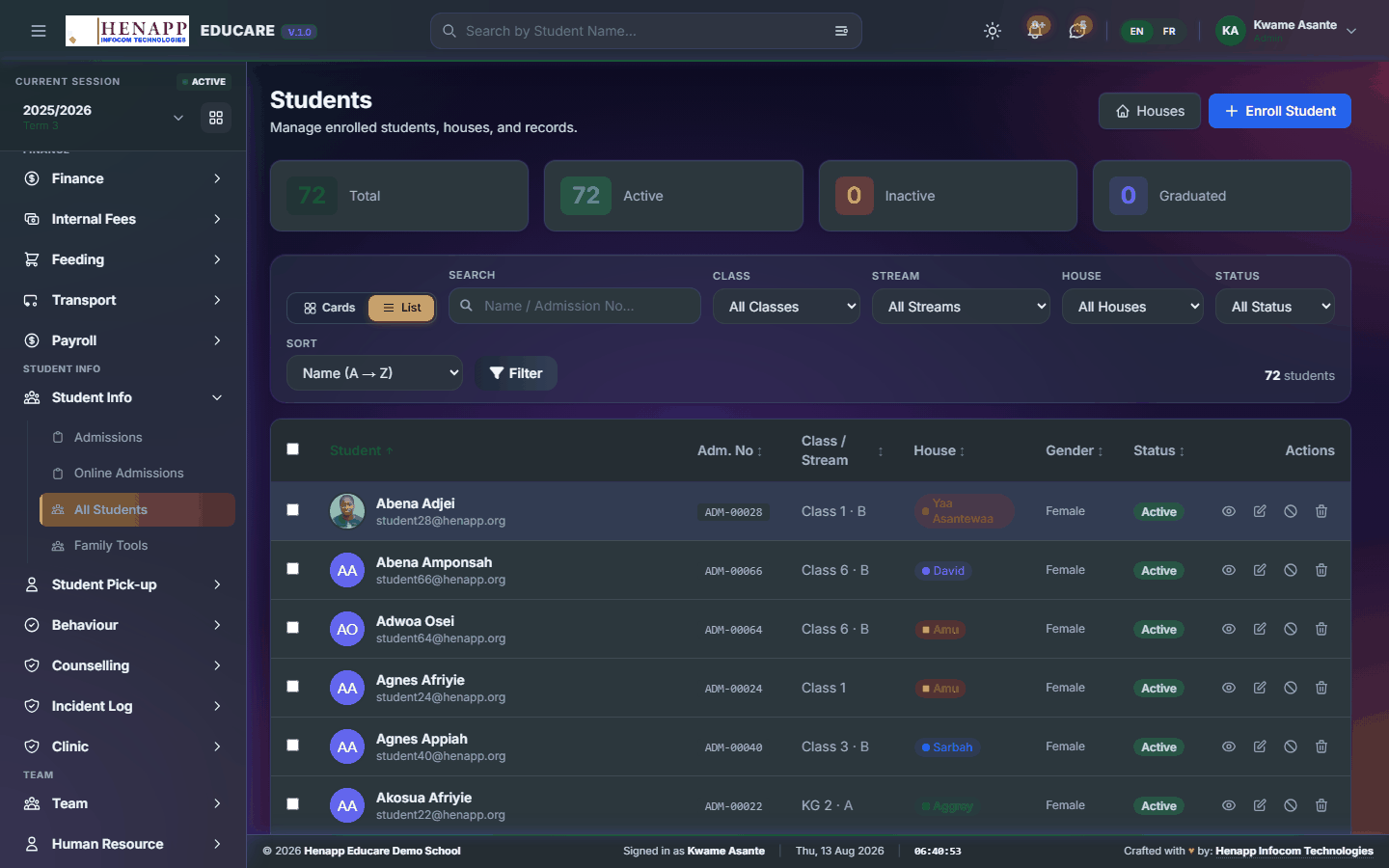
How to use it
- Open Student Info → All Students.
- Search by name or admission number, or filter by class and stream.
- Click a learner to open their record — personal details, guardians, class history, fees, attendance and results.
- Use Add Student for a single new learner.
- Use Bulk Import to load a roster: download the template, fill it in, and upload it.
- Export the list to Excel or PDF when you need it outside the system.
Rows without an email address are given an internal placeholder so the import does not fail. You can add the real address later from the learner record.
27.4 Family Tools
The links between learners and their guardians — siblings, contacts, and which parent account sees which child.

How to use it
- Open Student Info → Family Tools.
- Search for a family or a learner.
- Link siblings so one parent login covers all of them.
- Add or correct a guardian and their contact details.
- Check which parent account is attached to each child before sending credentials.
28. Furniture Use
School furniture issued to a named learner — a tagged desk, chair or locker, held for a set period, with its condition and replacement value recorded on the day it is handed over.
The record is only worth what the family knew at the time. The policy is shown to the parent when the item is assigned, and they are asked to acknowledge it; the date and wording they saw are kept with the record.
Condition and value are fixed at handover and never change afterwards. If the item comes back damaged, that is what any charge is worked out against — not what the item is worth today.
Only the school administration may put a figure on damage. A class teacher reports what they see; the amount, and whether to charge at all, is an administrative decision.
A damage charge is added to the learner's bill through Additional Fees, so it appears on their statement and carries forward as arrears until it is paid or written off.
Find it in the sidebar under Student Info → Furniture Use.
28.1 Furniture Register
The furniture register — every tagged desk, chair and locker the school issues, and where each one is.
How to use it
- Open Furniture Use → Furniture Register.
- Click Add Item and give it a tag. The tag is the one physically on the furniture, so write it exactly as it appears there.
- Set the category, the condition it is in now, and the replacement value.
- Photograph the item if you can — it settles most arguments later.
- Save. The item is now available to assign.
A two-seater bench is two items, tagged separately, because it is held by two learners. Registering it as one makes it impossible to say which half was broken.
Retiring an item keeps its tag and its history. Nothing already assigned or charged is lost.
28.2 Assignments
Who is holding what — issuing an item to a learner, taking it back in, and dealing with damage.
How to use it
- Open Furniture Use → Assignments.
- Click Assign, choose the item and the learner, and set the date it is issued.
- Set the return date, or leave it open if the learner keeps the item for as long as the school decides.
- Check the condition and value shown — they are copied onto this record and are what any later charge is worked out against.
- Add a handover photograph if you have one, and save. The parent is notified and asked to acknowledge the policy.
- When the item comes back, open the assignment, click Return, and record the condition it came back in.
- Where it came back damaged, enter the amount to charge. The suggested figure is only a suggestion — the amount you enter is what is billed.
- Save the charge. It is added to the learner's bill and the parent is notified.
The amount offered is worked out from the value recorded at handover and how badly the item was damaged. You may charge all of it, part of it, or nothing. Whatever you enter is what the family pays, and both figures are kept so the decision can be explained later.
Waiving a charge removes it from the bill it was raised on, even if that was a previous term.
An item that has left with a learner who has left the school still shows here. That debt is not written off by their leaving.
28.3 Damage Reports
Damage reported by staff — a class teacher flags a broken or missing item so the office can look at it.
How to use it
- Open Furniture Use → Damage Reports.
- Click Report Damage and choose the item, or the learner holding it.
- Say how bad it is and describe what happened, in plain factual terms.
- Attach a photograph where you can.
- Save. The report goes to the office; you will not be asked for an amount.
A teacher can raise a report and nothing more. What the damage is worth, and whether to bill the family at all, is decided by the administration on the assignment record.
Report it when you see it. A desk reported at the end of term cannot be told apart from one that was already broken.
28.4 Furniture Policy
The furniture policy parents are shown, and the defaults used when damage is priced.
How to use it
- Open Furniture Use → Furniture Policy.
- Write the policy in the words you want parents to read.
- Set the default proportion of an item's value to suggest for minor damage, major damage and a lost item.
- Save.
The exact wording a parent was shown is kept with their acknowledgement. Changing the policy here changes what the next parent sees; it does not change what an earlier one agreed to.
The proportions only produce a suggested figure. Every charge is still entered by hand.
29. Student Pick-up
Controlled collection at the gate: who is authorised to take a child, when they were collected, and what a late collection costs.
The kiosk is restricted to staff on the pick-up rota for the current week. That is what keeps the record trustworthy.
Find it in the sidebar under Student Info → Student Pick-up.
29.1 Pick-up Reports
Collection history — who collected whom and when, and what was late.
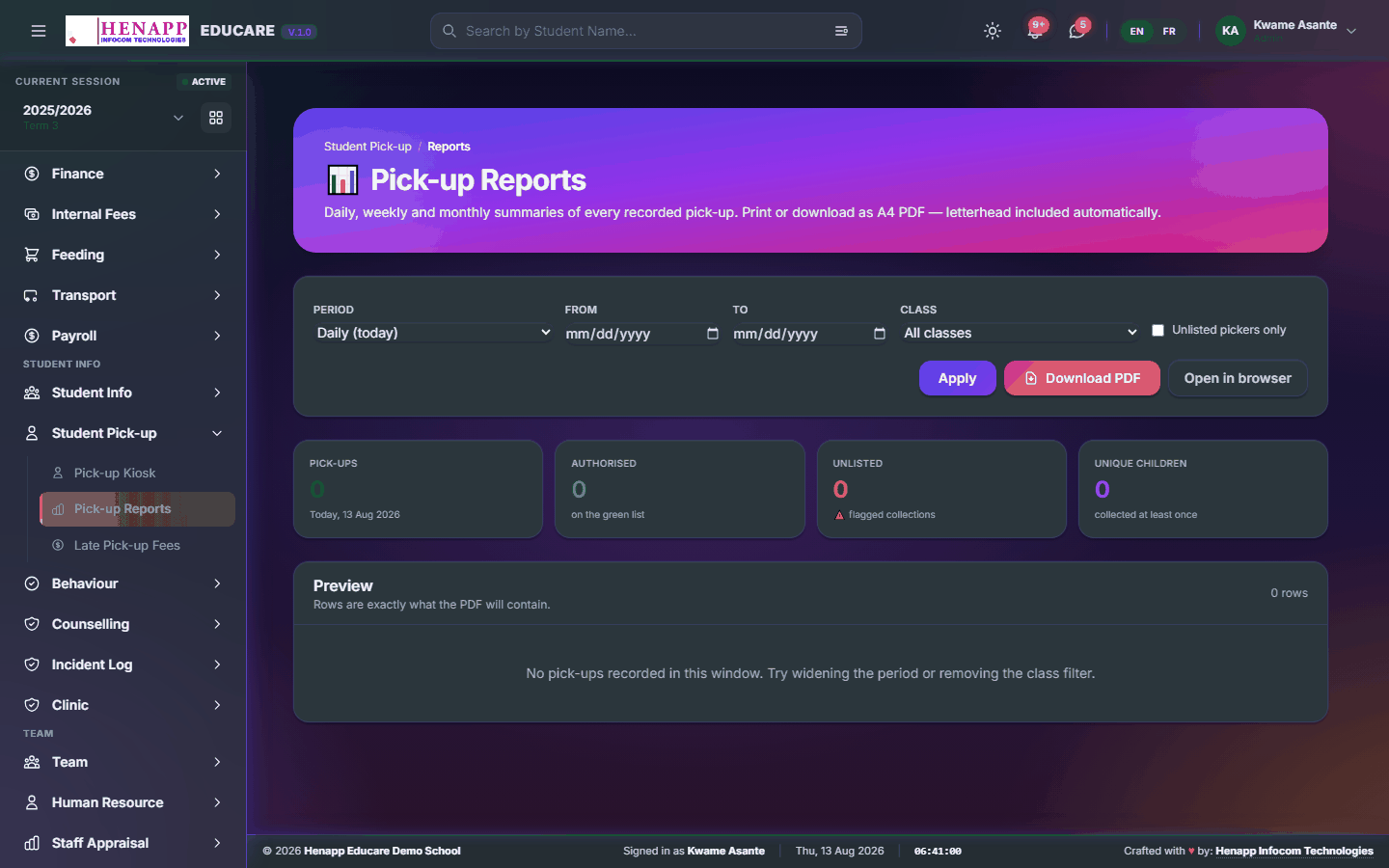
How to use it
- Open Student Pick-up → Pick-up Reports.
- Set the date range and any class filter.
- Read the log and export it if needed.
29.2 Late Pick-up Fees
Charges for collections after the agreed time, raised from the gate record rather than from memory.

How to use it
- Open Student Pick-up → Late Pick-up Fees.
- Set the cut-off time and the charge.
- Review the late collections listed for the period.
- Raise the charges — they appear on the family's account.
30. Behaviour
Conduct recorded as it happens — merits and demerits against agreed categories, and the rankings that come out of them.
Find it in the sidebar under Student Info → Behaviour.
30.1 Dashboard
Conduct across the school in summary — the pattern, not the individual entries.

How to use it
- Open Behaviour → Dashboard.
- Read the totals by category and class for the term.
- Click through to the records behind any figure.
30.2 Assign Behaviour
Record a merit or a demerit against a learner.
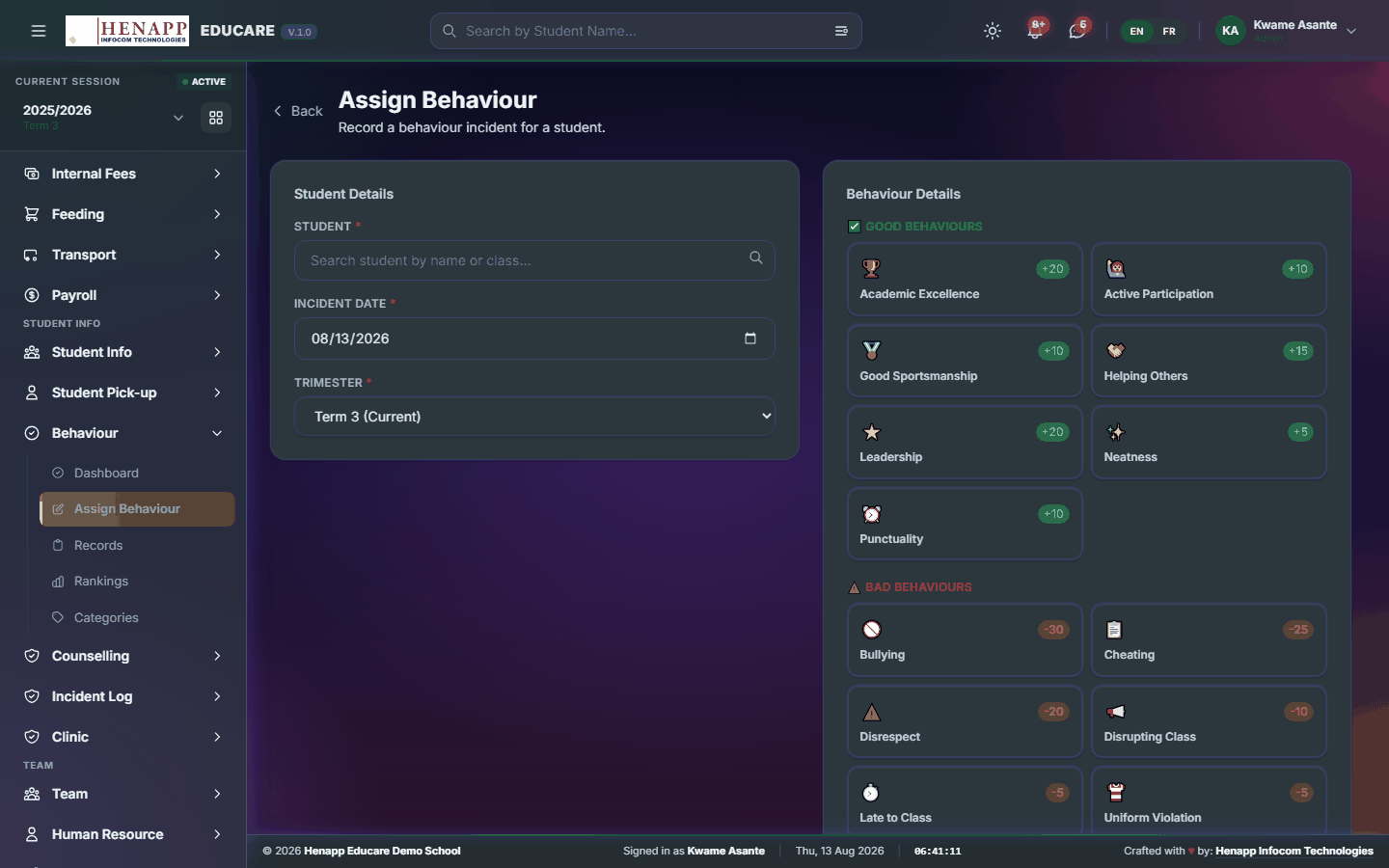
How to use it
- Open Behaviour → Assign Behaviour.
- Choose the learner, or several at once for a group incident.
- Pick the category — this sets whether it adds or removes points.
- Add a short note of what happened and Save.
Parents and senior staff can see these entries. Record what happened plainly and without judgement of the child.
30.3 Records
Every behaviour entry, searchable and filterable.
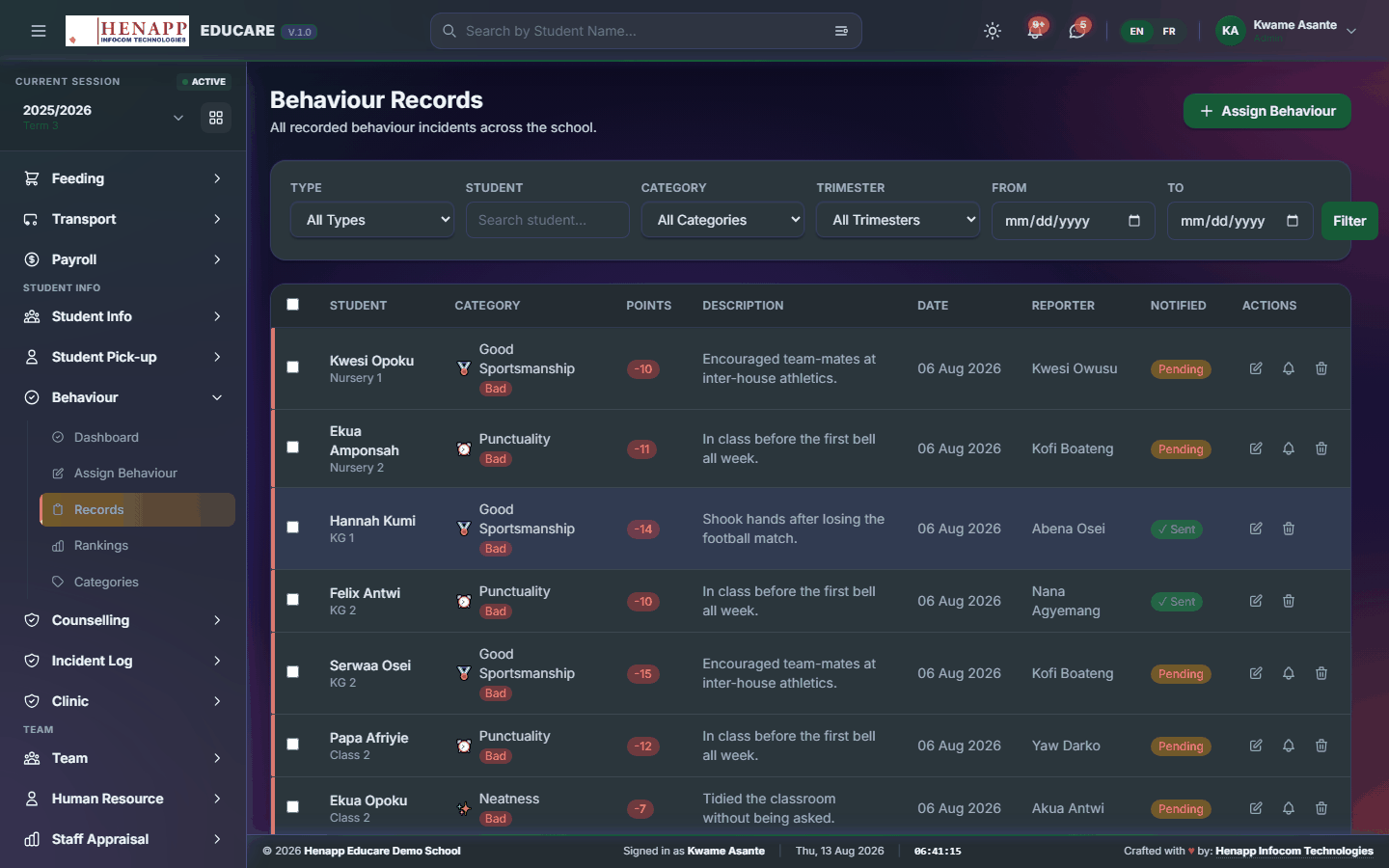
How to use it
- Open Behaviour → Records.
- Filter by class, category, date or learner.
- Open an entry to read it or correct it.
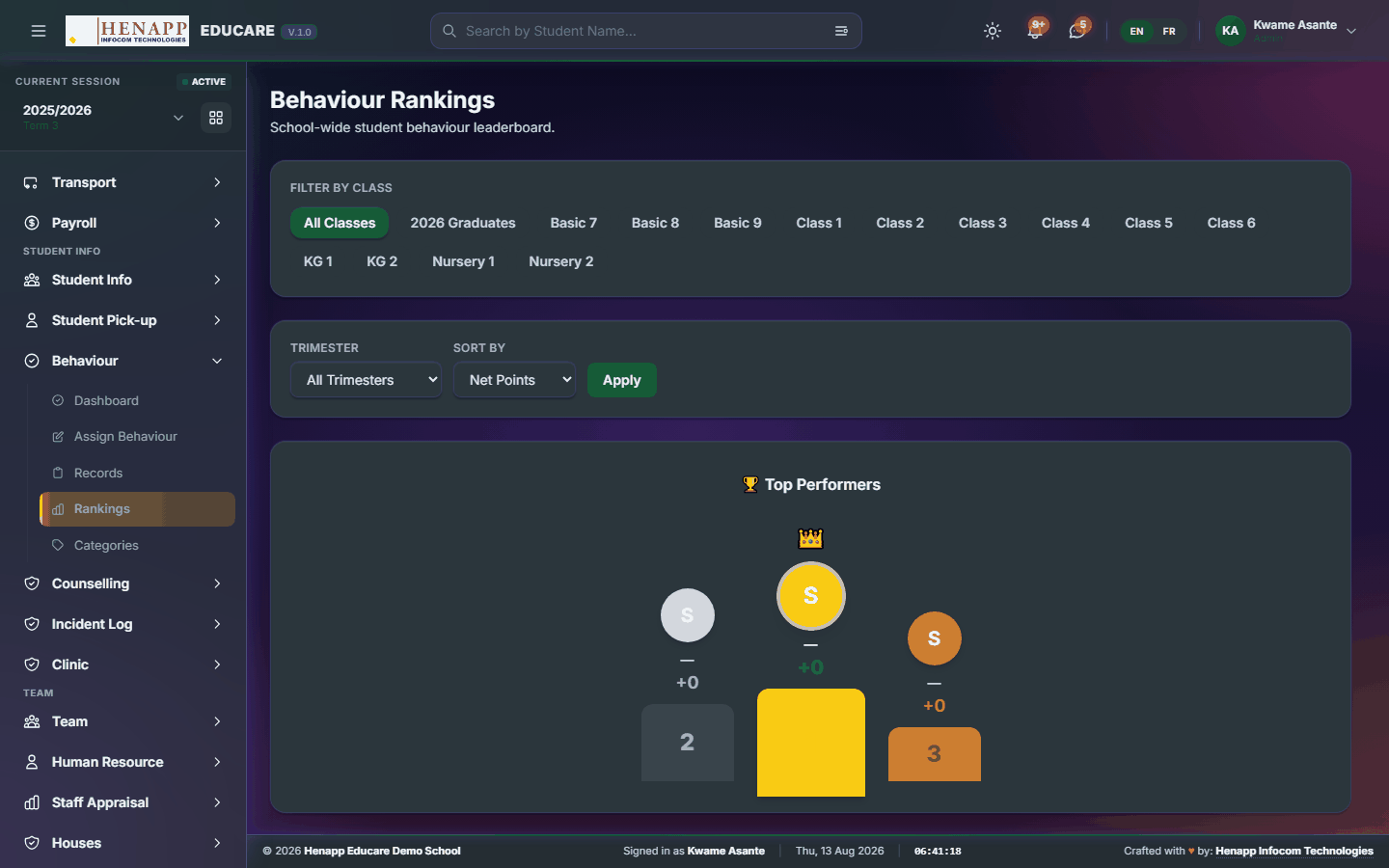
30.4 Rankings
Learners ranked by behaviour points, used for recognition.
How to use it
- Open Behaviour → Rankings.
- Choose the class and term.
- Read the standings and export them for an assembly or prize list.
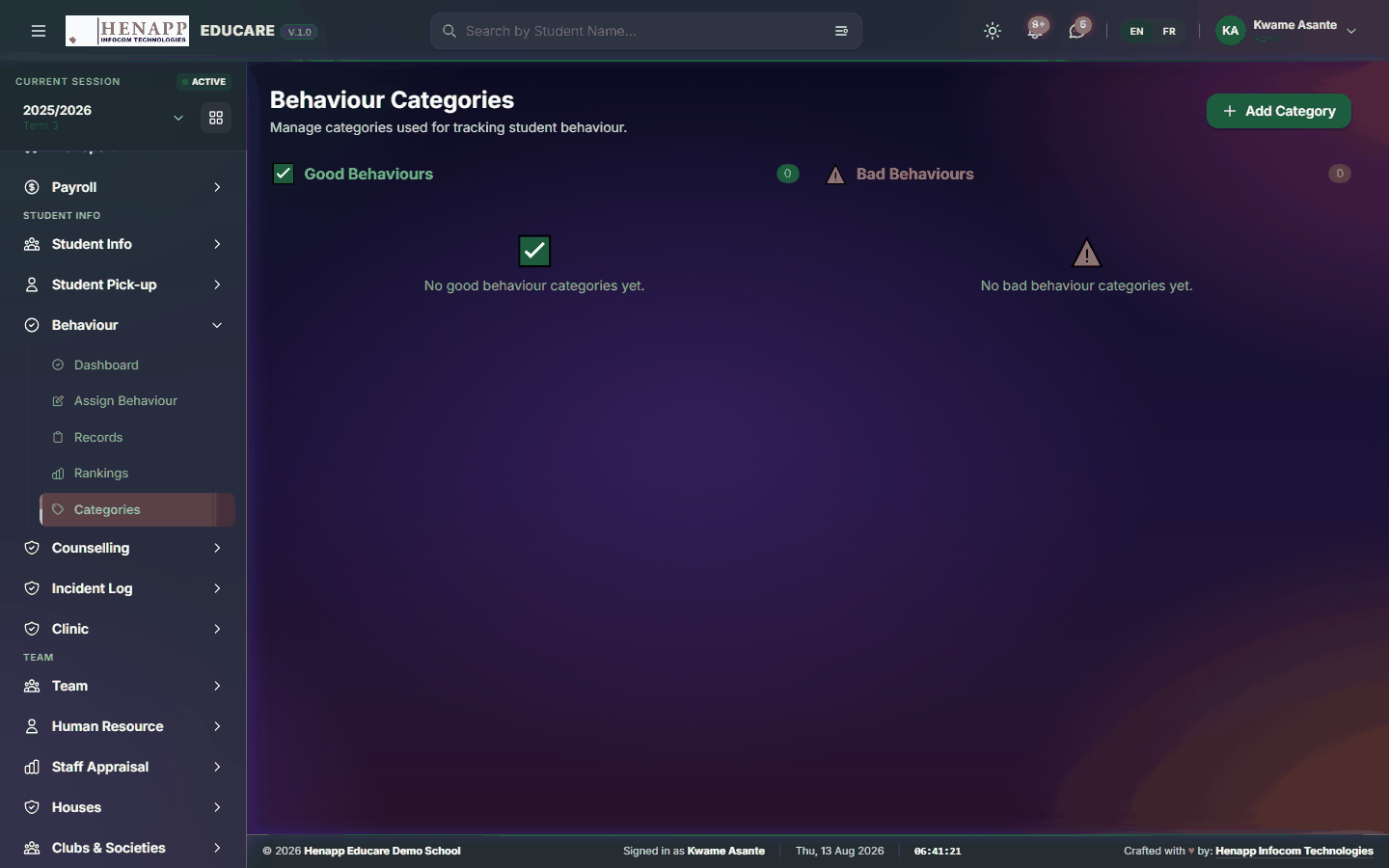
30.5 Categories
The categories staff choose from, and the points each carries.
How to use it
- Open Behaviour → Categories.
- Add each category, its points, and whether it is positive or negative.
- Save. Keep the list short — a long list makes recording slower and less consistent.
31. Counselling
The counselling channel: referrals from staff, the discipline ledger, and the reports management needs — kept apart from the open behaviour record because the content is sensitive.
Find it in the sidebar under Student Info → Counselling.
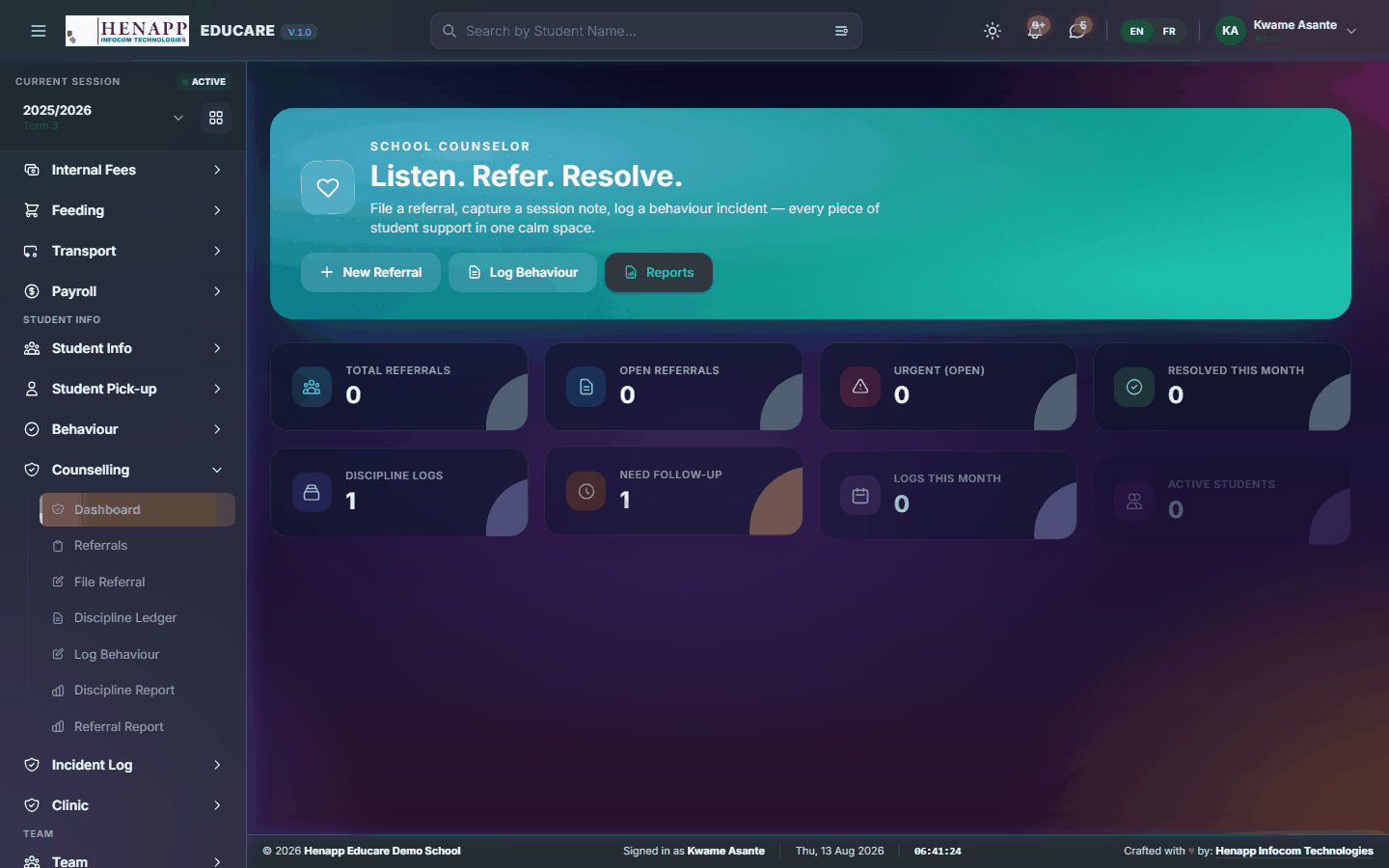
31.1 Dashboard
The counselling caseload in summary — open referrals and what is outstanding.
How to use it
- Open Counselling → Dashboard.
- Read the open cases and their age.
- Click through to any case.
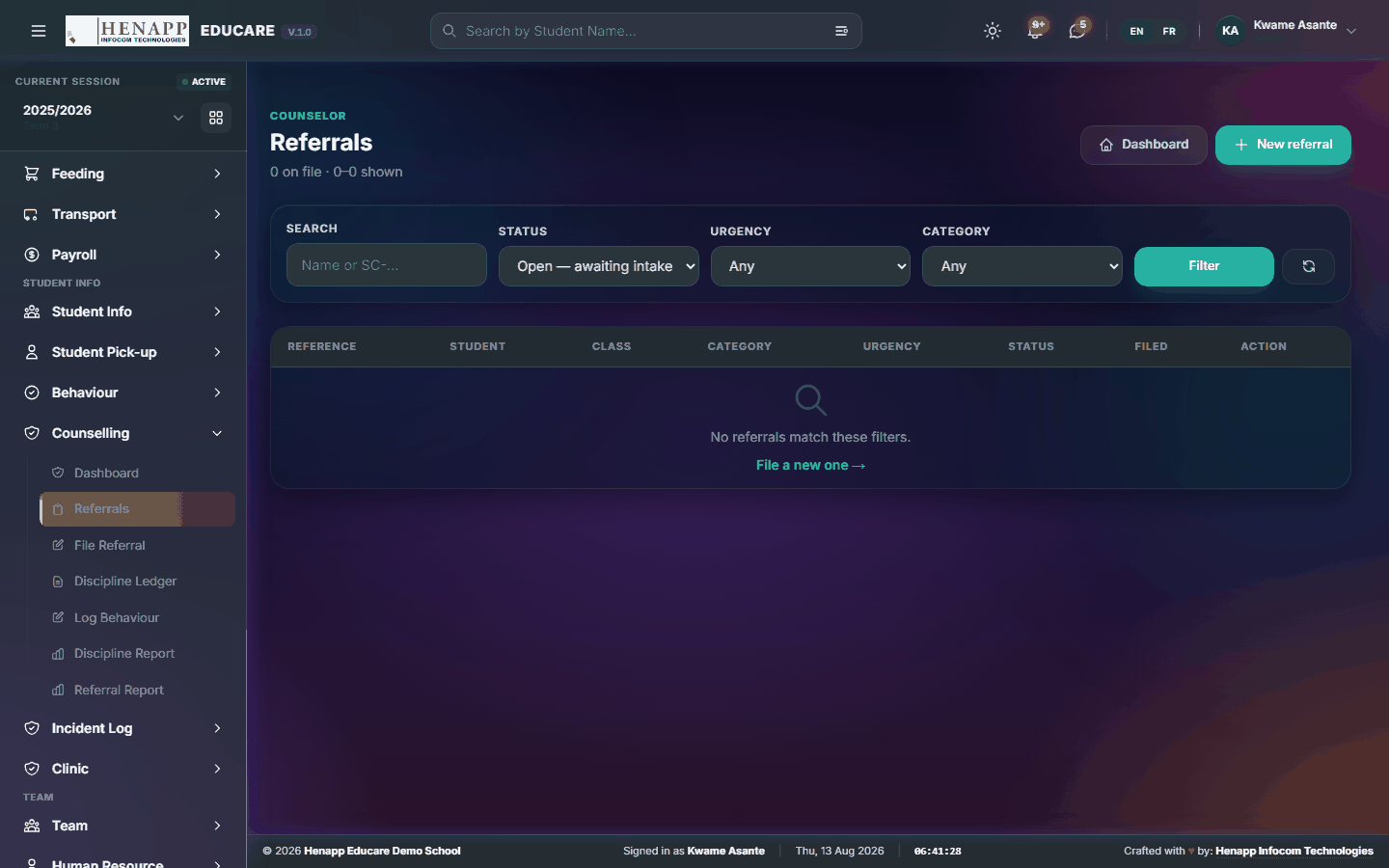
31.2 Referrals
Learners referred for counselling, and where each case has got to.
How to use it
- Open Counselling → Referrals.
- Open a referral to read it and the notes on it.
- Add a session note as the case progresses.
- Close the referral when the case is concluded.
31.3 File Referral
Refer a learner for counselling.
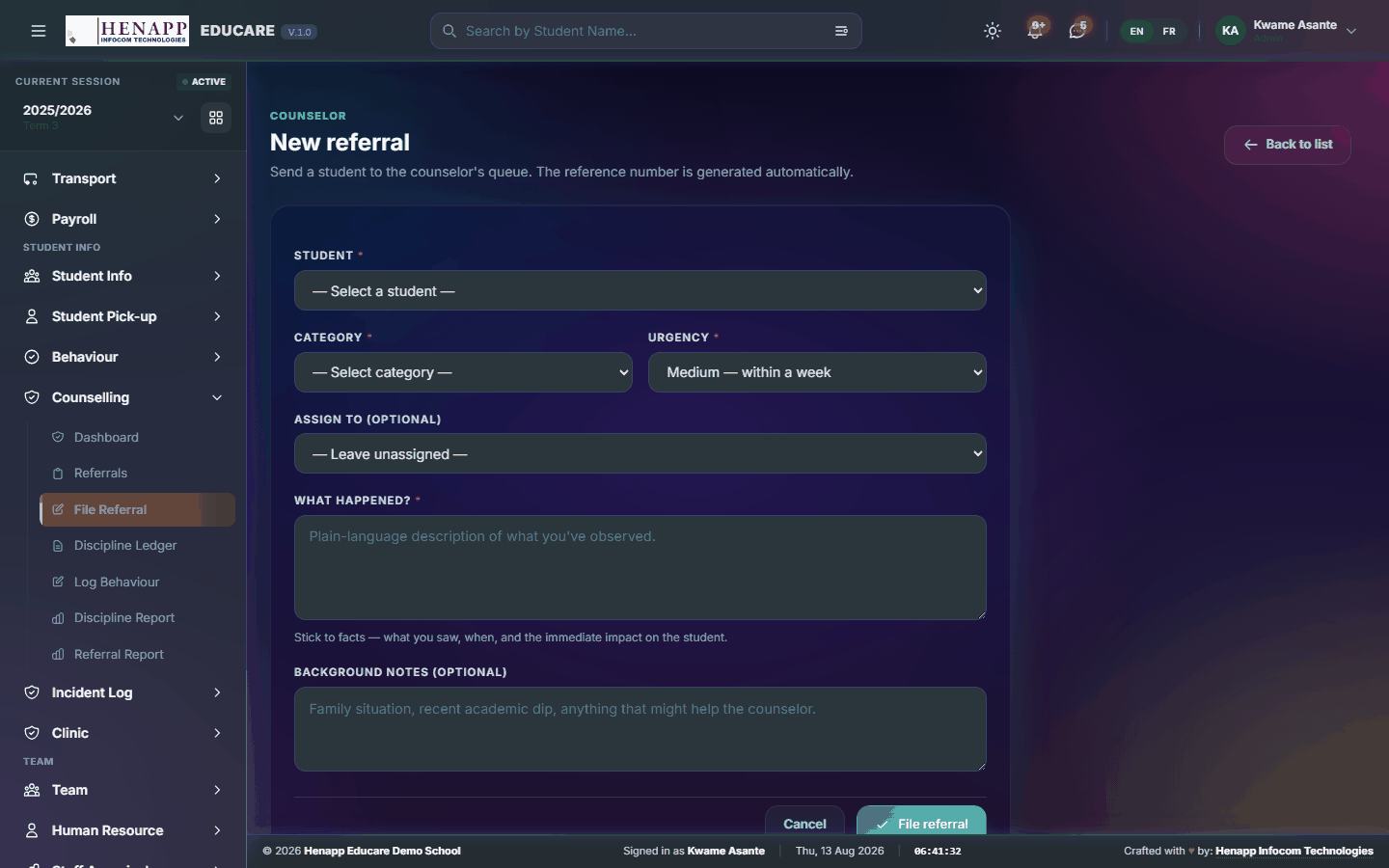
How to use it
- Open Counselling → File Referral.
- Choose the learner and the reason.
- Describe your concern plainly and Submit.
- The counsellor is notified and takes it from there.
31.4 Discipline Ledger
The formal discipline record — serious matters and the sanctions applied.
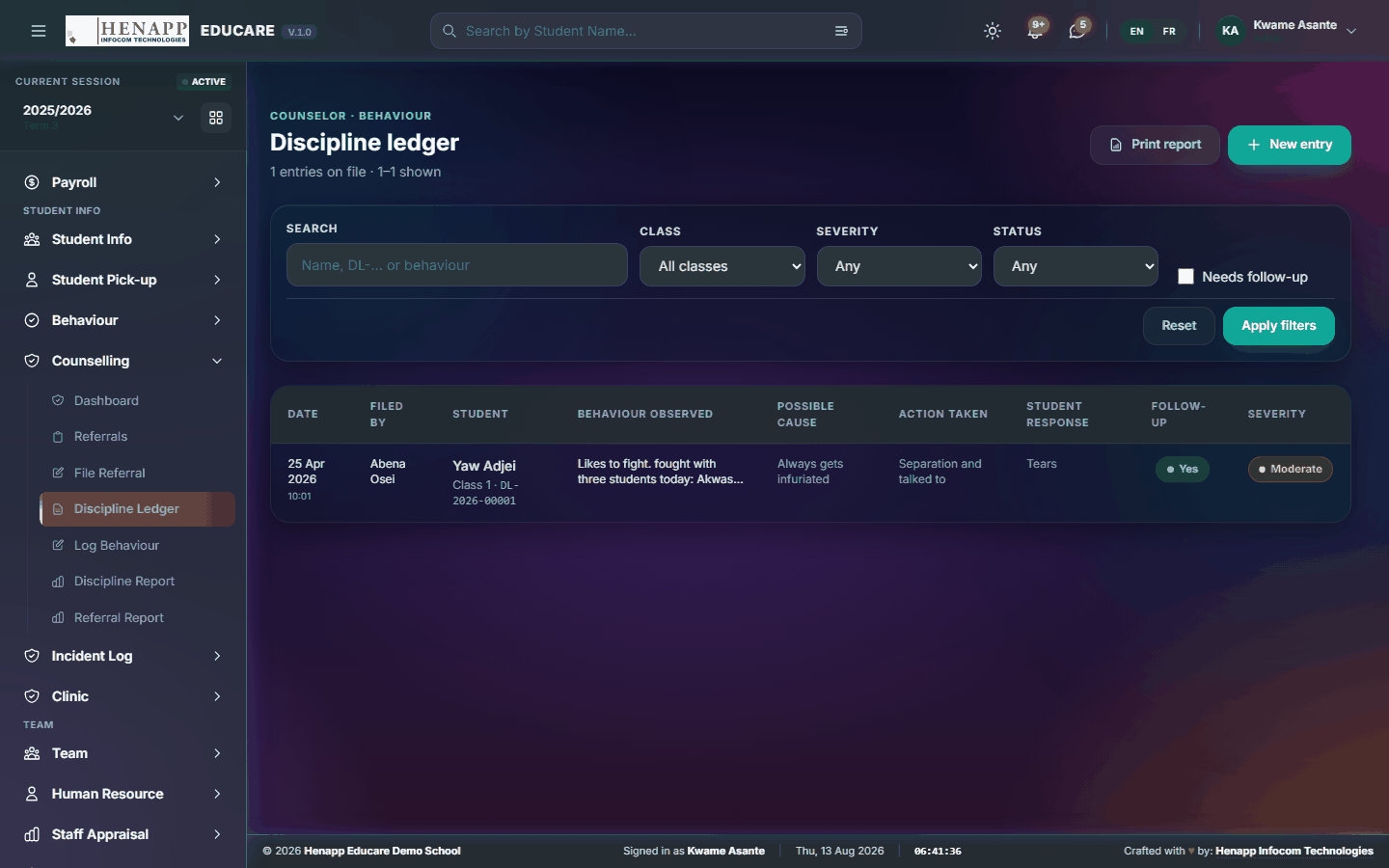
How to use it
- Open Counselling → Discipline Ledger.
- Filter by learner, class or date.
- Open an entry to read the case and its outcome.
31.5 Log Behaviour
Log a disciplinary matter and the action taken.

How to use it
- Open Counselling → Log Behaviour.
- Choose the learner and describe the matter.
- Record the sanction and who authorised it, then Save.
31.6 Discipline Report
Discipline over a period — by class, by category, by frequency.

How to use it
- Open Counselling → Discipline Report.
- Set the period and read the summary.
- Export it for a management meeting.
31.7 Referral Report
Referral activity over a period — volume, reasons and how quickly cases close.
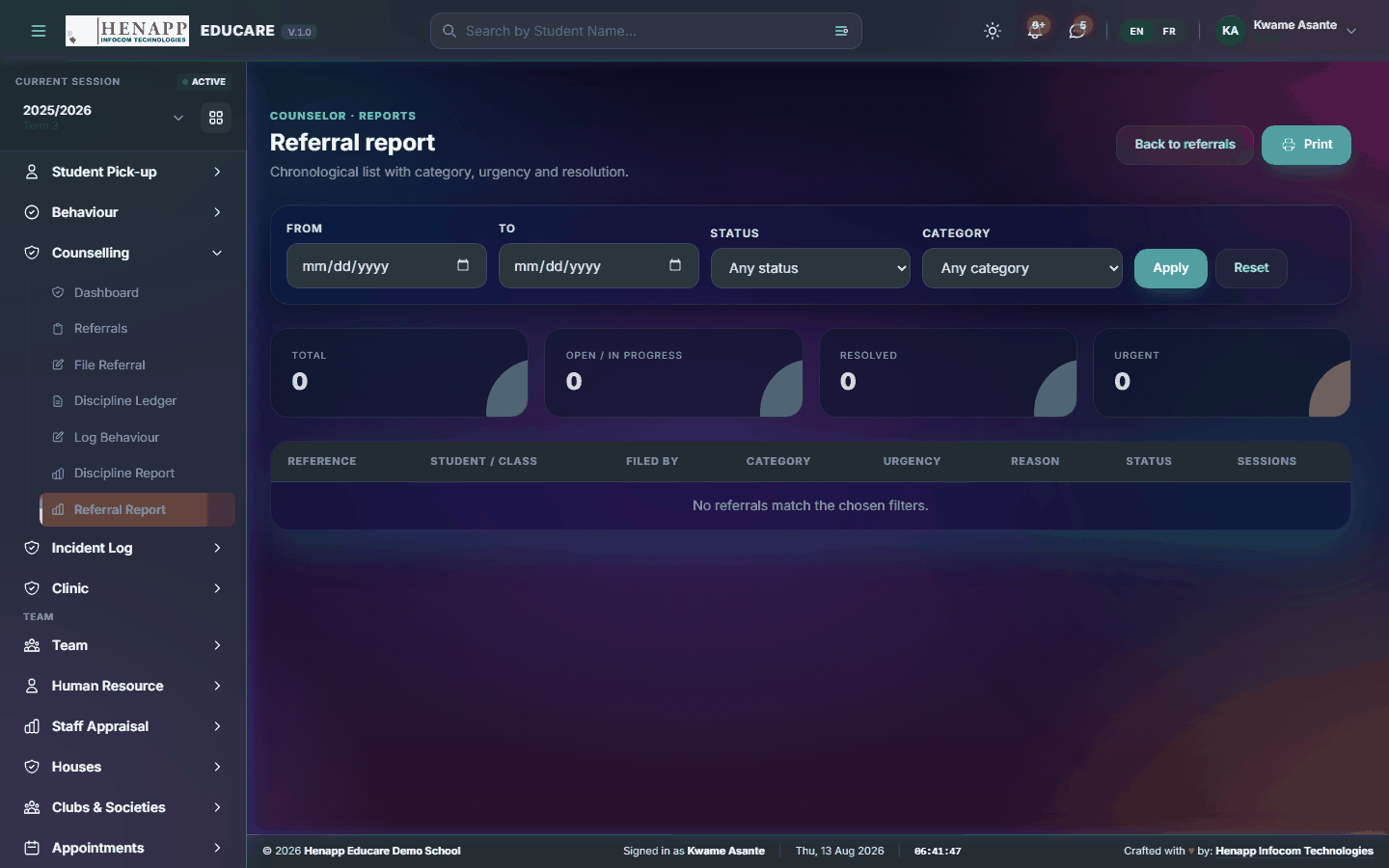
How to use it
- Open Counselling → Referral Report.
- Set the period, read the summary and export it.
32. Incident Log
A formal record of incidents on school premises — accidents, disputes, anything that may be asked about later.
Find it in the sidebar under Student Info → Incident Log.
32.1 All Incidents
Every logged incident, with what happened and what was done.
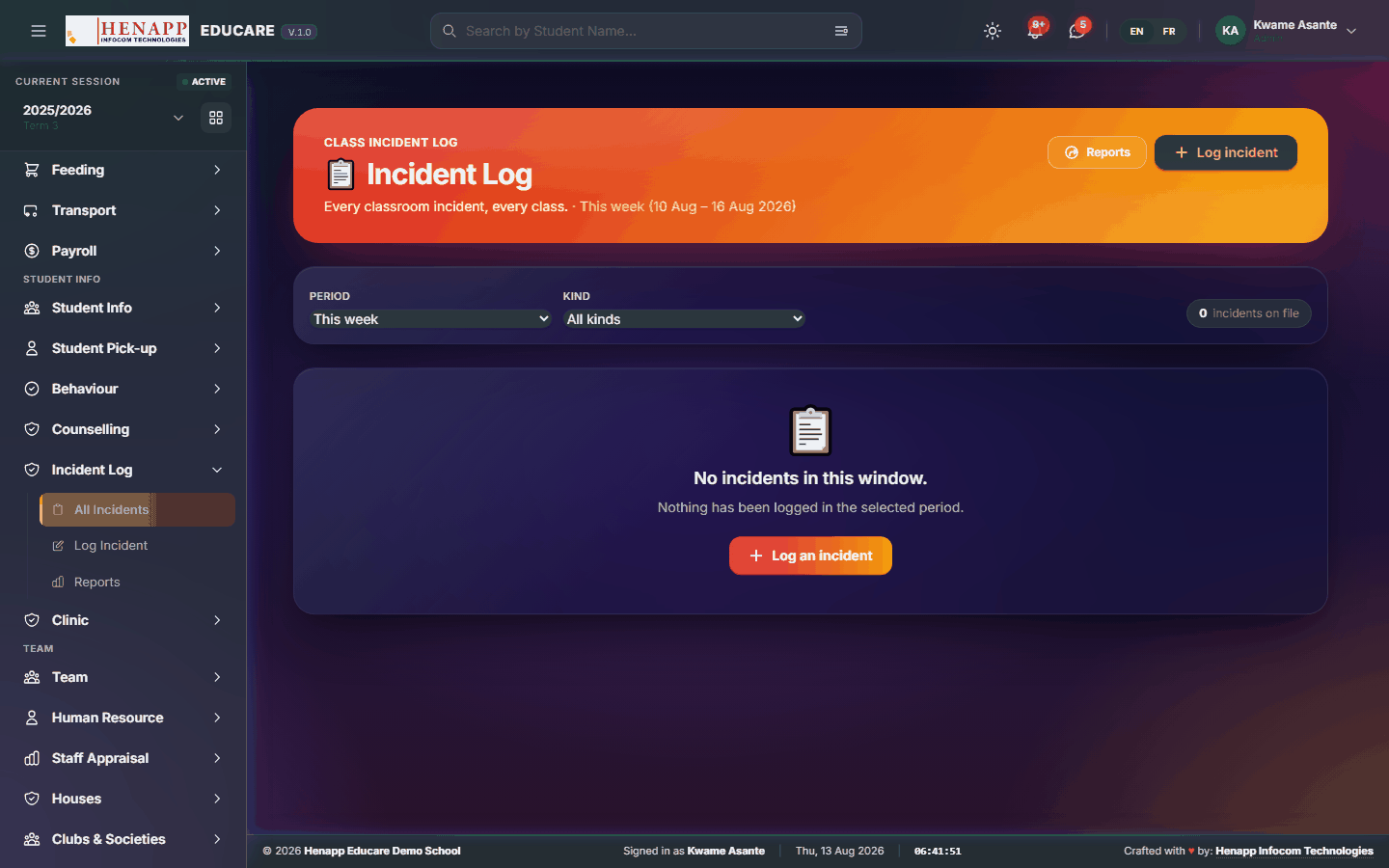
How to use it
- Open Incident Log → All Incidents.
- Filter by date, type or severity.
- Open an incident to read the full record and any attachments.
32.2 Log Incident
Record an incident while the detail is fresh.

How to use it
- Open Incident Log → Log Incident.
- Enter the date, time and place.
- Record who was involved and what happened, in plain factual terms.
- Set the type and severity, attach any photographs, and note the action taken.
- Save. Serious incidents notify senior staff.
An incident log may be read months later by people who were not there, and sometimes outside the school. Write what was seen and done; leave blame out of it.
32.3 Reports
Incidents over a period — patterns by place, time and type.
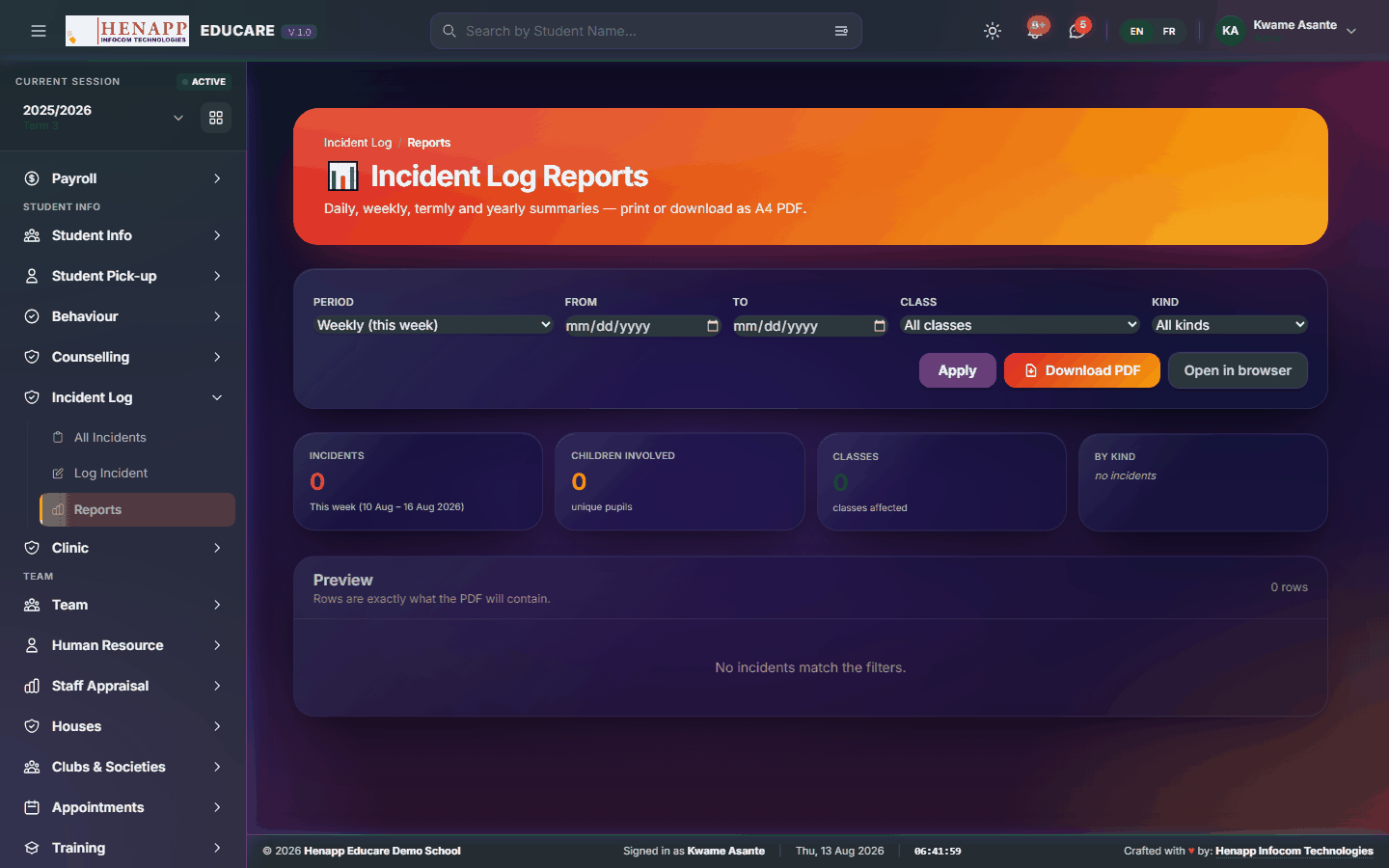
How to use it
- Open Incident Log → Reports.
- Set the period and read the summary.
- Export it for a safety review.
33. Clinic
The sick bay: visits, medication given, and each learner's health profile including allergies and conditions.
Clinic records are restricted to health and senior staff. Do not repeat what you read here outside the people handling the case.
Find it in the sidebar under Student Info → Clinic.
33.1 Clinic Dashboard
The sick bay at a glance — today's visits and anything outstanding.
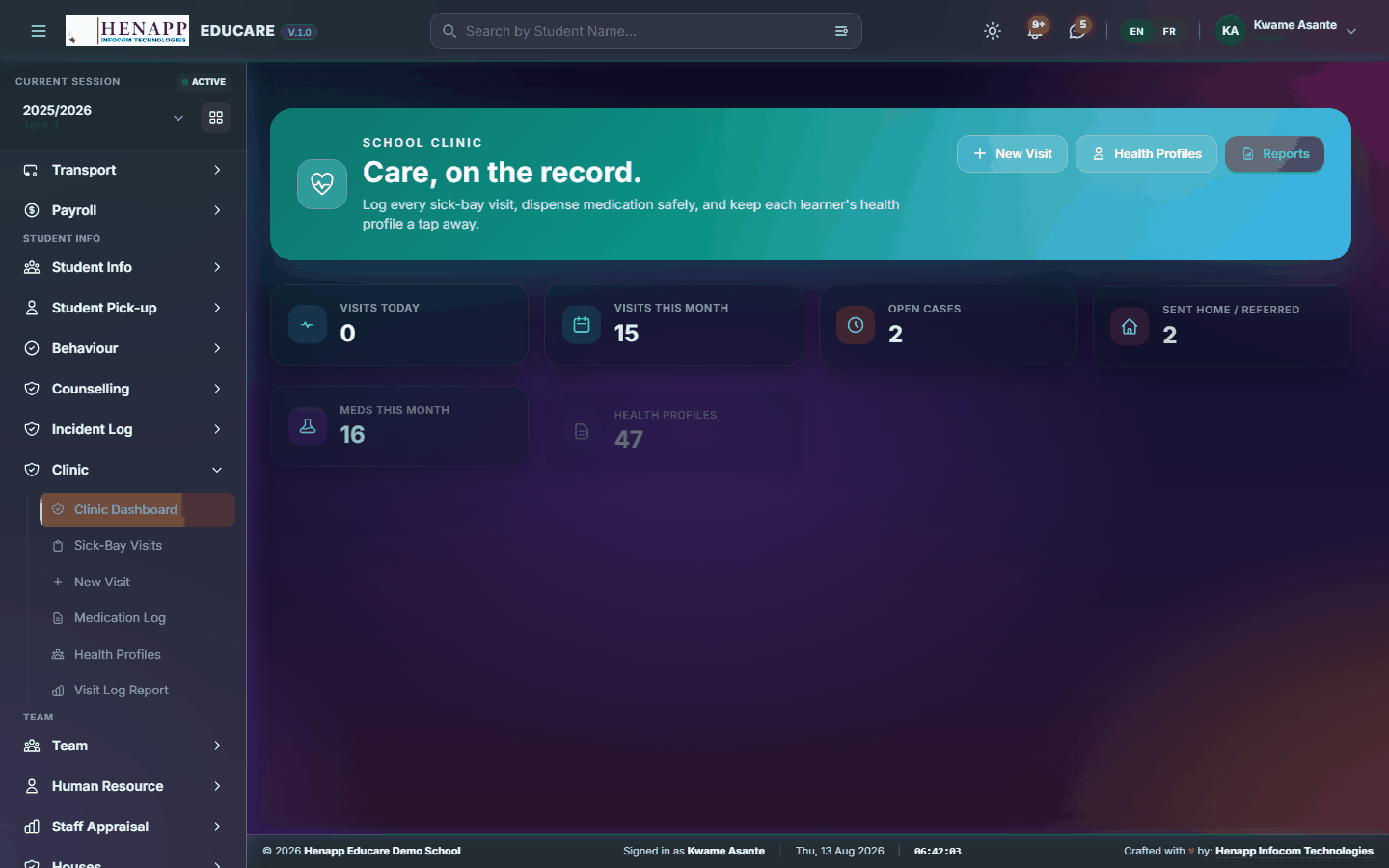
How to use it
- Open Clinic → Clinic Dashboard.
- Read today's visits and any learner still in the bay.
33.2 Sick-Bay Visits
Every sick-bay visit, with its complaint, treatment and outcome.

How to use it
- Open Clinic → Sick-Bay Visits.
- Filter by date or learner.
- Open a visit to read the record.
33.3 New Visit
Record a learner reporting to the sick bay.
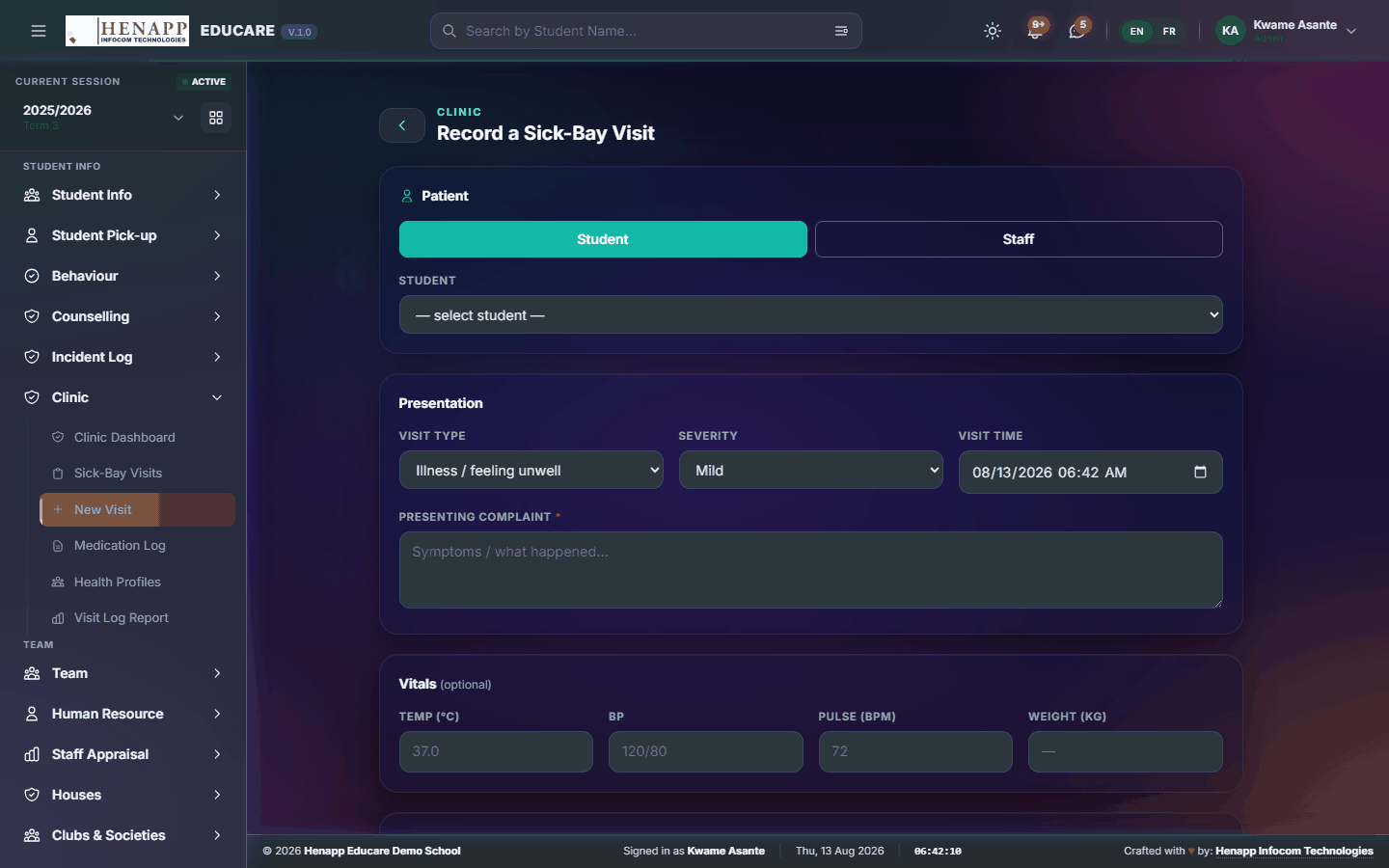
How to use it
- Open Clinic → New Visit.
- Choose the learner — their allergies and conditions are shown as soon as you do.
- Record the complaint, the treatment given, and the outcome: returned to class, sent home, or referred.
- Save. Where the learner is sent home or referred, the parent is notified.
The learner's health profile is shown on this form for a reason. Check it before giving anything.
33.4 Medication Log
Medication given at school — what, to whom, how much and by whom.

How to use it
- Open Clinic → Medication Log.
- Record each administration with the learner, medicine, dose, time and your name.
- Where a parent has supplied medication with instructions, record those too.
33.5 Health Profiles
Each learner's health profile — allergies, conditions, medication and emergency contacts.

How to use it
- Open Clinic → Health Profiles.
- Search for the learner.
- Record allergies, chronic conditions, regular medication and the emergency contact.
- Save. Allergies then surface automatically on the visit form.
33.6 Visit Log Report
Sick-bay activity over a period — volume, common complaints and patterns worth acting on.

How to use it
- Open Clinic → Visit Log Report.
- Set the period, read the summary and export it.
34. Team
The directories — how to look up a colleague or a learner without going through a module.
Find it in the sidebar under Team.
34.1 Staff Directory
Every member of staff, searchable, with the contact details your role is allowed to see.
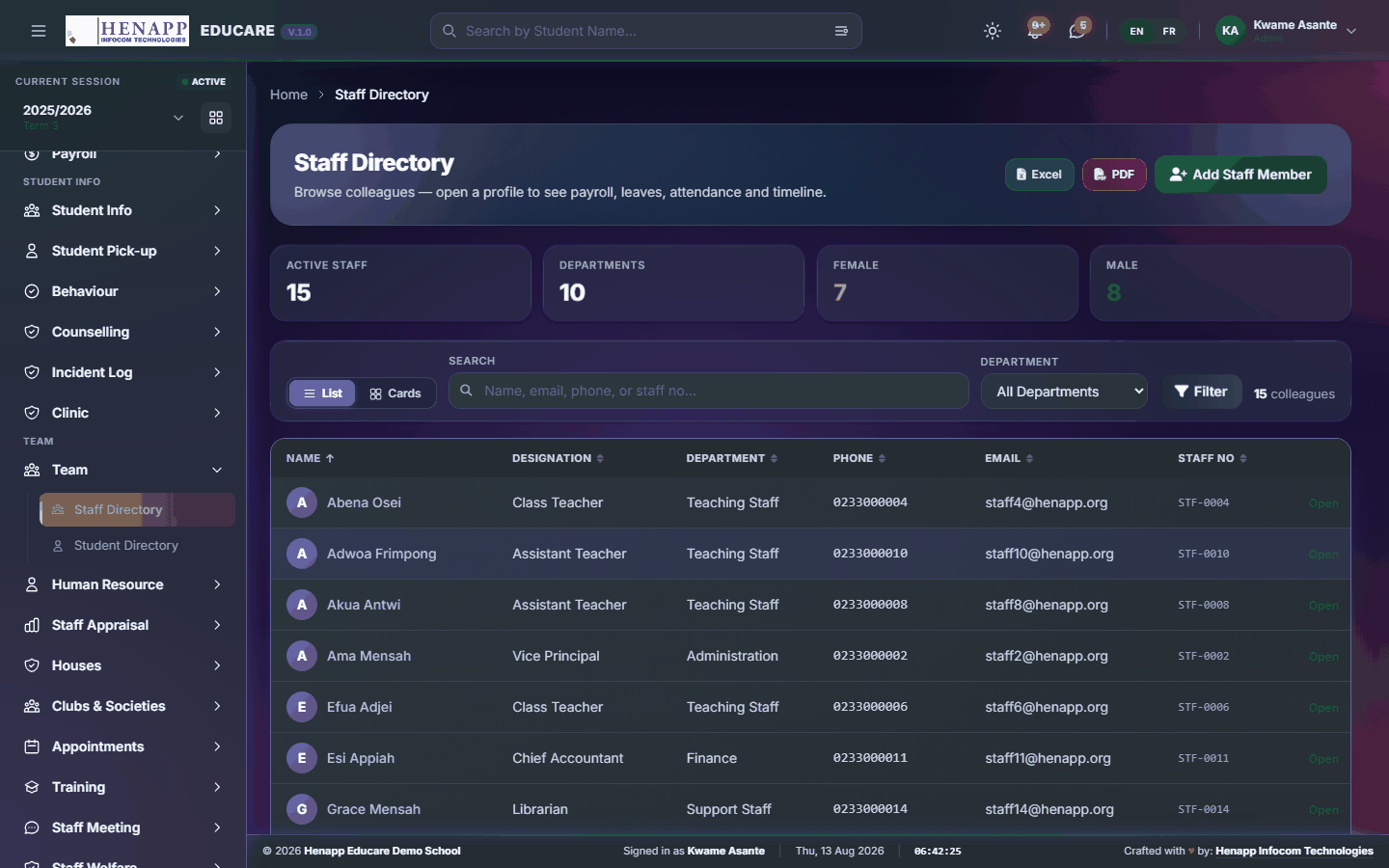
How to use it
- Open Team → Staff Directory.
- Search by name, or filter by department or role.
- Click a colleague to see their details.
- Export the directory where your role permits it.
34.2 Student Directory
Learners you are entitled to look up — the classes you teach, or your own children.

How to use it
- Open Team → Student Directory.
- Search by name or admission number.
- Click a learner for their details.
A teacher sees the classes they teach; a parent sees their own children. The directory is scoped to your role, not to the whole school.
35. Staff Appraisal
Formal staff appraisal — the scoring sheet, the reports it produces, and the templates behind both.
Find it in the sidebar under Team → Staff Appraisal.
35.1 Score Sheet
The appraisal scoring grid — staff down the side, criteria across the top.

How to use it
- Open Staff Appraisal → Score Sheet.
- Choose the appraisal period and the template.
- Score each member of staff against each criterion.
- Add comments where a score needs explaining.
- Save. Scores feed the appraisal reports.
35.2 Appraisal Reports
Appraisal outcomes per member of staff and across the school.
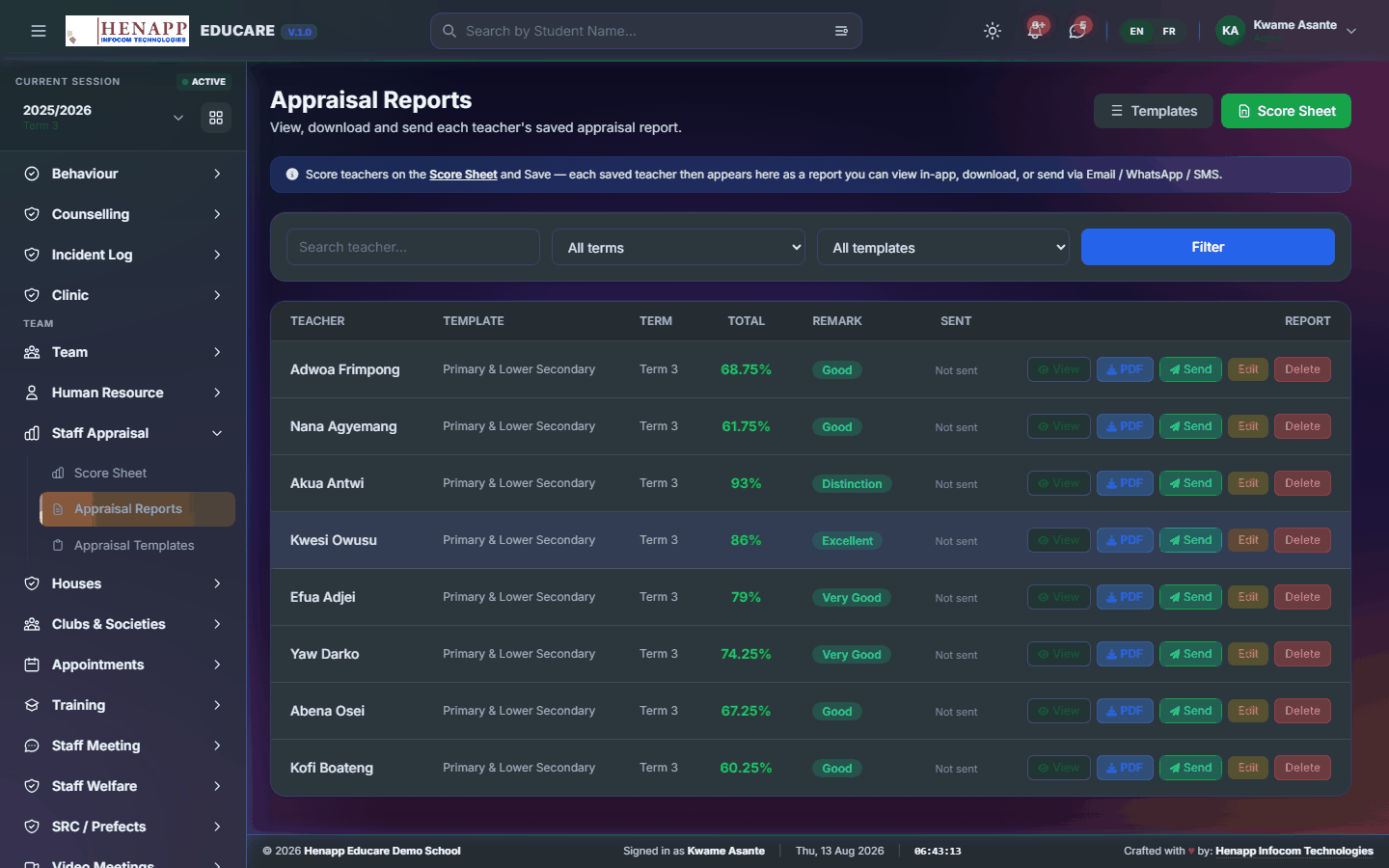
How to use it
- Open Staff Appraisal → Appraisal Reports.
- Choose the period.
- Open an individual report, or read the school-wide summary.
- Export a report as a PDF for the staff file.
35.3 Appraisal Templates
The criteria staff are appraised against, and how each is weighted.

How to use it
- Open Staff Appraisal → Appraisal Templates.
- Create a template and add each criterion with its weighting.
- Assign the template to the staff group it applies to — teaching and non-teaching usually differ.
- Save.
36. Houses
School houses: the houses themselves, which learner belongs to which, and the house leadership.
Find it in the sidebar under Team → Houses.
36.1 All Houses
The school houses, with their names, colours and mottos.
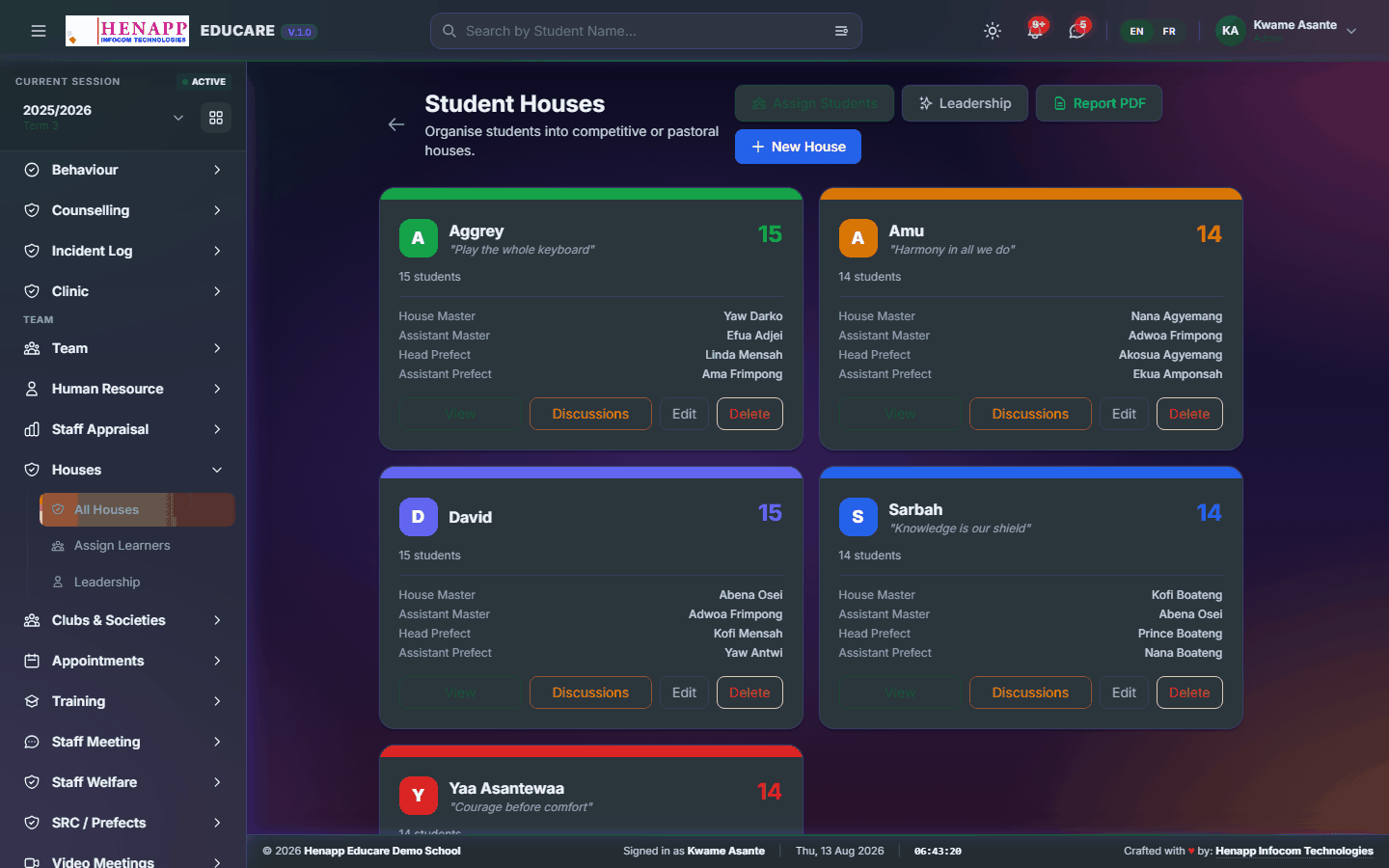
How to use it
- Open Houses → All Houses.
- Click Add House, set its name, colour and motto, then save.
36.2 Assign Learners
Placing learners in houses, individually or a class at a time.
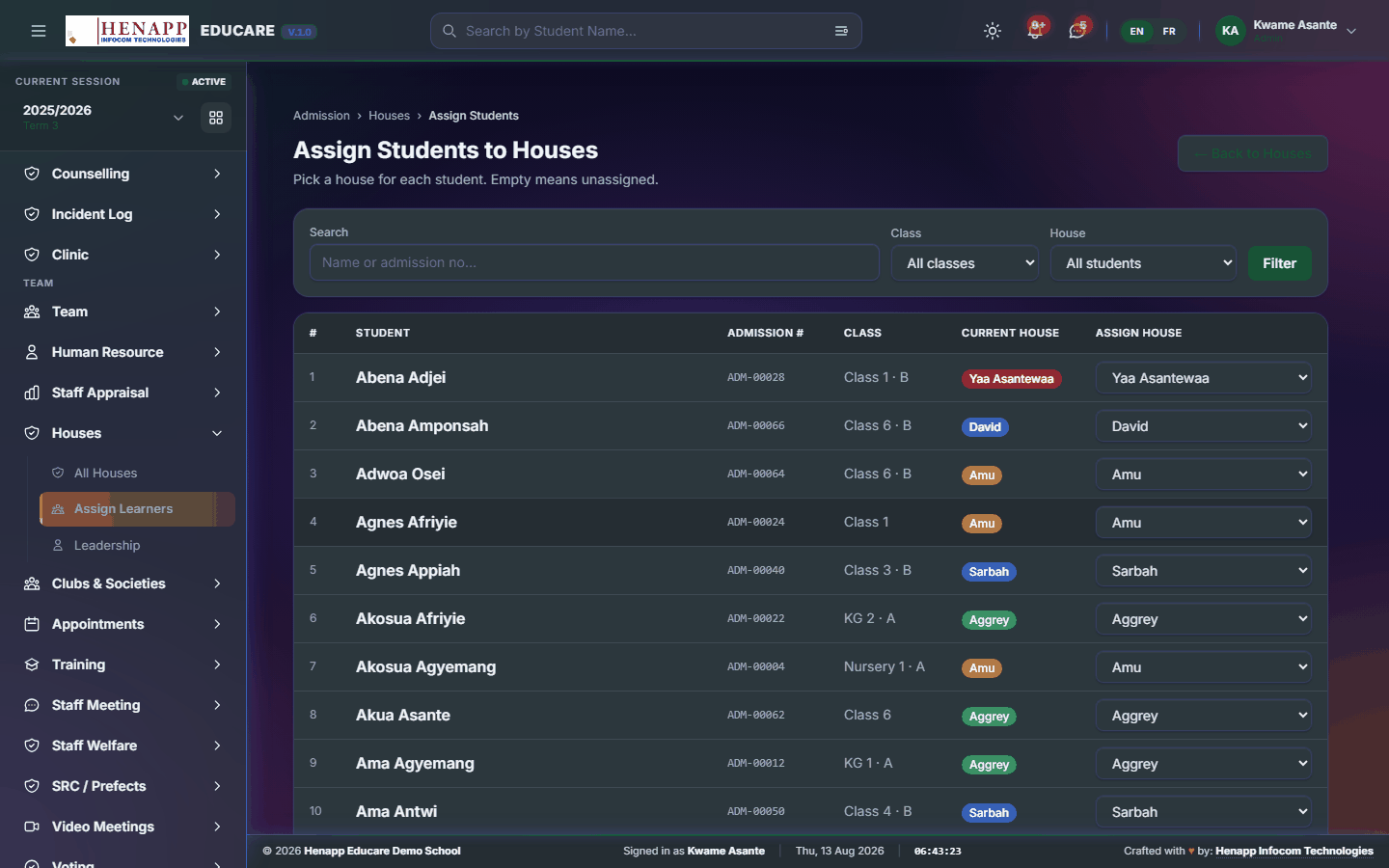
How to use it
- Open Houses → Assign Learners.
- Choose the class.
- Assign each learner to a house, or distribute the class evenly in one action.
- Save.
36.3 Leadership
House captains and their staff patrons.
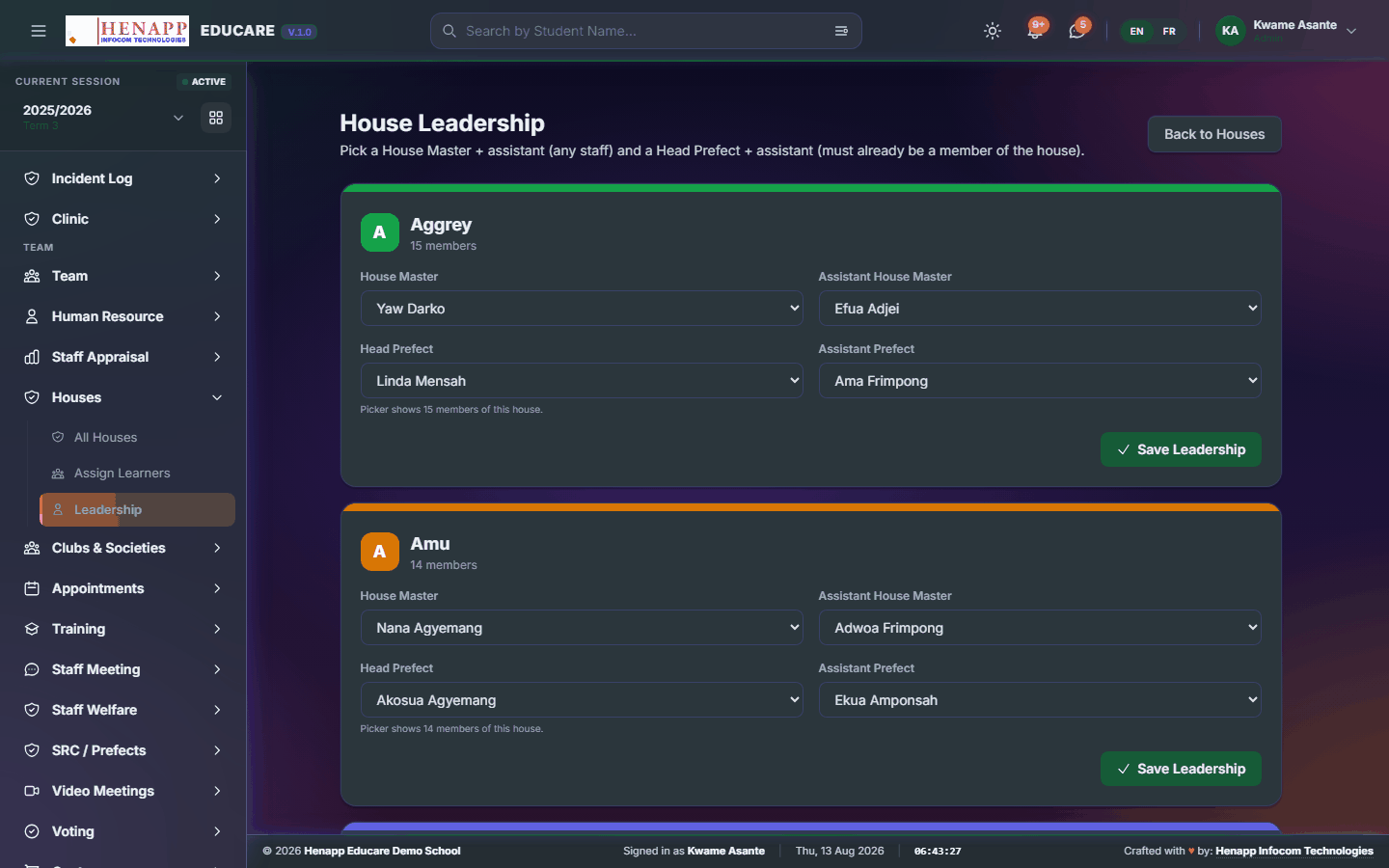
How to use it
- Open Houses → Leadership.
- Pick the house and appoint its captain, vice-captain and patron.
- Save.
37. Clubs & Societies
Clubs and societies, and who belongs to each.
Find it in the sidebar under Team → Clubs & Societies.
37.1 All Clubs
The clubs and societies the school runs, with their patrons and meeting times.

How to use it
- Open Clubs & Societies → All Clubs.
- Click Add Club and set its name, patron, meeting day and description.
- Save.
37.2 Assign Members
Club membership.
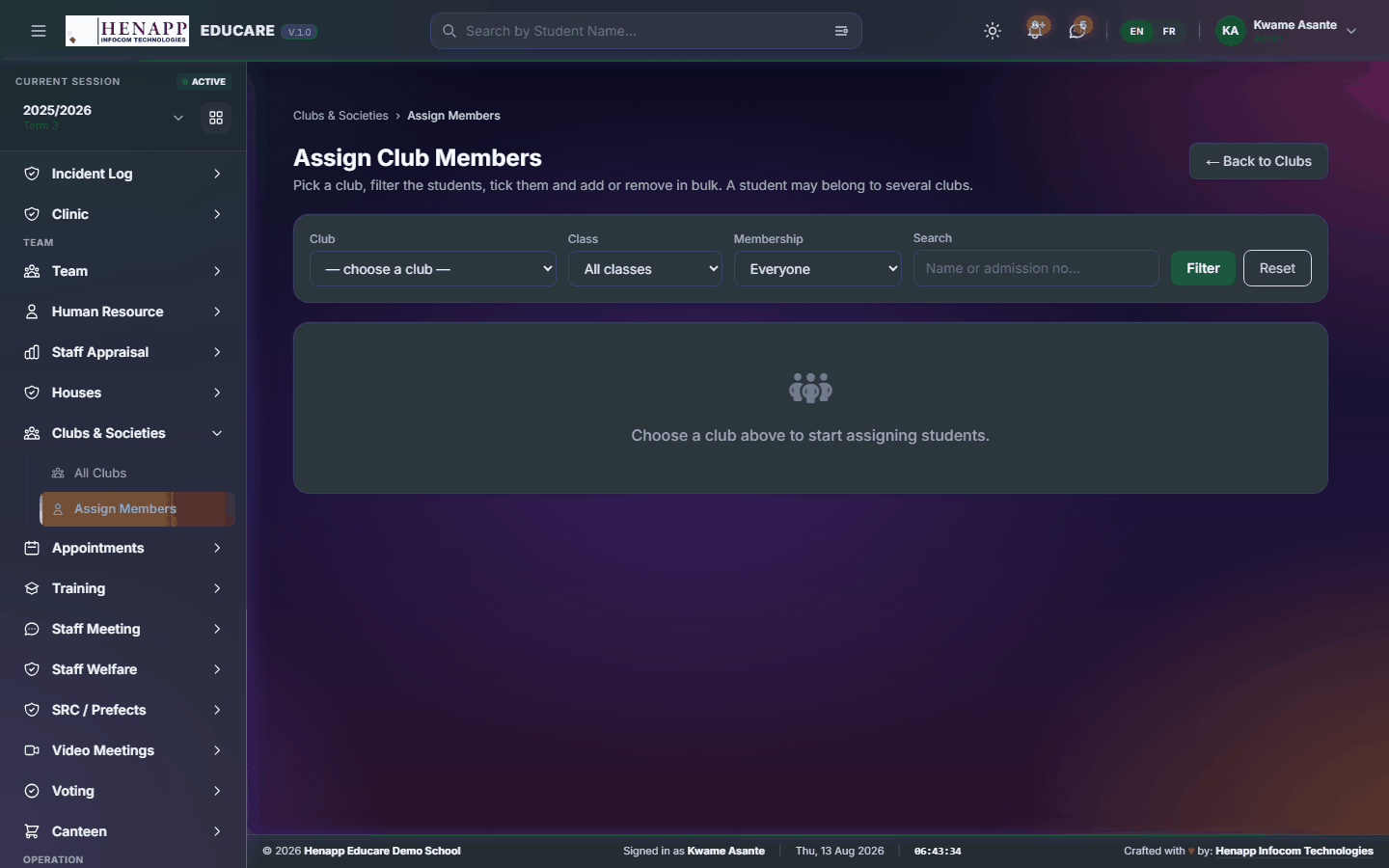
How to use it
- Open Clubs & Societies → Assign Members.
- Choose the club, then add learners to it.
- Save. The membership list can be exported for a register.
38. Appointments
Meetings with parents booked against your published availability, rather than arranged by phone.
Find it in the sidebar under Team → Appointments.
38.1 My Availability
The times you are willing to meet parents. Parents can only book inside these.
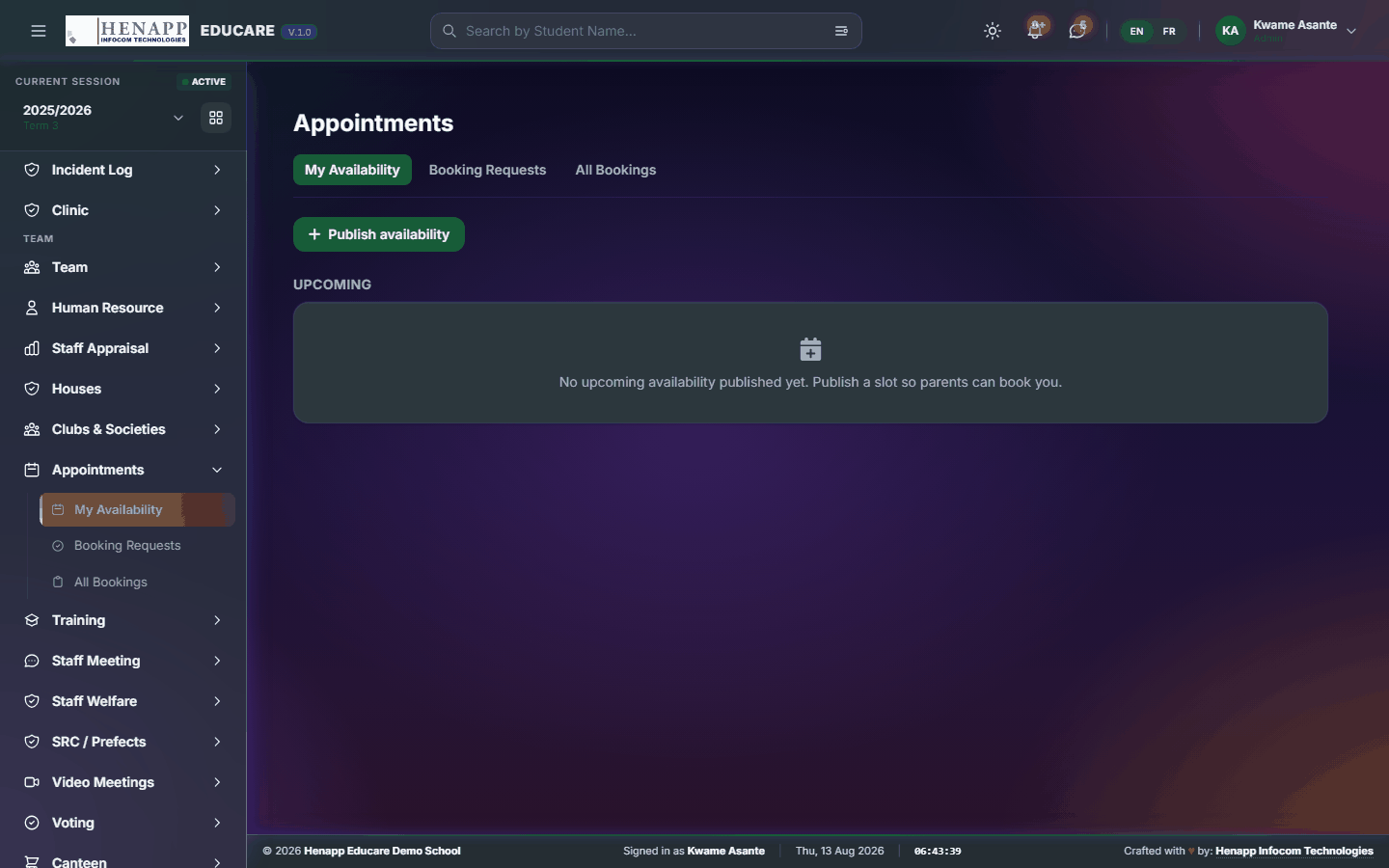
How to use it
- Open Appointments → My Availability.
- Add the days and time ranges you are available.
- Set how long each slot lasts.
- Save. Parents now see only these slots when booking.
38.2 Booking Requests
Parents who have asked to meet you, waiting on your confirmation.
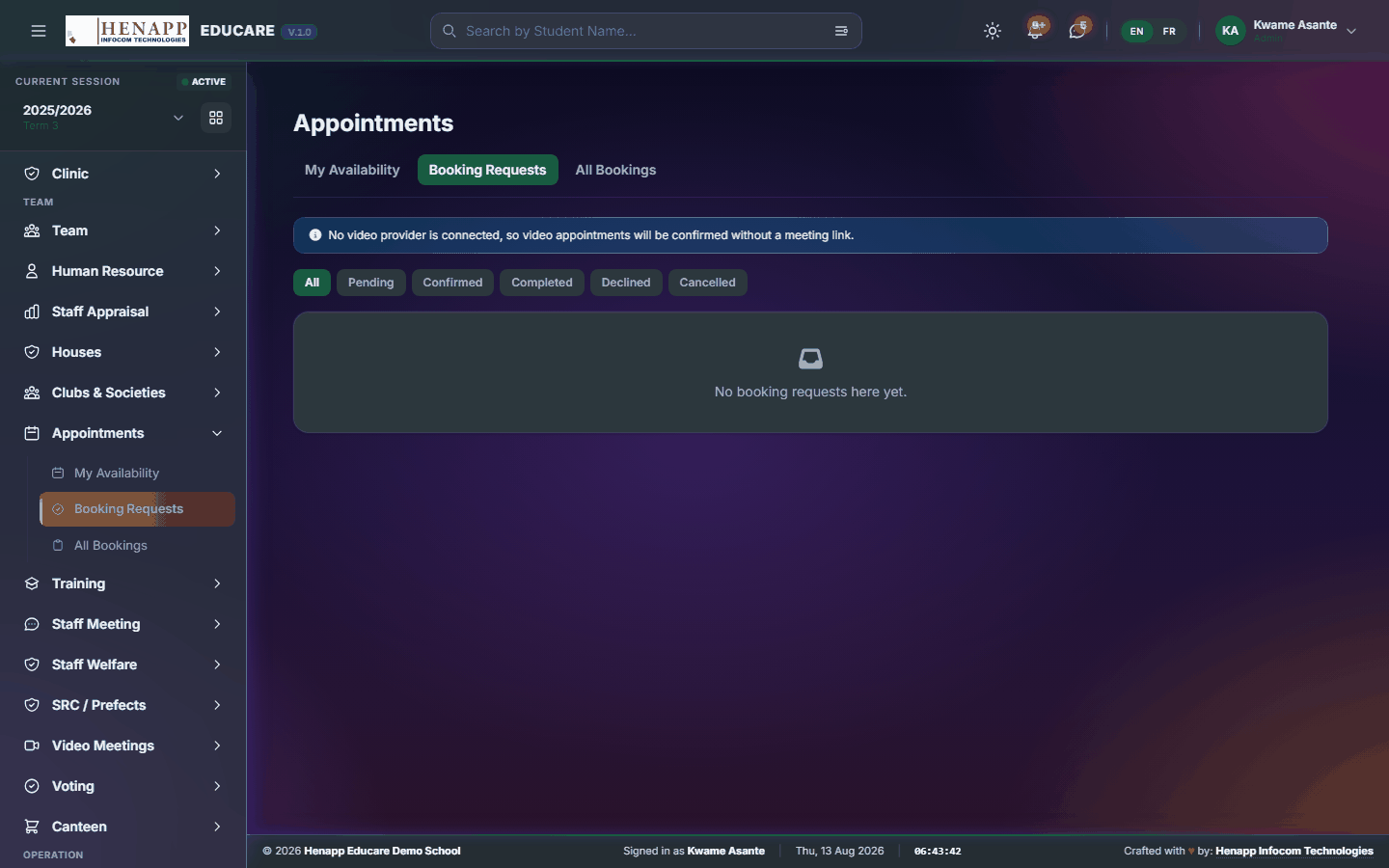
How to use it
- Open Appointments → Booking Requests.
- Open a request to see who, when and what about.
- Accept it, or decline with a reason and suggest another time.
- The parent is notified either way.
38.3 All Bookings
Every appointment across the school, for oversight and for parents' evenings.
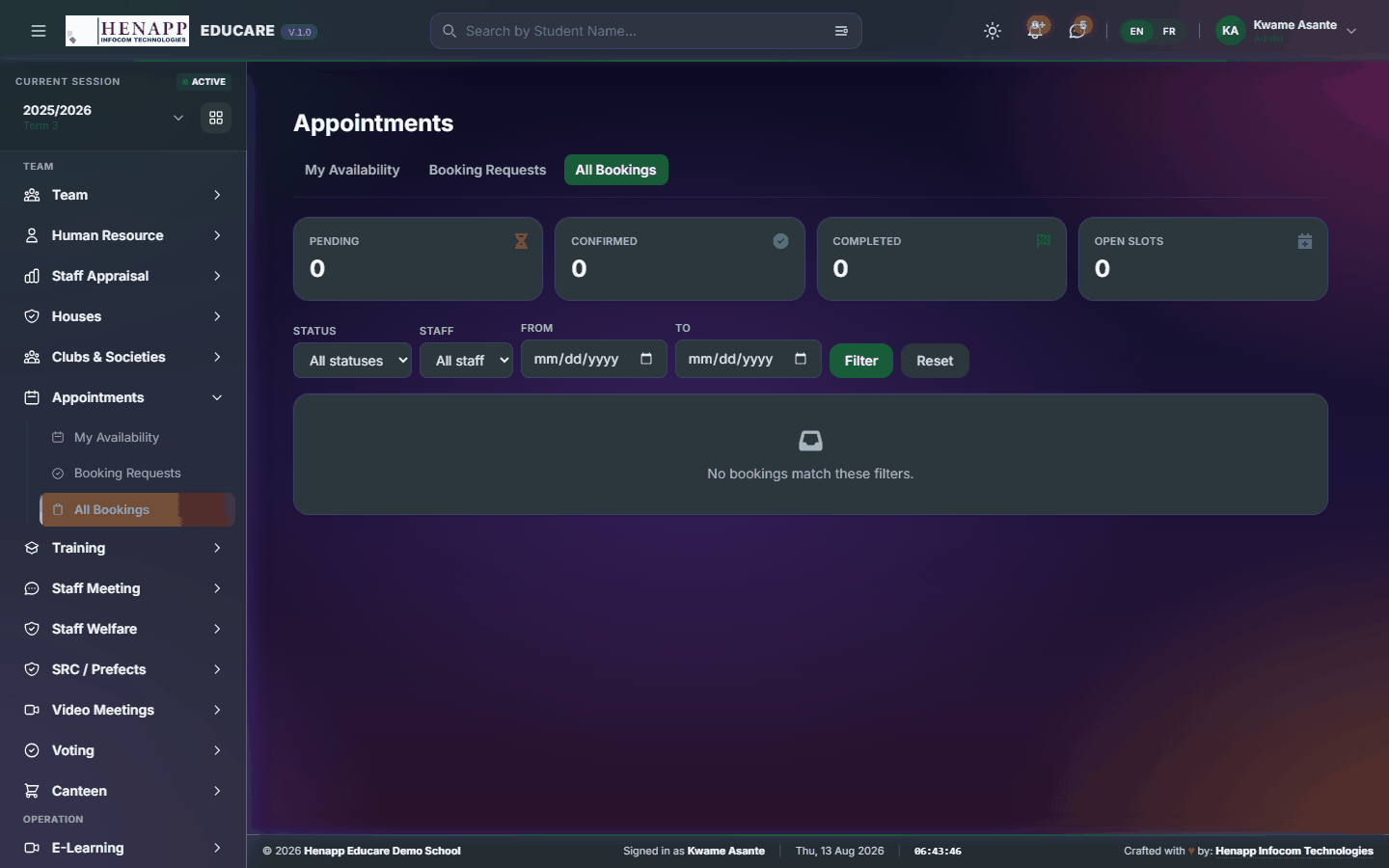
How to use it
- Open Appointments → All Bookings.
- Filter by staff, date or status.
- Open any booking for its detail, and export the day's schedule if needed.
39. Training
Staff professional development — the programmes on offer, who has attended, and the certificates that follow.
Find it in the sidebar under Team → Training.
39.1 Browse Trainings
Training programmes on offer to staff.
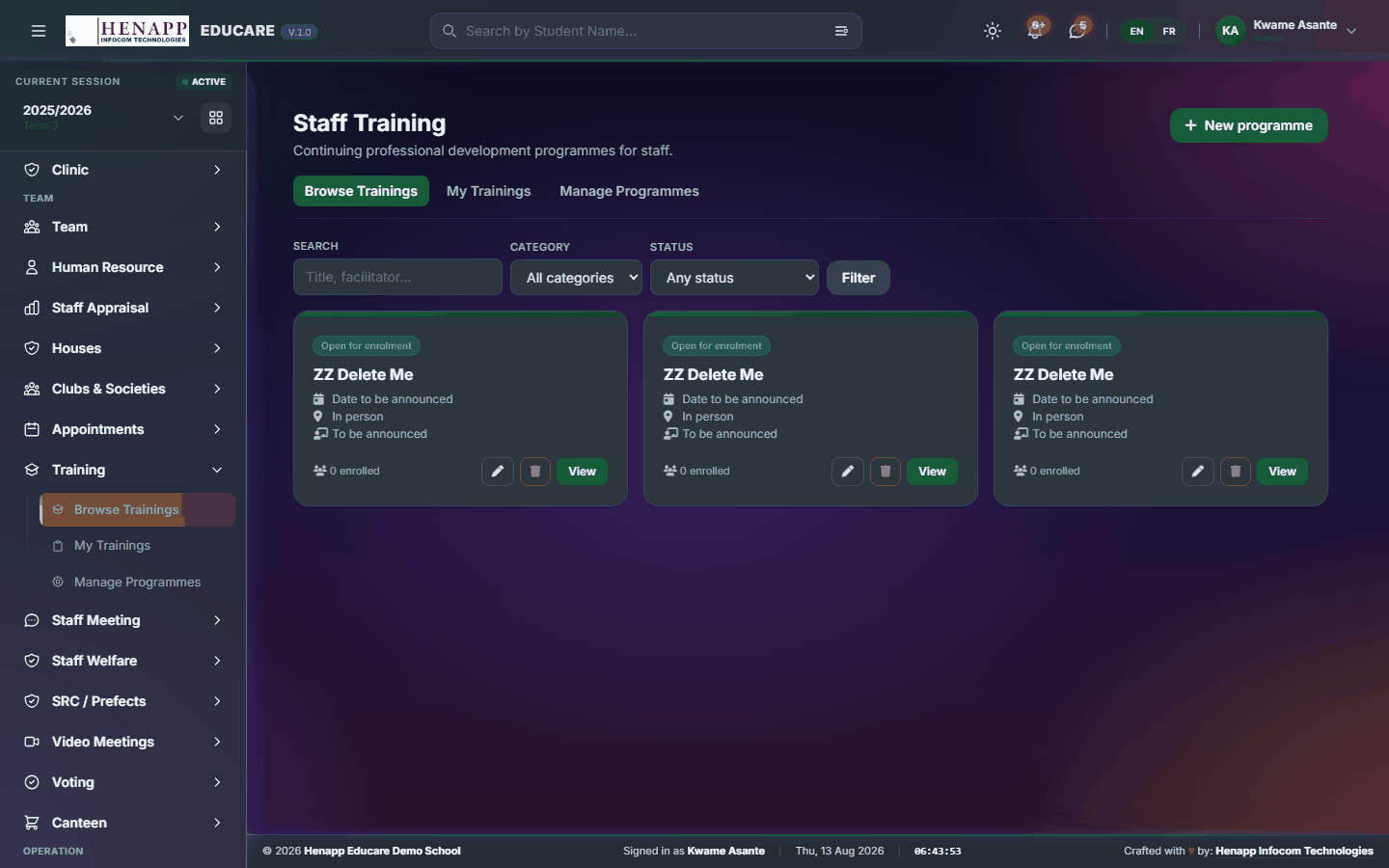
How to use it
- Open Training → Browse Trainings.
- Read what is available and its dates.
- Enrol on anything open to you.
39.2 My Trainings
Training you have enrolled on or completed, and the certificates earned.

How to use it
- Open Training → My Trainings.
- Read your enrolments and their status.
- Download the certificate for anything completed.
39.3 Manage Programmes
Creating and running training programmes, including attendance and certification.
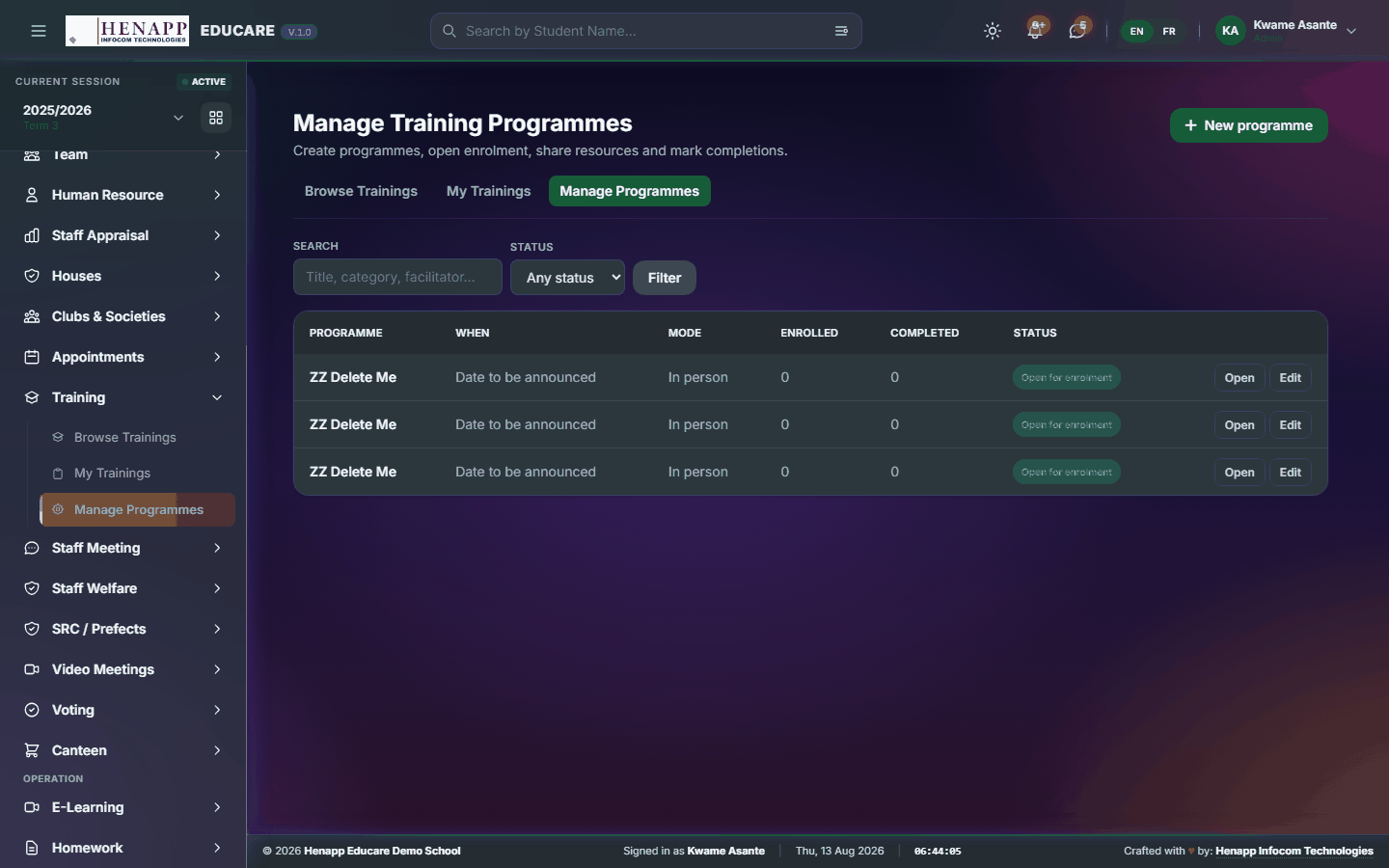
How to use it
- Open Training → Manage Programmes.
- Click New Programme and set its title, dates, facilitator and who may attend.
- Publish it so staff can enrol.
- Record attendance as it runs.
- Issue certificates to those who completed it.
40. Staff Meeting
The staff noticeboard — announcements, minutes and documents circulated to the whole staff.
Find it in the sidebar under Team → Staff Meeting.
40.1 Staff Board
The staff noticeboard — announcements, minutes and circulated documents.
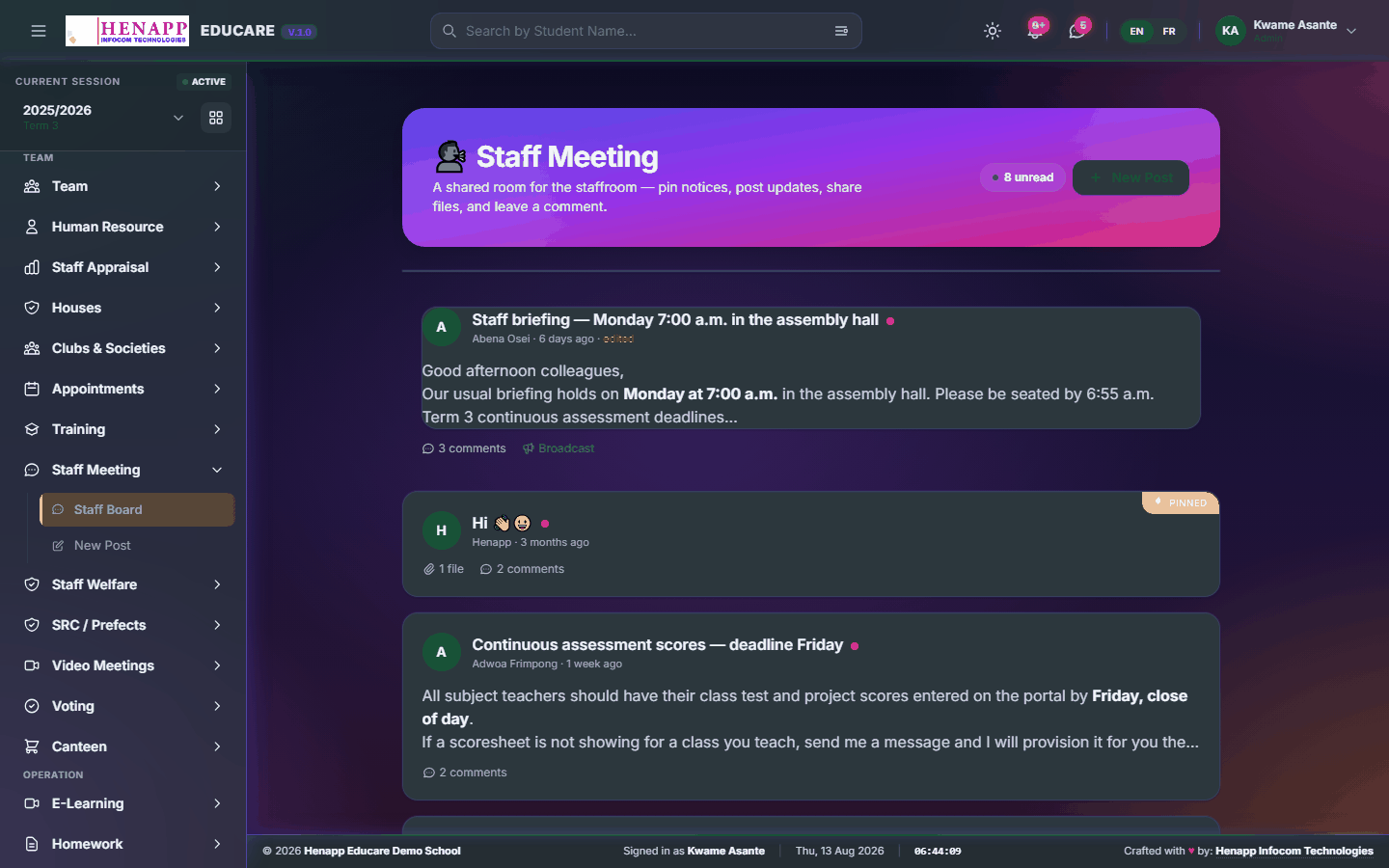
How to use it
- Open Staff Meeting → Staff Board.
- Read the posts, newest first.
- Open a post for its full text and attachments.
- Comment where discussion is invited.
40.2 New Post
Post to the staff board.

How to use it
- Open Staff Meeting → New Post.
- Give it a title and write the message.
- Attach any documents — minutes, an agenda, a circular.
- Choose who it goes to, then Publish. Staff are notified.
41. Staff Welfare
The staff welfare scheme — contributions, claims and the fund's position.
Find it in the sidebar under Team → Staff Welfare.
41.1 Staff Welfare
The staff welfare fund — contributions in, claims out, and the balance.
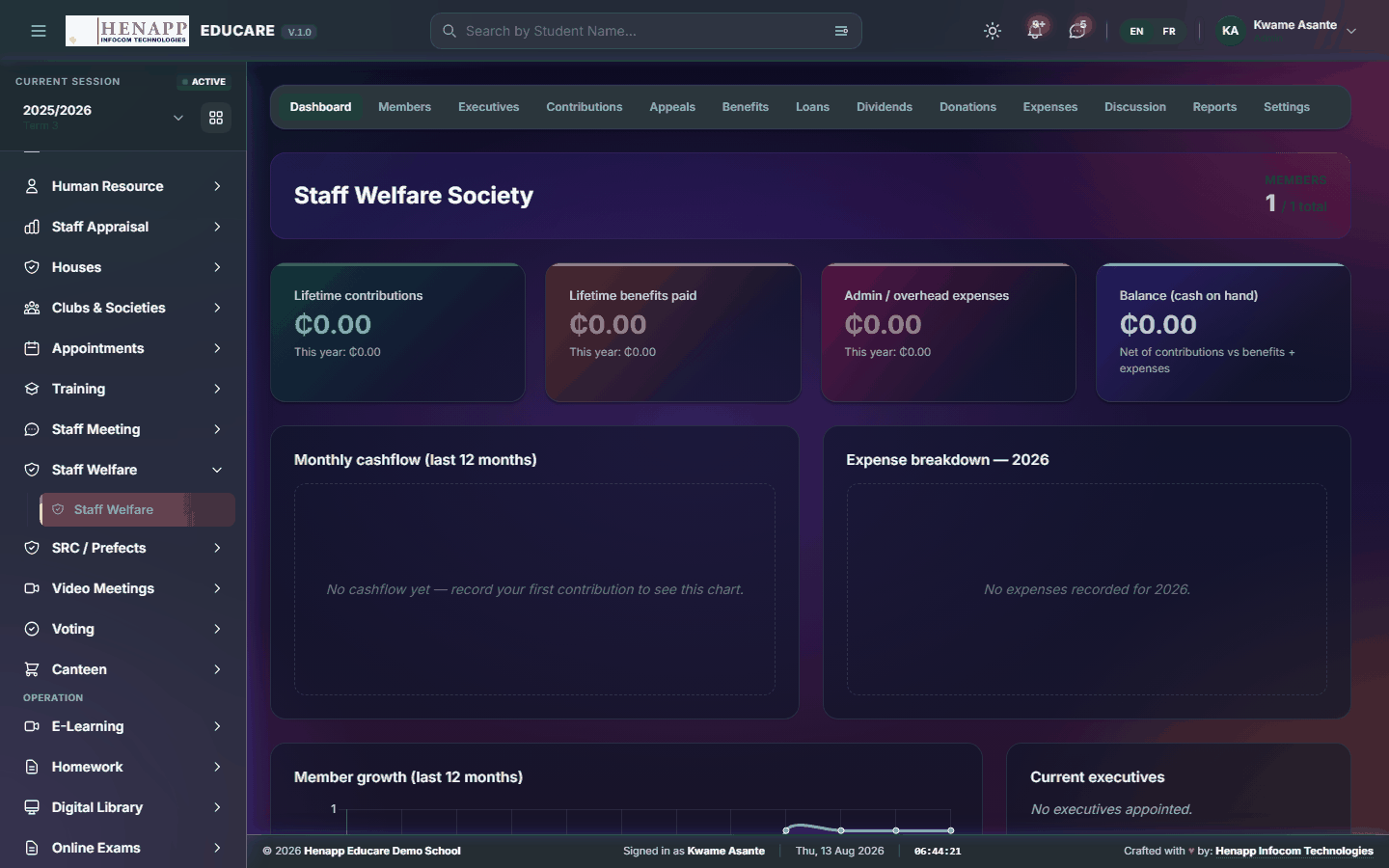
How to use it
- Open Staff Welfare.
- Read the fund position and your own contributions.
- Submit a claim with its reason and supporting documents.
- Administrators approve claims and record payments from the same page.
42. SRC / Prefects
Student leadership: prefect positions, the learners holding them, their forum and their elections.
Find it in the sidebar under Team → SRC / Prefects.
42.1 SRC Dashboard
Student leadership at a glance — positions filled and outstanding.
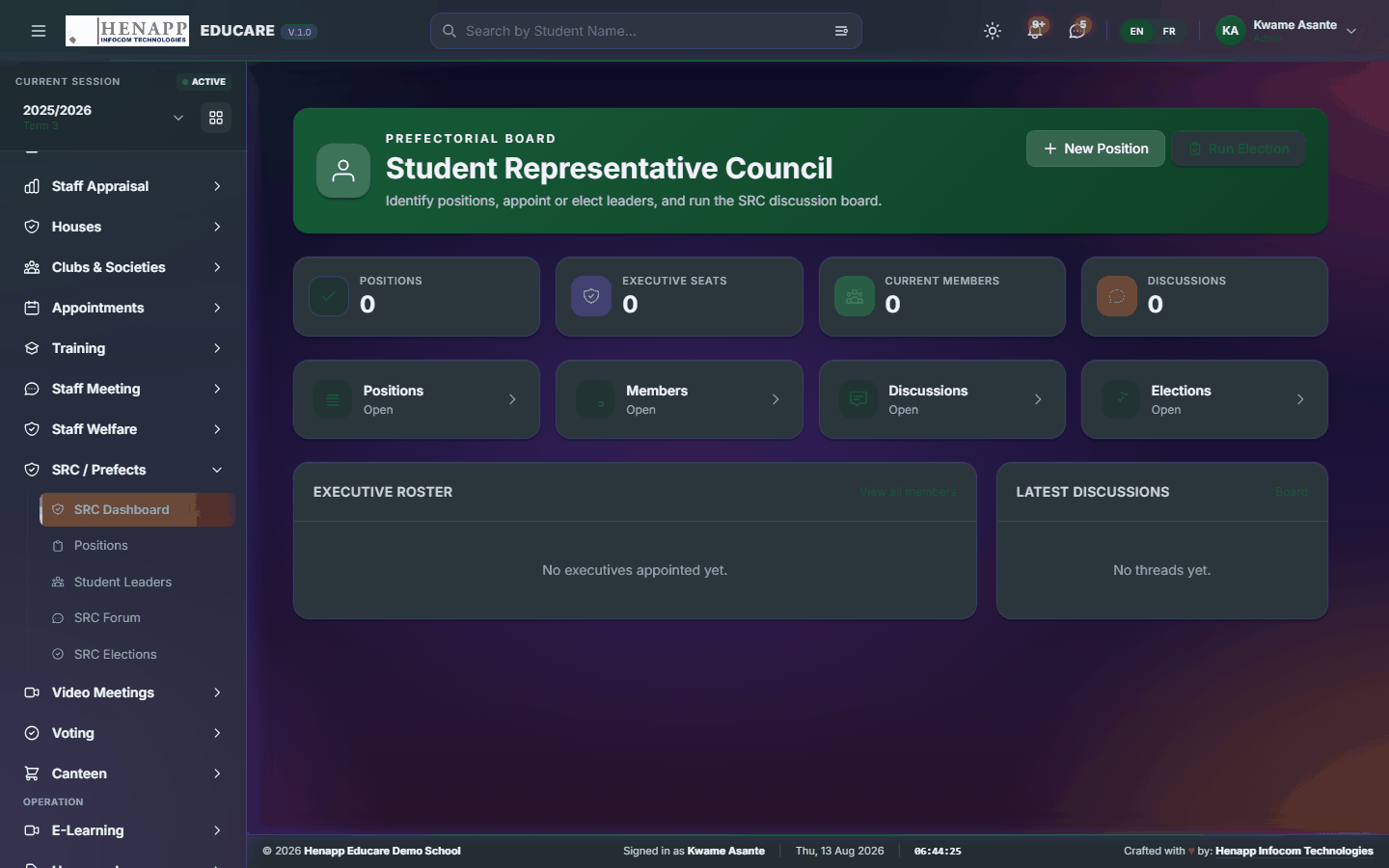
How to use it
- Open SRC / Prefects → SRC Dashboard.
- Read the current leadership and any vacancy.
42.2 Positions
The leadership positions themselves and what each is responsible for.
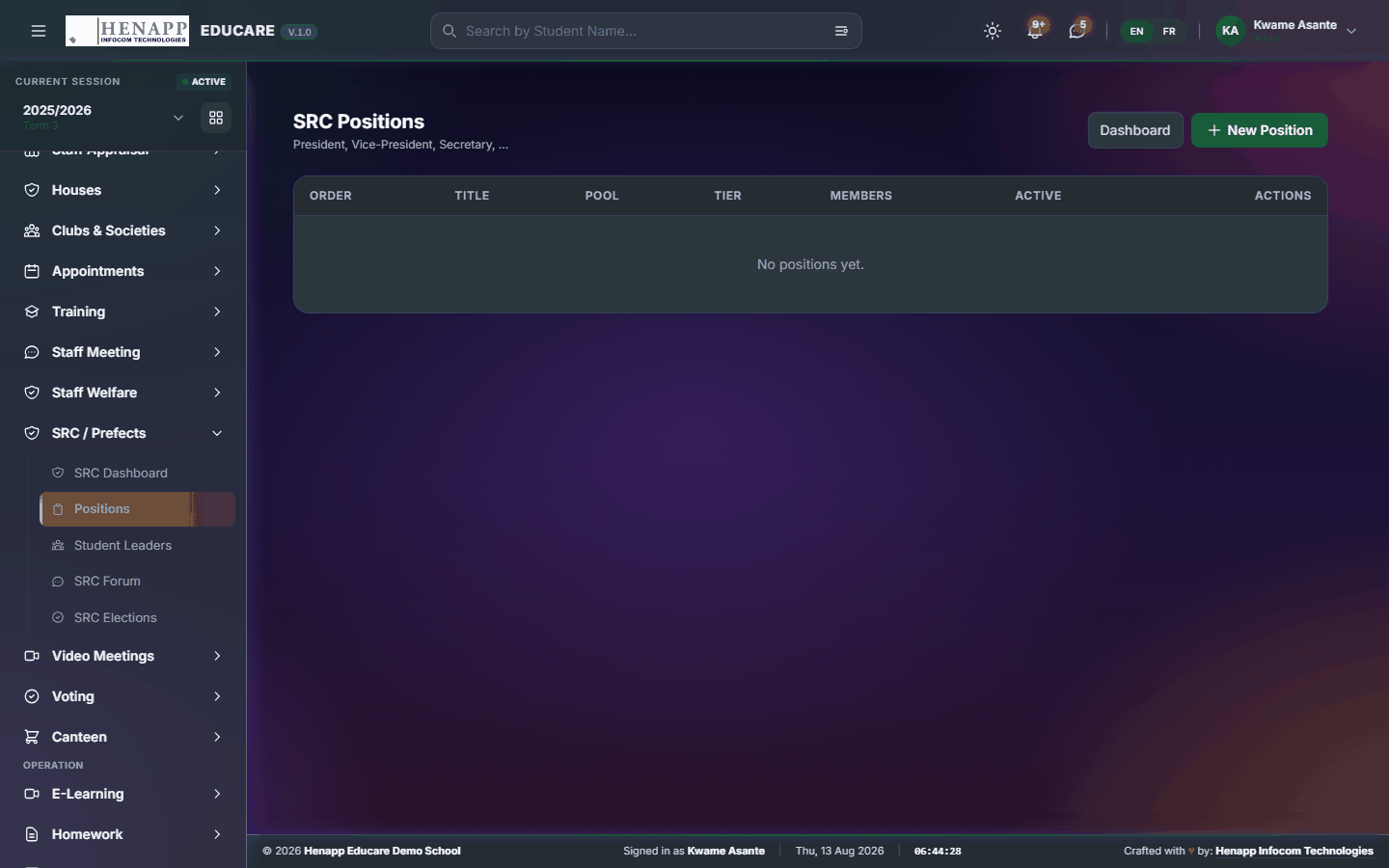
How to use it
- Open SRC / Prefects → Positions.
- Add each position with its title and duties.
- Save.
42.3 Student Leaders
The learners holding each position.

How to use it
- Open SRC / Prefects → Student Leaders.
- Appoint a learner to a position and set the term of office.
- Save.
42.4 SRC Elections
Elections for student leadership — candidates, voting and the result.
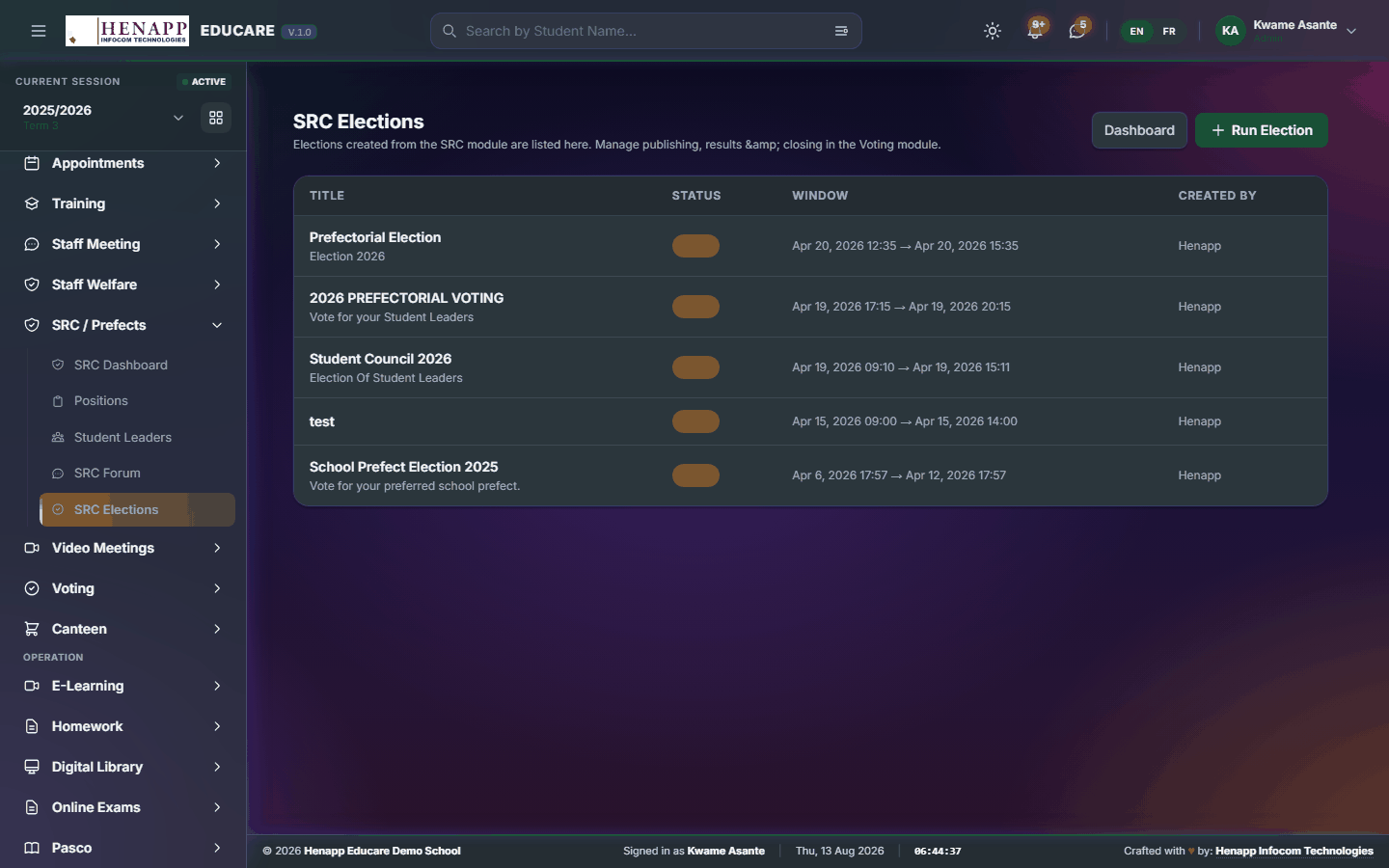
How to use it
- Open SRC / Prefects → SRC Elections.
- Create the election and set which positions are contested.
- Add the candidates for each position.
- Set who may vote and when voting opens and closes.
- Publish the result when voting closes.
43. Video Meetings
Video meetings scheduled and joined from inside the portal.
Find it in the sidebar under Team → Video Meetings.
43.1 Meetings (Meet/Zoom)
Video meetings scheduled in the portal and joined by one link.
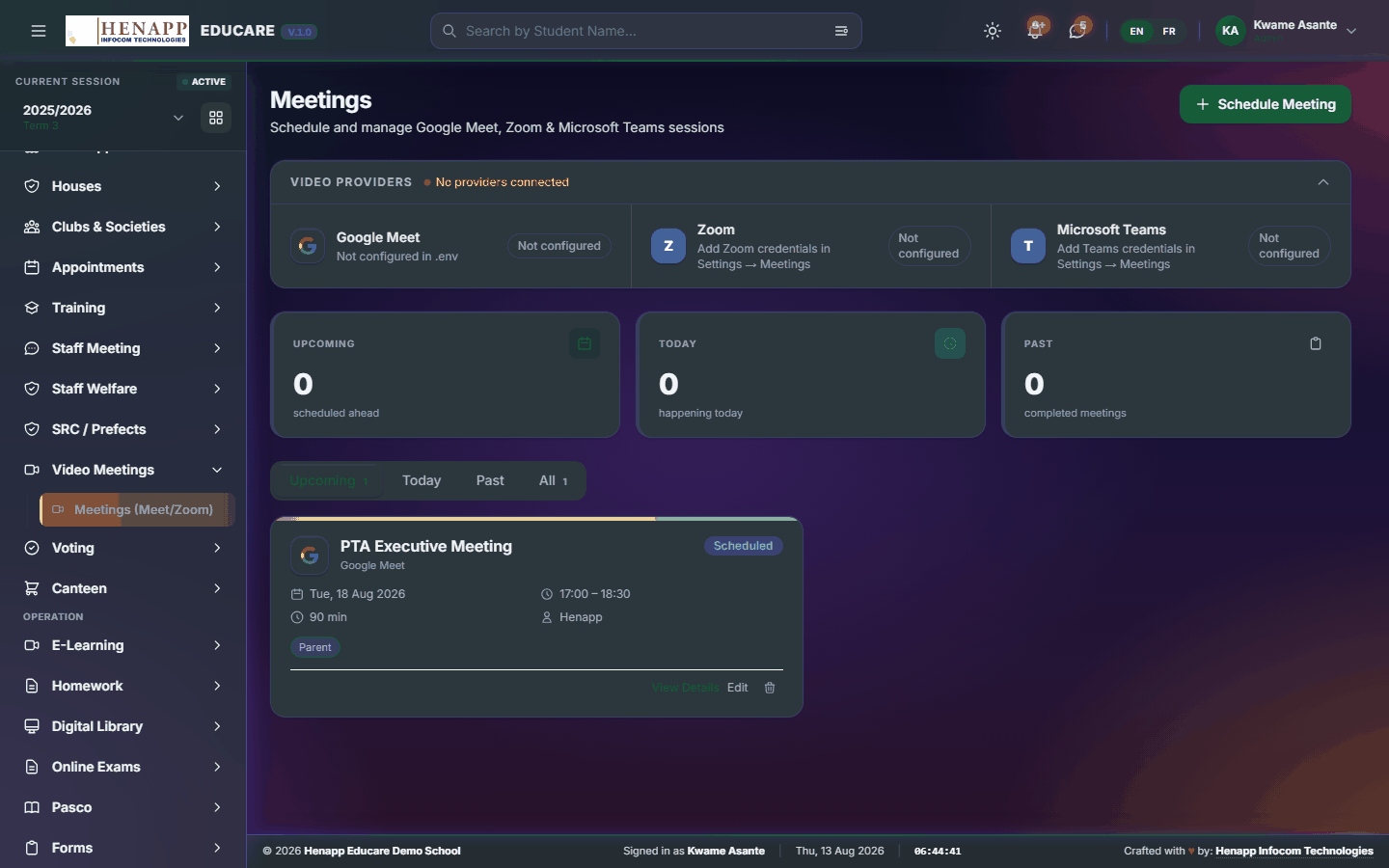
How to use it
- Open Video Meetings → Meetings.
- Click New Meeting and set the title, date and time.
- Choose the platform and paste the meeting link.
- Choose who is invited, then save. They are notified and see a Join button when it is time.
44. Voting
Elections and polls run inside the system, with one vote per eligible voter and a result nobody has to tally by hand.
Find it in the sidebar under Team → Voting.
44.1 Voting Dashboard
Open votes and their turnout.
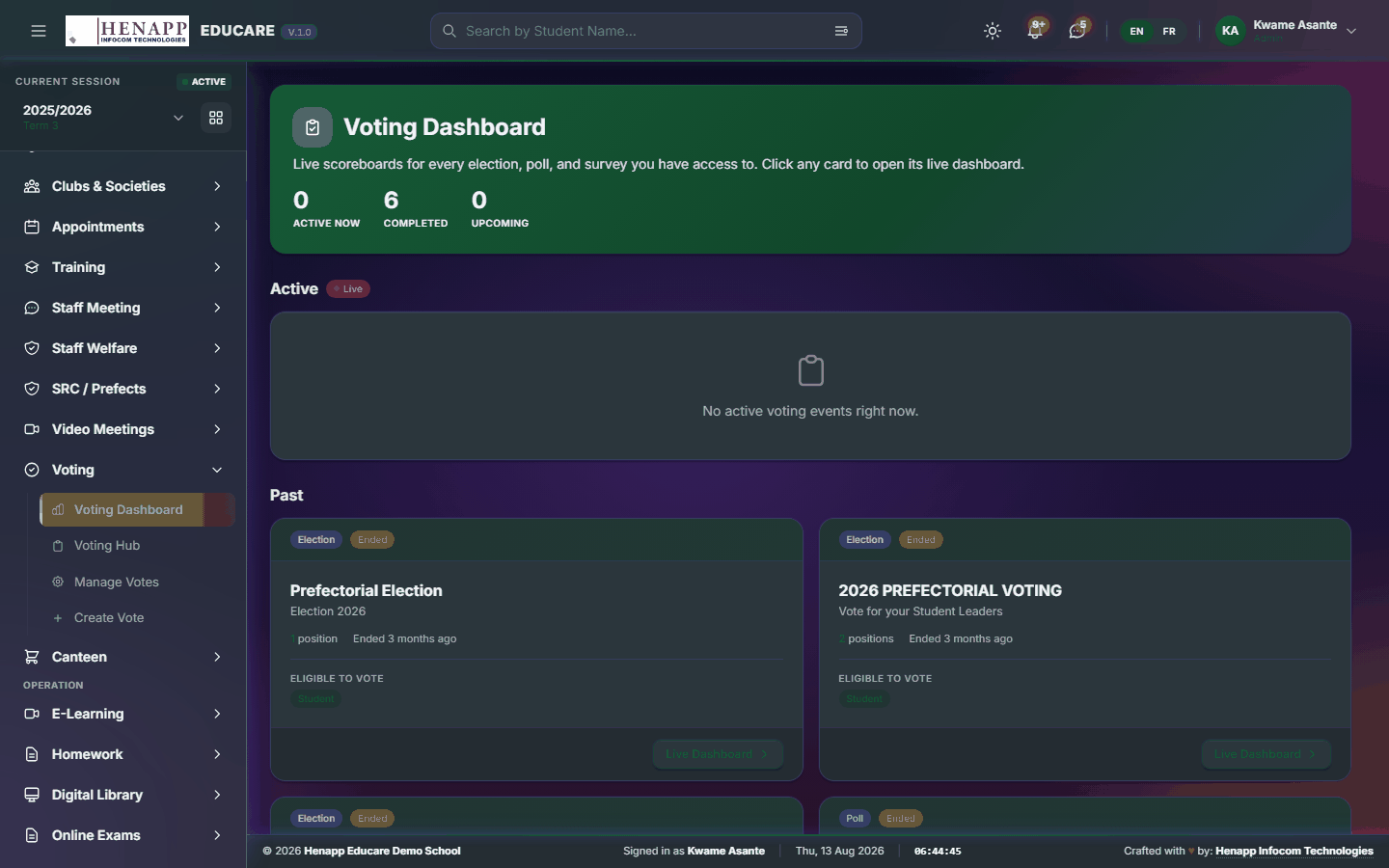
How to use it
- Open Voting → Voting Dashboard.
- Read the open votes and how many have voted so far.
44.2 Voting Hub
Where you cast your own vote.

How to use it
- Open Voting → Voting Hub.
- Open a vote you are eligible for.
- Choose your candidate or option and Submit.
- A vote cannot be changed once submitted, so check before confirming.
44.3 Manage Votes
Every vote — running, scheduled and closed — with its results.
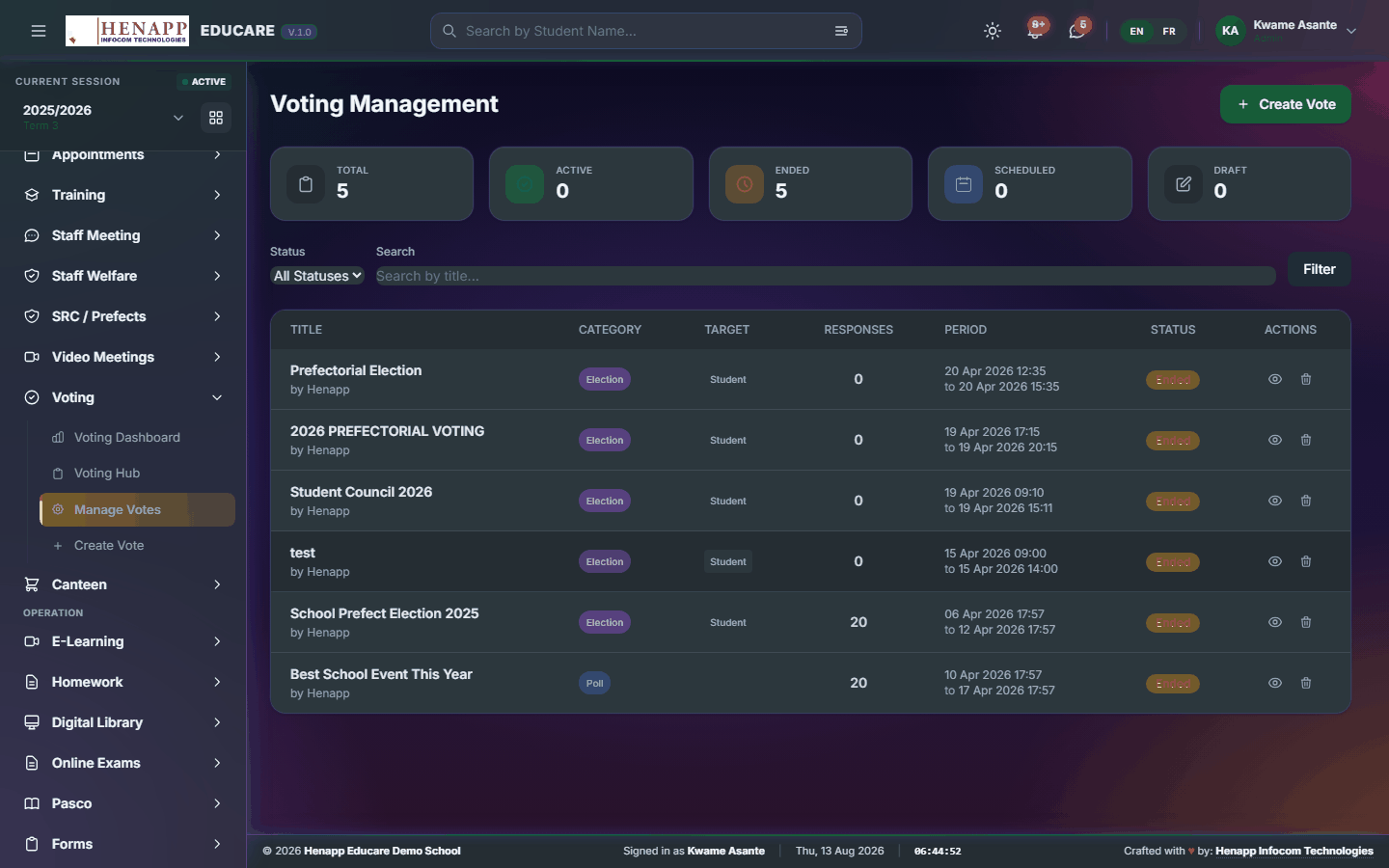
How to use it
- Open Voting → Manage Votes.
- Open a vote to watch turnout or read the result.
- Close a vote to stop further voting and publish the outcome.
44.4 Create Vote
Set up a new vote.
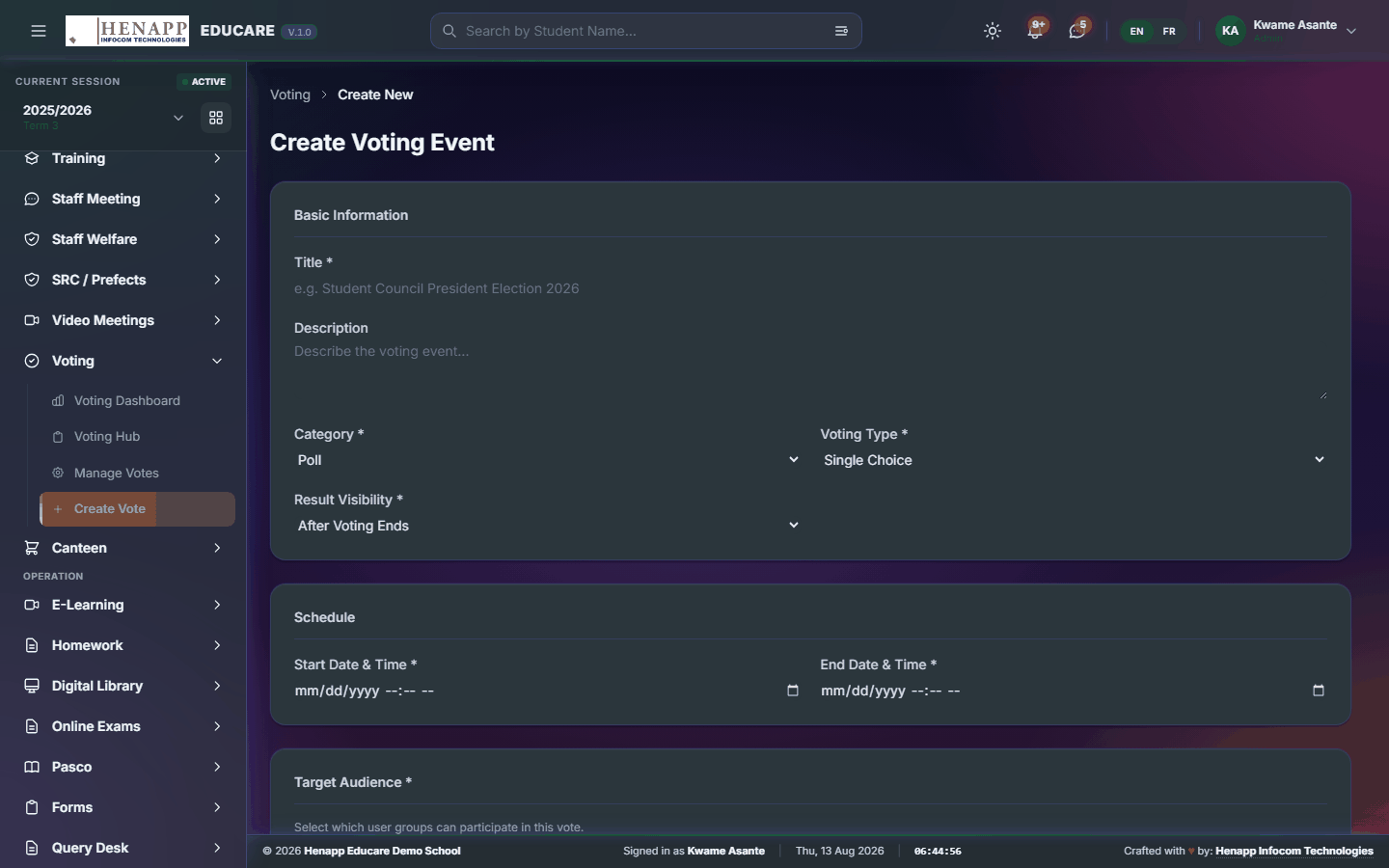
How to use it
- Open Voting → Create Vote.
- Give it a title and describe what is being decided.
- Add the candidates or options.
- Set who is eligible to vote and the opening and closing times.
- Save and publish. Eligible voters are notified.
Who may vote is fixed when the vote opens. Getting it wrong means re-running the exercise, so confirm the eligible group first.
45. Canteen
The canteen as a stock operation — what is bought in, what is issued out, and what it costs against budget.
Find it in the sidebar under Team → Canteen.
45.1 Canteen Dashboard
The canteen at a glance — stock position and the month against budget.
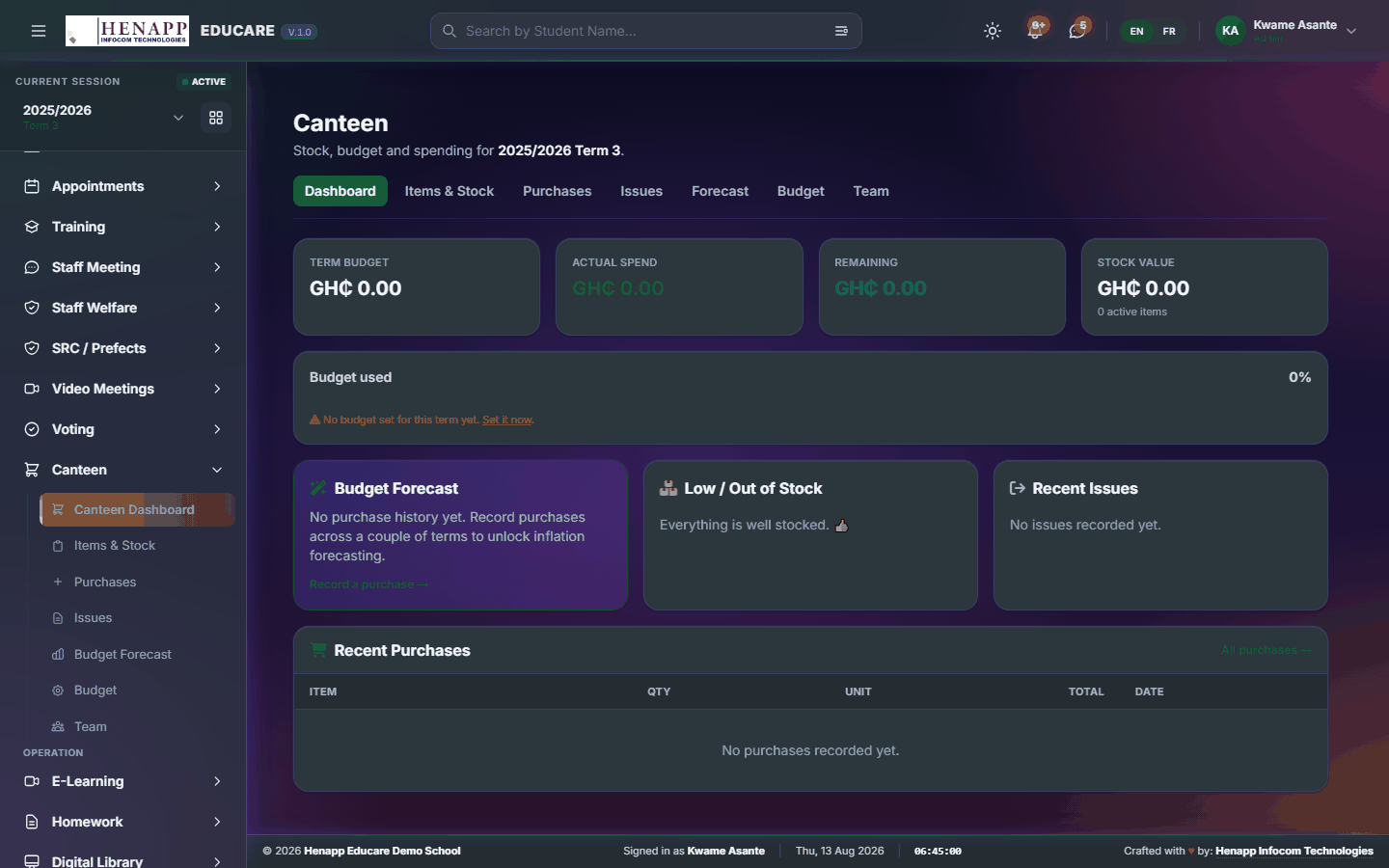
How to use it
- Open Canteen → Canteen Dashboard.
- Read the stock and spending figures.
45.2 Items & Stock
What the canteen stocks, and how much of each is on hand.

How to use it
- Open Canteen → Items & Stock.
- Add each item with its unit and reorder level.
- Current quantities update as purchases and issues are recorded.
- Items at or below their reorder level are flagged.
45.3 Purchases
Stock bought in.
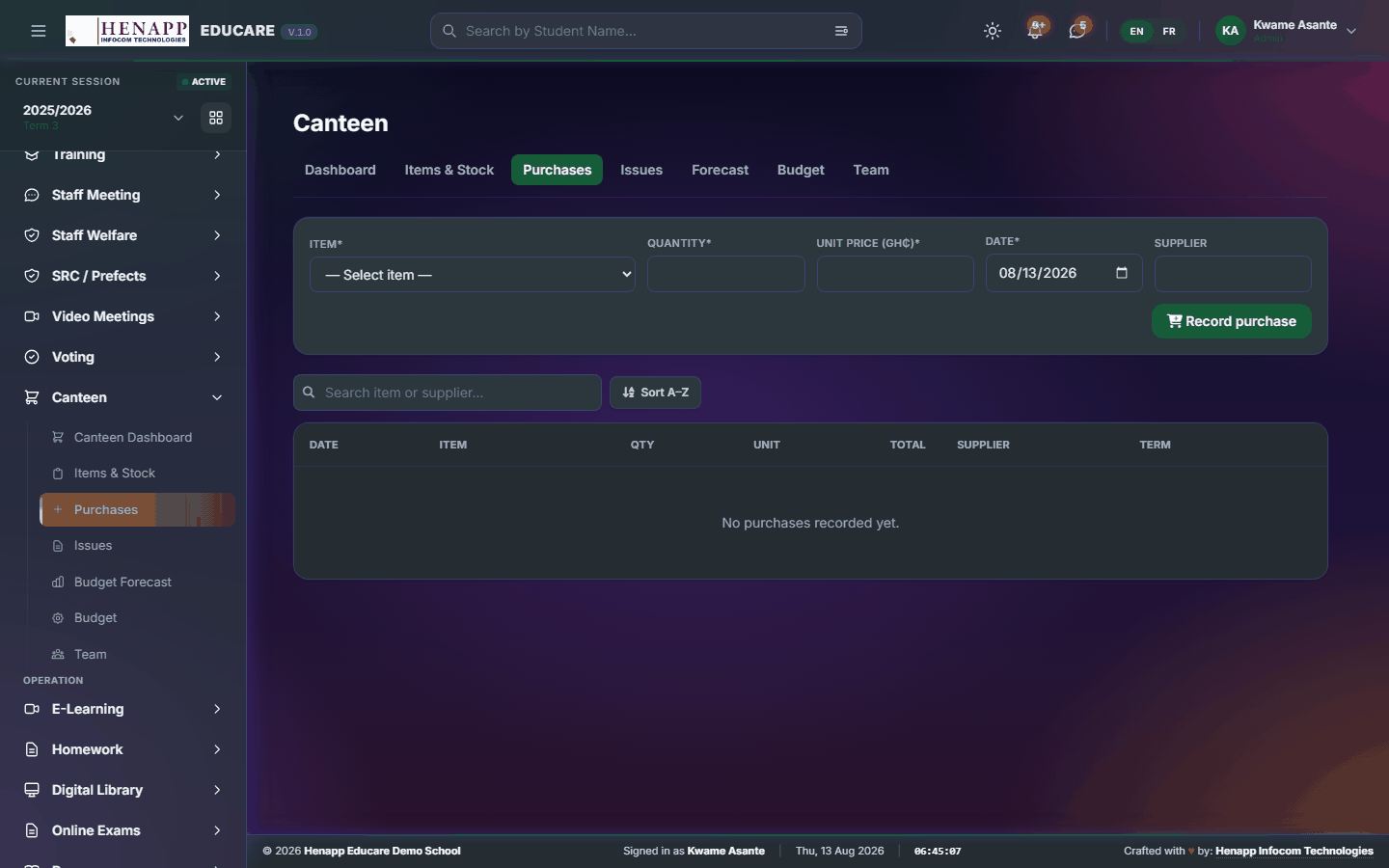
How to use it
- Open Canteen → Purchases.
- Click New Purchase, choose the supplier and add each item with quantity and cost.
- Save. Stock levels rise and the cost is recorded against the budget.
45.4 Issues
Stock issued out to the kitchen.
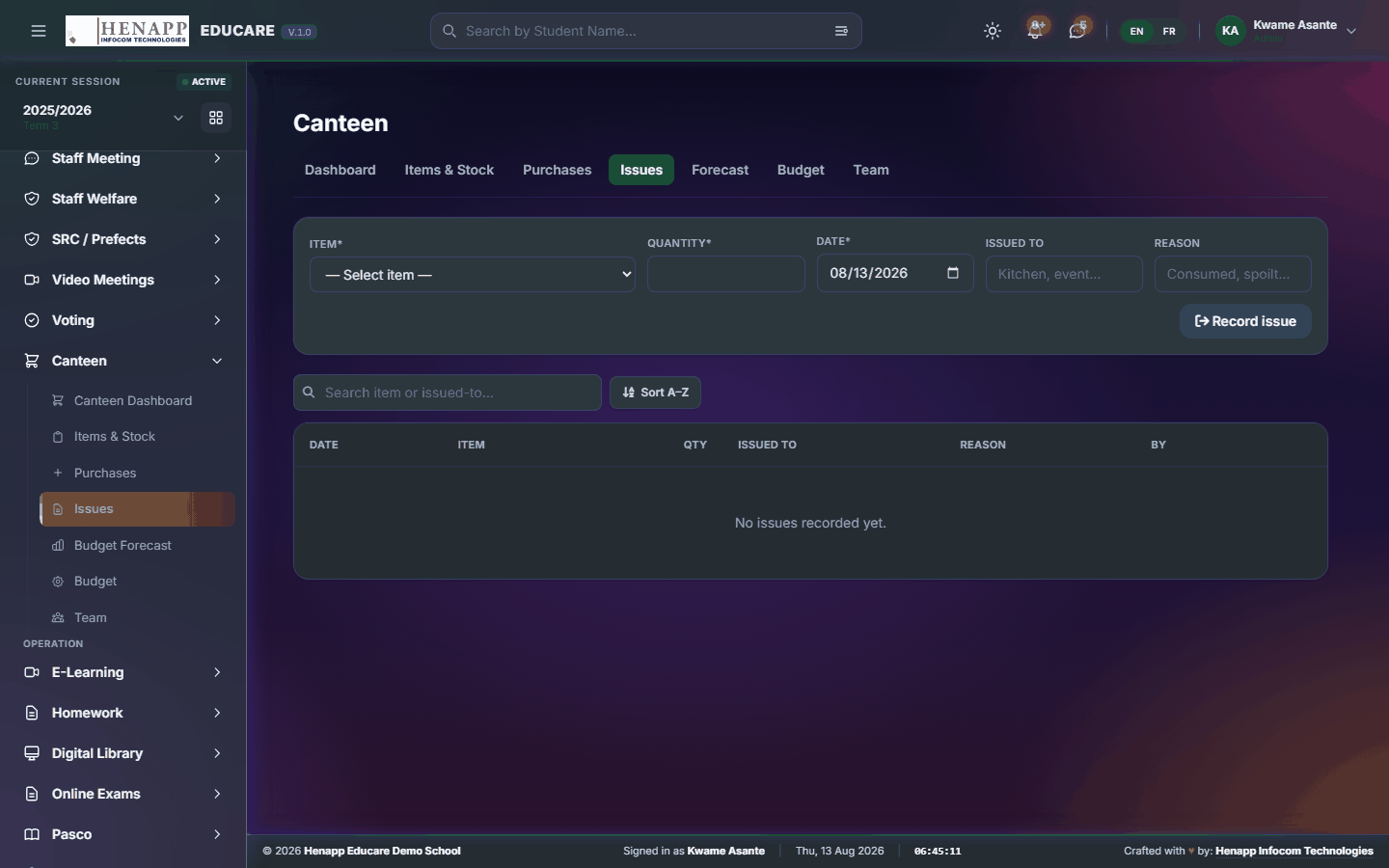
How to use it
- Open Canteen → Issues.
- Record each issue with the item, quantity and date.
- Save. Stock levels fall accordingly.
45.5 Budget Forecast
Projected consumption and spend from the pattern so far.
How to use it
- Open Canteen → Budget Forecast.
- Choose the period.
- Read the projection against the budget.
45.6 Budget
The canteen budget and how much of it has been used.
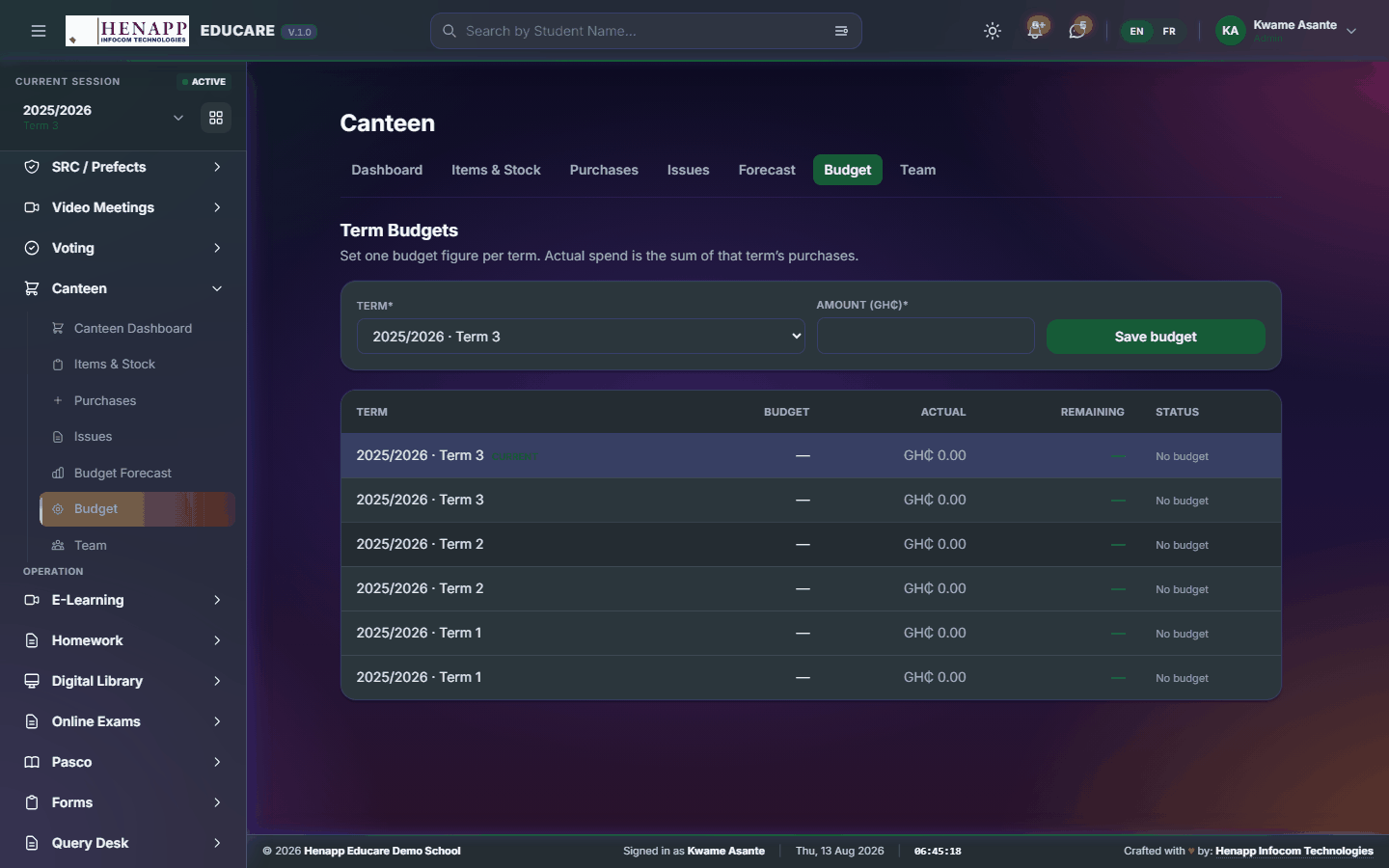
How to use it
- Open Canteen → Budget.
- Set the budget for the period.
- Save. Spending is tracked against it.
45.7 Team
The canteen staff and what each may do in the module.

How to use it
- Open Canteen → Team.
- Add staff to the canteen team and set their access.
- Save.
46. E-Learning
Online learning — lessons published by teachers, and how far each learner has got through them.
Find it in the sidebar under Operation → E-Learning.
46.1 LMS Overview
The e-learning home page — what is published and how it is being used.
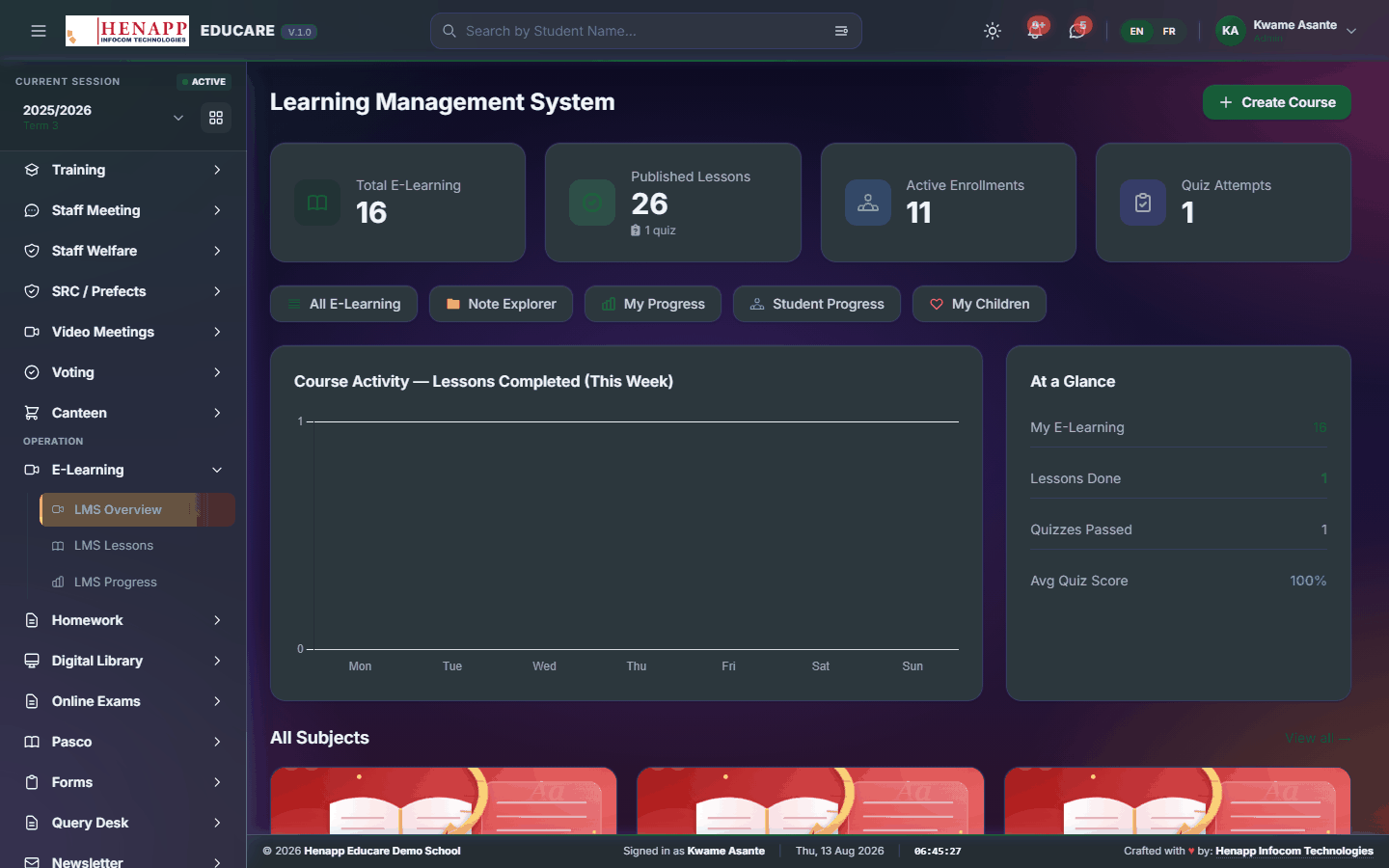
How to use it
- Open E-Learning → LMS Overview.
- Read the published lesson counts and engagement.
- Click through to a subject or lesson.
46.2 LMS Lessons
The lessons themselves — video, text, slides and attachments. Teachers create them here; learners work through them.
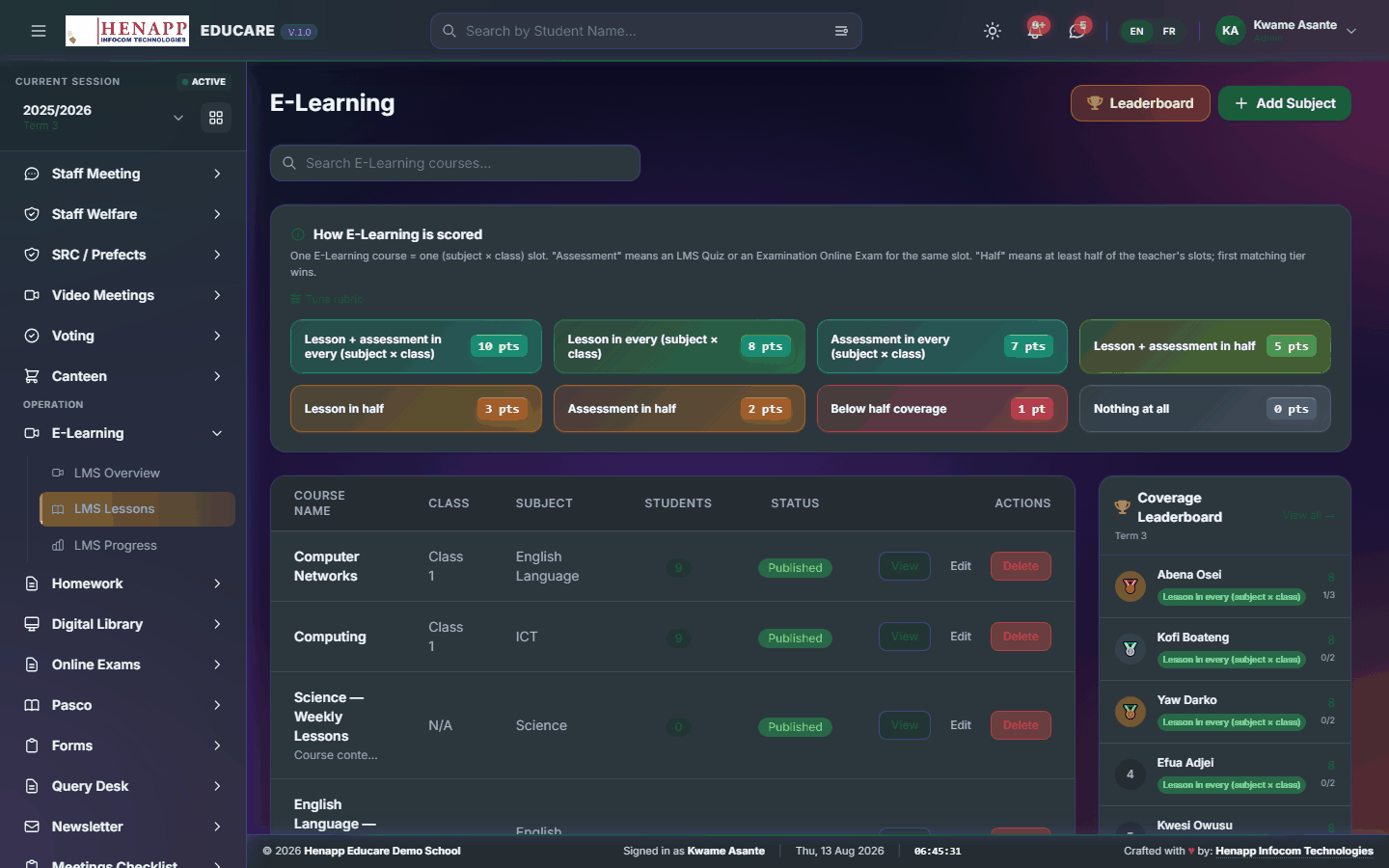
How to use it
- Open E-Learning → LMS Lessons.
- Learners: click a lesson to open it and work through in order. Your progress is recorded as you go.
- Teachers: click New Lesson, choose the class and subject, then add the content — text, a video link, slides or files.
- Publish when it is ready. Learners see it immediately.
46.3 LMS Progress
How far each learner has got — who has finished, who has started, who has not opened it.
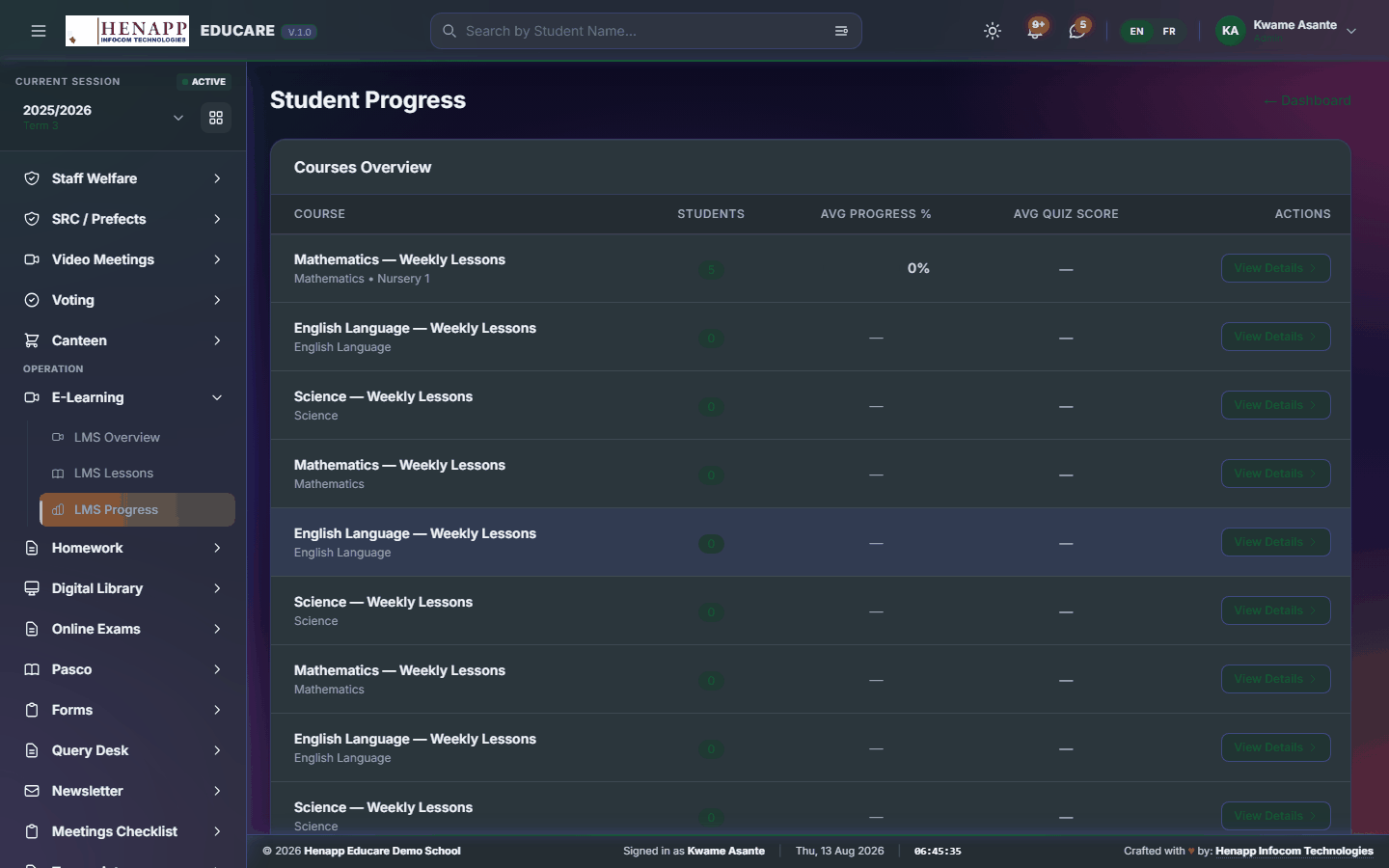
How to use it
- Open E-Learning → LMS Progress.
- Choose the class and subject.
- Read the grid and follow up with anyone who has not begun.
47. Homework
Homework set, submitted and marked inside the system.
Find it in the sidebar under Operation → Homework.
47.1 Homework Browser
Homework across the classes you teach — set it, and see what has come back.
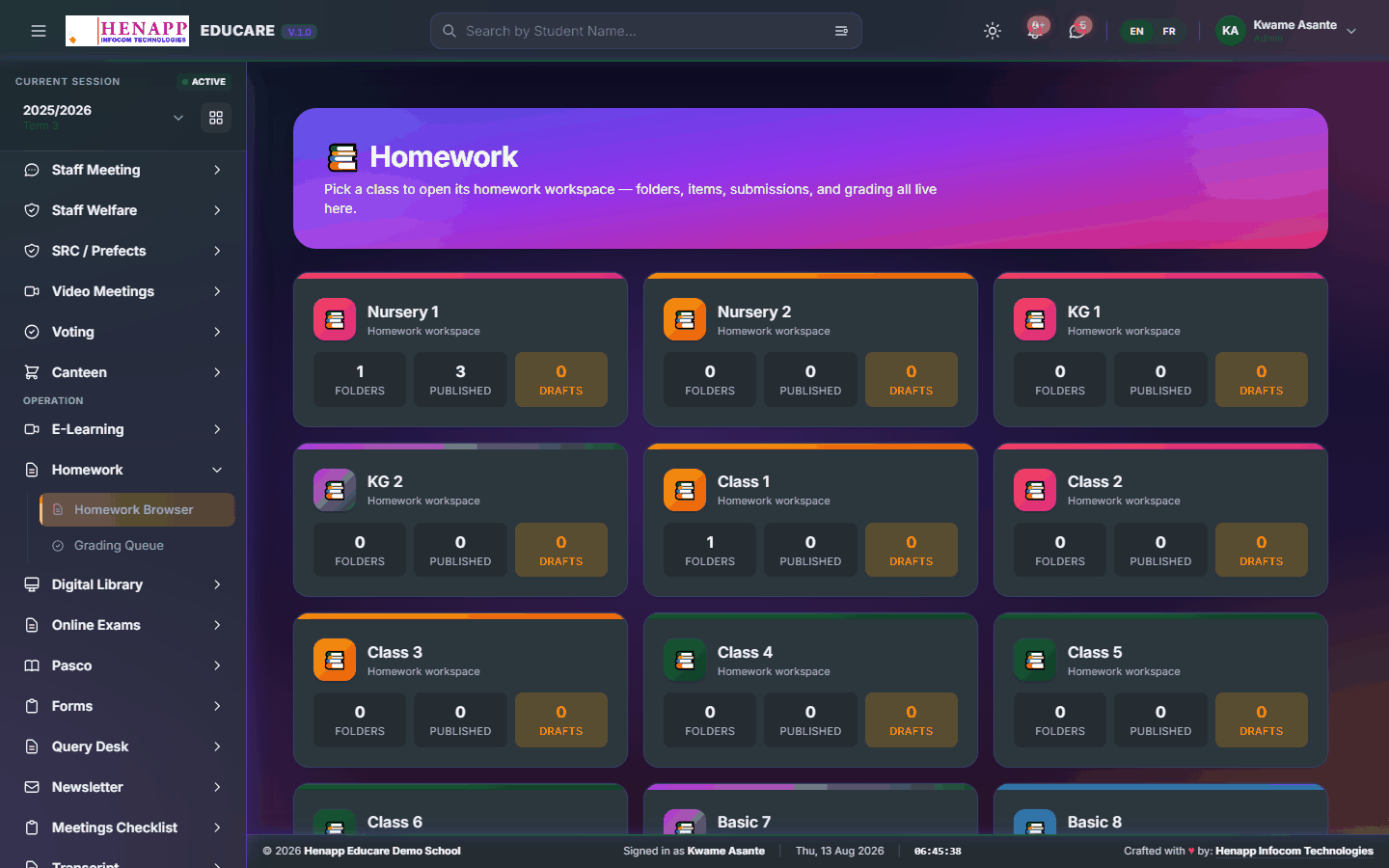
How to use it
- Open Homework → Homework Browser.
- Click New Homework, choose the class and subject.
- Write the instructions, attach any file, and set the due date.
- Publish. Learners and parents are notified.
- Watch submissions arrive against the assignment.
47.2 Grading Queue
Submitted homework waiting to be marked.
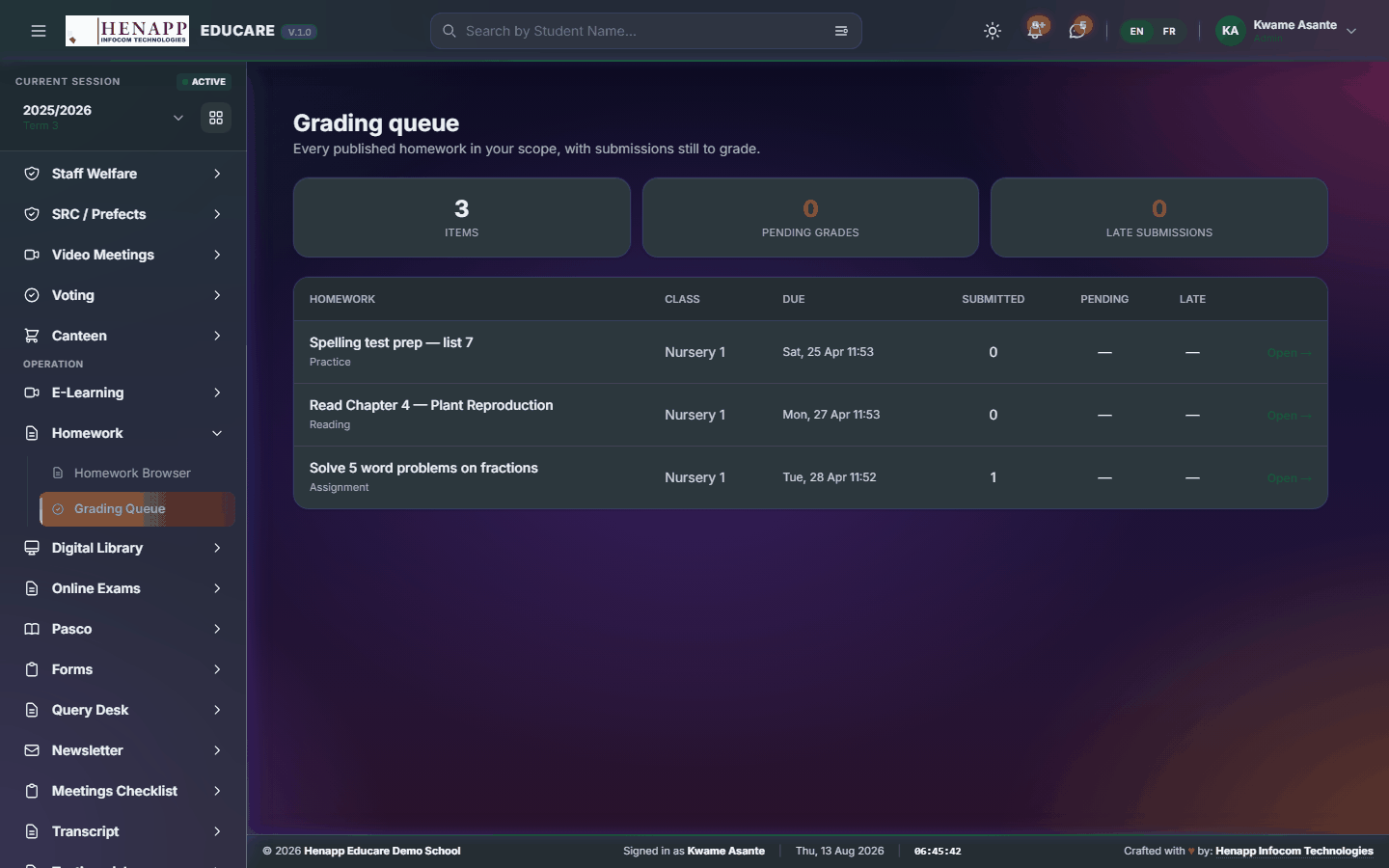
How to use it
- Open Homework → Grading Queue.
- Open a submission to read it or download the attachment.
- Enter the mark and a comment.
- Save. The learner and their parents see the mark and comment.
48. Digital Library
Electronic books and learning games — read in the browser, no download needed.
Find it in the sidebar under Operation → Digital Library.
48.1 Browse / Read
The e-book shelf — read in the browser without downloading anything.
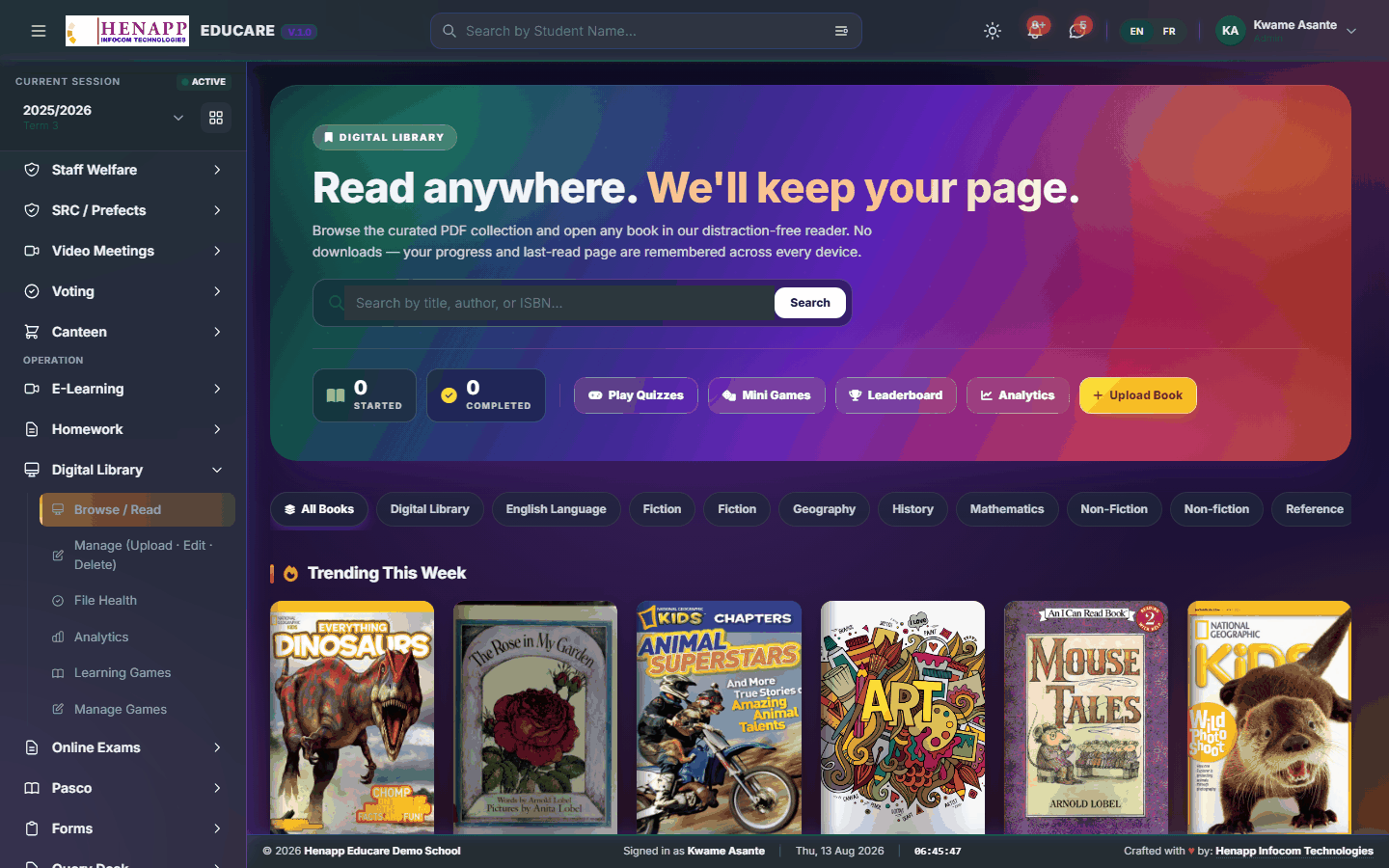
How to use it
- Open Digital Library → Browse / Read.
- Search by title, author or subject, or browse the collections.
- Click a book to open the reader.
- Use the arrows or swipe to turn pages; the reader remembers where you stopped.
48.2 Manage (Upload · Edit · Delete)
Adding and maintaining the digital collection.
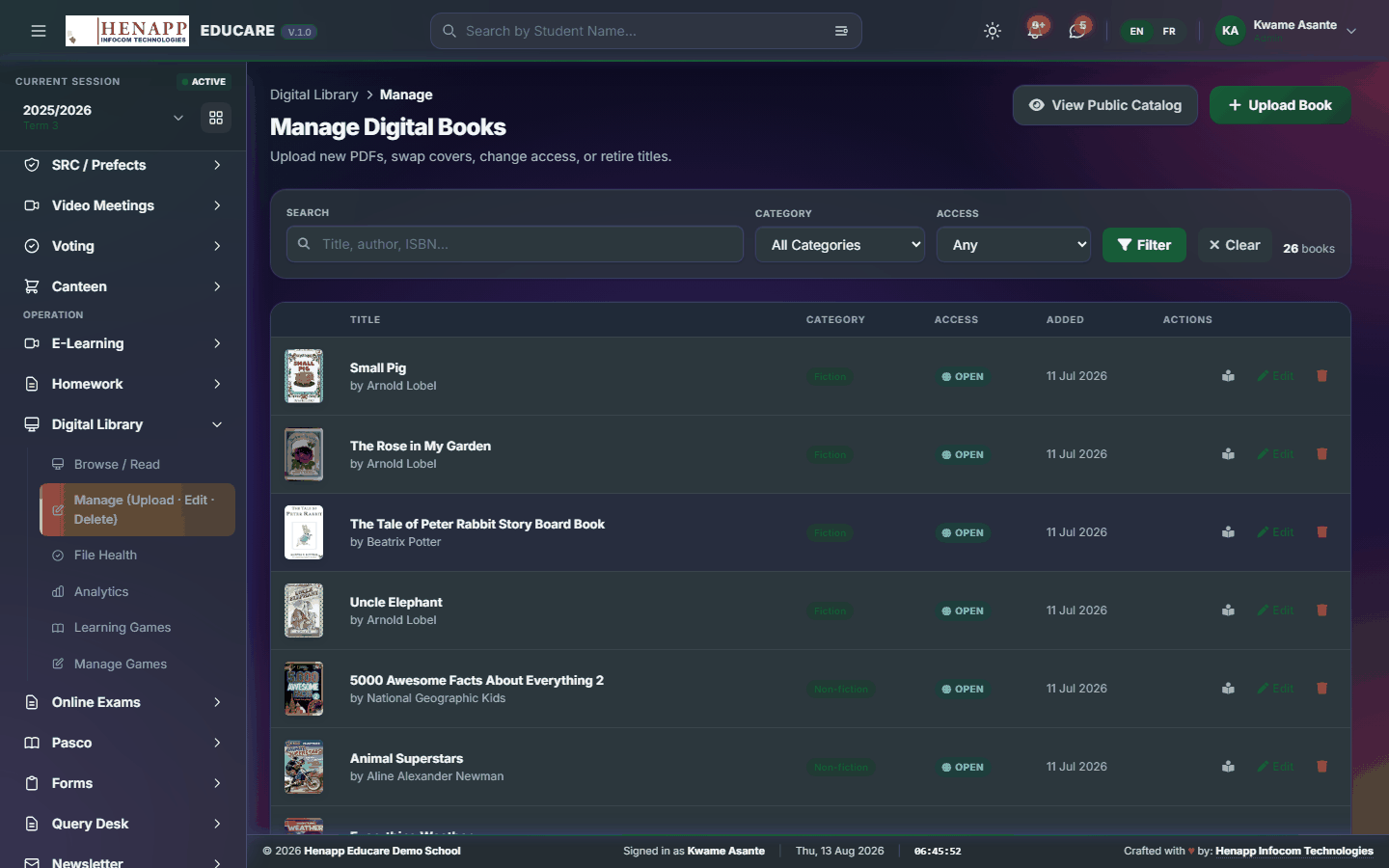
How to use it
- Open Digital Library → Manage.
- Click Upload and choose the file — PDF and EPUB are supported.
- Enter the title, author, subject and the classes it suits.
- Upload a cover image, then save.
- Edit or remove an existing title from the same list.
48.3 File Health
Checks that every catalogued book still has a file behind it that actually opens.
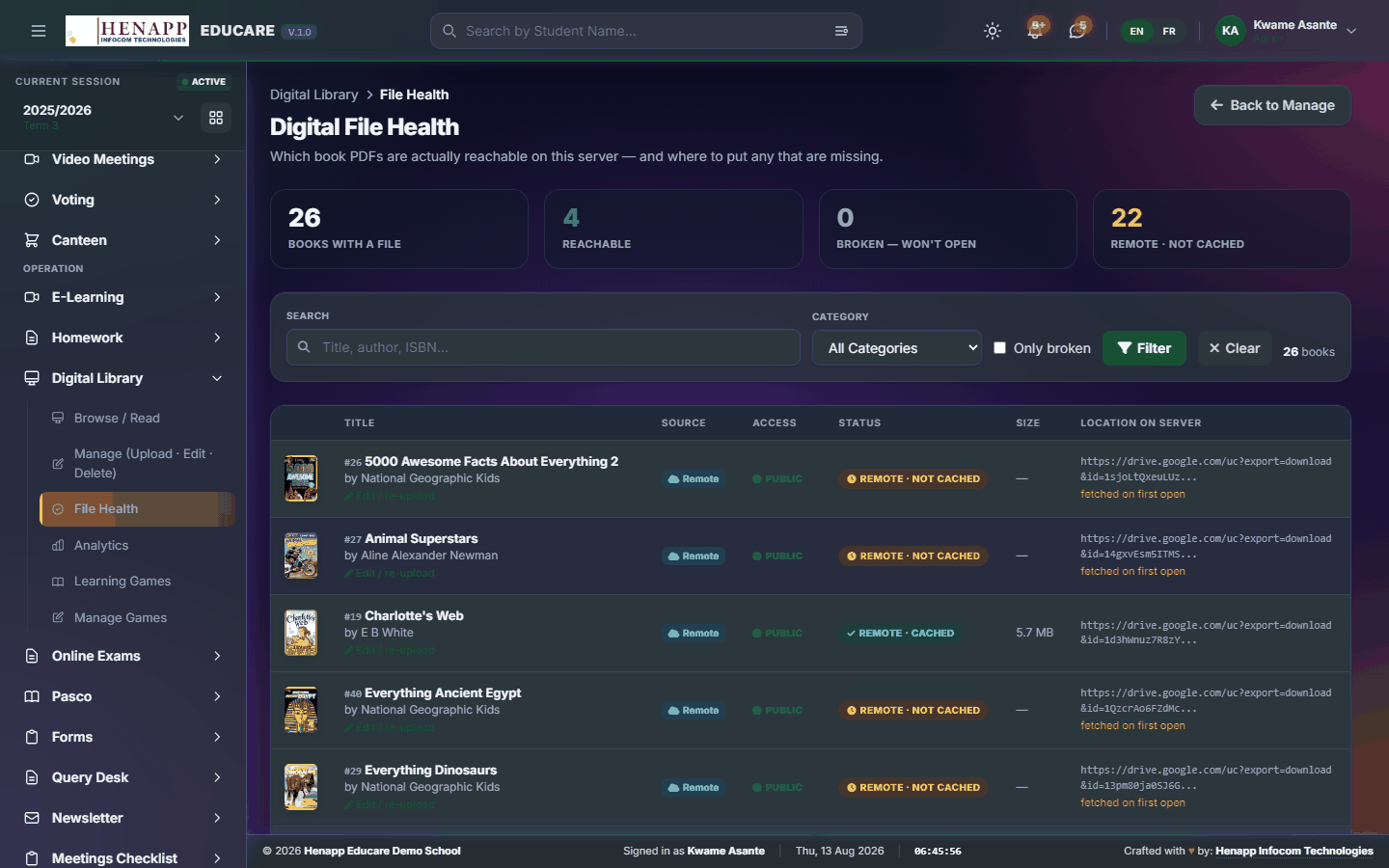
How to use it
- Open Digital Library → File Health.
- Run the check.
- Fix anything flagged by re-uploading the file or correcting its link.
48.4 Analytics
What is being read, by whom and how much.
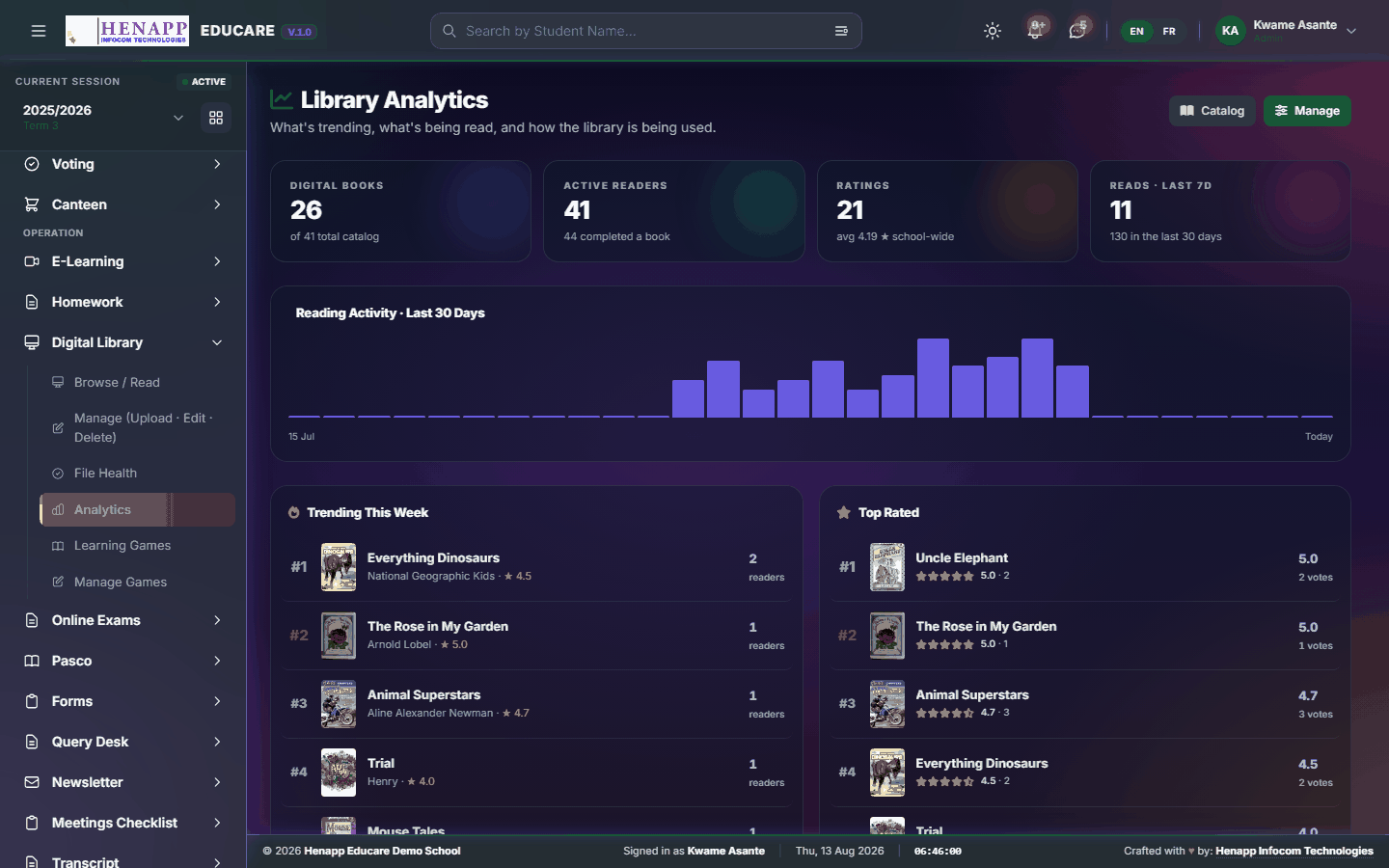
How to use it
- Open Digital Library → Analytics.
- Choose the period.
- Read the most-read titles and the activity by class.
48.5 Learning Games
Educational games and interactive activities for learners.
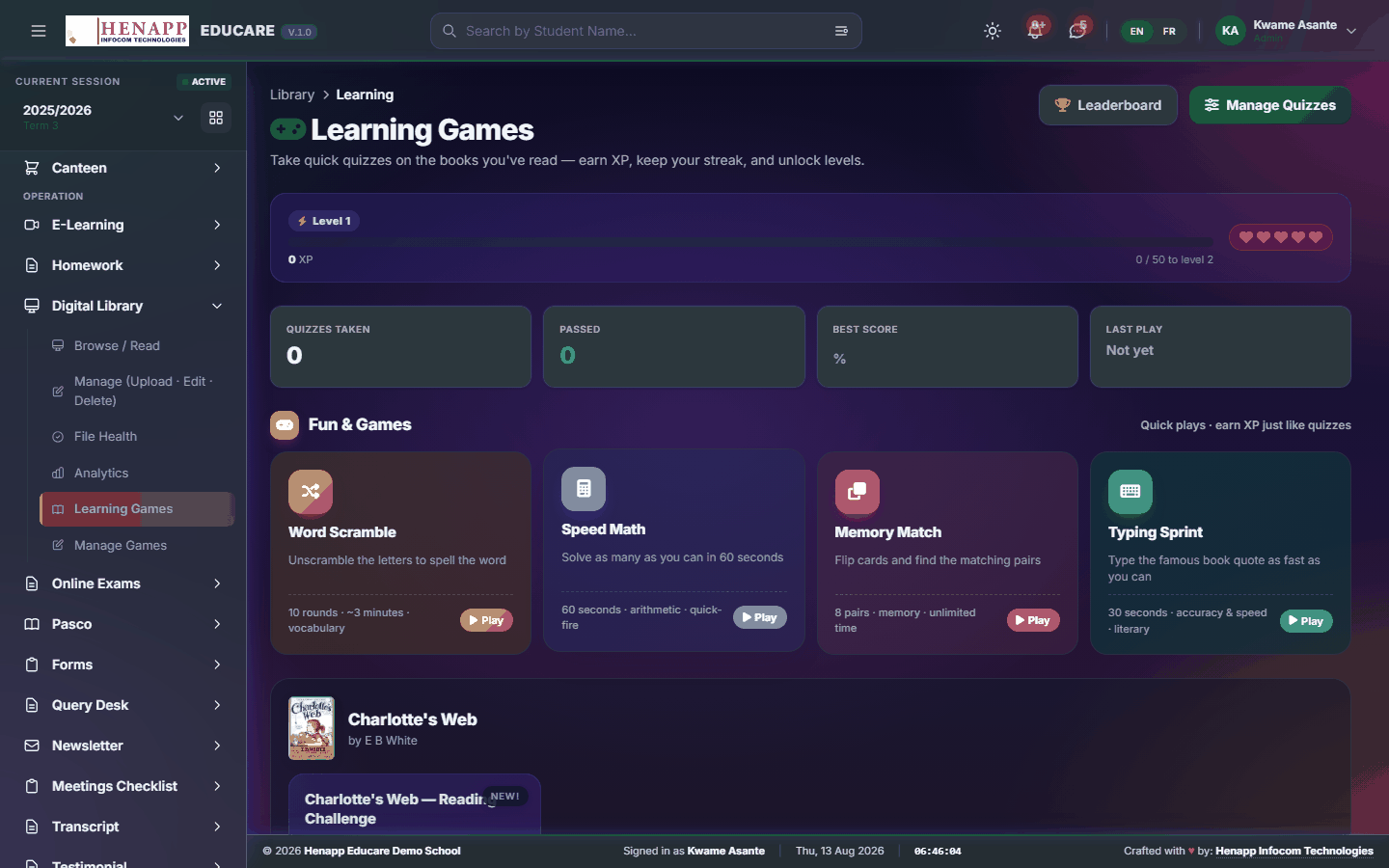
How to use it
- Open Digital Library → Learning Games.
- Pick a game and play it in the browser.
48.6 Manage Games
Adding and organising the games on offer.
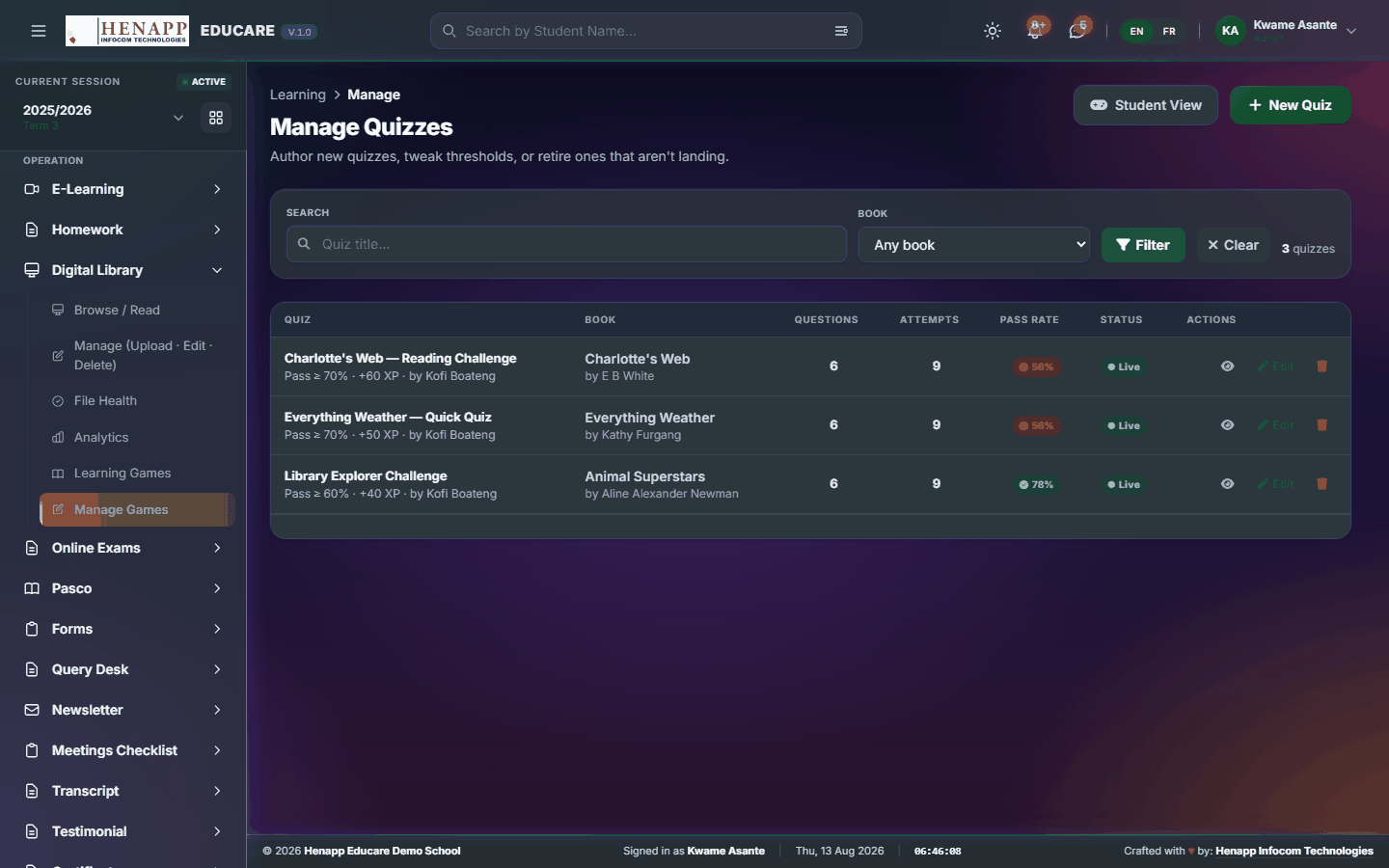
How to use it
- Open Digital Library → Manage Games.
- Add a game with its title, subject and the classes it suits.
- Publish it for learners.
49. Online Exams
Examinations sat online, from building the paper to releasing the result.
Find it in the sidebar under Operation → Online Exams.
49.1 Exam Overview
Online examinations in summary — what is scheduled, running and finished.

How to use it
- Open Online Exams → Exam Overview.
- Read the exams and their status.
49.2 Online Exams
Building and running an online examination — the question paper, the sitting, and the marking that follows.
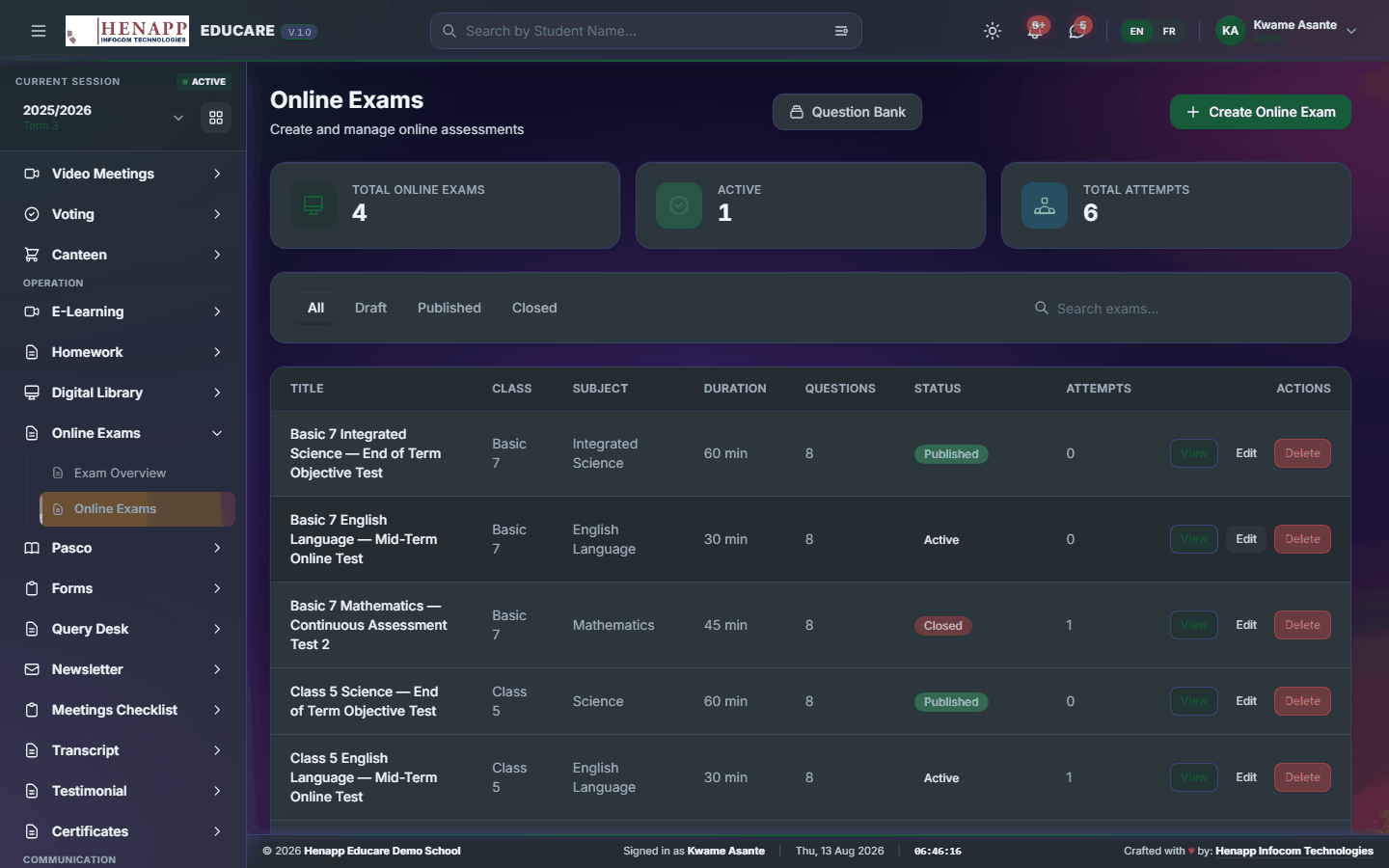
How to use it
- Open Online Exams → Online Exams.
- Click New Exam and set the class, subject, date, start time and duration. Leave it as a draft for now.
- Add questions — multiple choice, true/false or written — by typing them, pulling them from the question bank, or generating them against the syllabus (see the note below).
- Set the marks per question and whether the order is shuffled.
- Publish. Candidates see it at the start time and it closes automatically.
- Objective questions mark themselves; mark written answers afterwards, then release results.
Preview the paper yourself before publishing. A wrong mark total or a broken image is fixable beforehand and very disruptive during a sitting.
To fill a paper quickly, open NaCCA Curriculum → AI Question Generator, tick the indicators you are assessing, generate, then choose "Add to online exam" and pick this exam. Only DRAFT exams are offered — questions can never be added to a paper learners are already sitting.
Objective questions arriving that way come with their answer key, so they mark themselves. Read them first: a wrongly keyed question marks the whole class incorrectly.
50. Pasco
Past questions, organised by subject and year, for revision.
Find it in the sidebar under Operation → Pasco.
50.1 Pasco (Past Qs)
Past examination papers by subject and year, for revision.
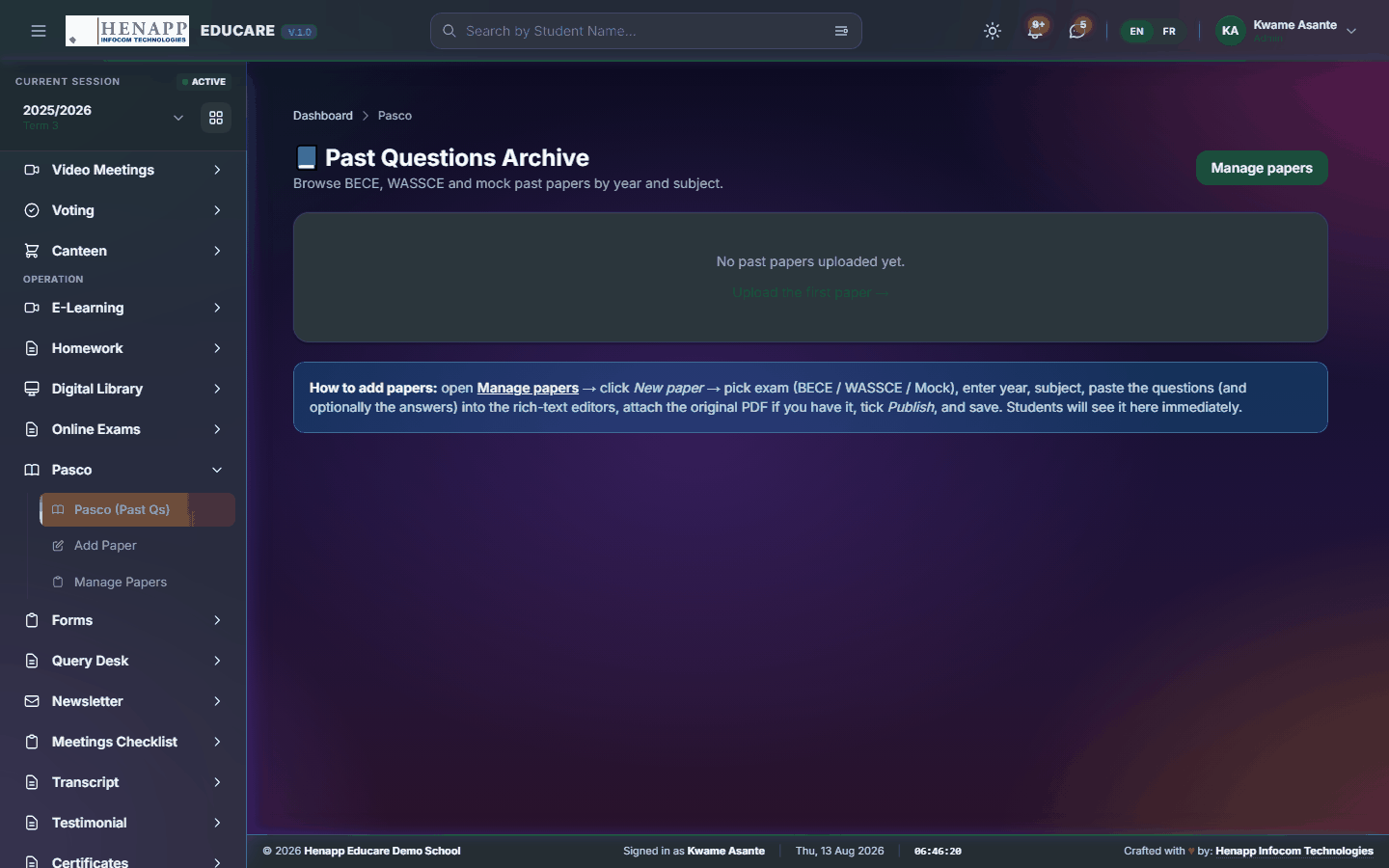
How to use it
- Open Pasco → Pasco (Past Qs).
- Choose the subject and year.
- Open a paper to read it, and download it if you want it offline.
50.2 Add Paper
Add a past paper to the collection.
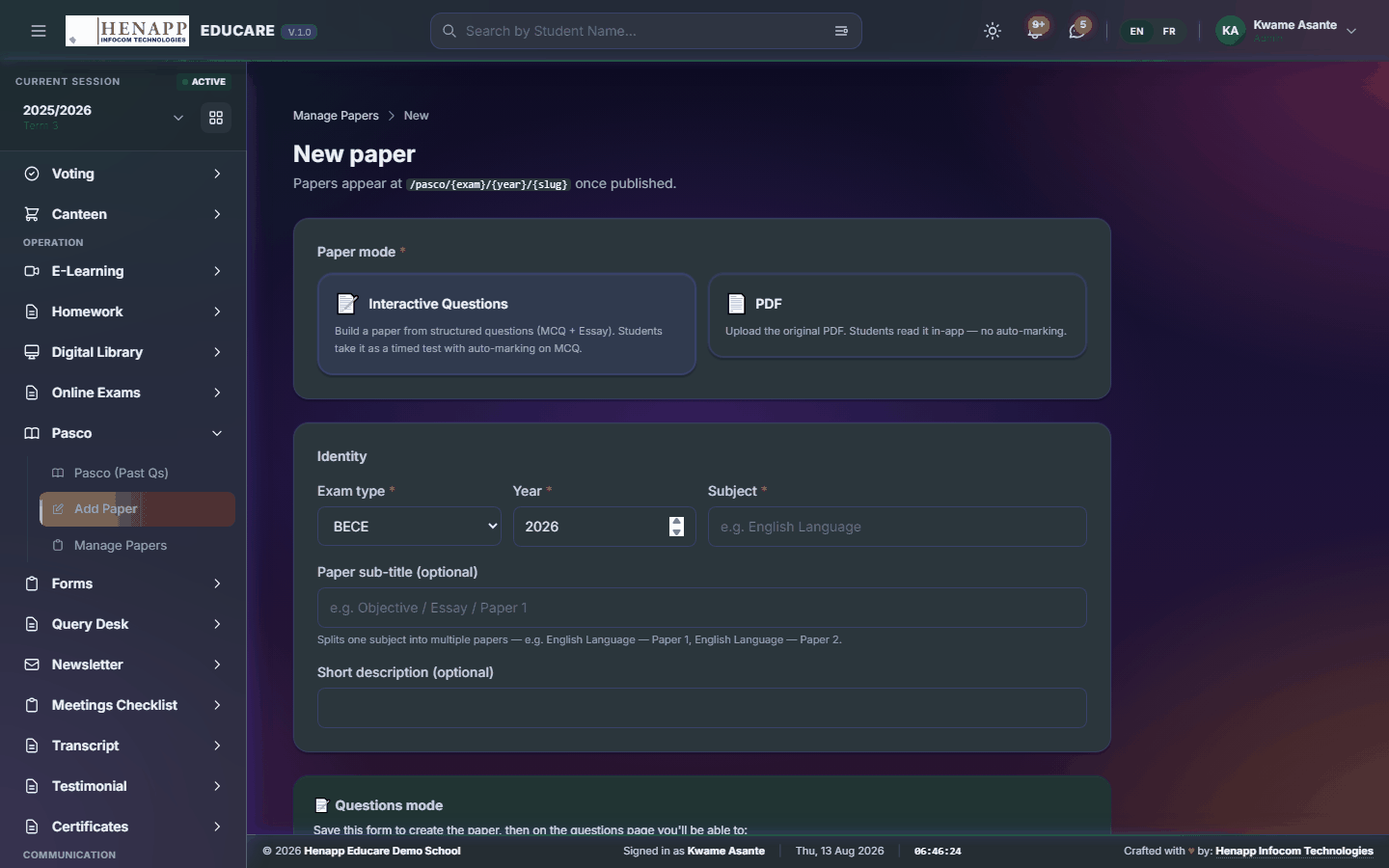
How to use it
- Open Pasco → Add Paper.
- Enter the subject, year and examination body.
- Add the questions, attaching images where a question needs a diagram.
- Save and publish.
50.3 Manage Papers
The papers already published, to edit or remove.
How to use it
- Open Pasco → Manage Papers.
- Filter by subject or year.
- Edit a paper, or unpublish one that should not be available.
51. Forms
Build a form once, send it to the group who must fill it in, and collect the responses in one place.
Find it in the sidebar under Operation → Forms.
51.1 Form Builder
Build a form, assign it to a group, and collect the answers — consent slips, surveys, data updates. A form can also be a self-marking quiz.
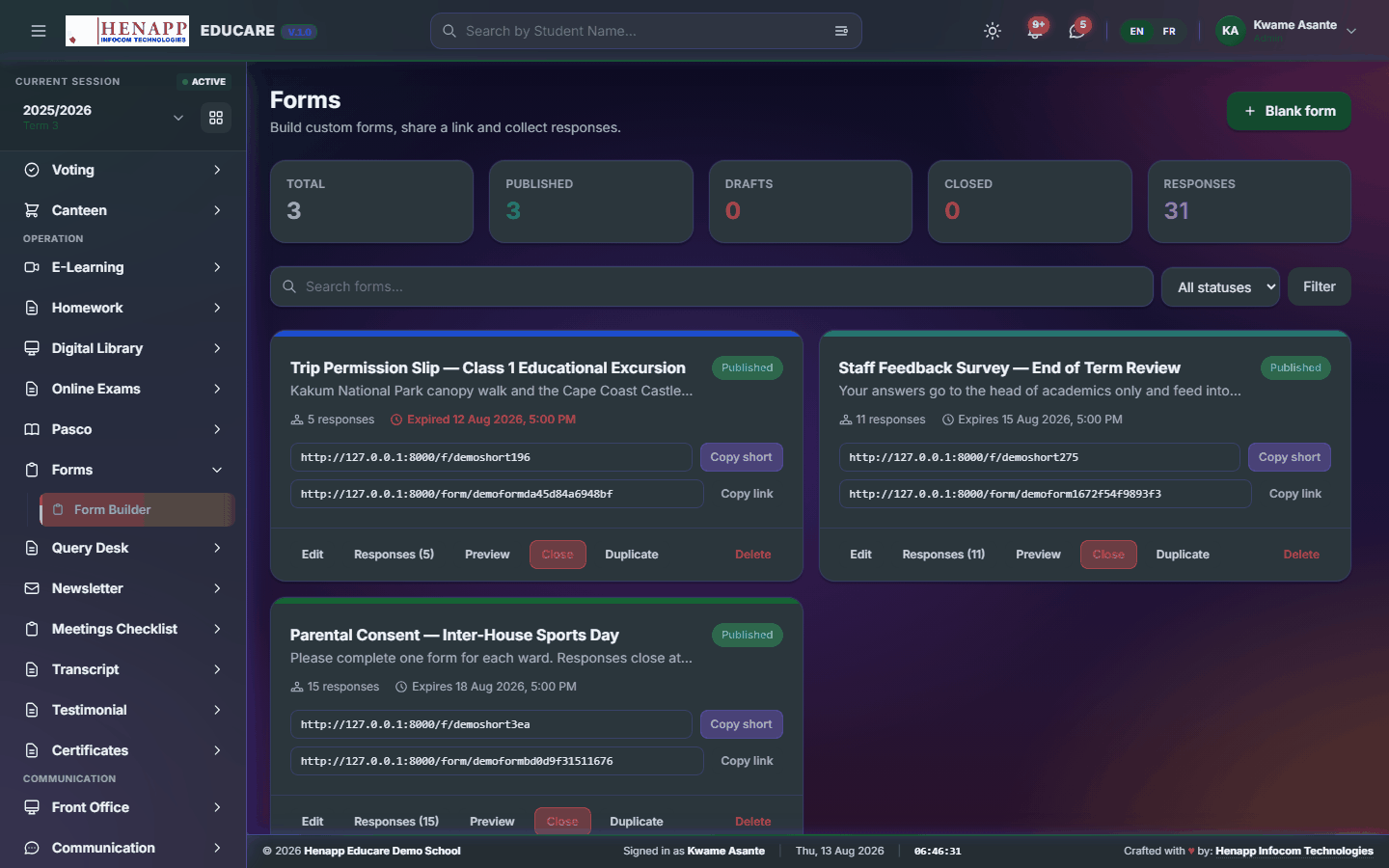
How to use it
- Open Forms → Form Builder.
- Click New Form and give it a title.
- Add questions — text, choice, date, file upload — and mark the ones that are required.
- Choose who must fill it in: a class, a role, or named people.
- Publish. It appears under Forms for you for each recipient.
- Watch responses arrive, and export them when you are ready.
A form whose questions carry an answer key becomes a graded quiz: it marks each response as it arrives, and the person answering sees their score and the correct answers when they submit.
The quickest way to make one is NaCCA Curriculum → AI Question Generator: tick your indicators, generate, then choose "Create a public form". The answer key comes across with the questions, so the quiz grades itself with nothing more to set up.
52. Query Desk
Formal queries issued to staff, and their written responses — a documented trail rather than a corridor conversation.
Find it in the sidebar under Operation → Query Desk.
52.1 Staff Queries
Formal queries issued to staff and the written responses — the documented trail.

How to use it
- Open Query Desk → Staff Queries.
- Click New Query and choose the member of staff.
- State the matter and set a date for the response.
- Issue it. They are notified and respond in writing on the same thread.
- Record the outcome and close the query.
A query and its response form part of the staff record. Write it as a document that may be read later by someone who was not involved.
53. Newsletter
Newsletters and circular letters, composed on letterhead and sent to the groups you choose.
Find it in the sidebar under Operation → Newsletter.
53.1 Newsletters & Letters
Newsletters and circular letters, composed on letterhead and sent to chosen groups.

How to use it
- Open Newsletter → Newsletters & Letters.
- Click New and choose newsletter or letter.
- Write the content and add any images or attachments.
- Choose the recipients — all parents, a class, staff, or a custom group.
- Preview it, then send. It reaches them in the portal and by email, and can be downloaded as a PDF.
54. Transcript
Formal academic transcripts, generated from a learner's recorded results.
Find it in the sidebar under Operation → Transcript.
54.1 Generate Transcript
A formal transcript of a learner's results across the years they attended, on school letterhead.
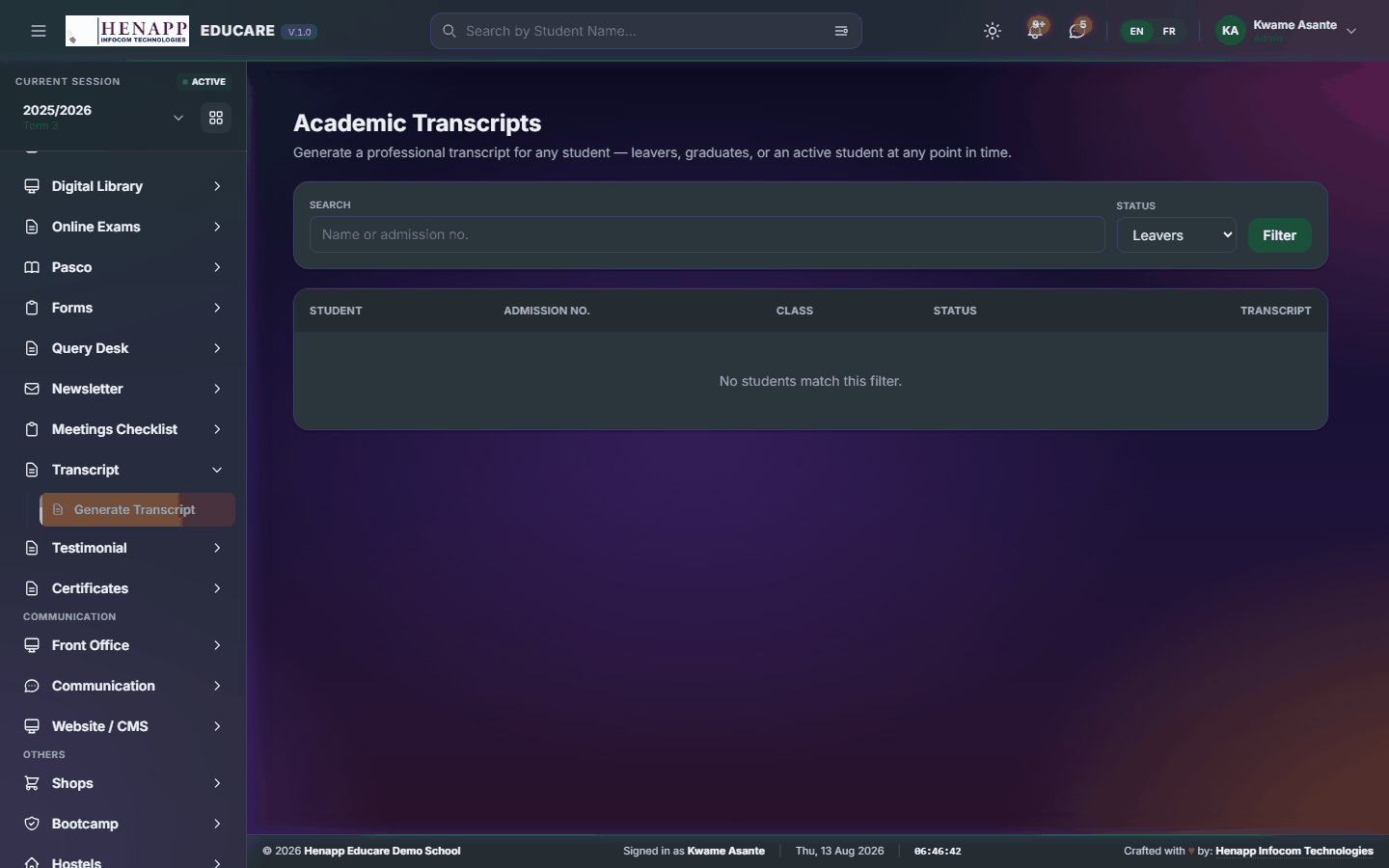
How to use it
- Open Transcript → Generate Transcript.
- Search for the learner.
- Choose the years to include.
- Preview it and check every year and subject has come through.
- Generate the PDF, then sign and stamp the printed copy.
55. Testimonial
Testimonials and character references issued on school letterhead.
Find it in the sidebar under Operation → Testimonial.
55.1 Generate Testimonial
A testimonial or character reference on letterhead, built from a template you then edit.
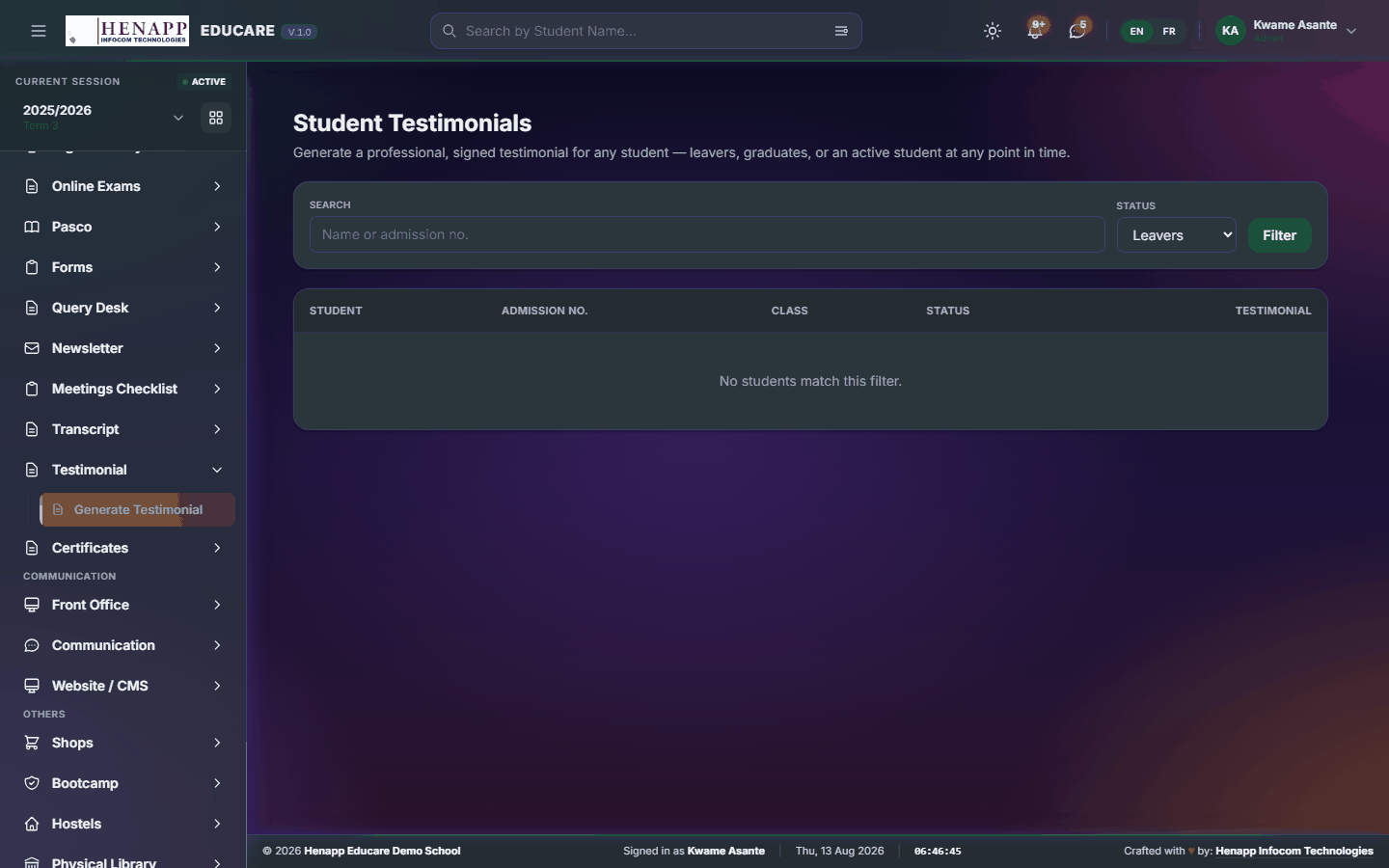
How to use it
- Open Testimonial → Generate Testimonial.
- Search for the learner.
- Choose a template as your starting point.
- Edit the wording to fit the learner — the template is a draft, not a finished document.
- Generate the PDF and print it for signature.
56. Certificates
Certificates — completion, merit, participation — issued singly or to a whole year group.
Find it in the sidebar under Operation → Certificates.
56.1 All Certificates
Certificates already issued, with who received each and when.
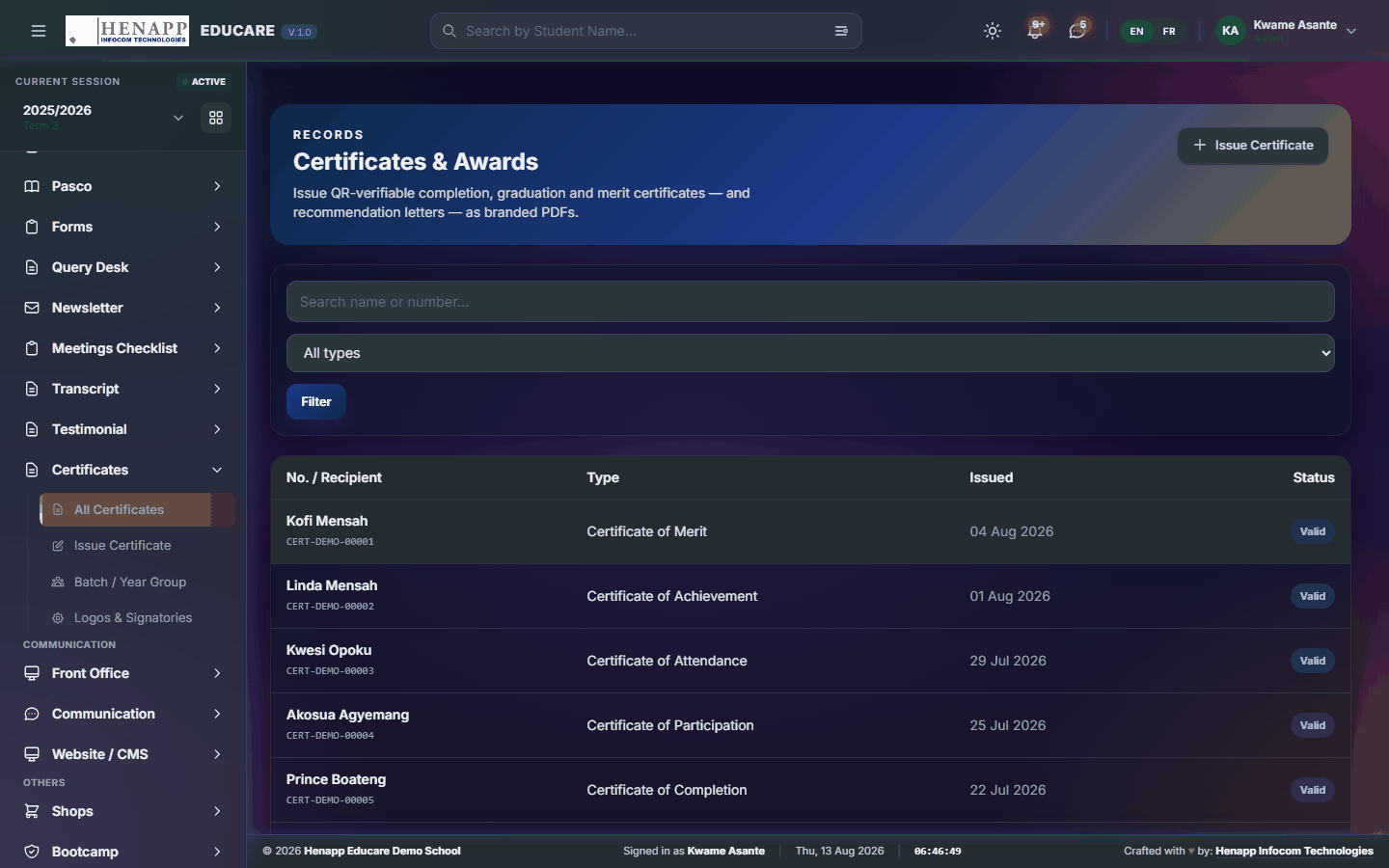
How to use it
- Open Certificates → All Certificates.
- Filter by type, class or date.
- Open one to view or reprint it.
56.2 Issue Certificate
Issue a certificate to one recipient.
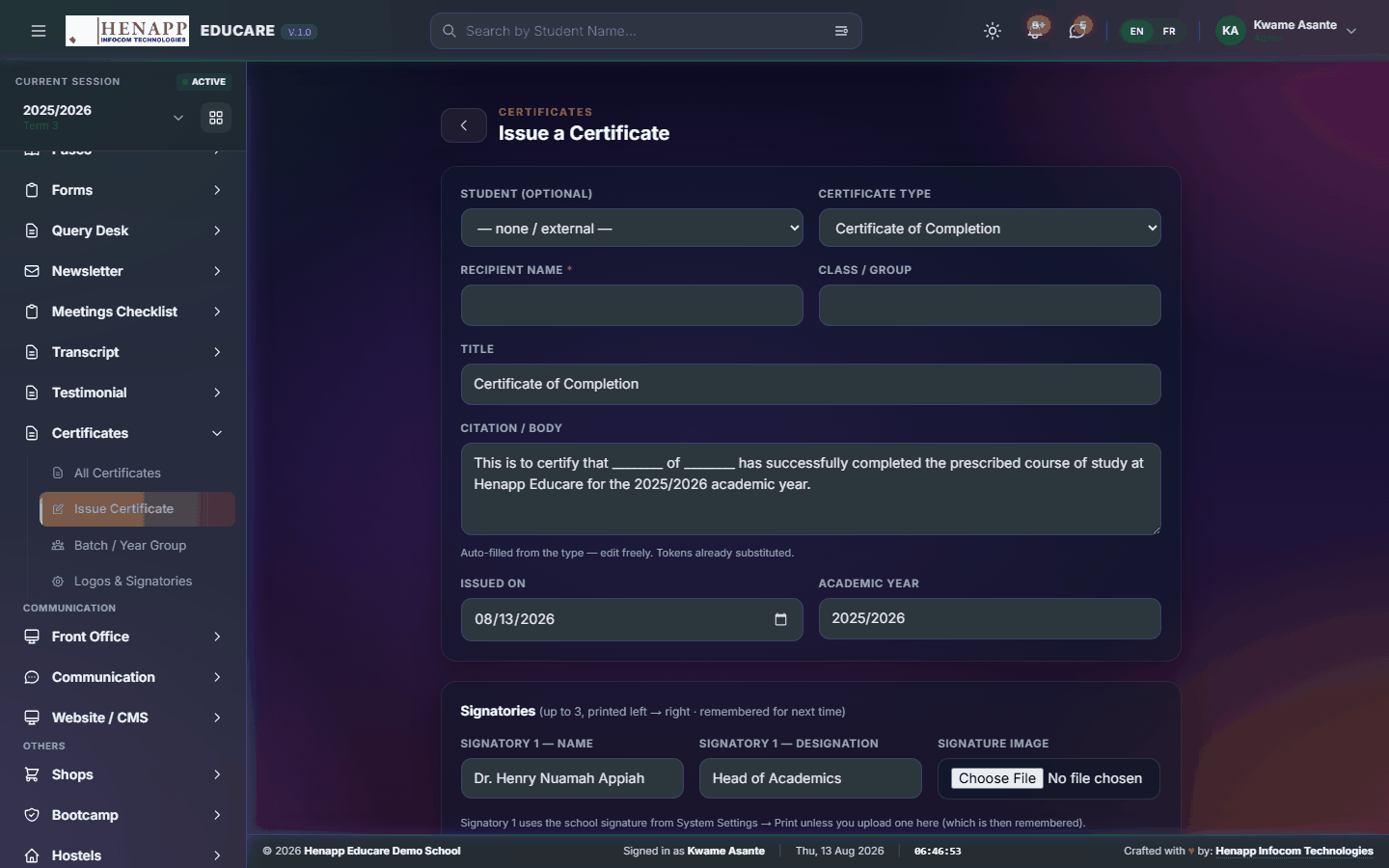
How to use it
- Open Certificates → Issue Certificate.
- Choose the type and the recipient.
- Fill in the wording and the date.
- Preview it, then generate the PDF.
56.3 Batch / Year Group
Issue the same certificate to a whole class or year group in one run.
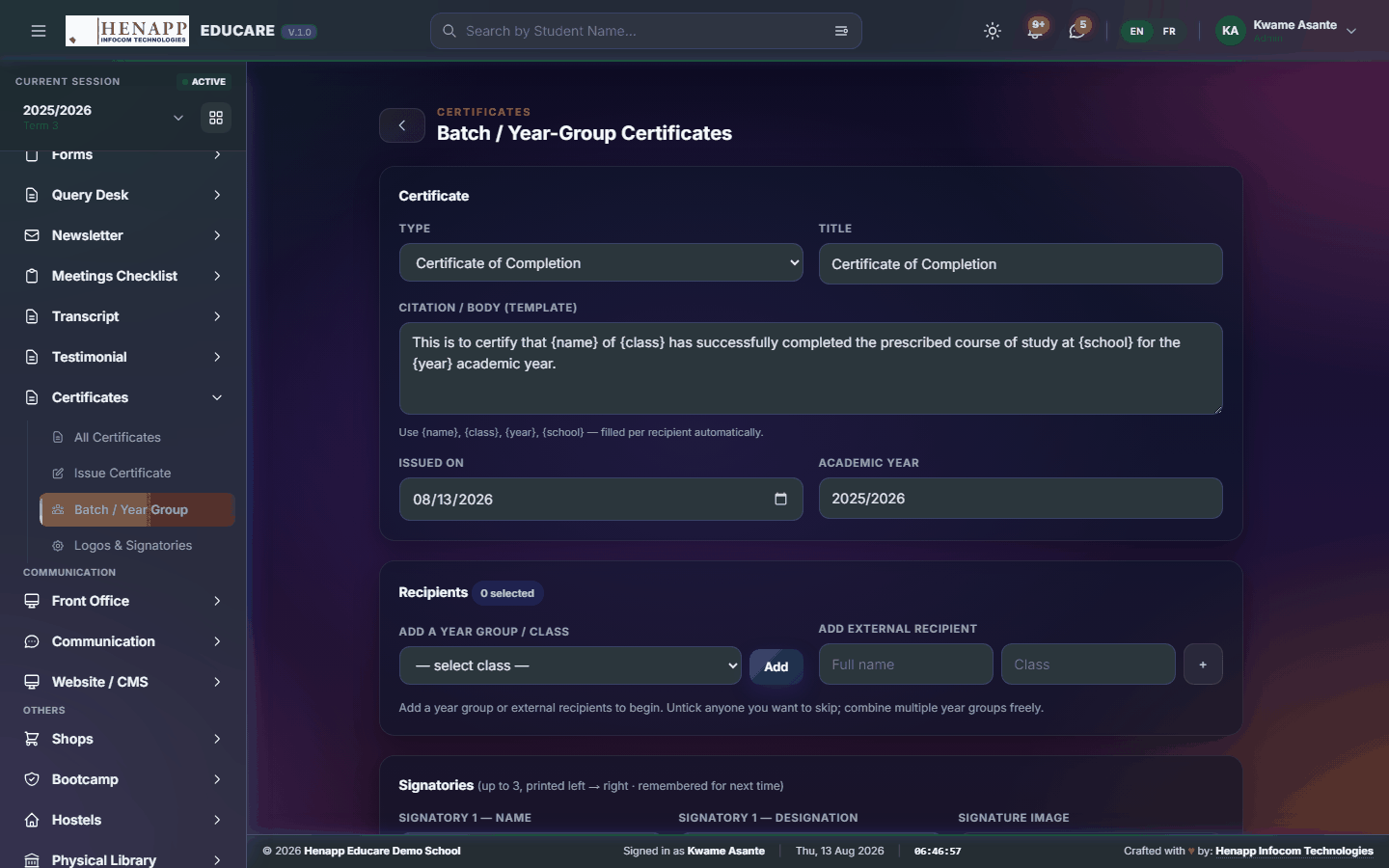
How to use it
- Open Certificates → Batch / Year Group.
- Choose the certificate type and the group.
- Set the shared wording and date.
- Preview a sample before generating — a wrong date on one is a wrong date on all of them.
- Generate the batch and download the PDF pack.
56.4 Logos & Signatories
The logos, seal and signatures that print on every certificate.

How to use it
- Open Certificates → Logos & Signatories.
- Upload the school logo and seal.
- Add each signatory with their name, title and signature image.
- Save, then preview a certificate to check placement.
57. Front Office
The reception desk as a record: enquiries taken, visitors received, calls logged and post in and out.
Find it in the sidebar under Communication → Front Office.
57.1 Dashboard
The front desk at a glance — today's enquiries, visitors and calls.
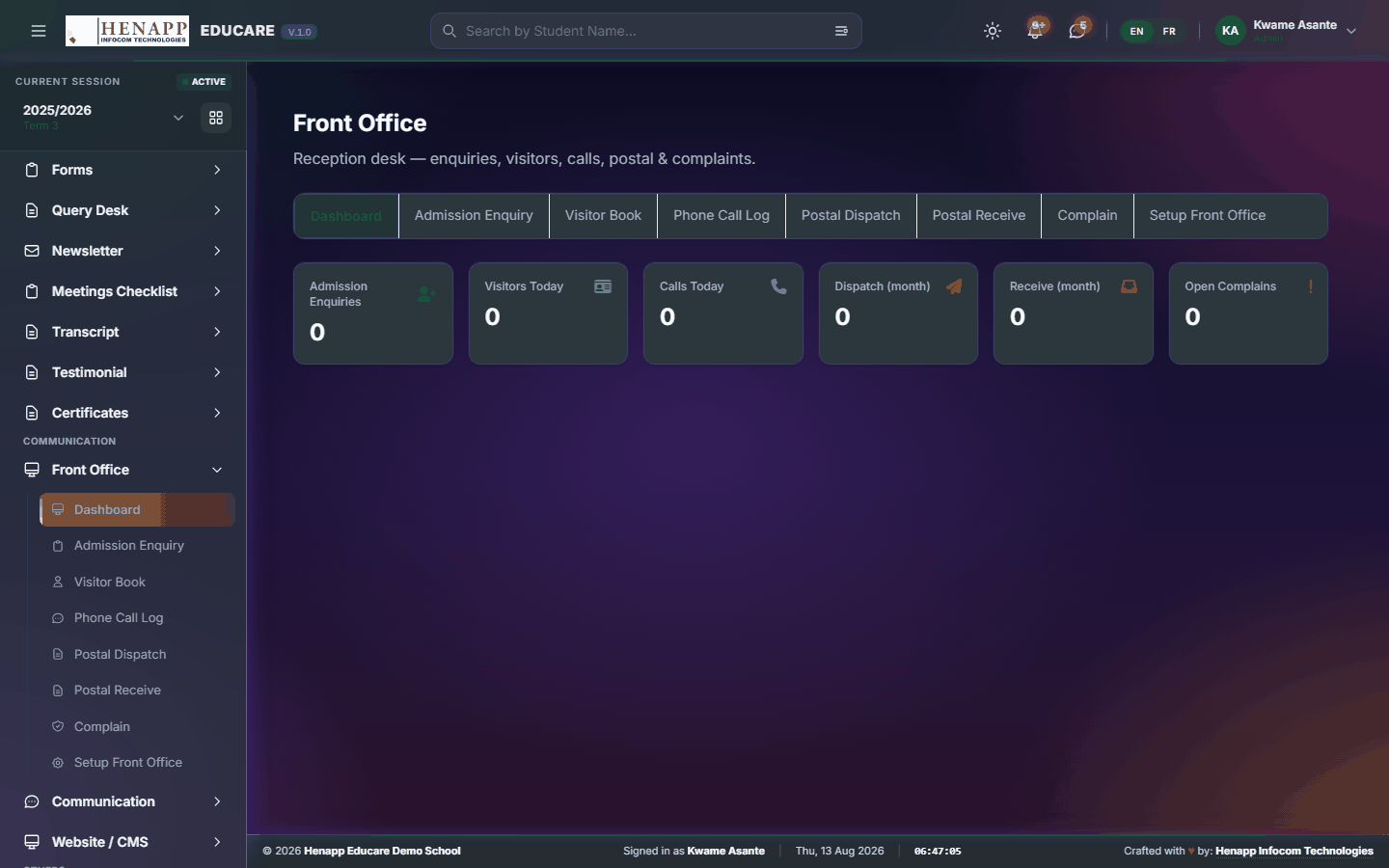
How to use it
- Open Front Office → Dashboard.
- Read today's activity and anything outstanding.
57.2 Admission Enquiry
Admission enquiries taken at the desk or by phone, and what came of each.
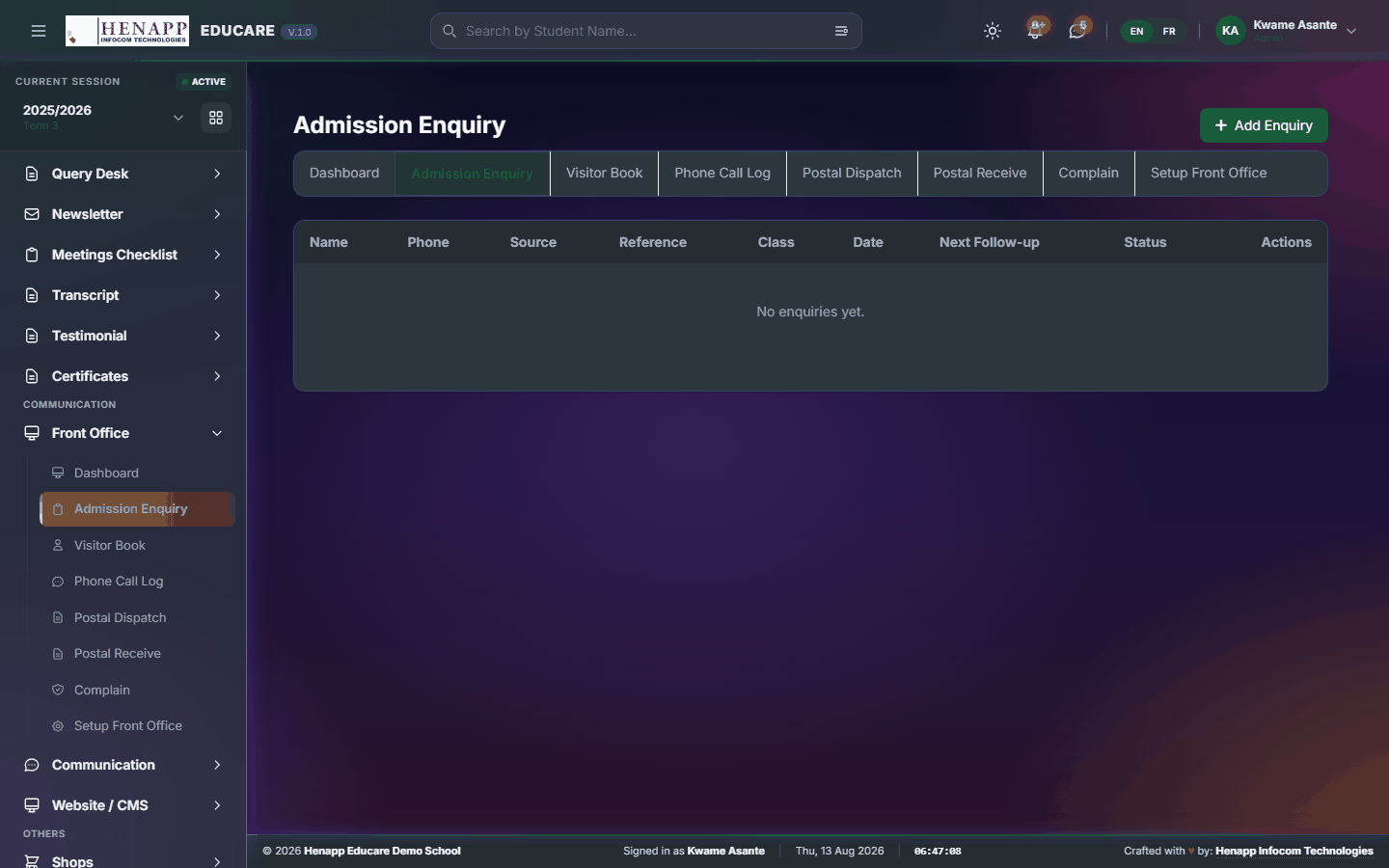
How to use it
- Open Front Office → Admission Enquiry.
- Click New Enquiry and record the enquirer's name, contact, the class of interest and what was discussed.
- Set a follow-up date.
- Update the enquiry as it progresses, and convert it to an application when they apply.
57.3 Visitor Book
Who came onto the premises, who they saw, and when they left.
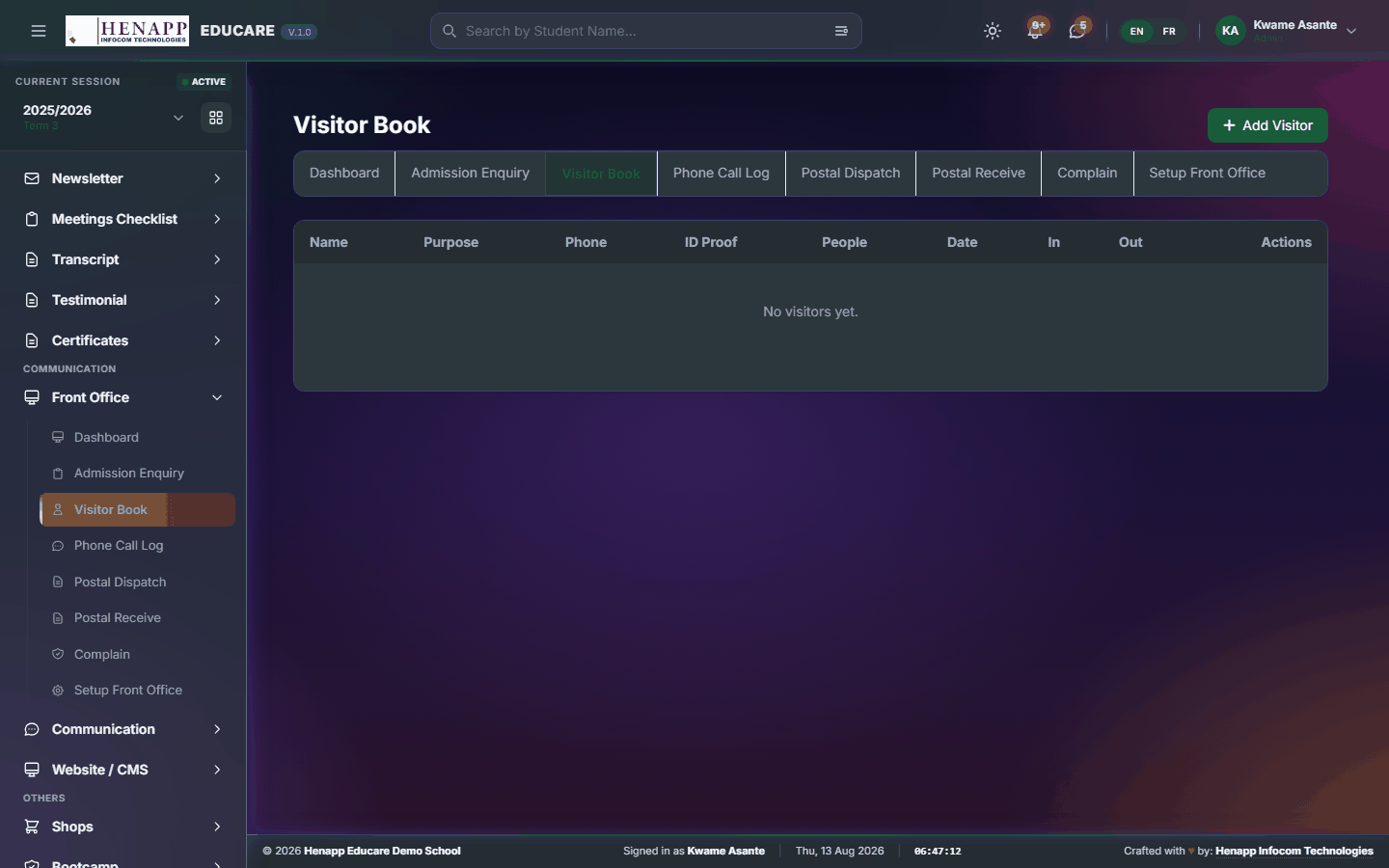
How to use it
- Open Front Office → Visitor Book.
- Record each visitor: name, contact, who they are visiting, purpose and time in.
- Record the time out as they leave.
- Filter by date to review a period.
57.4 Phone Call Log
Telephone calls in and out, and what was said.
How to use it
- Open Front Office → Phone Call Log.
- Record the caller, the direction, the purpose and the outcome.
- Set a follow-up where one is needed.
57.5 Postal Dispatch
Post and parcels sent out, with reference numbers.
How to use it
- Open Front Office → Postal Dispatch.
- Record the recipient, the contents, the date and the reference number.
- Save.
57.6 Postal Receive
Post and parcels received, and who they were passed to.
How to use it
- Open Front Office → Postal Receive.
- Record the sender, the contents, the date and who took delivery.
- Save.
57.7 Complain
Complaints taken at the front desk, logged and passed on.
How to use it
- Open Front Office → Complain.
- Record who complained, about what, and their contact details.
- Assign it to the member of staff who should deal with it.
- Record the outcome when it is resolved.
57.8 Setup Front Office
The dropdown lists the front desk uses — enquiry sources, visit purposes, complaint types.
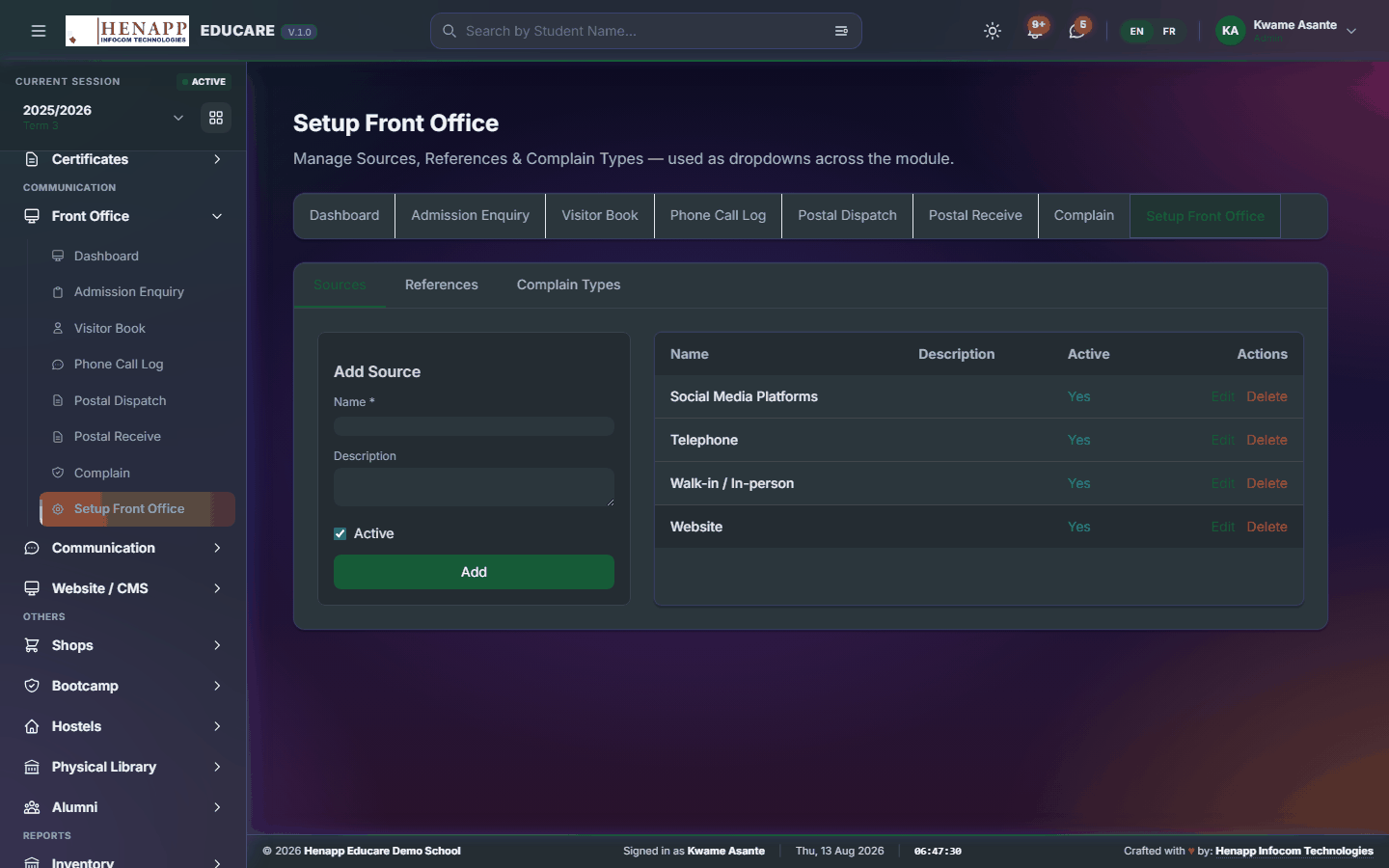
How to use it
- Open Front Office → Setup Front Office.
- Add or edit the options for each list.
- Save. Keep the lists short so entries stay consistent.
58. Communication
Every way the school talks to families and staff — in-app notices, email, SMS and WhatsApp — plus the log of what was actually sent.
Some messages are sensitive. A credential or a complaint should never go by SMS to a shared handset — the system reflects that, and so should you when choosing recipients.
Find it in the sidebar under Communication.
58.1 Communication
Compose and send a message to any group in the school, across the channels you choose.

How to use it
- Open Communication → Communication.
- Choose the recipients — all parents, a class, staff, a role, or named individuals via the search.
- Choose the channels: in-app, email, SMS, WhatsApp. You can use more than one.
- Write the subject and the message.
- Check the recipient count shown before sending — this is the last chance to catch a wrong group.
- Send. Every message is recorded in the notification log.
Read the recipient count before you send. A message to the wrong group cannot be pulled back once it has left, and SMS is charged per recipient.
58.2 Automated Messages
The messages the system sends on its own — absence alerts, payment receipts, birthday greetings — and the wording of each.
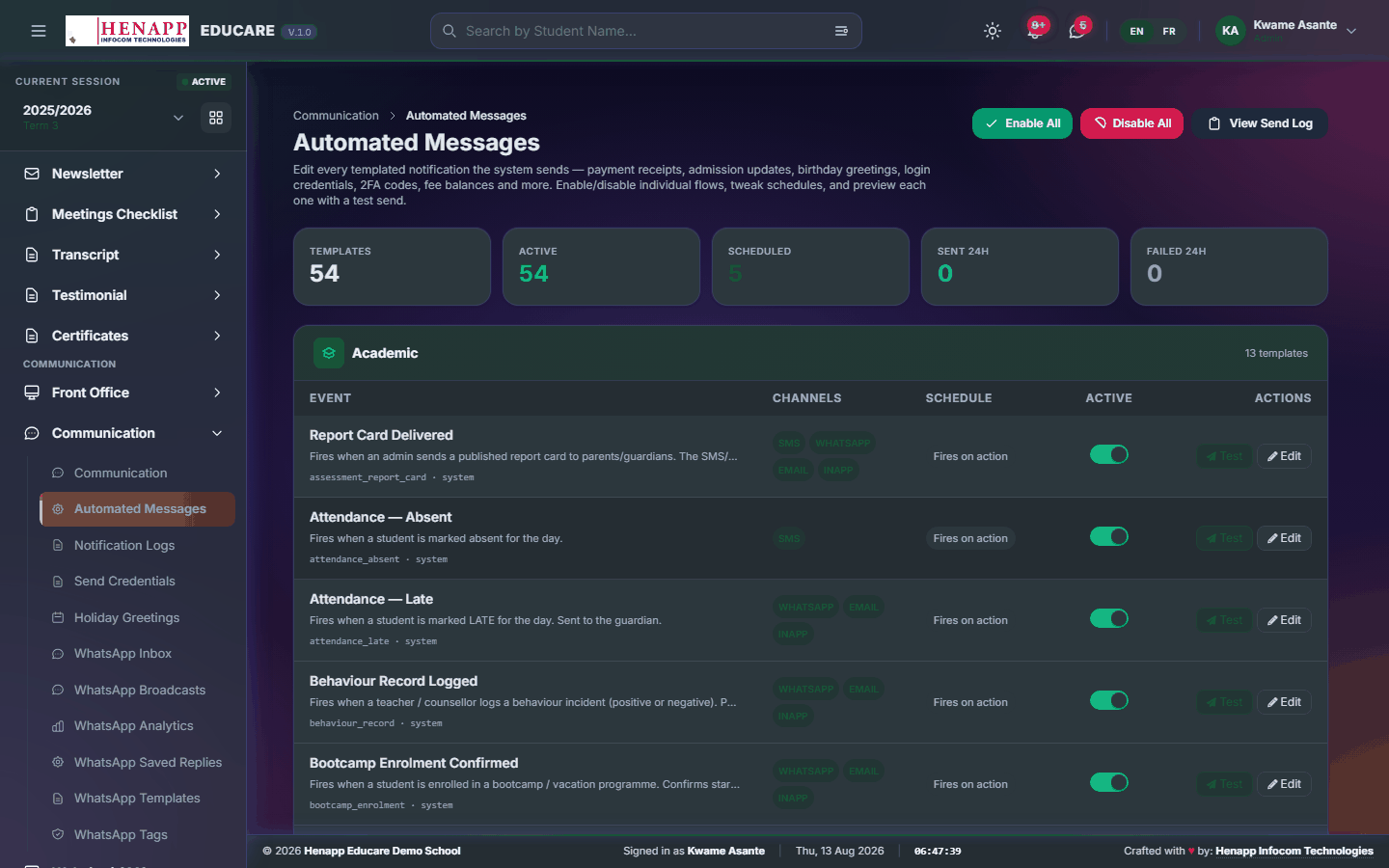
How to use it
- Open Communication → Automated Messages.
- Open a message type to see its current wording.
- Edit the text. Placeholders such as the learner's name are filled in automatically — leave them intact.
- Turn a message off entirely if your school does not want it sent.
- Save.
A placeholder is replaced with real detail when the message goes out. Deleting or mistyping one means parents receive the placeholder text itself.
58.3 Notification Logs
Everything the system has sent — to whom, on which channel, and whether it was delivered.
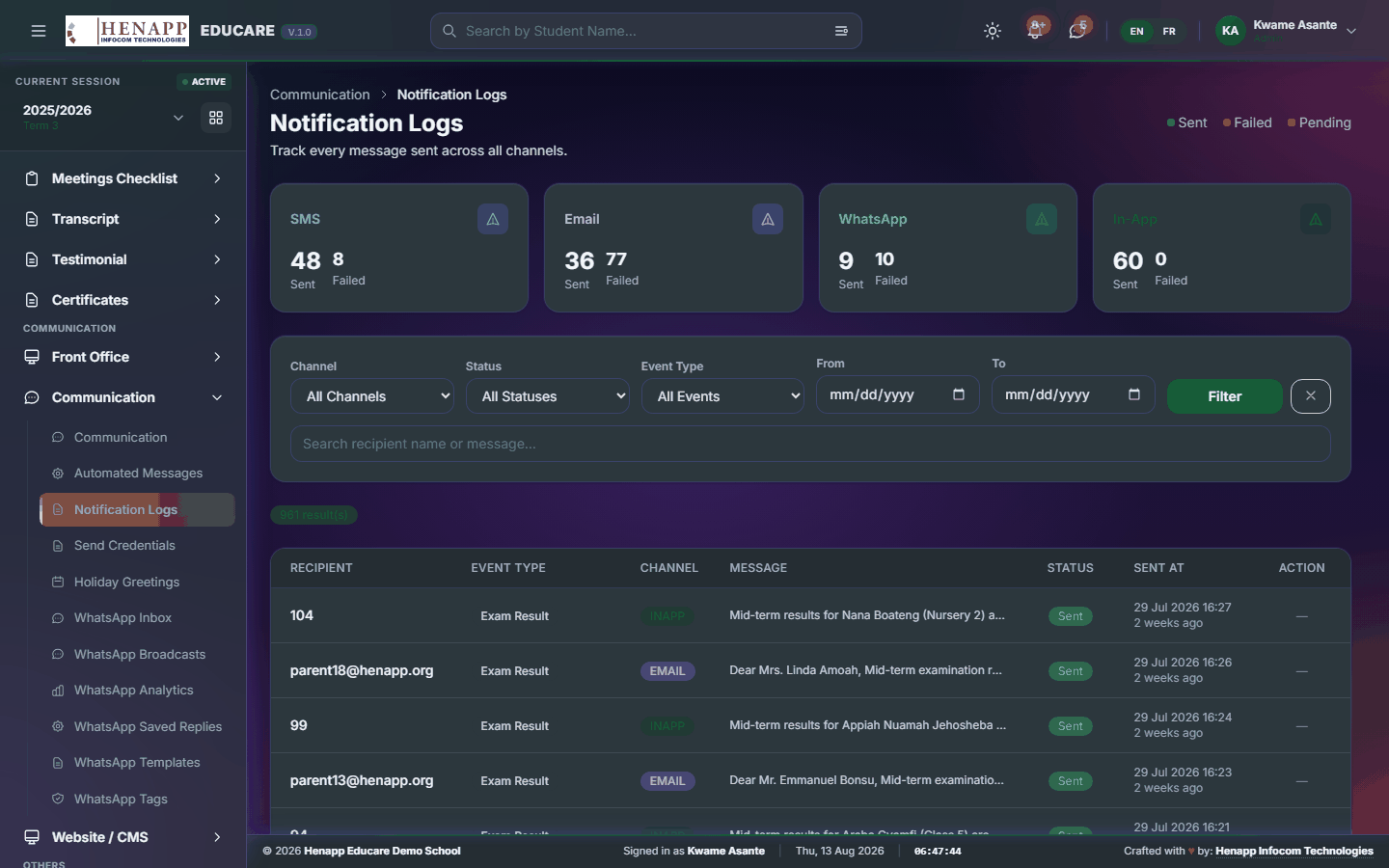
How to use it
- Open Communication → Notification Logs.
- Filter by date, channel or recipient.
- Open an entry to see the exact message that was sent.
- Use this to settle any question about whether a family was notified.
58.4 Send Credentials
Sending login details to parents, learners or staff — individually or a class at a time.
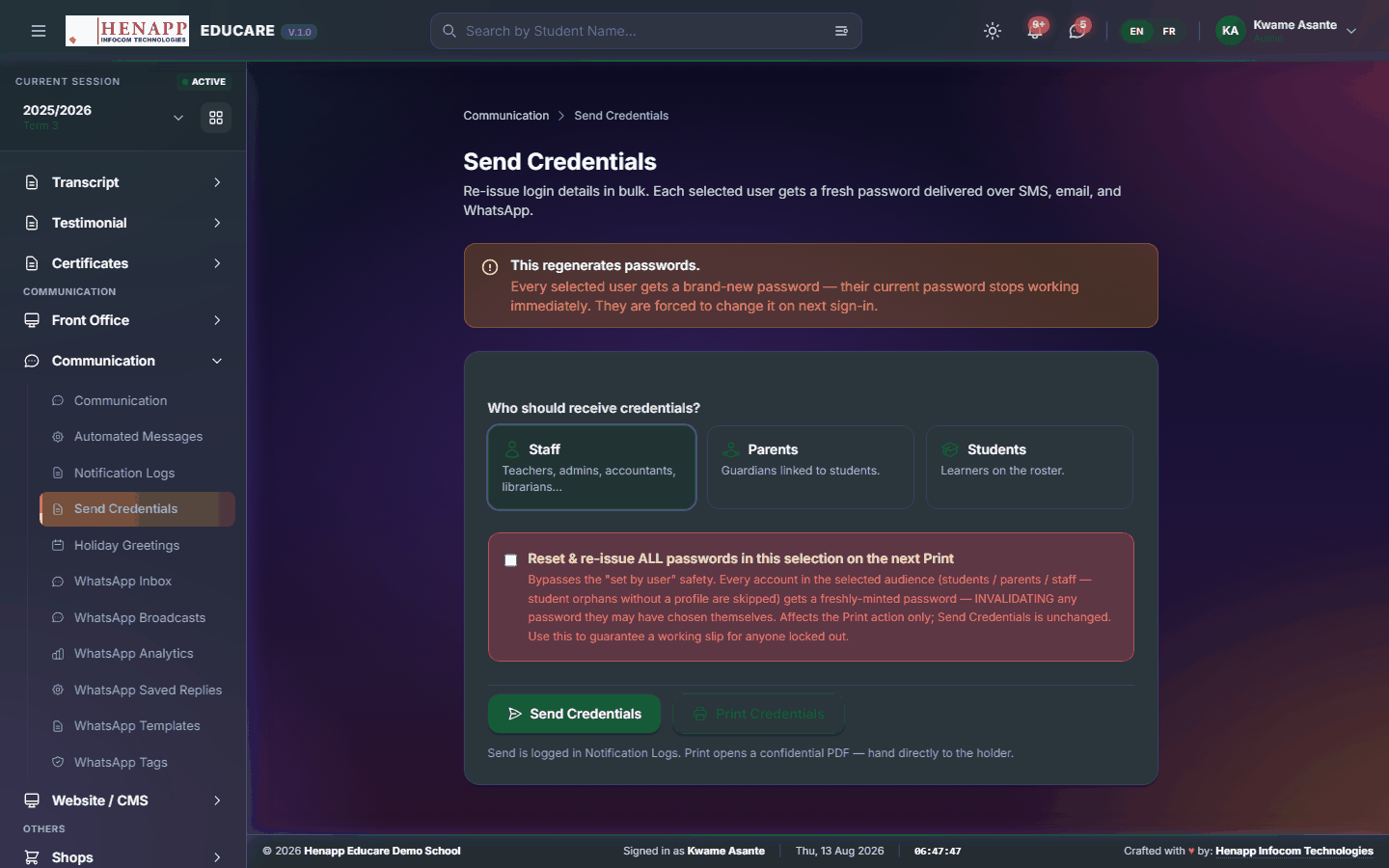
How to use it
- Open Communication → Send Credentials.
- Choose the group — a class of parents, a set of learners, or staff.
- Review the list of who will receive them.
- Choose the channel, then send. Each recipient gets their own username and a temporary password.
- Recipients are required to set their own password when they first sign in.
Where you are sending both, use two separate messages. A single message containing both is all anyone needs to take over the account if the handset is shared or seen.
58.5 Holiday Greetings
Seasonal and holiday greetings, prepared in advance and sent on the day.
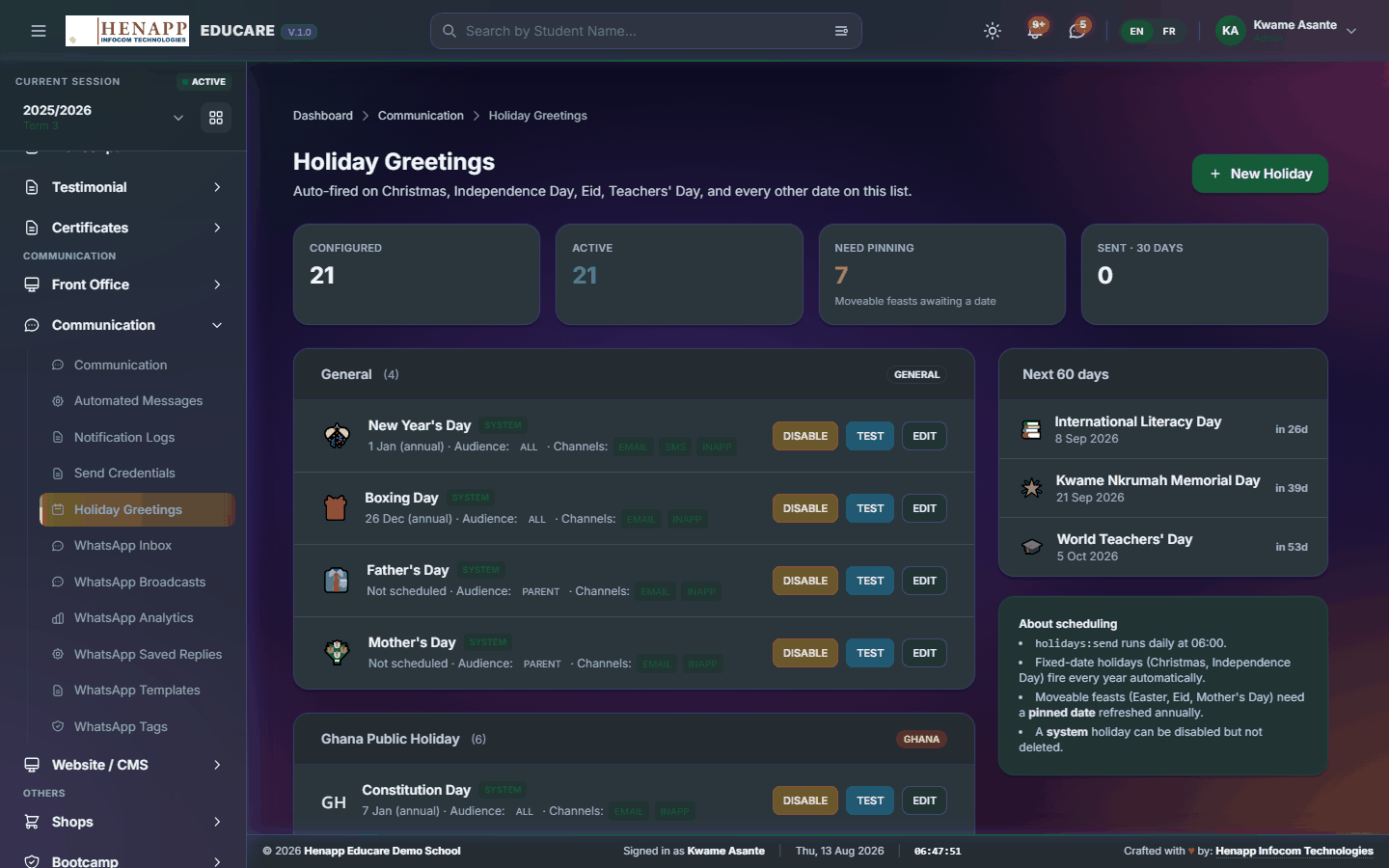
How to use it
- Open Communication → Holiday Greetings.
- Choose the occasion and edit the message.
- Choose the recipients and the date to send.
- Save. It goes out on the date you set.
58.6 Status
The ring of pictures and short videos that appears at the top of the mobile app’s Home screen — the school’s day, as families see it.
How to use it
- Open Communication → Status.
- Click New Status and choose the pictures or video clips to post. Up to 10 files in one status.
- Add a caption if it needs one, then post. It appears in the ring on every parent’s and learner’s Home screen.
- Open any status from the grid to see what it contains and who posted it.
- Delete one to pull it from the ring immediately.
Each file must be under 40 MB. A minute of phone video clears 10 MB easily, so trim long clips before posting — anything larger is refused by the server before the school ever sees an error it can act on.
A status is published to families the moment it is posted. Check the caption and the pictures before you post rather than after.
58.7 WhatsApp Inbox
WhatsApp conversations with families, handled inside the portal.
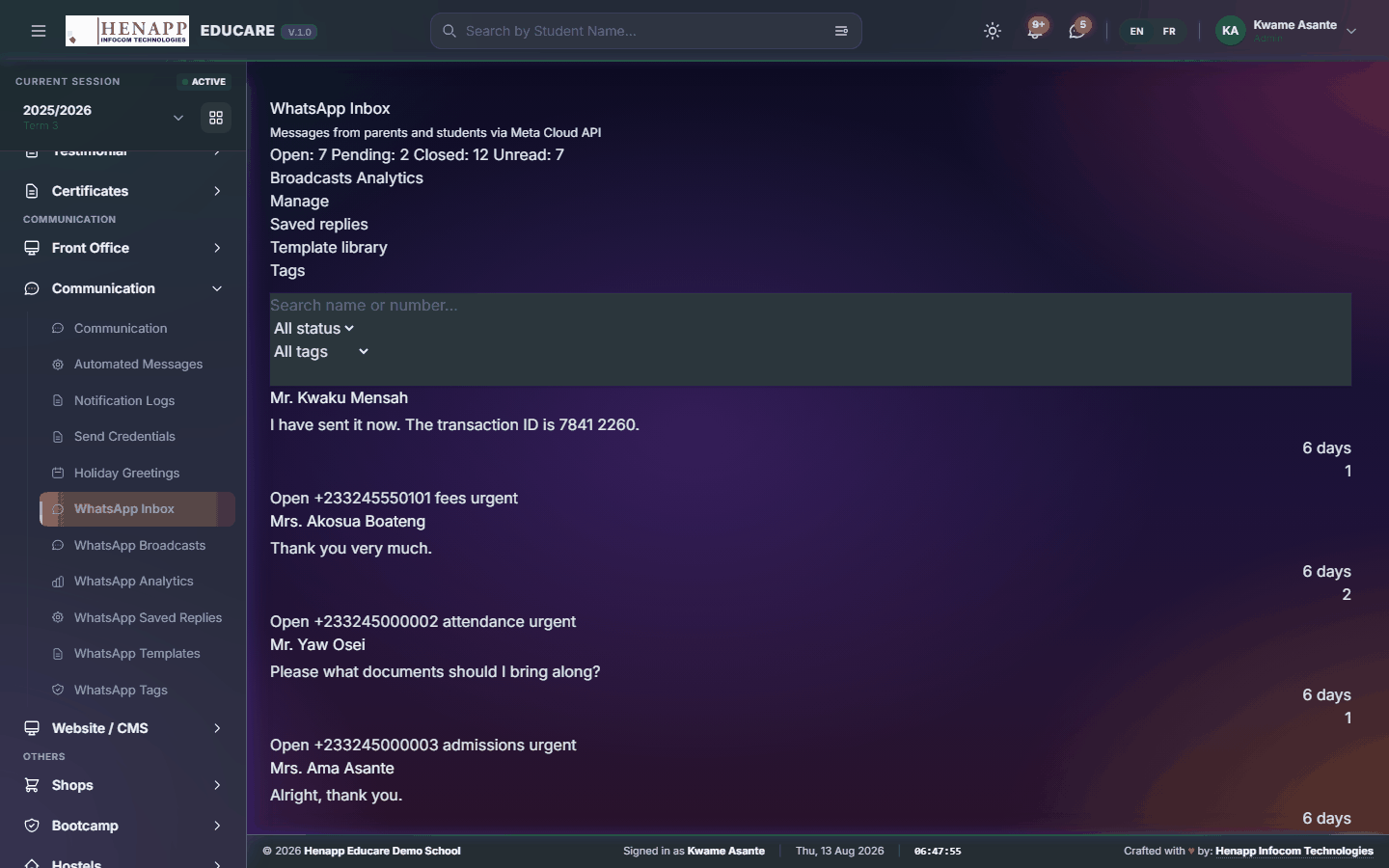
How to use it
- Open Communication → WhatsApp Inbox.
- Open a conversation to read it.
- Reply from the box at the bottom.
- Assign a conversation to a colleague where they should handle it.
58.8 WhatsApp Broadcasts
One WhatsApp message to many recipients at once.
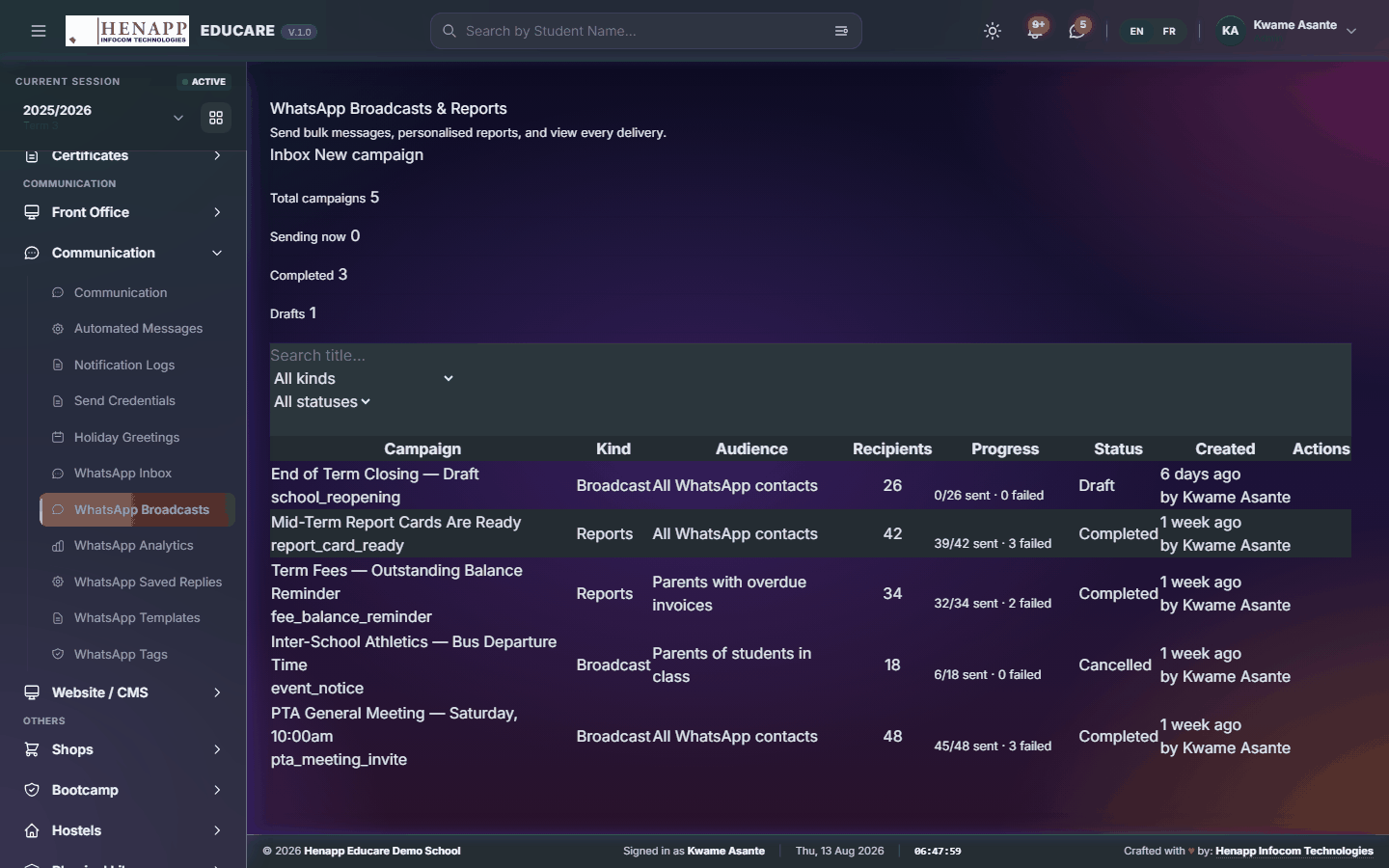
How to use it
- Open Communication → WhatsApp Broadcasts.
- Click New Broadcast and choose the recipients.
- Choose an approved template or write the message.
- Check the recipient count, then send.
58.9 WhatsApp Analytics
How WhatsApp is performing — sent, delivered, read, and replies.

How to use it
- Open Communication → WhatsApp Analytics.
- Choose the period and read the figures.
58.10 WhatsApp Saved Replies
Canned replies to the questions you are asked constantly.
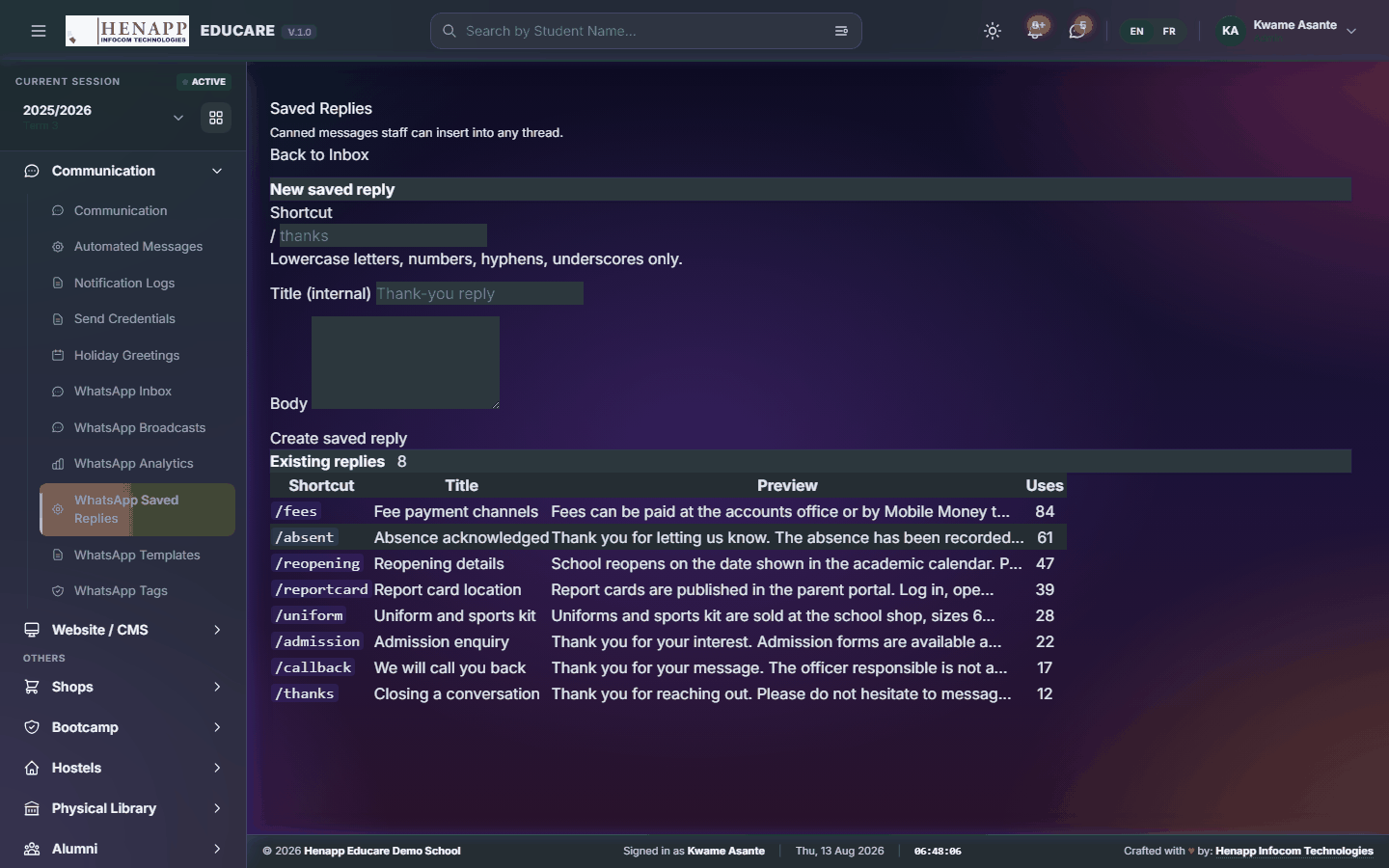
How to use it
- Open Communication → WhatsApp Saved Replies.
- Add a reply with a short name and its text.
- Save. It can then be inserted into a conversation in one click.
58.11 WhatsApp Templates
The message templates WhatsApp requires for anything sent outside an open conversation.
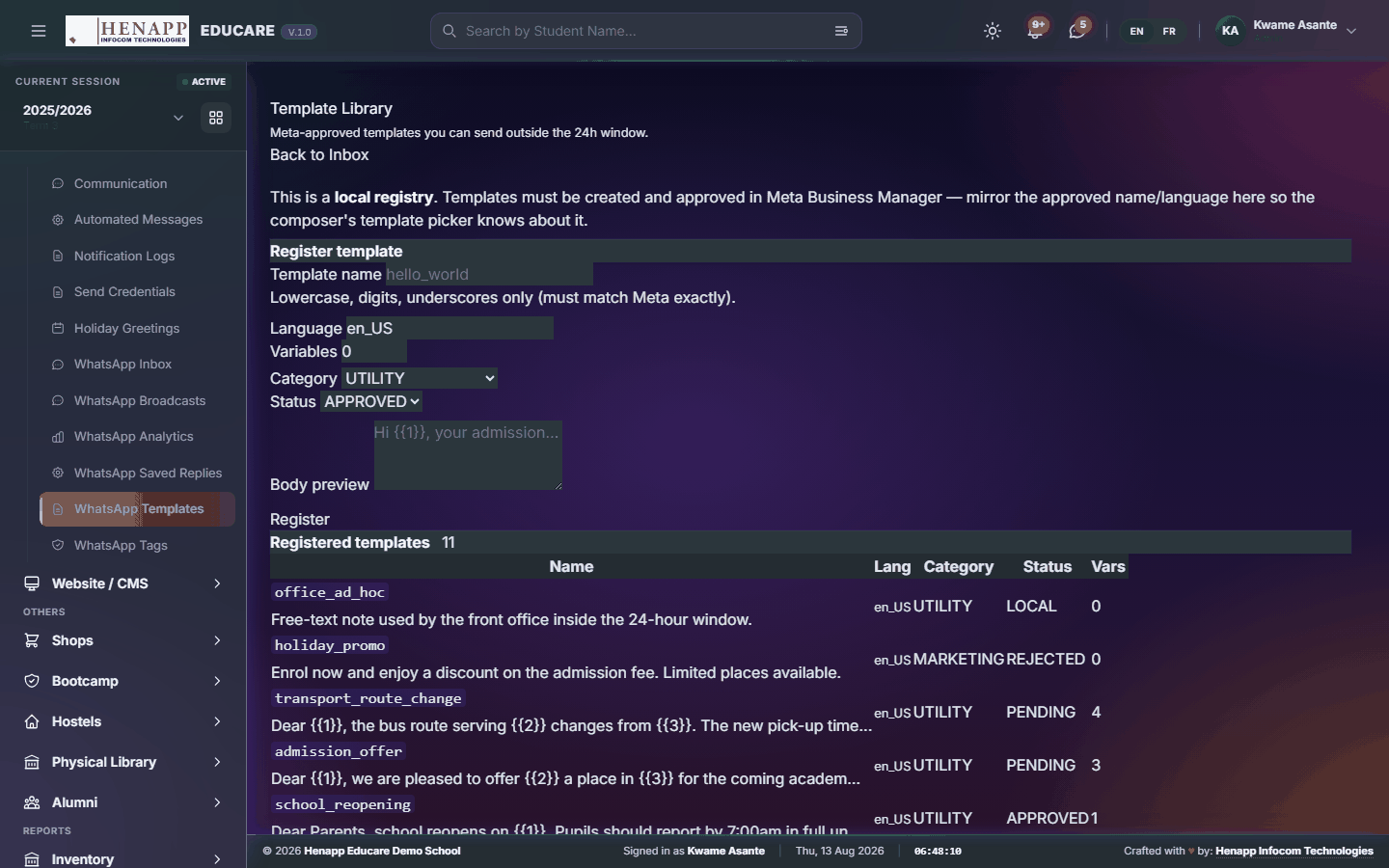
How to use it
- Open Communication → WhatsApp Templates.
- Create a template with its name, category and body.
- Submit it for approval — templates must be approved before they can be used for broadcasts.
- Use it once it shows as approved.
58.12 WhatsApp Tags
Labels on conversations, so they can be sorted and found.
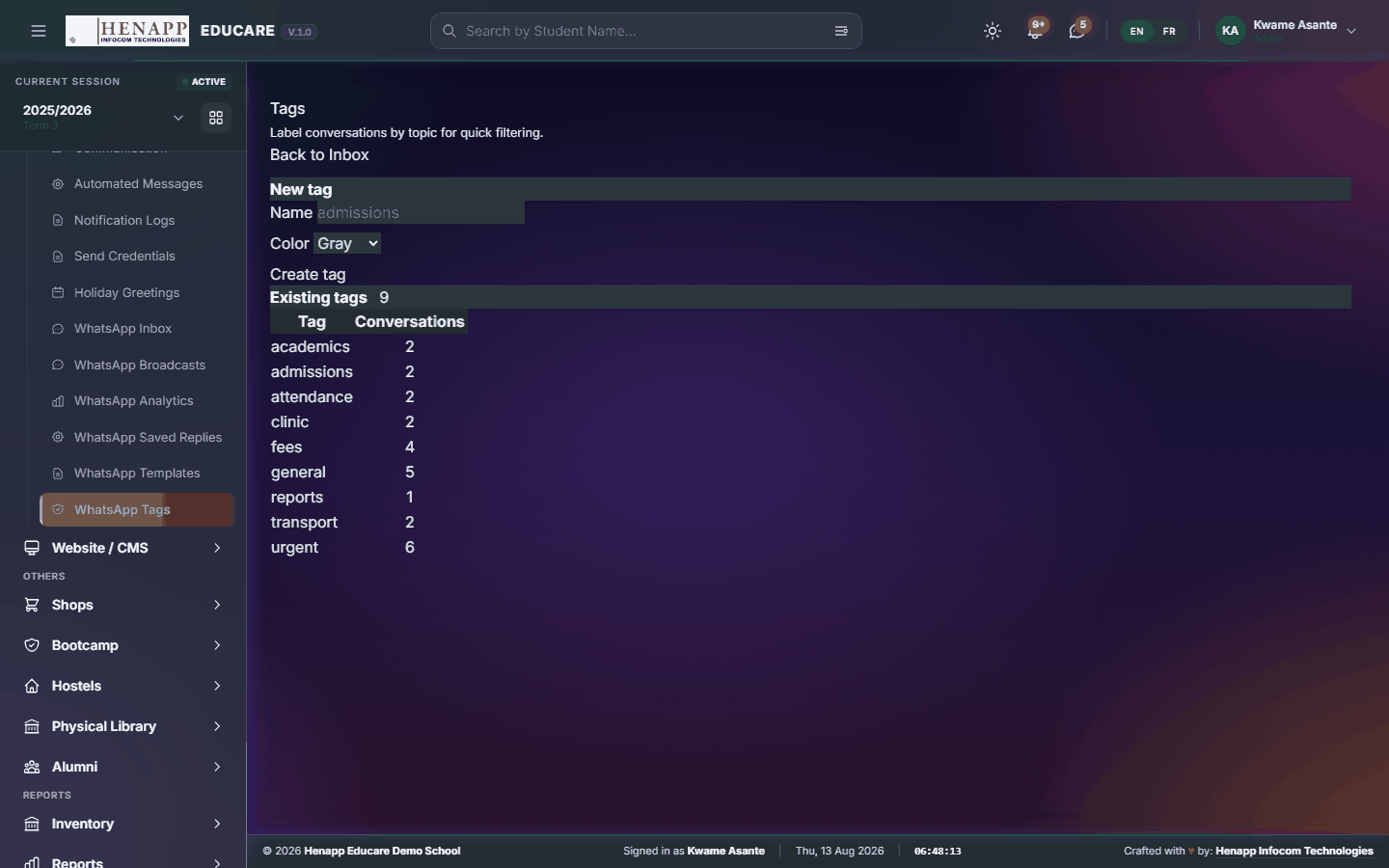
How to use it
- Open Communication → WhatsApp Tags.
- Create the tags you need.
- Apply them to conversations from the inbox.
59. Website / CMS
The public school website — its pages, news, photographs, admissions content and appearance — edited here and published live.
Find it in the sidebar under Communication → Website / CMS.
59.1 CMS Dashboard
The website control panel — what is published and what visitors are looking at.
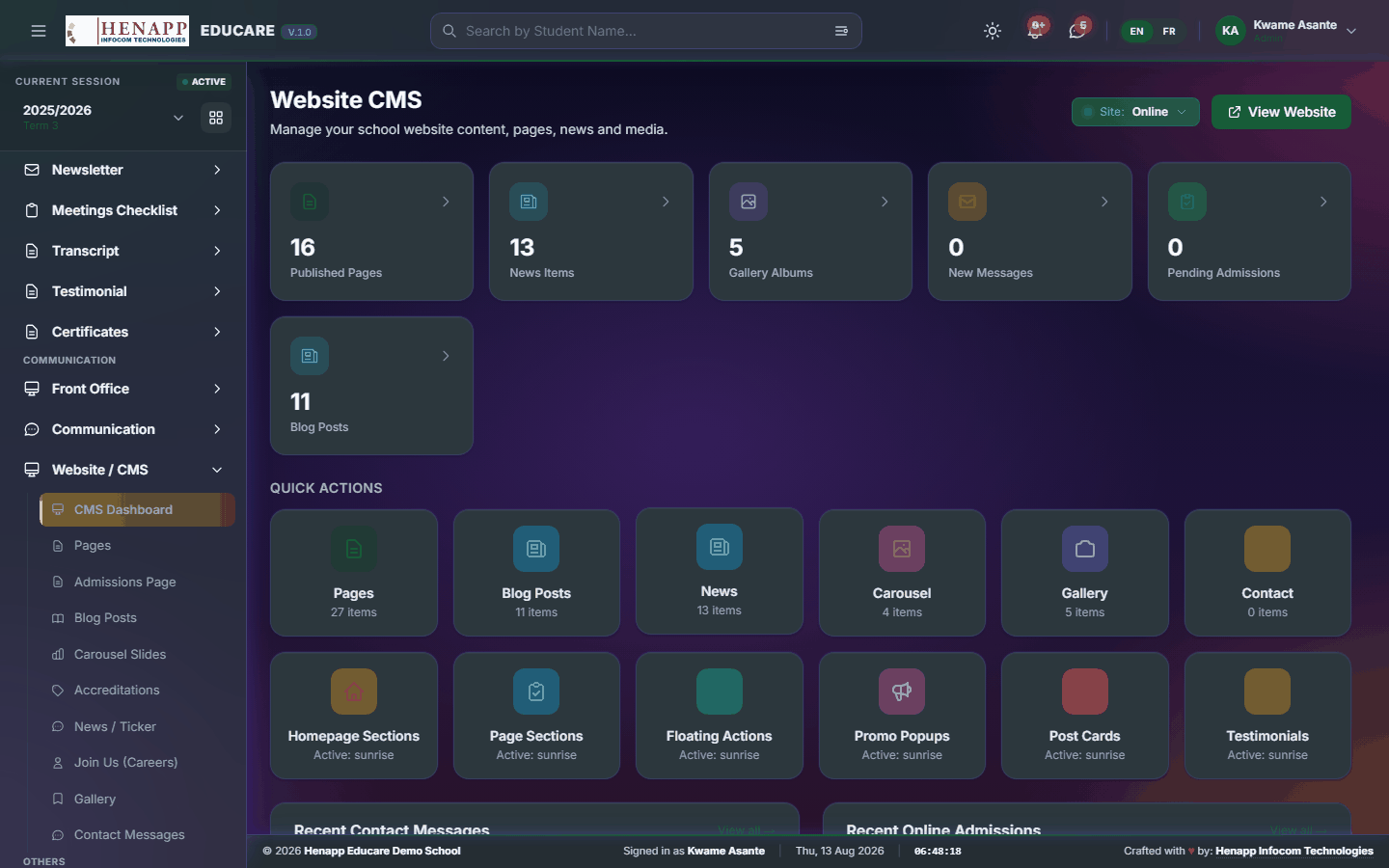
How to use it
- Open Website / CMS → CMS Dashboard.
- Read the published-content summary and visitor figures.
- Click through to whichever part you want to edit.
59.2 Pages
The website's pages — About, Academics, Contact and any others — edited in a visual builder.
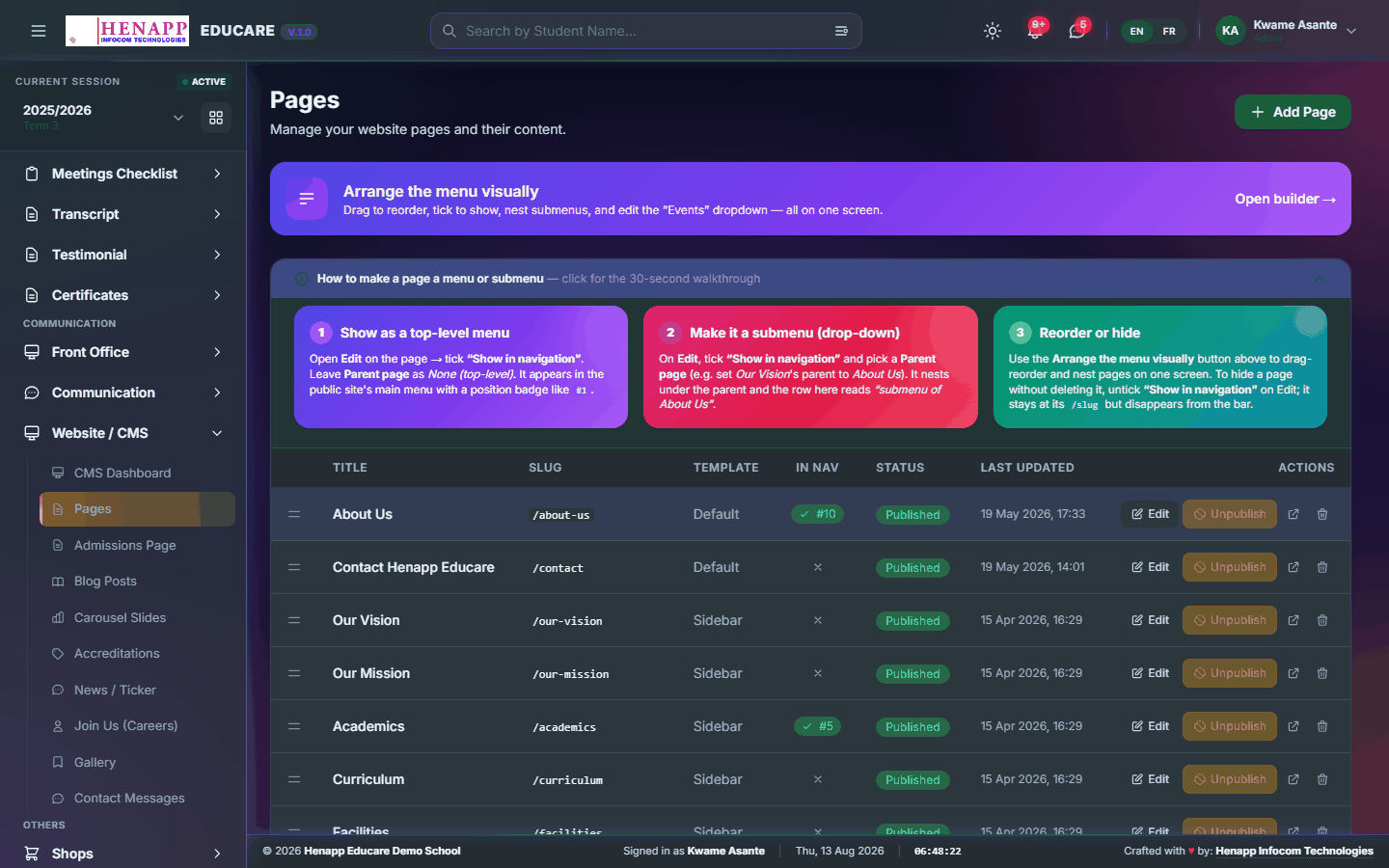
How to use it
- Open Website / CMS → Pages.
- Click a page to edit it, or New Page to add one.
- Add and arrange sections — text, images, cards, galleries.
- Set the page title and web address.
- Preview it, then Publish. Save as draft if it is not ready.
59.3 Admissions Page
The public admissions page — requirements, fees, dates and the application form itself.
How to use it
- Open Website / CMS → Admissions Page.
- Edit each section: requirements, process, fees and dates.
- Turn the online application form on or off.
- Publish. Applications submitted here arrive under Online Admissions.
59.4 Blog Posts
News and blog articles on the website.
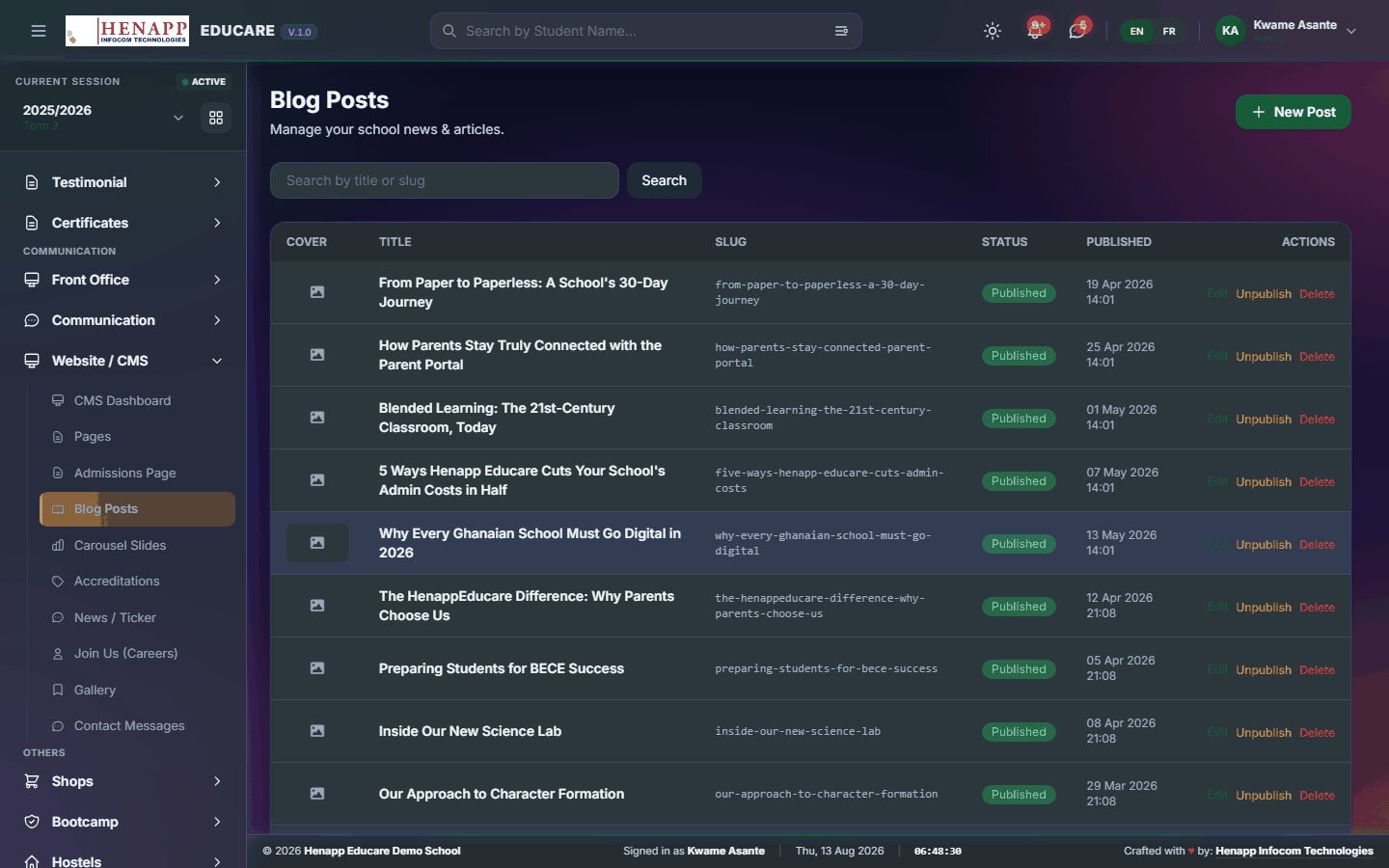
How to use it
- Open Website / CMS → Blog Posts.
- Click New Post, give it a title, and write the article.
- Add a featured image and choose a category.
- Publish, or schedule it for a later date.
59.5 Carousel Slides
The rotating banner images at the top of the home page.
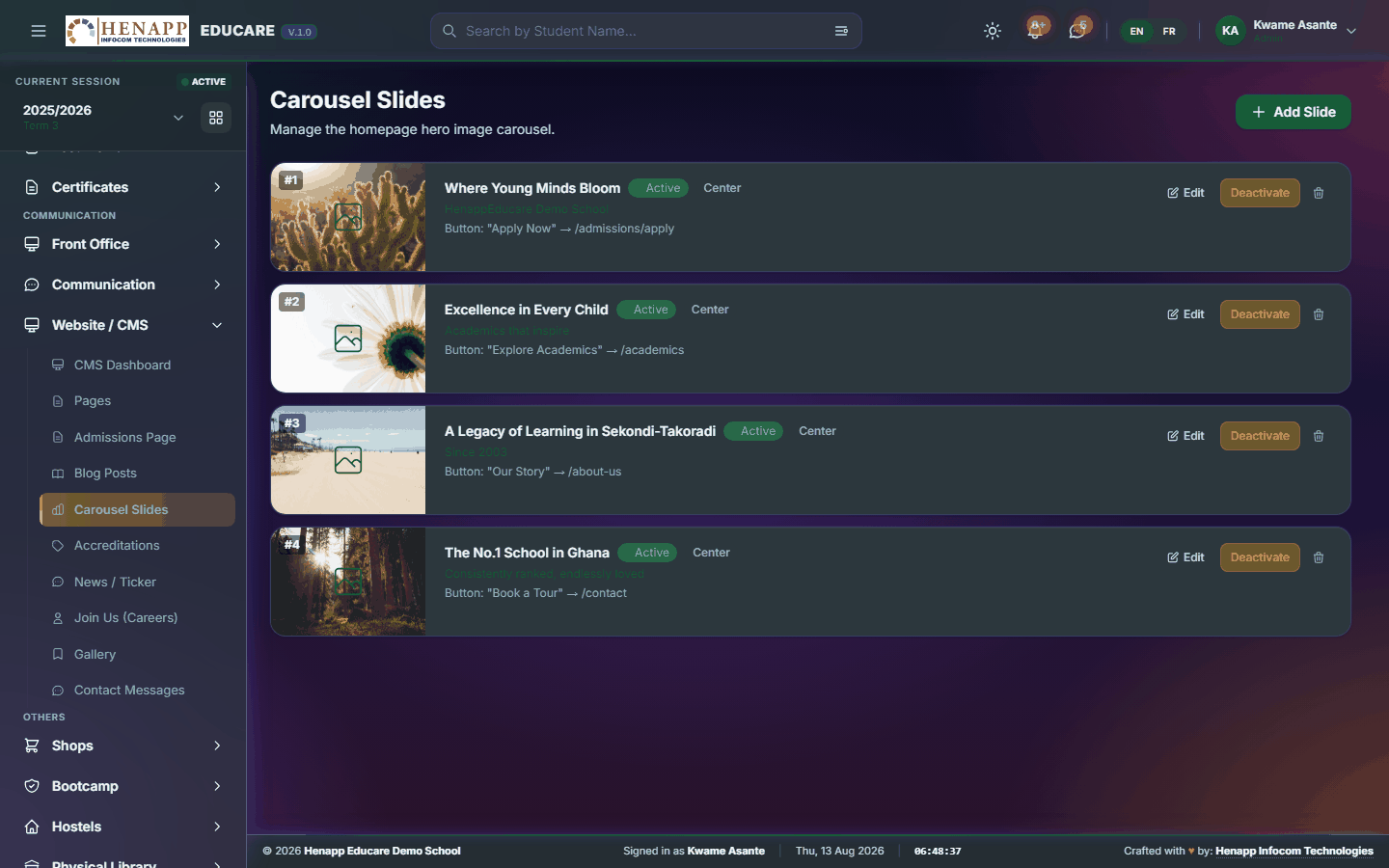
How to use it
- Open Website / CMS → Carousel Slides.
- Click Add Slide and upload a wide, high-quality image.
- Add the heading, the text and a button link if you want one.
- Set the order, then publish.
- Check the result on a phone as well as a computer — text sits differently on a narrow screen.
59.6 Accreditations
The accreditation and affiliation logos shown on the website.
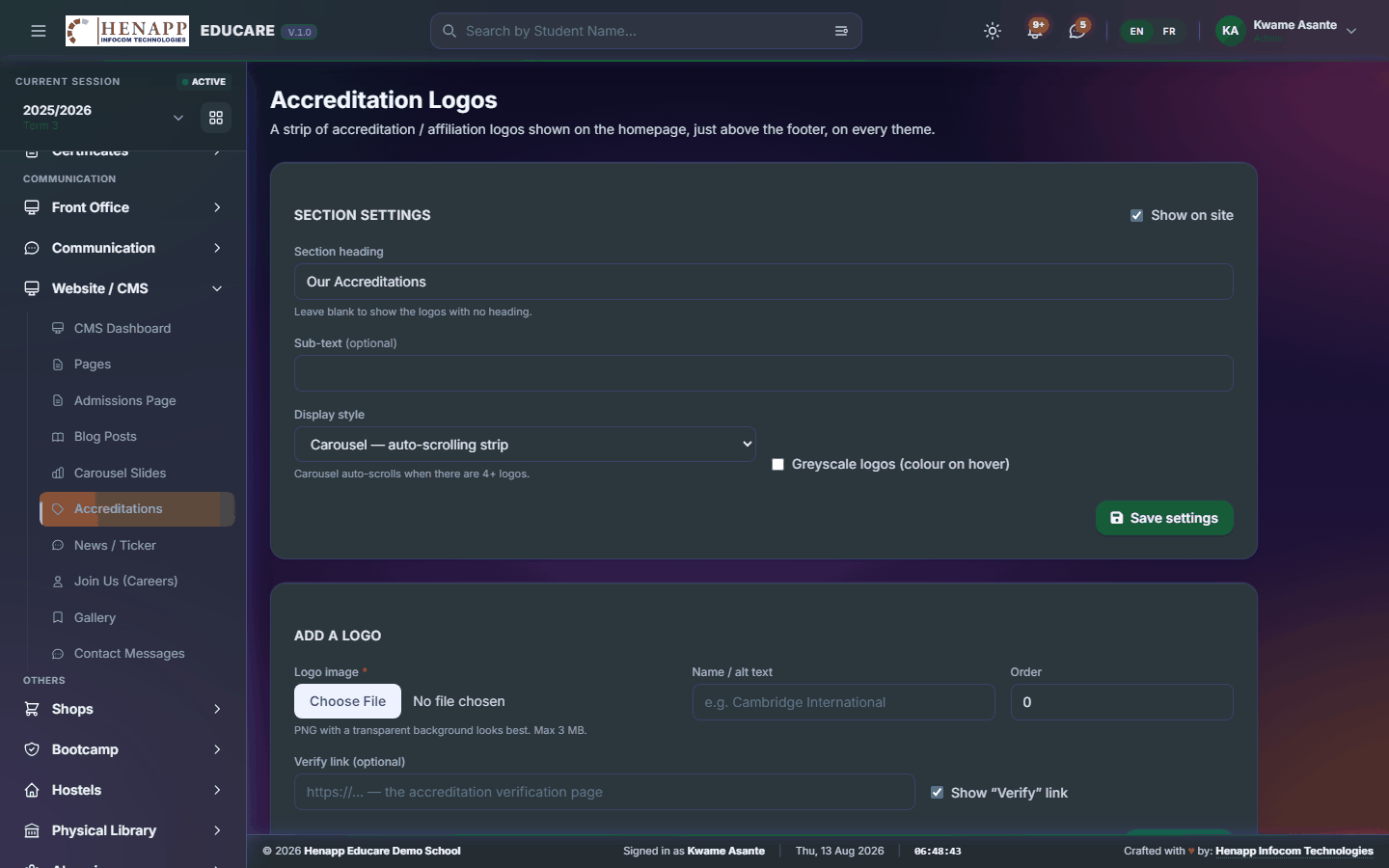
How to use it
- Open Website / CMS → Accreditations.
- Upload each logo with its name and a link if there is one.
- Set the order and publish. Hide the strip entirely if you would rather not show it.
59.7 News / Ticker
The scrolling news ticker on the public website.
How to use it
- Open Website / CMS → News / Ticker.
- Add each item with its text and an optional link.
- Set the dates it should run between.
- Publish. Keep items short — a ticker is read in passing.
This ticker is what website visitors see. The ticker staff see inside the portal is a separate list — changing one does not change the other.
59.8 Join Us (Careers)
The Join Us page, where published vacancies and the application form appear.
How to use it
- Open Website / CMS → Join Us (Careers).
- Edit the introduction and what the school looks for.
- Published vacancies from Recruitment appear here automatically.
- Turn the online application form on or off, then publish.
59.9 Gallery
Photograph albums on the website.
How to use it
- Open Website / CMS → Gallery.
- Create an album with its title and description.
- Upload the photographs — several at once is fine.
- Set the cover image and publish.
Photographs on a public website can be seen and saved by anyone. Follow your school's consent policy, and leave out anything that identifies a child who should not be shown.
59.10 Contact Messages
Messages sent through the website contact form.
How to use it
- Open Website / CMS → Contact Messages.
- Open a message to read it.
- Reply by email, and mark it handled.
- Delete obvious spam — the form has a filter, but some gets through.
60. Bootcamp
Holiday programmes and bootcamps run as a self-contained operation: registration, invoicing, payments, expenses and reporting.
Find it in the sidebar under Others → Bootcamp.
60.1 Dashboard
The bootcamp at a glance — registrants, income and spend.
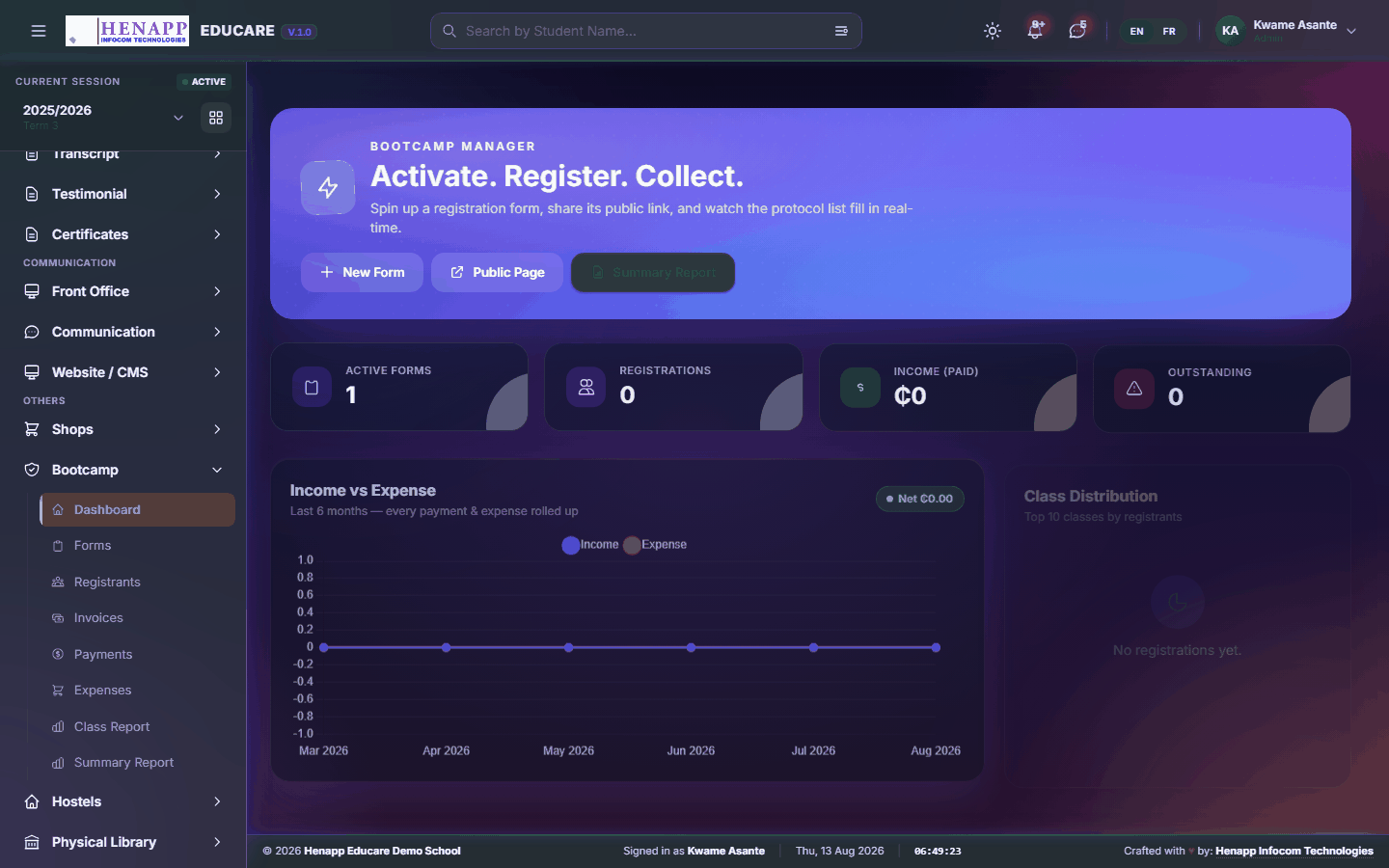
How to use it
- Open Bootcamp → Dashboard.
- Read the headline figures for the current programme.
60.2 Forms
The registration form participants fill in.
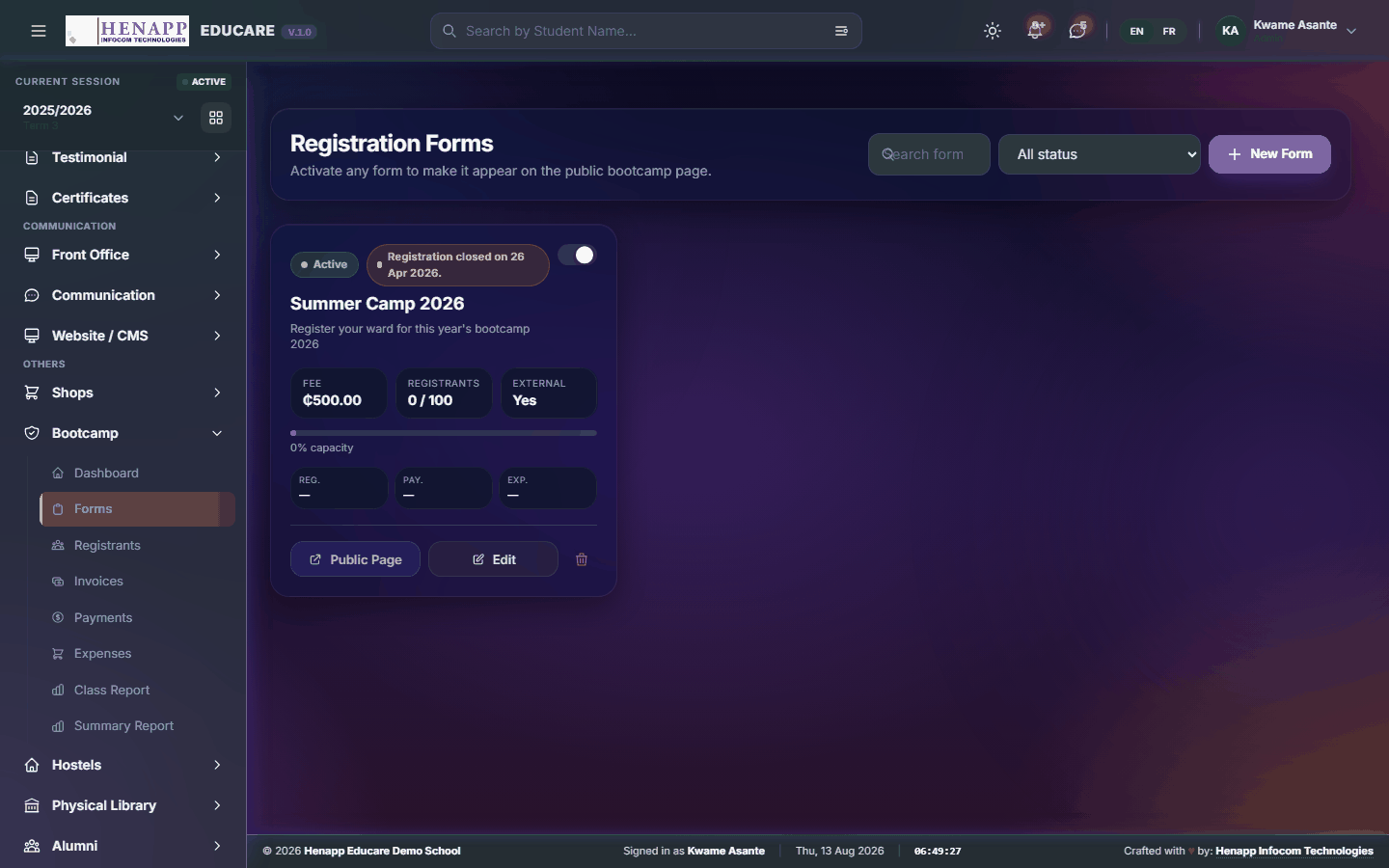
How to use it
- Open Bootcamp → Forms.
- Create the form and add the questions you need.
- Publish it and share the link.
60.3 Registrants
Who has registered.
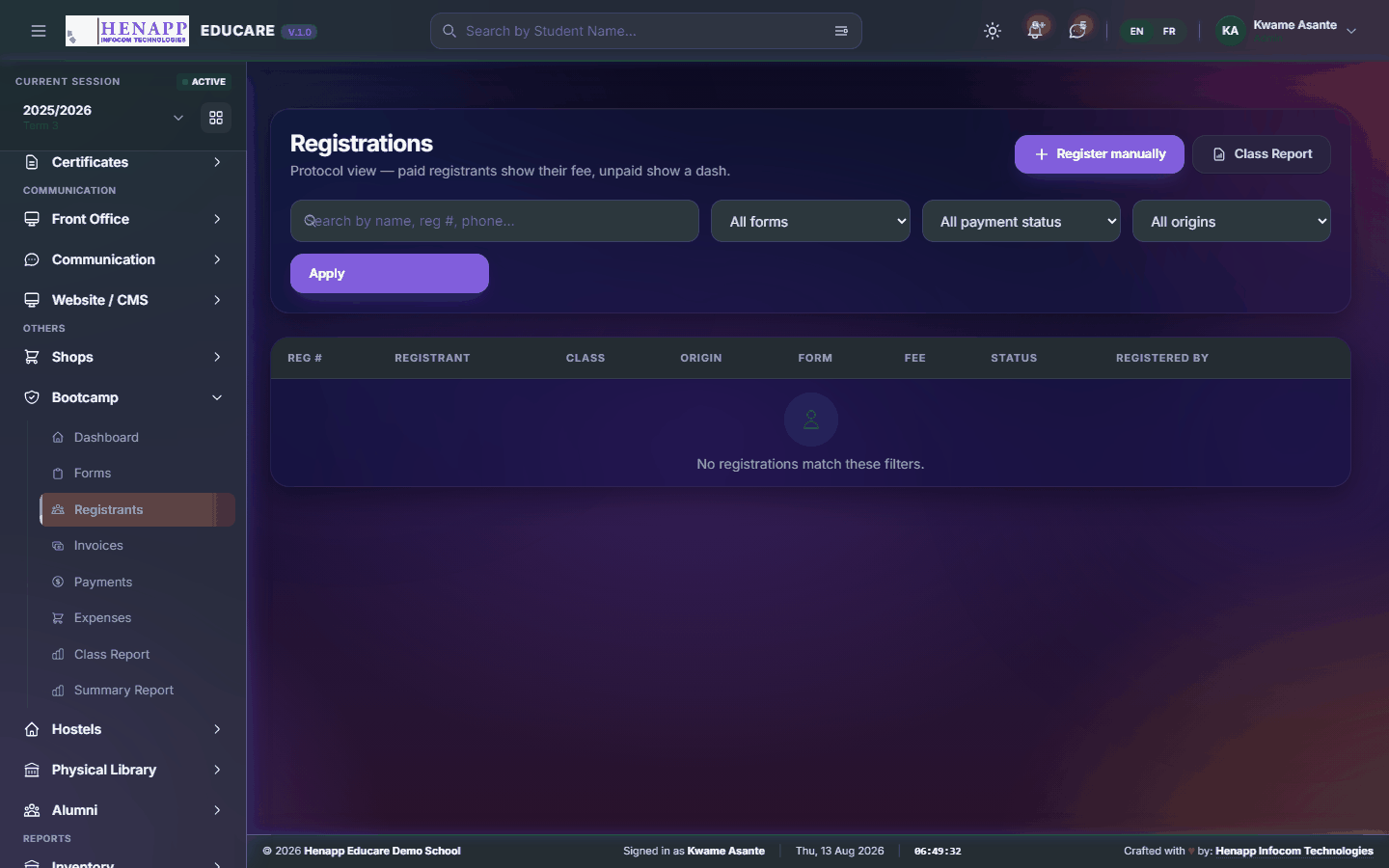
How to use it
- Open Bootcamp → Registrants.
- Review each registration and confirm or decline it.
- Export the list for attendance.
60.4 Invoices
Invoices raised for bootcamp fees.
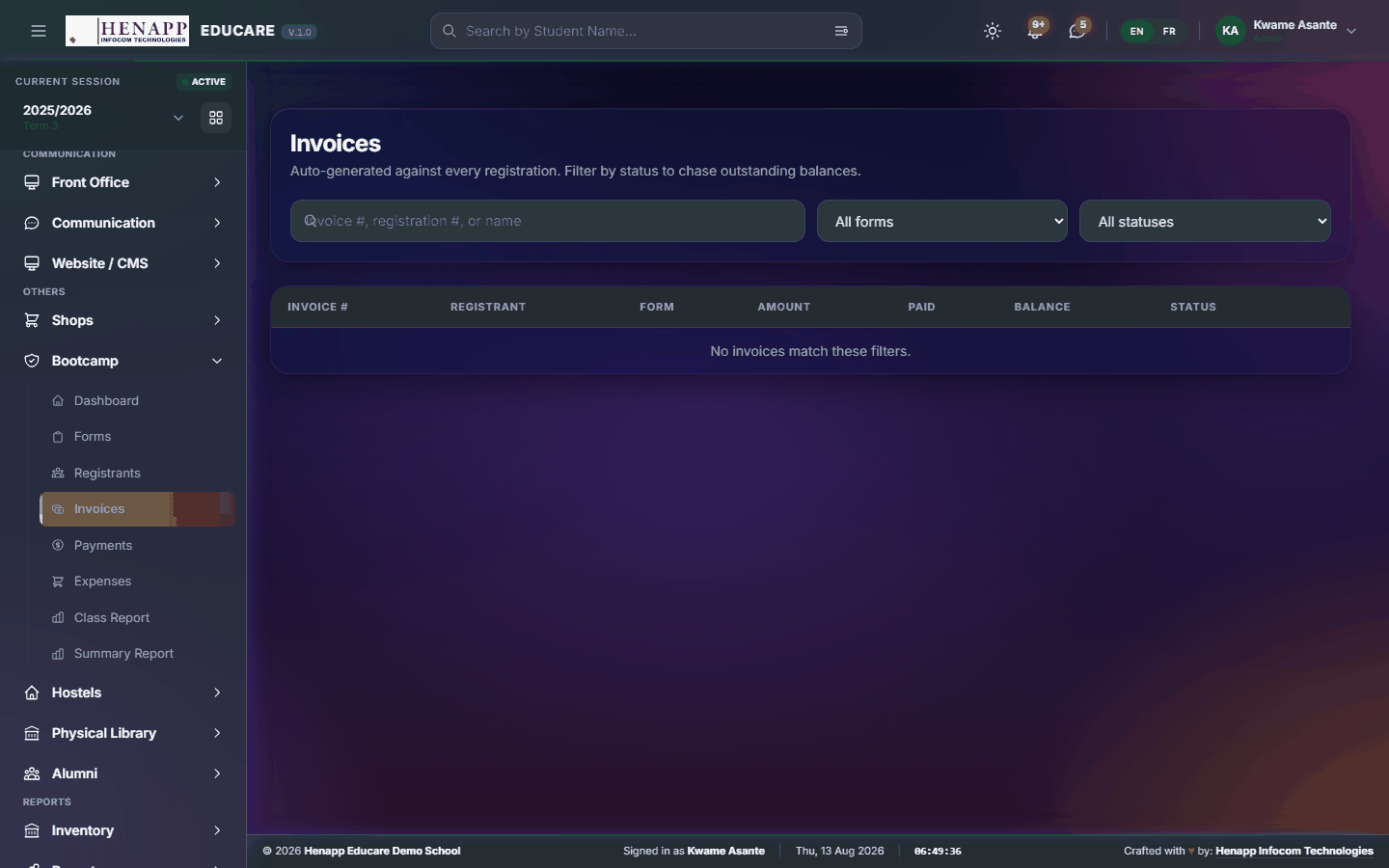
How to use it
- Open Bootcamp → Invoices.
- Raise invoices for confirmed registrants, singly or in bulk.
- Send them to participants.
60.5 Payments
Payments received against bootcamp invoices.
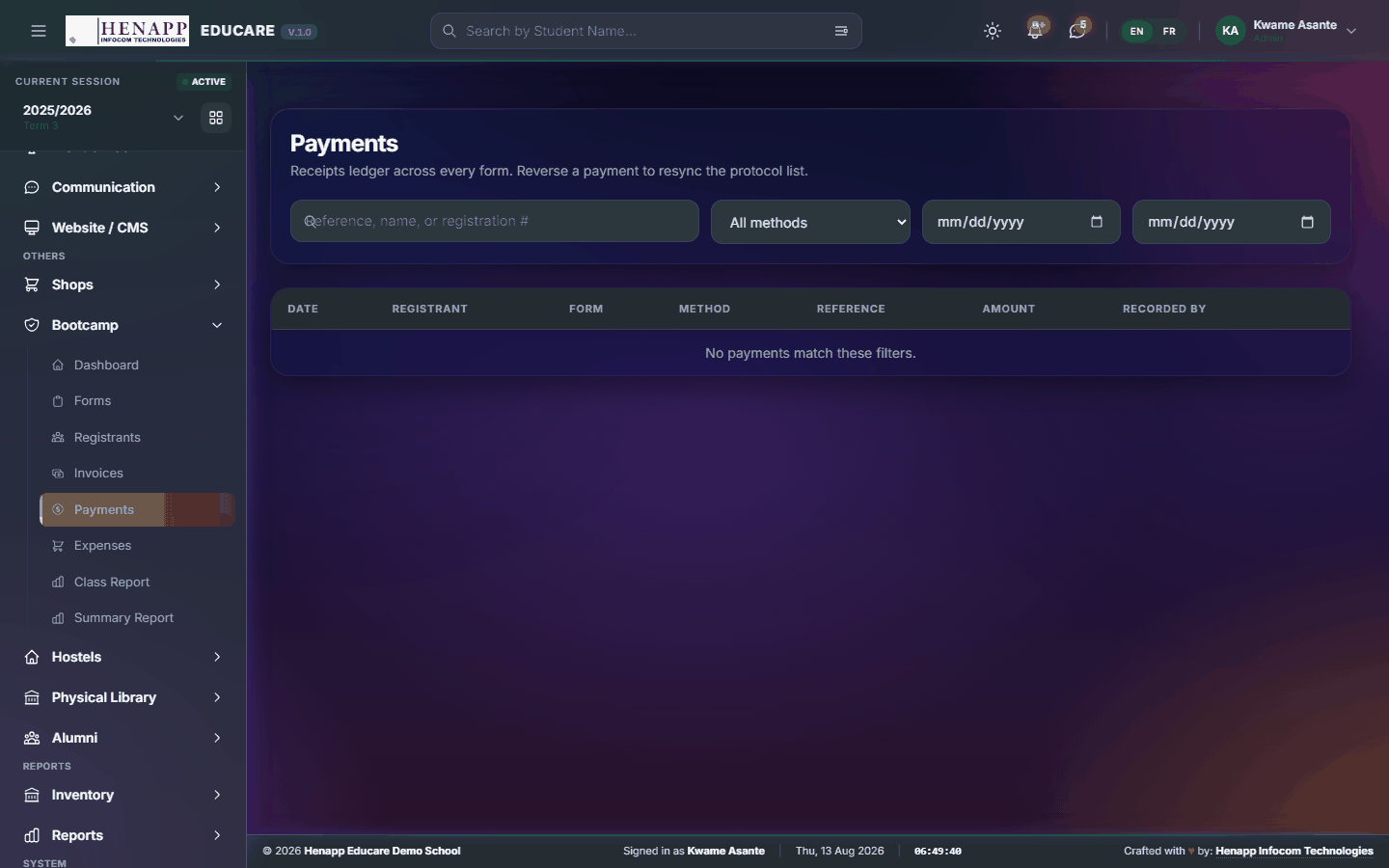
How to use it
- Open Bootcamp → Payments.
- Record each payment with its amount and method.
- Issue the receipt.
60.6 Expenses
What the bootcamp costs to run.
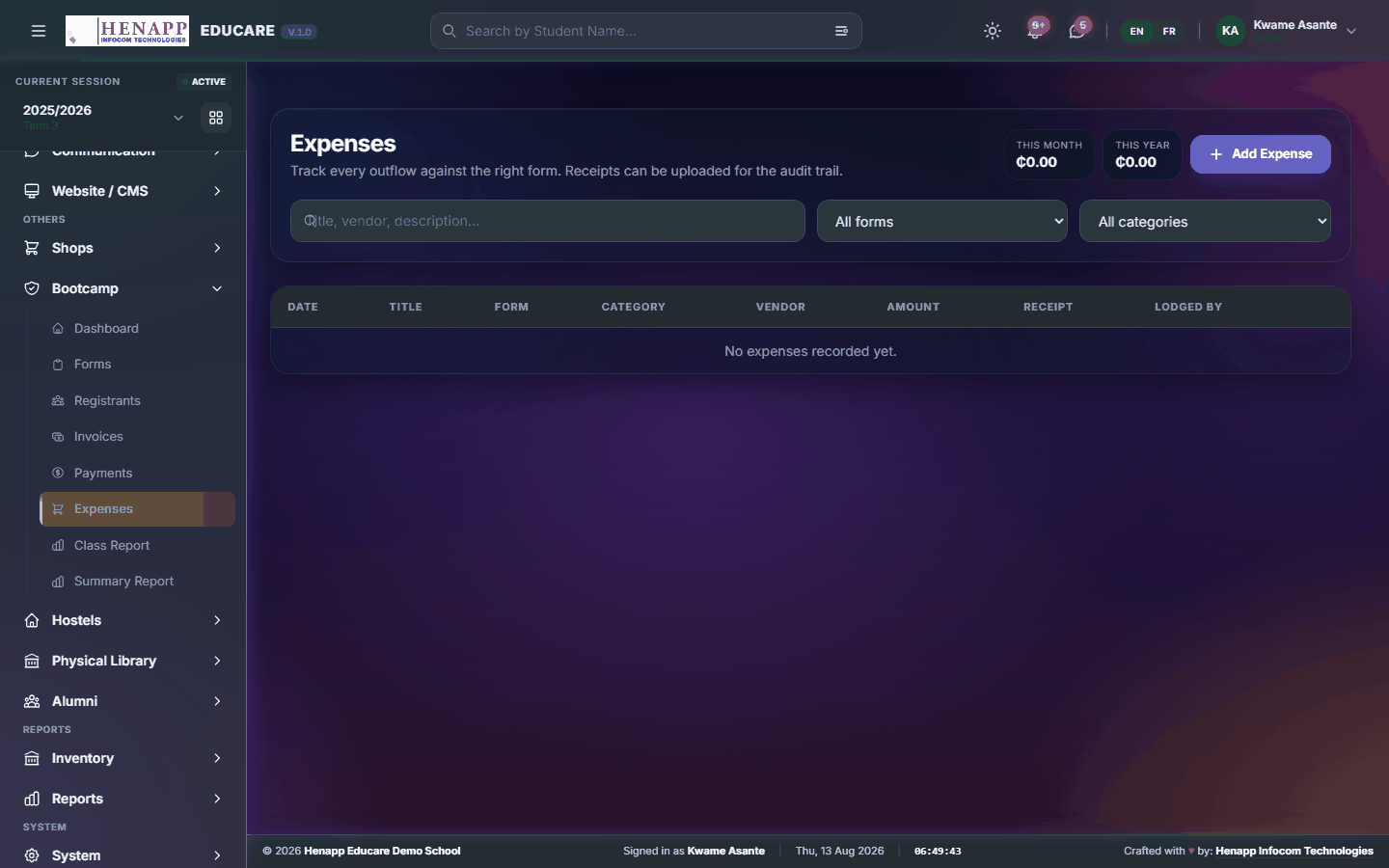
How to use it
- Open Bootcamp → Expenses.
- Record each expense with its category, amount and date.
- Save. Expenses feed the summary report.
60.7 Class Report
Participation and performance by class or group.
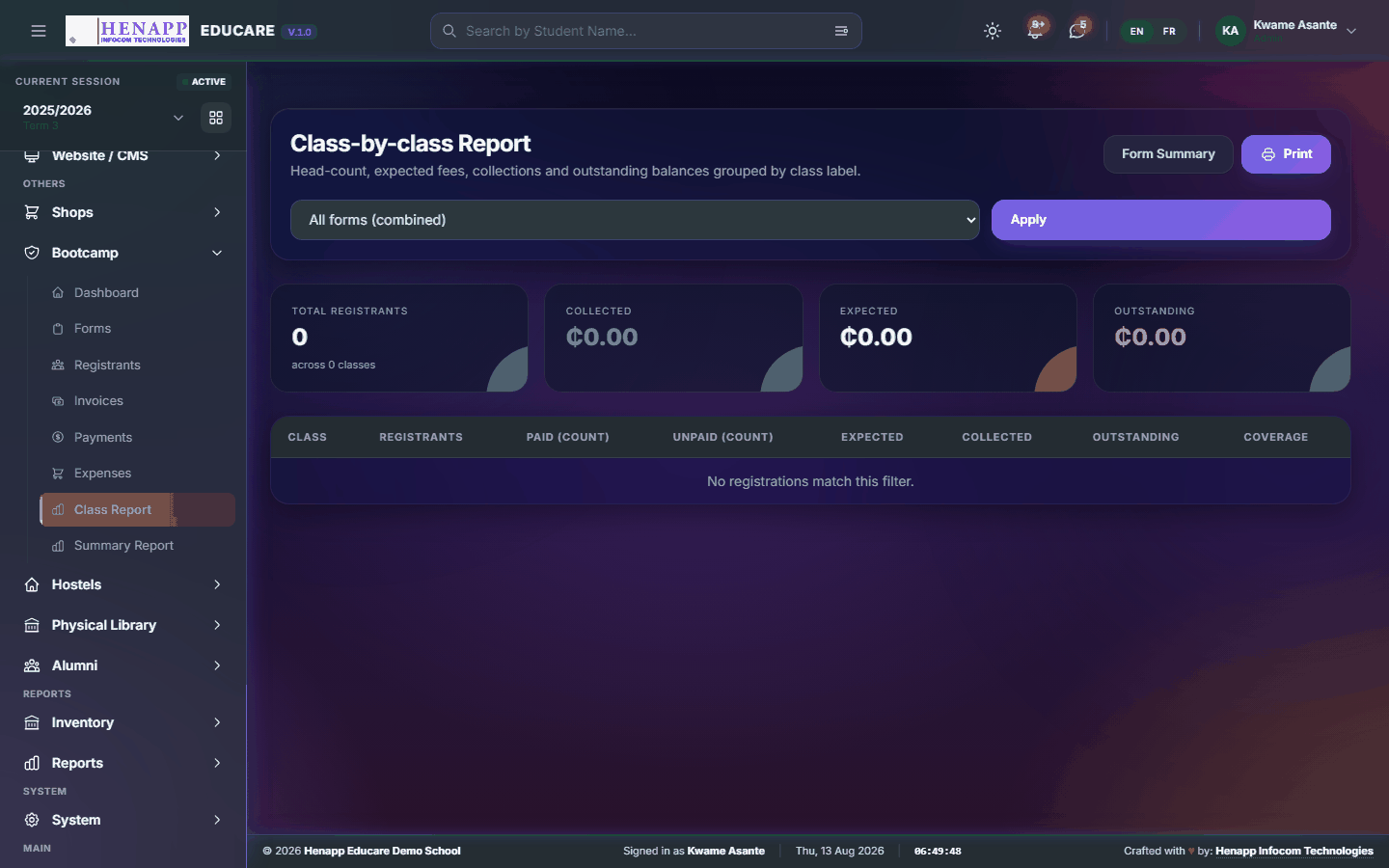
How to use it
- Open Bootcamp → Class Report.
- Choose the programme and read the breakdown.
60.8 Summary Report
The whole programme — registrants, income, expenditure and the surplus.
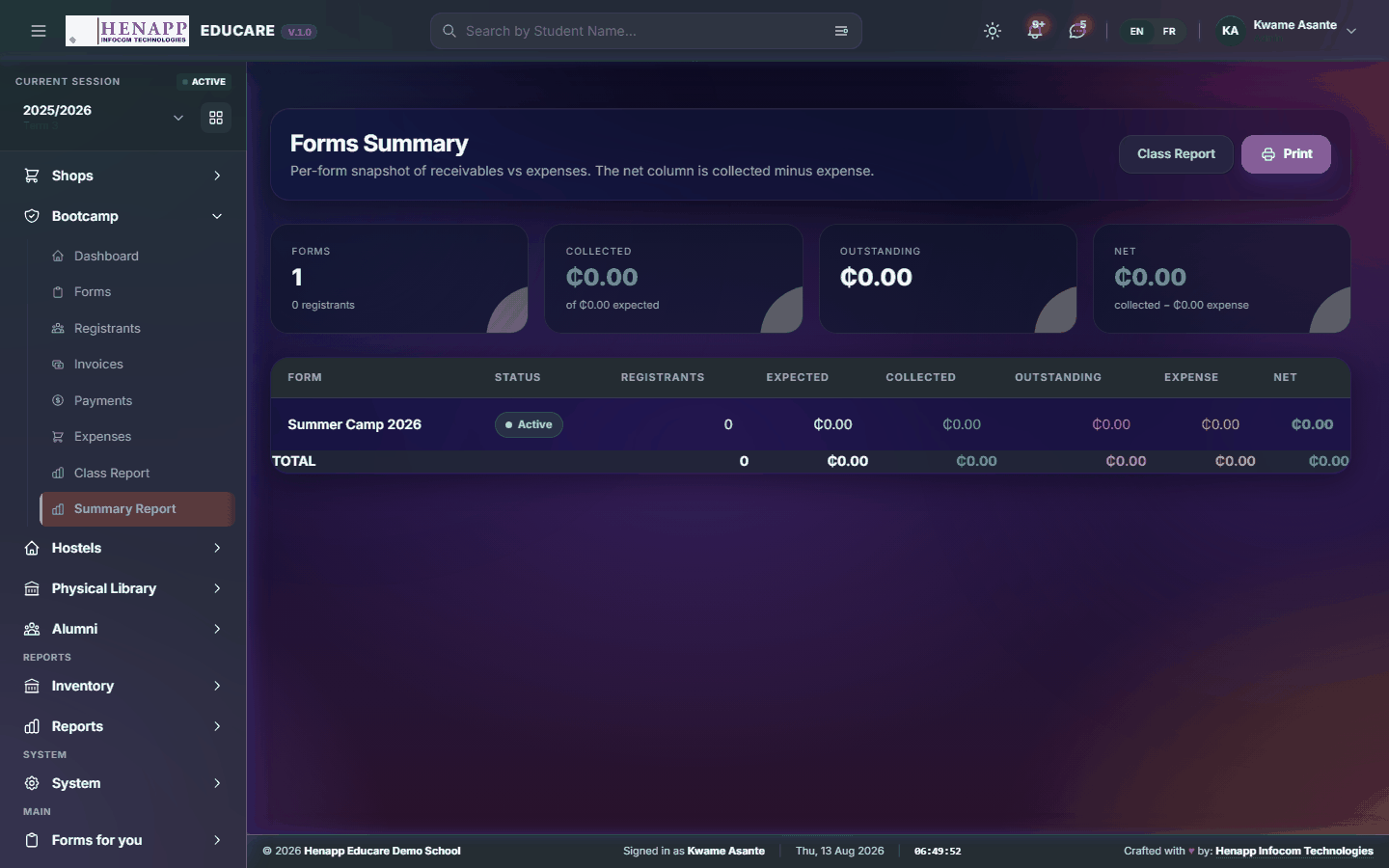
How to use it
- Open Bootcamp → Summary Report.
- Choose the programme, read the summary and export it.
61. Hostels
Boarding — the hostels, their rooms and beds, who sleeps where, and what boarding costs.
Find it in the sidebar under Others → Hostels.
61.1 Hostel Overview
Boarding at a glance — occupancy and capacity.
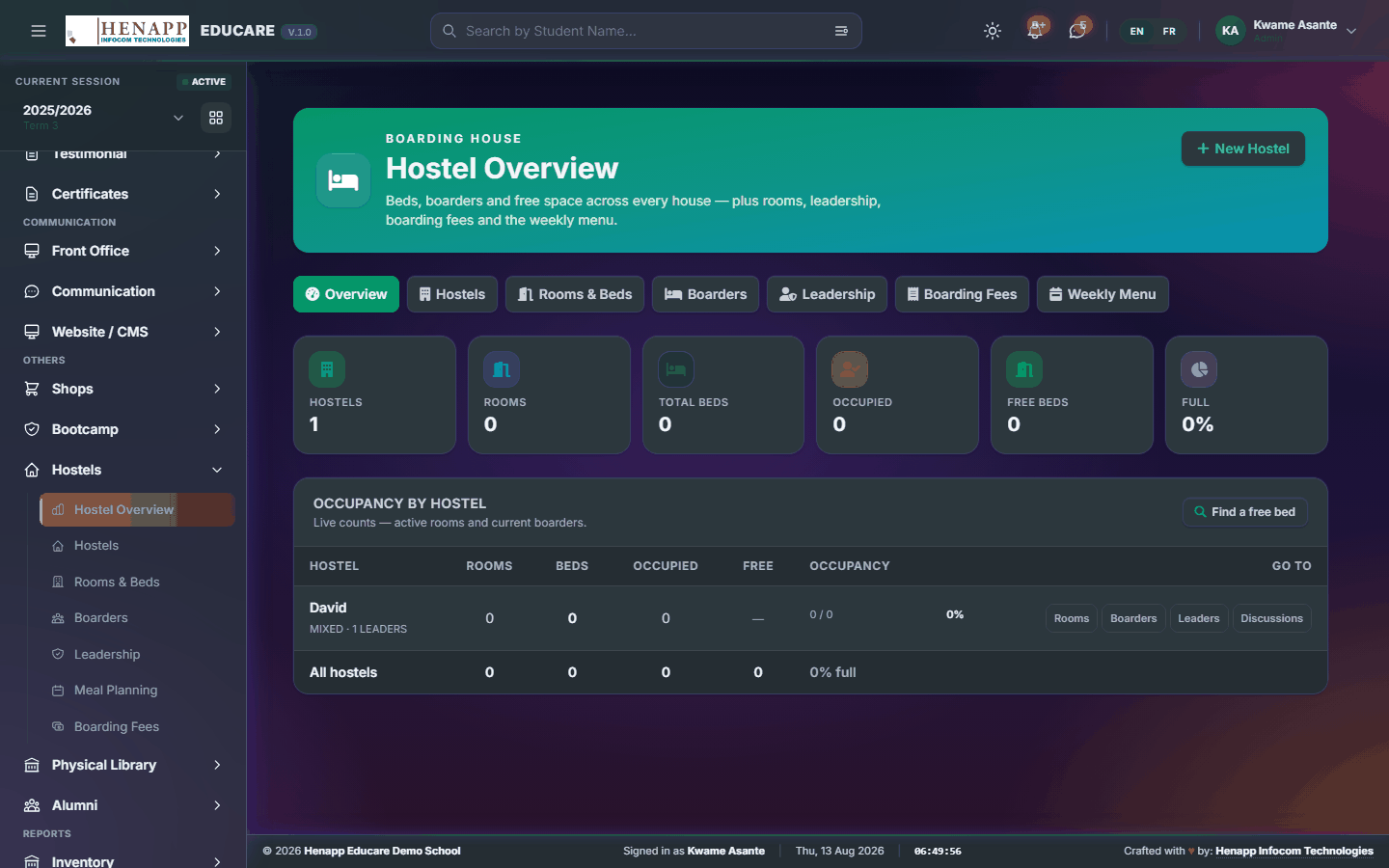
How to use it
- Open Hostels → Hostel Overview.
- Read occupancy against capacity across the hostels.
61.2 Hostels
The hostels themselves.
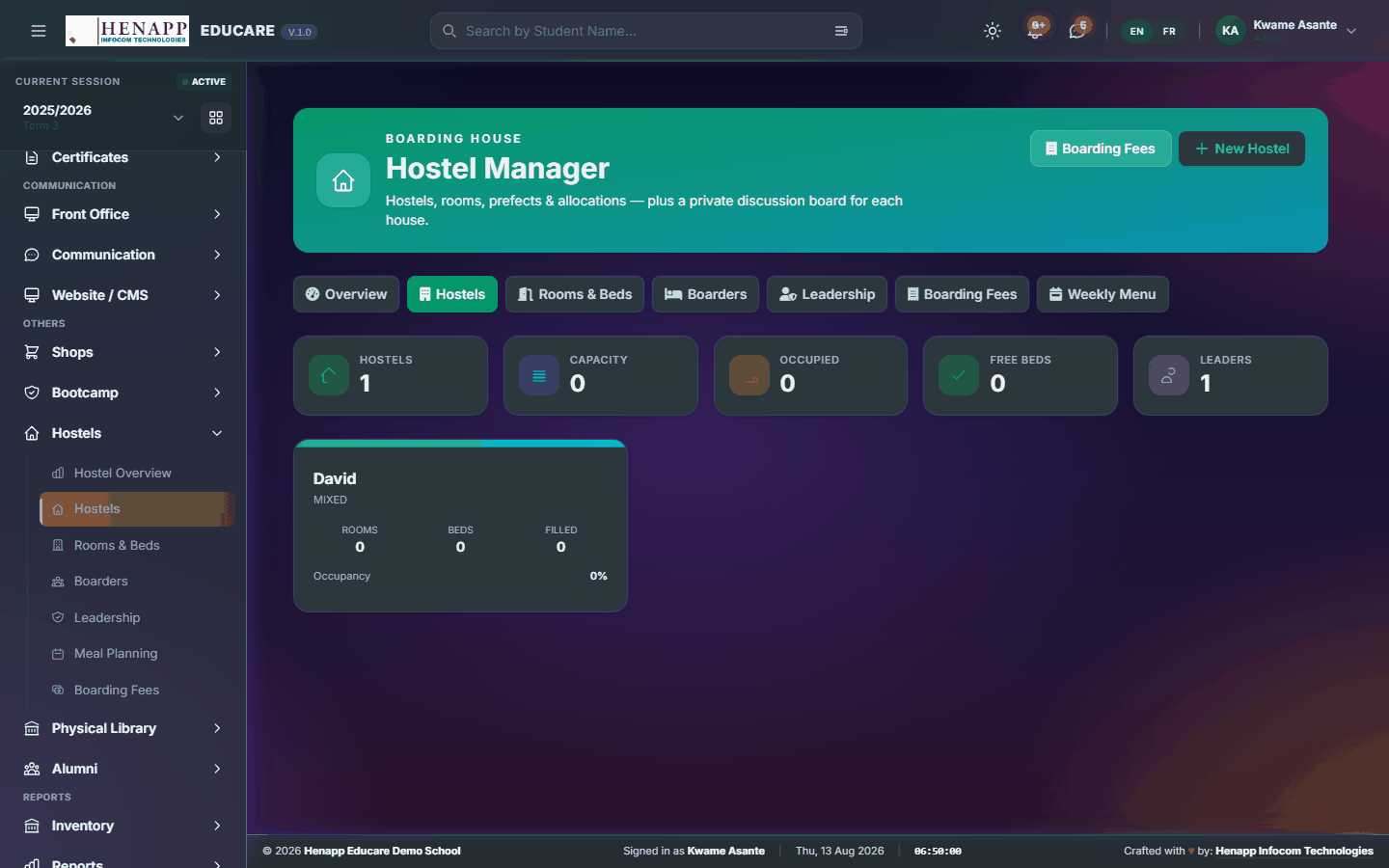
How to use it
- Open Hostels → Hostels.
- Add each hostel with its name, whether it is for boys or girls, and its warden.
- Save.
61.3 Rooms & Beds
Rooms and the beds in them.
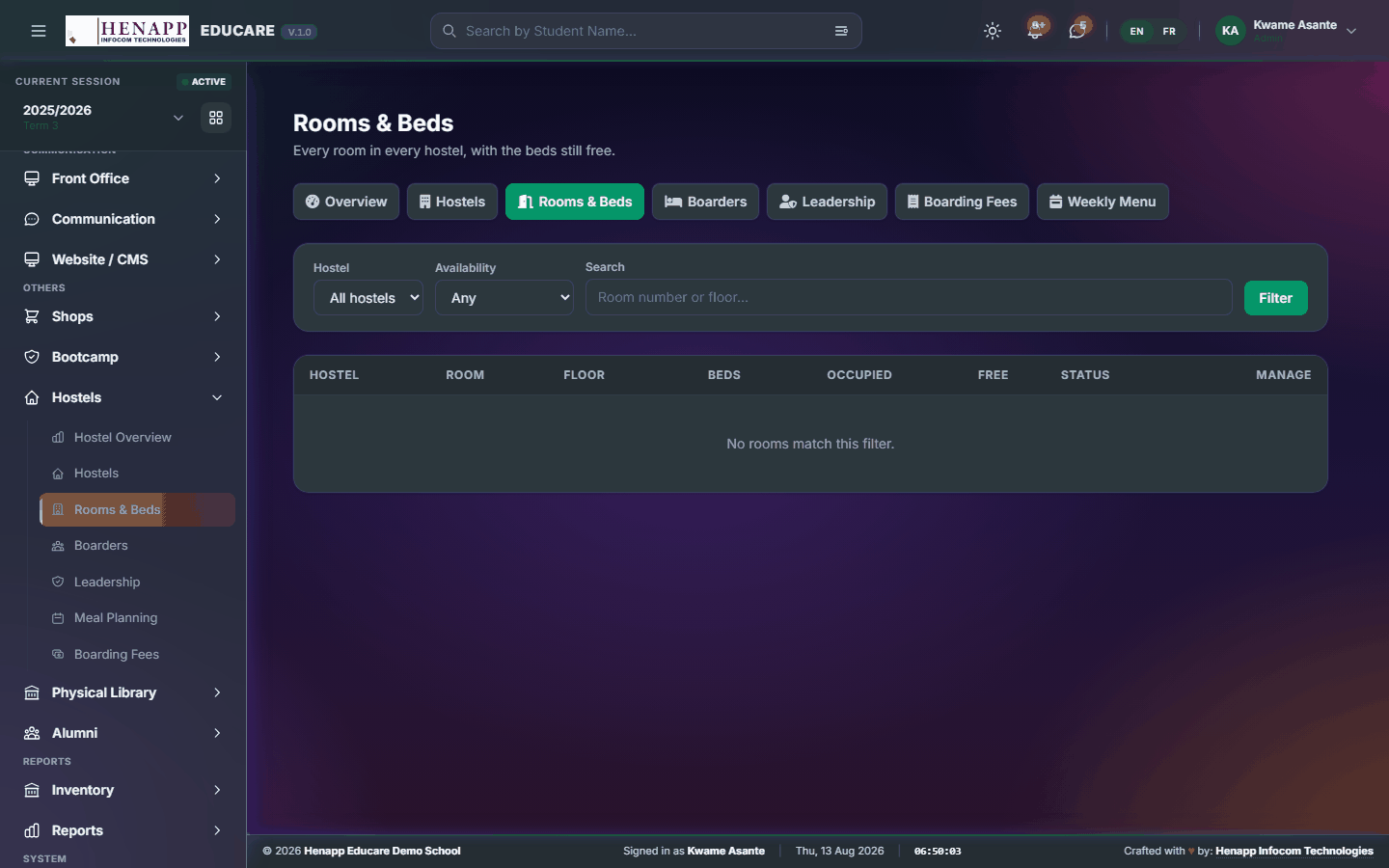
How to use it
- Open Hostels → Rooms & Beds.
- Add each room to its hostel with the number of beds.
- Save. Capacity updates automatically.
61.4 Boarders
Which boarder is in which bed.
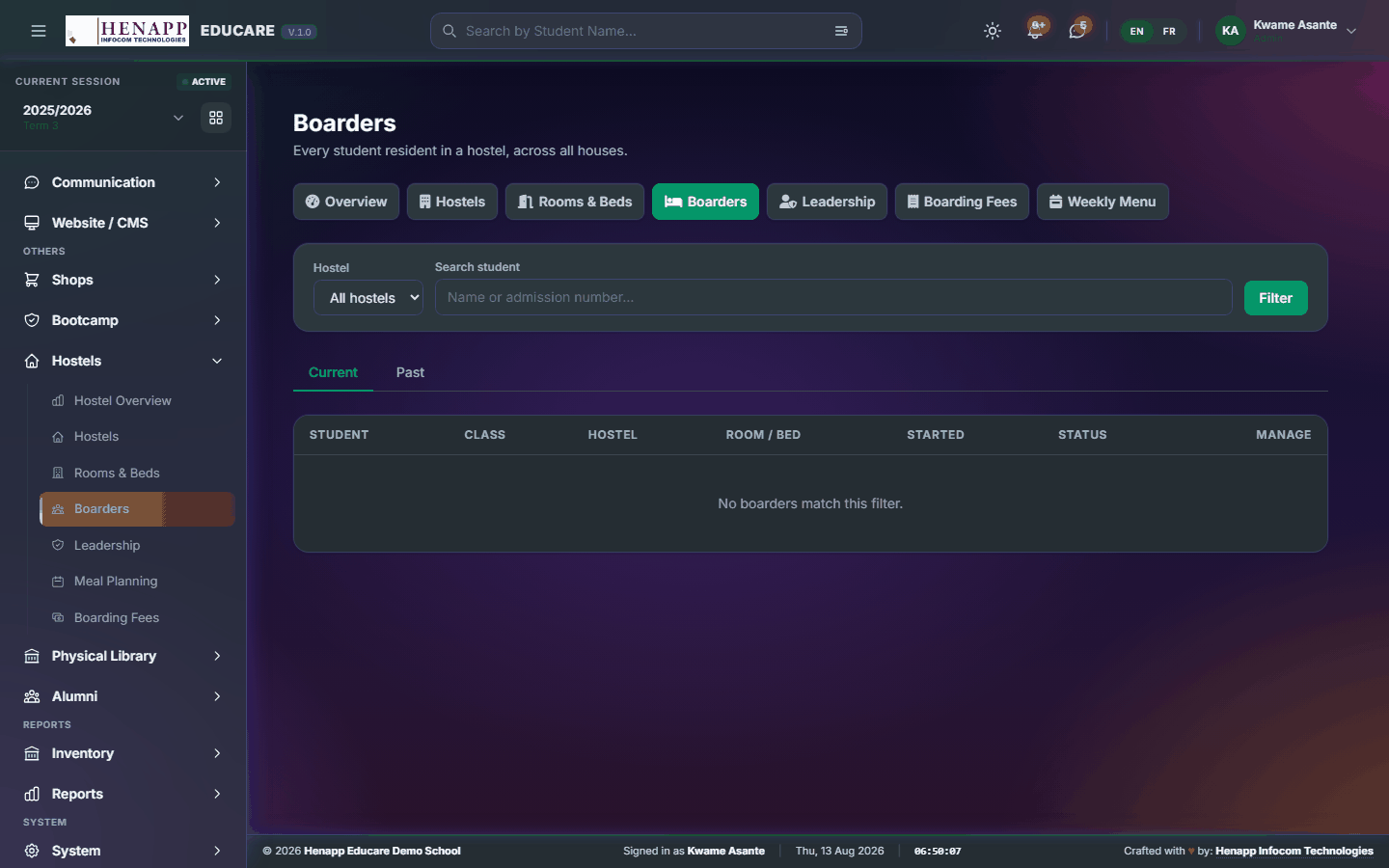
How to use it
- Open Hostels → Boarders.
- Choose the learner and allocate them a bed.
- Save. Move or release a boarder from the same page.
61.5 Leadership
House prefects and hostel leadership.
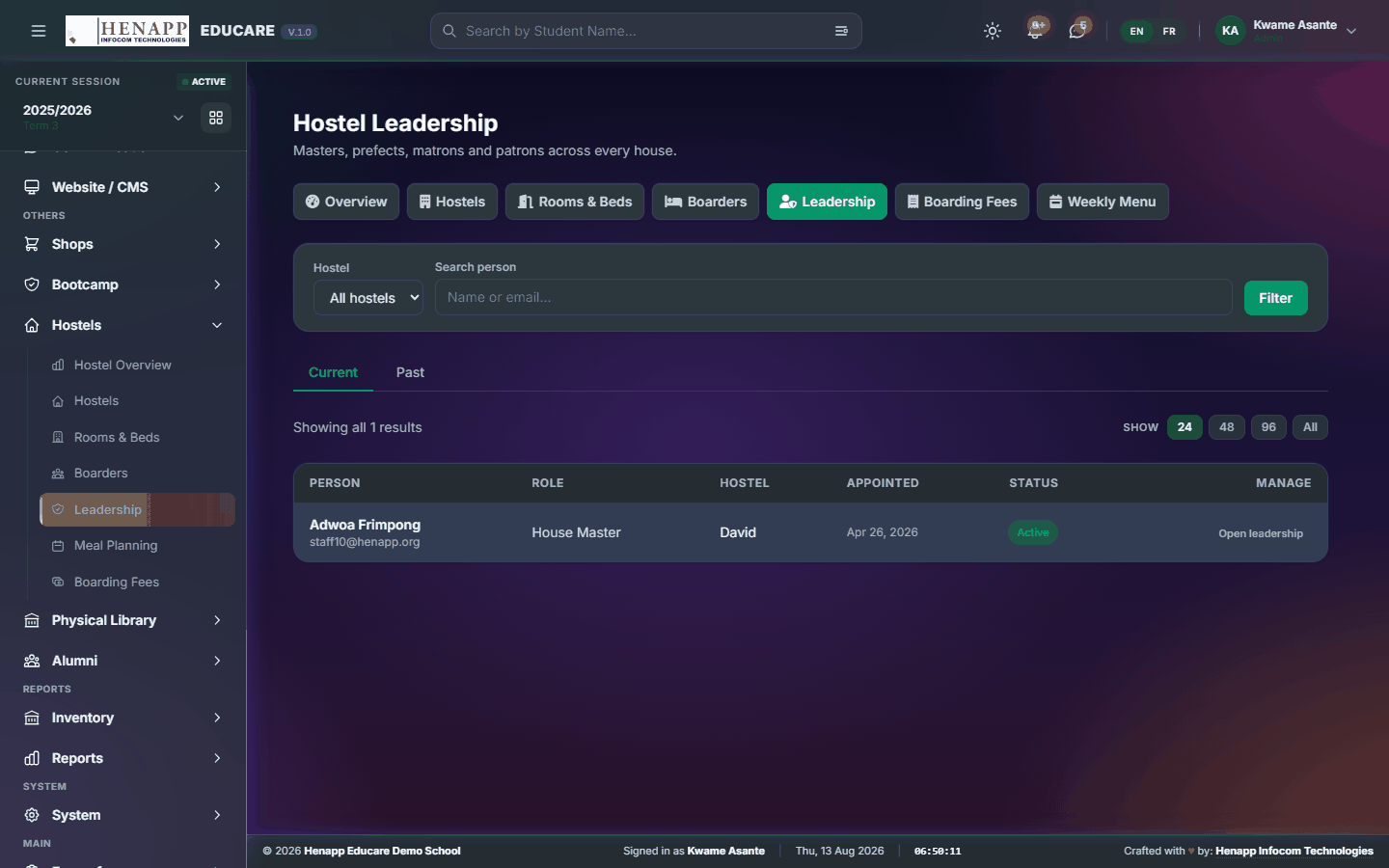
How to use it
- Open Hostels → Leadership.
- Appoint leaders for each hostel and save.
61.6 Meal Planning
The boarding meal plan for the week.
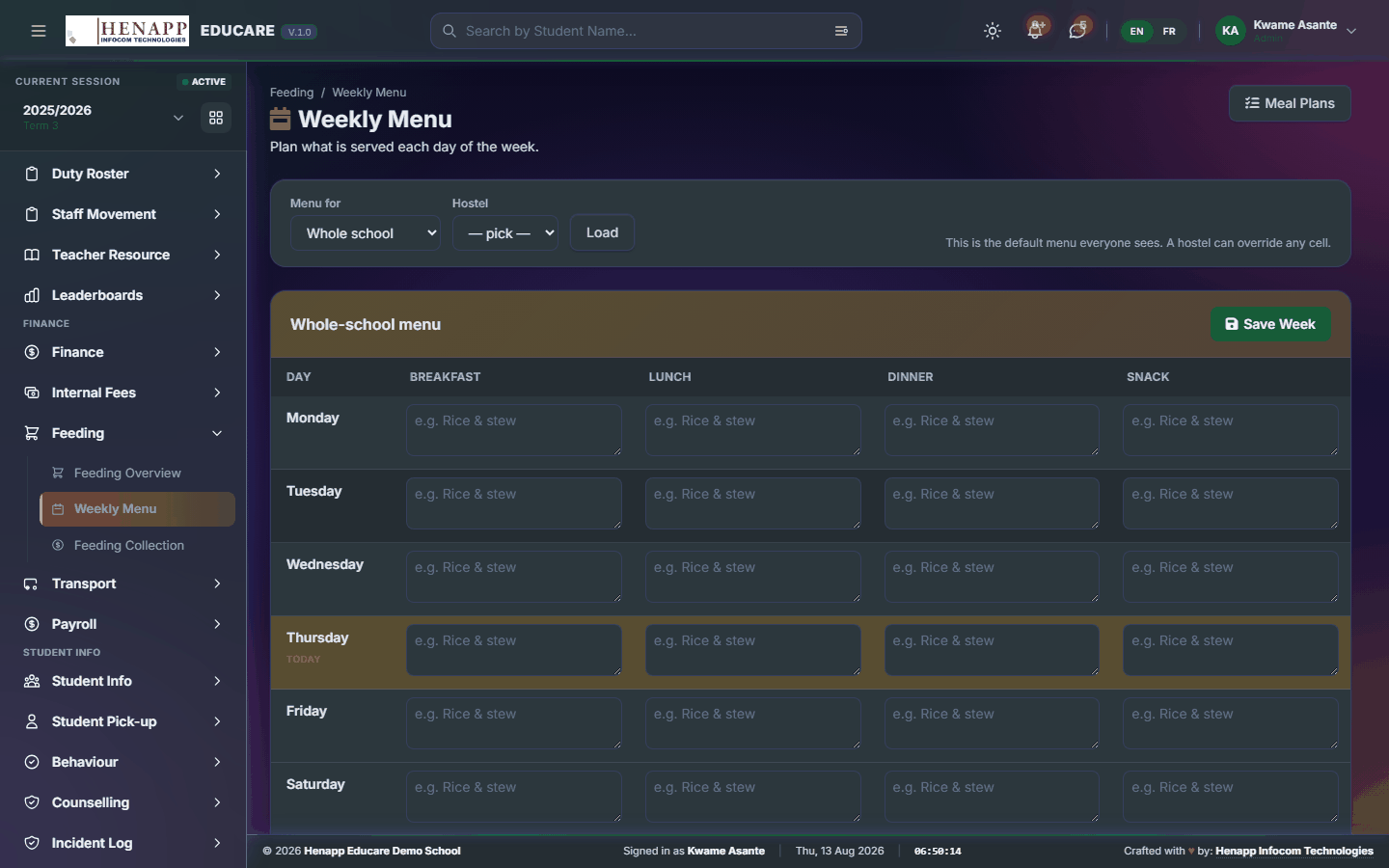
How to use it
- Open Hostels → Meal Planning.
- Set the meals for each day and save.
61.7 Boarding Fees
Boarding fees charged to boarders' accounts.
How to use it
- Open Hostels → Boarding Fees.
- Set the boarding fee for the term.
- Raise the charges for current boarders — they appear on the family account.
62. Physical Library
The physical library — the catalogue, loans and returns, fines and reservations.
Find it in the sidebar under Others → Physical Library.
62.1 Dashboard
The library at a glance — books out, overdue and reserved.
How to use it
- Open Physical Library → Dashboard.
- Read the loans, overdue items and reservations.
62.2 Leaderboard
The most active readers, by class and across the school.
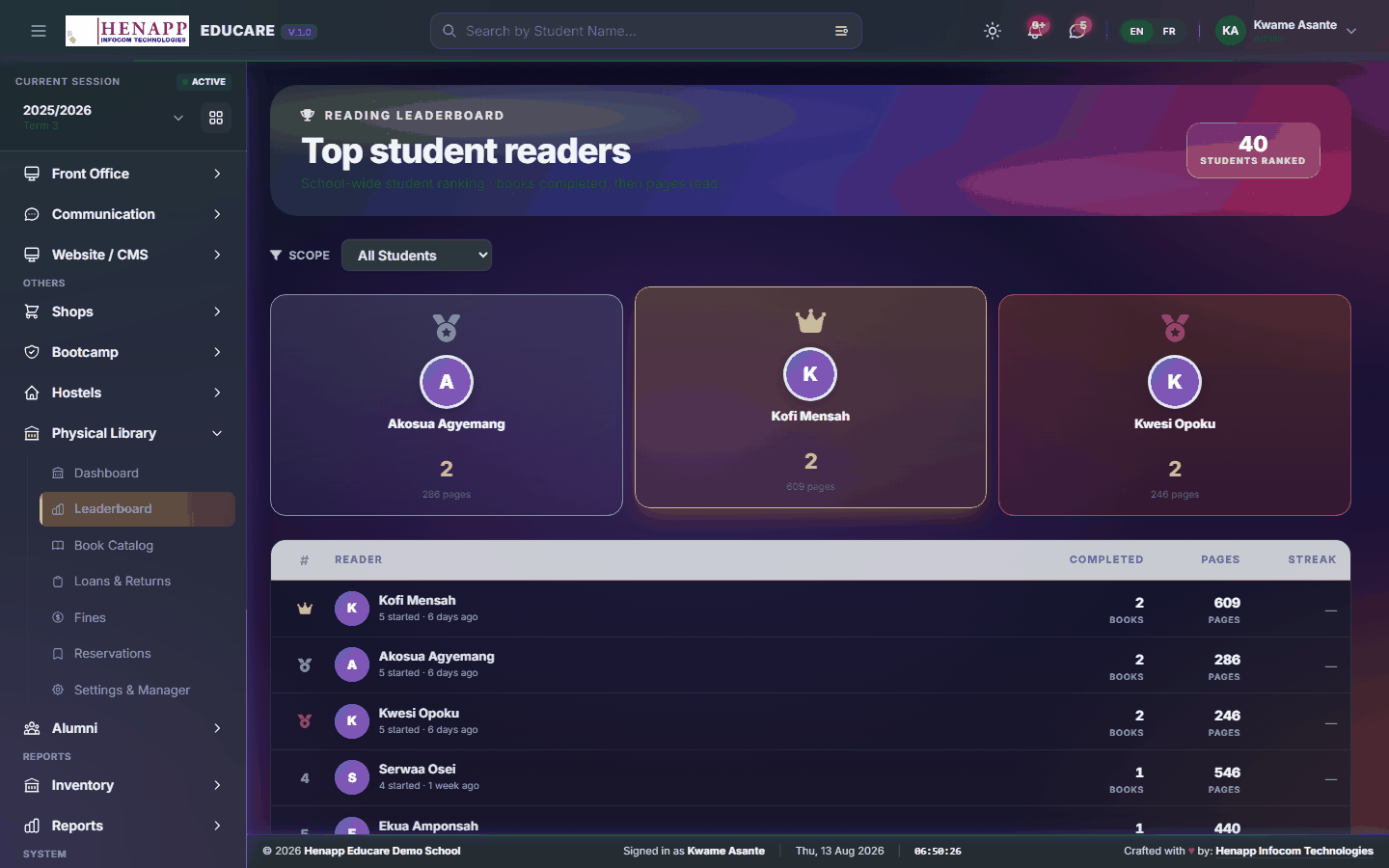
How to use it
- Open Physical Library → Leaderboard.
- Choose the period and read the standings.
62.3 Book Catalog
The catalogue — every title held, with its copies and where they are.
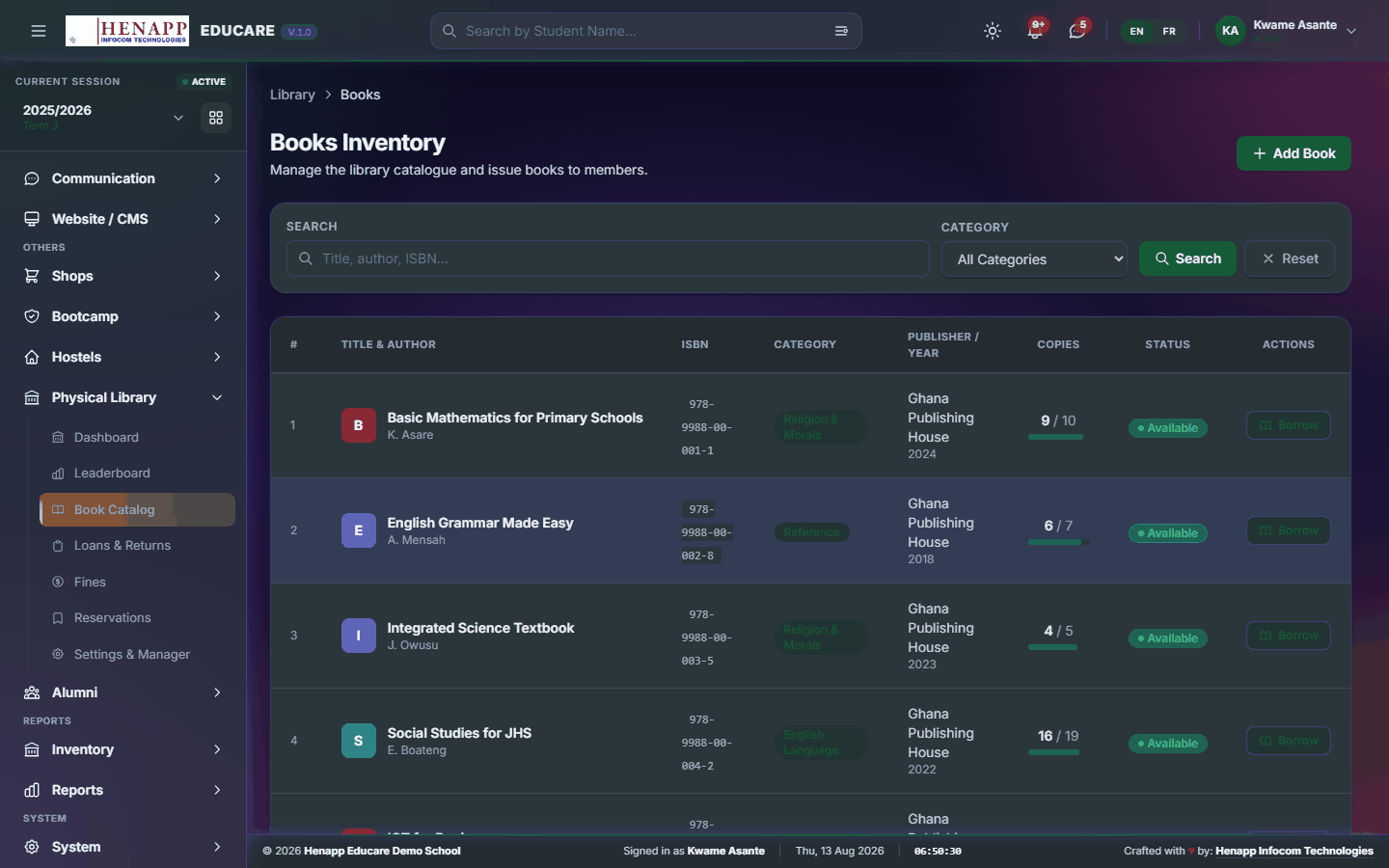
How to use it
- Open Physical Library → Book Catalog.
- Click Add Book and enter the title, author, ISBN, category and number of copies.
- Give it a shelf location so it can be found.
- Save. Search or filter the catalogue to find anything later.
62.4 Loans & Returns
Issuing books out and taking them back.
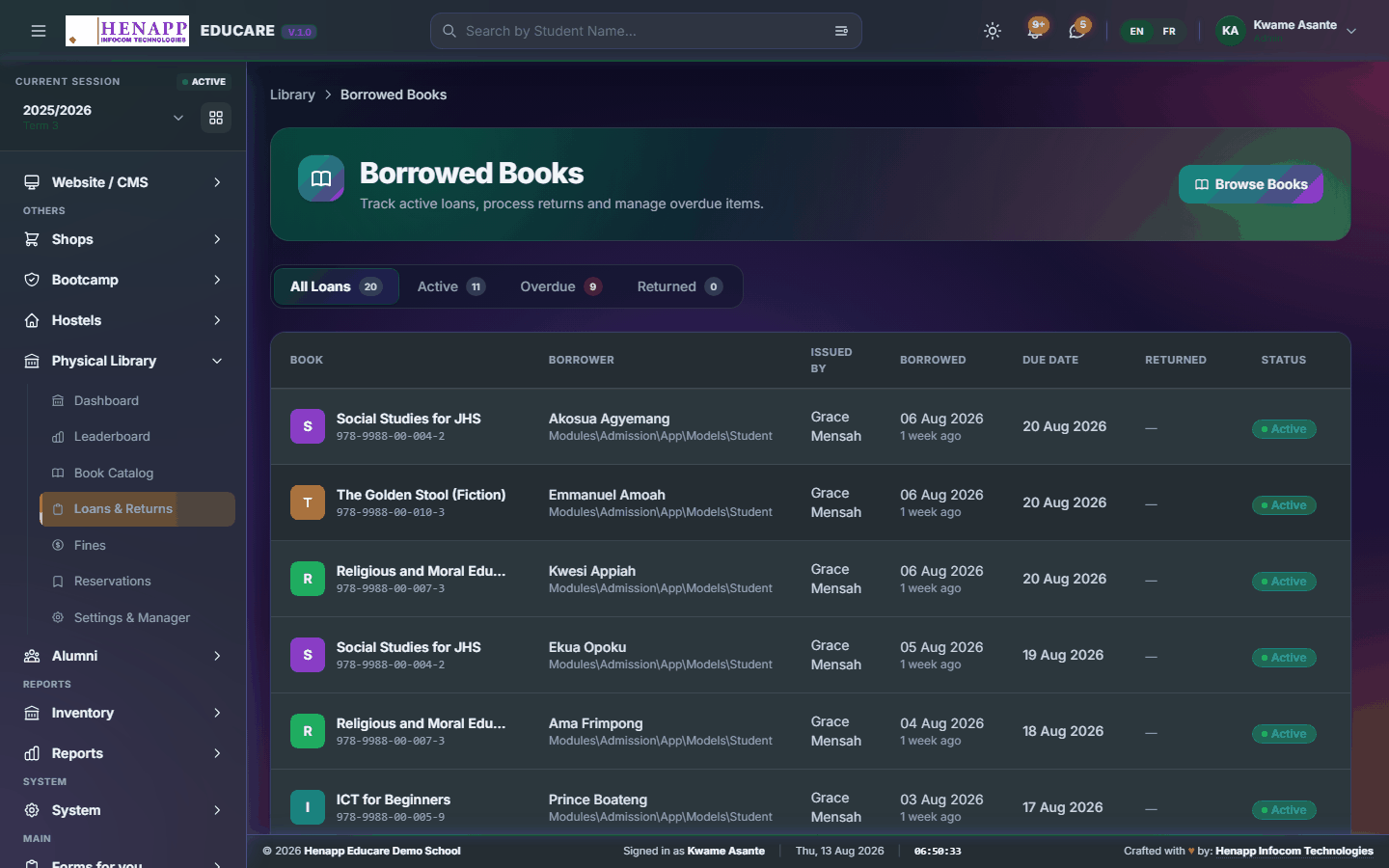
How to use it
- Open Physical Library → Loans & Returns.
- To issue: find the borrower, find the book, and confirm. The due date is set from your loan period.
- To return: find the loan and mark it returned. Any fine due is calculated then.
- Overdue loans are listed separately so they can be chased.
62.5 Fines
Charges for overdue or damaged books.
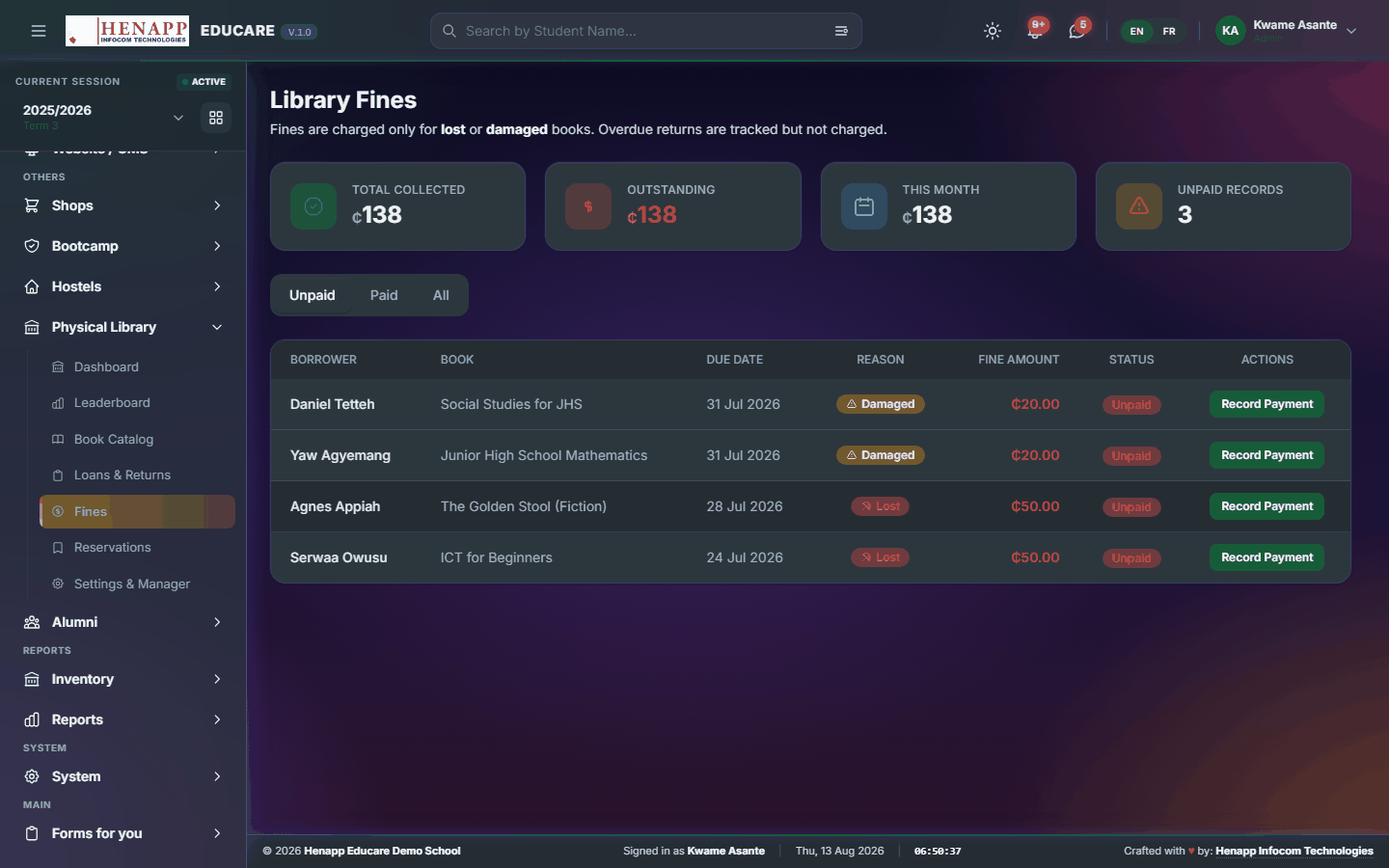
How to use it
- Open Physical Library → Fines.
- Review outstanding fines by borrower.
- Record payment, or waive a fine with a reason.
62.6 Reservations
Requests for books that are currently out.

How to use it
- Open Physical Library → Reservations.
- Review the queue for each title.
- When a copy comes back, notify the next person waiting.
62.7 Settings & Manager
How the library runs — loan periods, borrowing limits and fine rates.
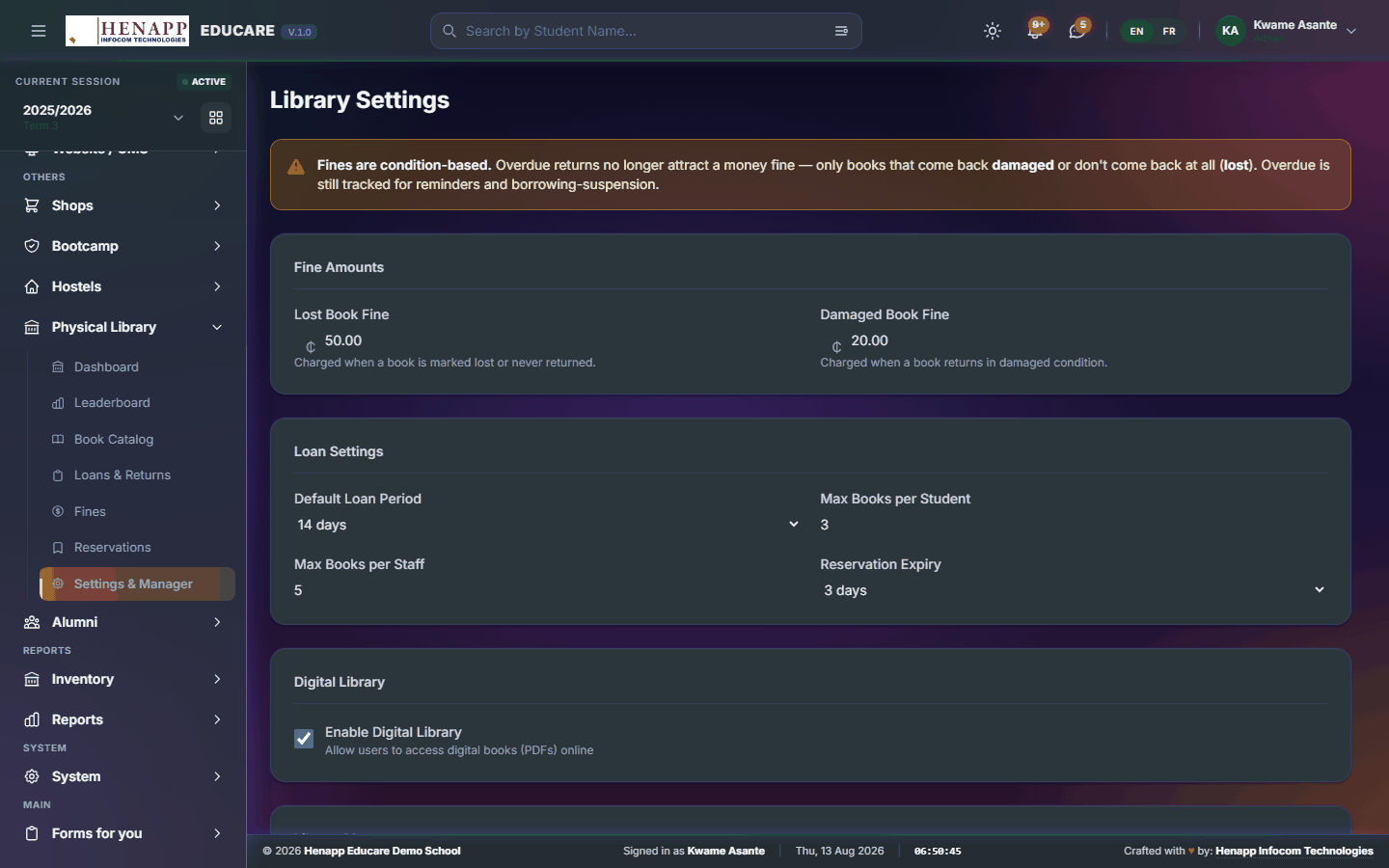
How to use it
- Open Physical Library → Settings & Manager.
- Set the loan period and how many books each category of borrower may hold.
- Set the fine rate for overdue items.
- Save.
63. Alumni
Former learners: year groups, members, events, dues and the association's own leadership.
Find it in the sidebar under Others → Alumni.
63.1 Alumni Dashboard
The alumni association at a glance.
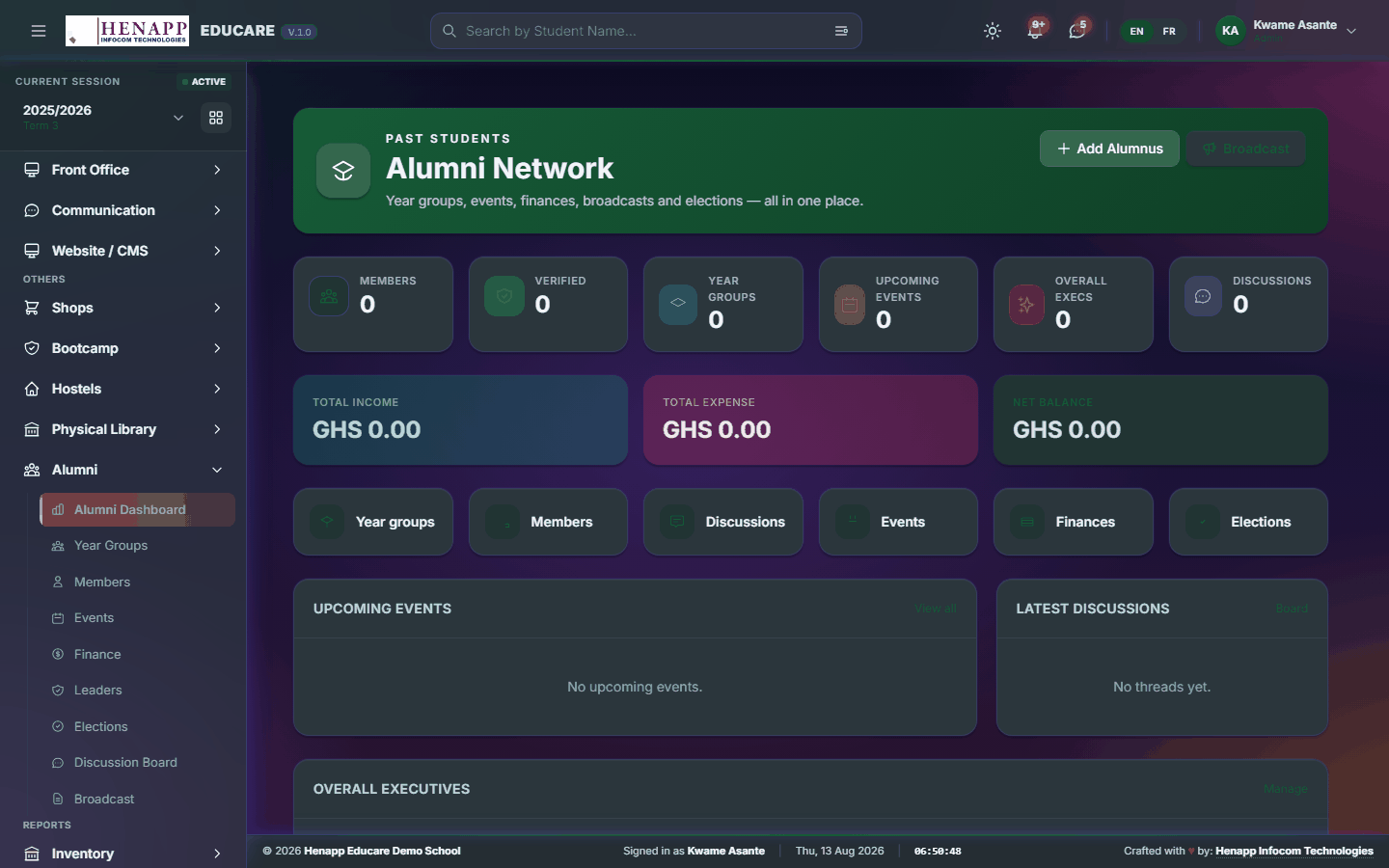
How to use it
- Open Alumni → Alumni Dashboard.
- Read membership, dues and upcoming events.
63.2 Year Groups
Alumni grouped by the year they left.
How to use it
- Open Alumni → Year Groups.
- Add a year group and see its members.
63.3 Members
Alumni records and contact details.
How to use it
- Open Alumni → Members.
- Search or filter by year group.
- Add a member manually, or let graduating learners flow in from the student roll.
- Keep contact details current — this is what broadcasts use.
63.4 Events
Reunions and association events.
How to use it
- Open Alumni → Events.
- Create the event with its date, venue and description.
- Publish it and invite the year groups concerned.
63.5 Finance
Association money — dues in and spending out.

How to use it
- Open Alumni → Finance.
- Record each contribution or expense with its date and description.
- Read the running balance and export the statement.
63.6 Leaders
The association's officers.
How to use it
- Open Alumni → Leaders.
- Record each officer, their position and their term.
63.7 Elections
Elections for association office.
How to use it
- Open Alumni → Elections.
- Create the election, add the candidates and set who may vote.
- Open voting, then publish the result when it closes.
63.8 Broadcast
A message to alumni — all of them, or particular year groups.

How to use it
- Open Alumni → Broadcast.
- Choose the year groups to reach.
- Write the message and choose the channel.
- Check the recipient count, then send.
64. Inventory
School property and consumables — what is held, where it is, and what has been issued.
Find it in the sidebar under Reports → Inventory.
64.1 Inventory
School property and consumables — what is held, where it is, and what has been issued to whom.
How to use it
- Open Inventory.
- Add each item with its category, quantity, location and value.
- Record an issue when something is given out — to a department or a member of staff.
- Record a receipt when stock comes in.
- Items at or below their reorder level are flagged for restocking.
- Export the stock list for a physical count.
65. Reports
Reporting across the whole system, and the analytics behind it.
Find it in the sidebar under Reports.
65.1 Reports
The reporting centre — academic, financial, attendance and staff reports in one place.
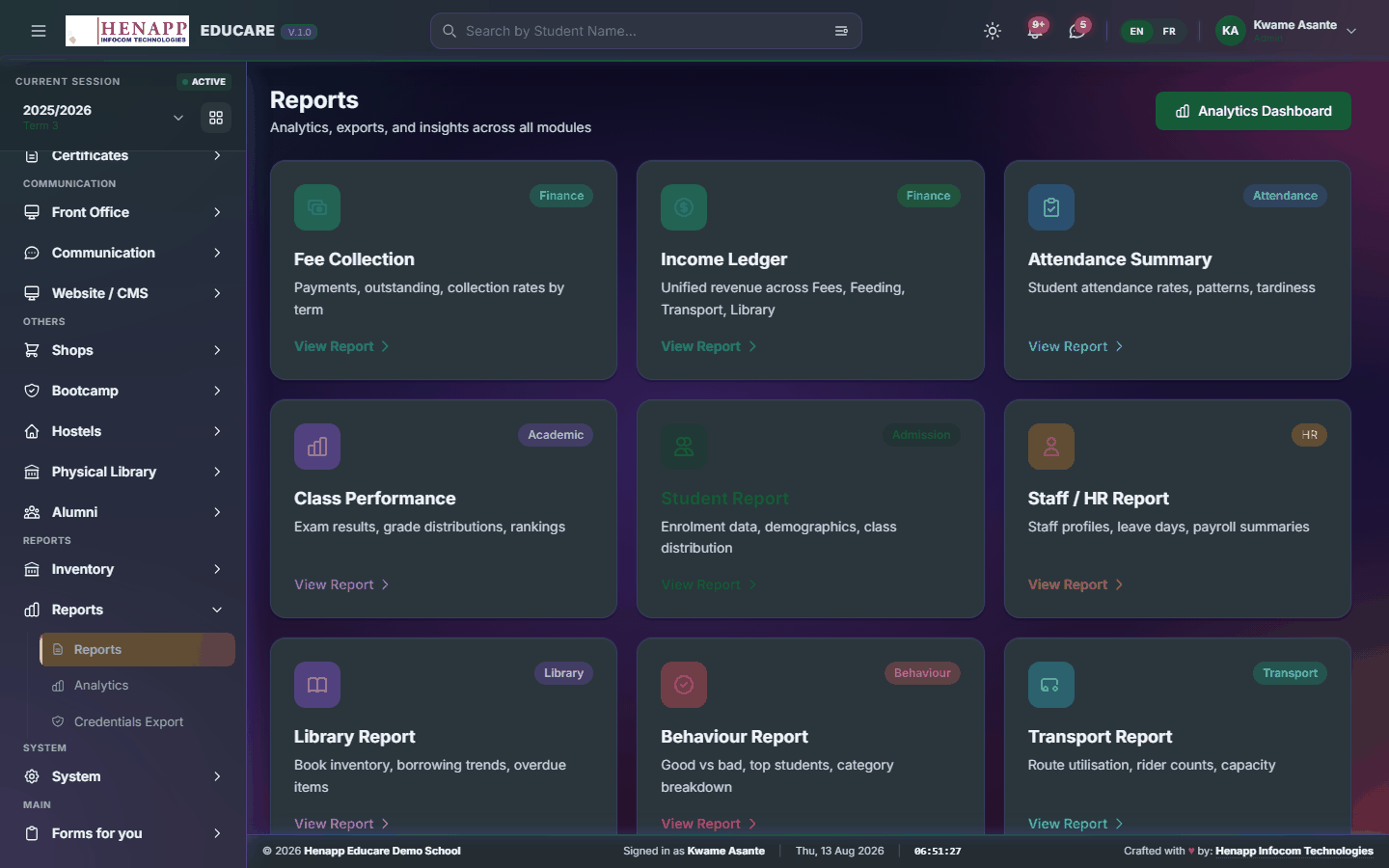
How to use it
- Open Reports → Reports.
- Choose the report you need.
- Set the period, class or other filters it asks for.
- Generate it, read it on screen, then export to PDF or Excel.
66. System
How the platform itself is configured — accounts, roles and permissions, school-wide settings, the audit trail, and backups.
This is the one area where a single setting changes what every other user can see and do. Make one change at a time and confirm its effect before making the next.
Find it in the sidebar under System.
66.1 Users
Every login on the system, whoever it belongs to — staff, parent or learner.
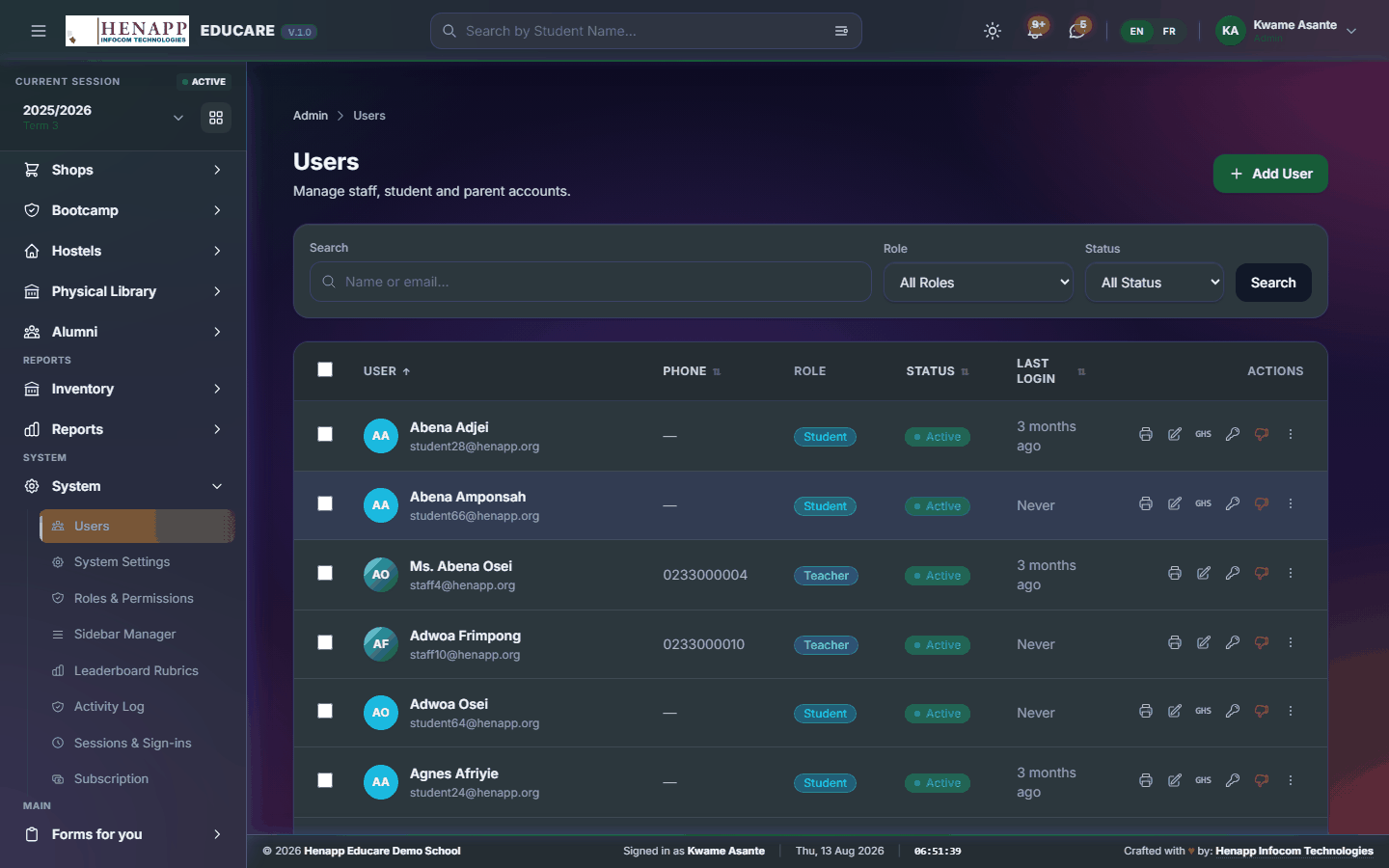
How to use it
- Open System → Users.
- Search by name, email or role.
- Open an account to change its role, reset its password, or disable it.
- Disable an account rather than deleting it when someone leaves — disabling stops the login and keeps their history intact.
Deleting an account can take its history with it. Disabling stops the person signing in while leaving every record they created attached to their name.
66.2 System Settings
School-wide settings — the school's identity, what prints on documents, and how each module behaves.
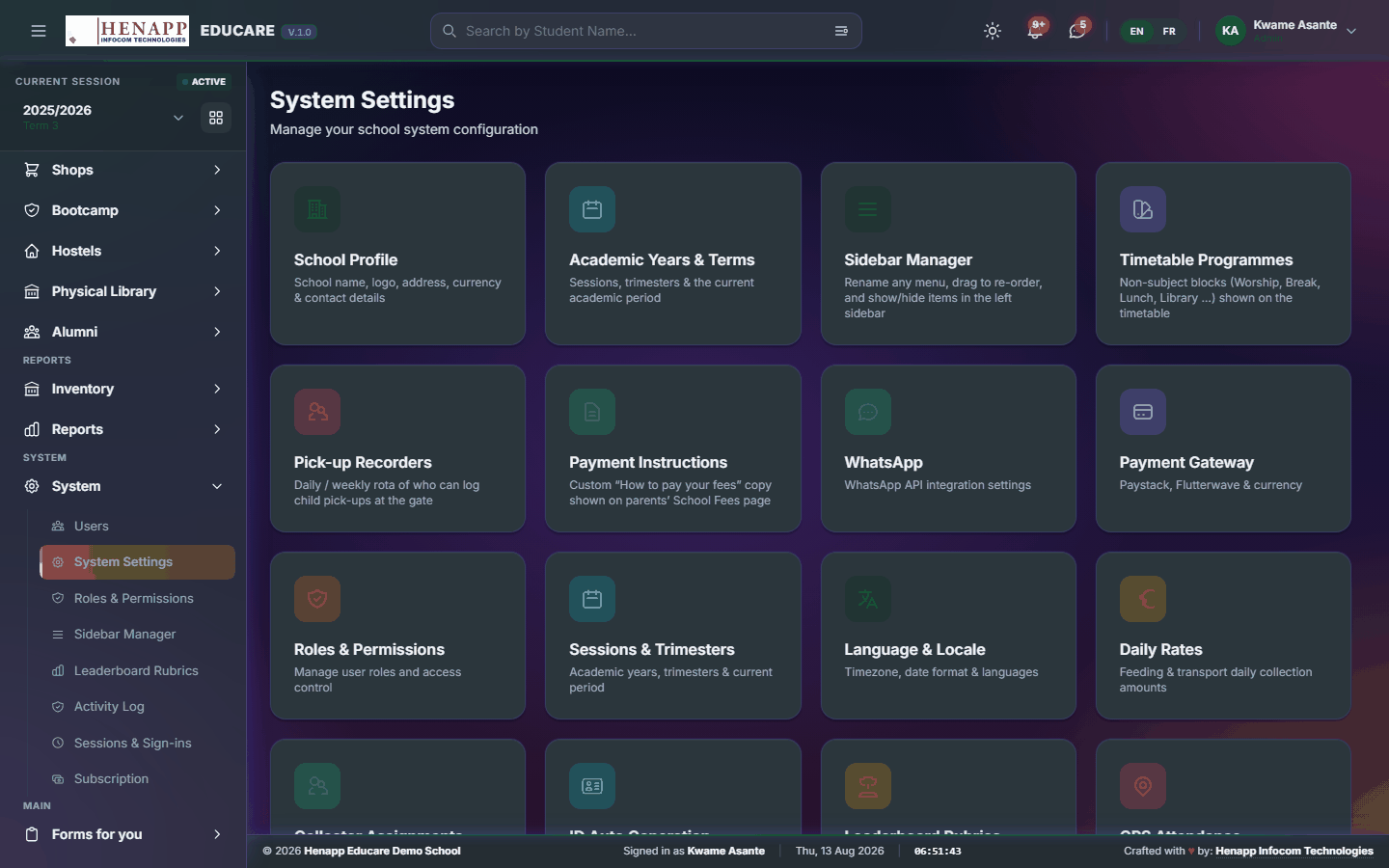
How to use it
- Open System → System Settings.
- Work through the sections down the side.
- School Profile — name, address, contact details and logo. This is what appears on every printed document.
- Print Header/Footer — the letterhead and footer used on report cards, invoices, transcripts and certificates.
- Email, SMS and WhatsApp — the accounts messages are sent through.
- Appearance — the default theme and colours inside the portal.
- Save each section as you finish it.
The header and footer set here appear on every PDF the system produces. After changing them, generate one report card and one invoice and look at the result before a whole class is printed.
66.3 Roles & Permissions
What each role may see and do — the grid where every permission in the system is granted or withheld.

How to use it
- Open System → Roles & Permissions.
- Choose the role to review.
- Tick or untick permissions in the grid. Each row is a capability; each column a role.
- Save. The change takes effect the next time that user loads a page.
- Ask a user of that role to confirm they can still do their job before you move on.
Removing a permission can hide a menu that a colleague needs to work, and it will not be obvious to you — it will be obvious to them, tomorrow morning. Change one role, have someone in it check, then do the next.
The superadmin role cannot be edited here. That is deliberate.
66.4 Sidebar Manager
The sidebar itself — which menus appear, what they are called, and in what order.
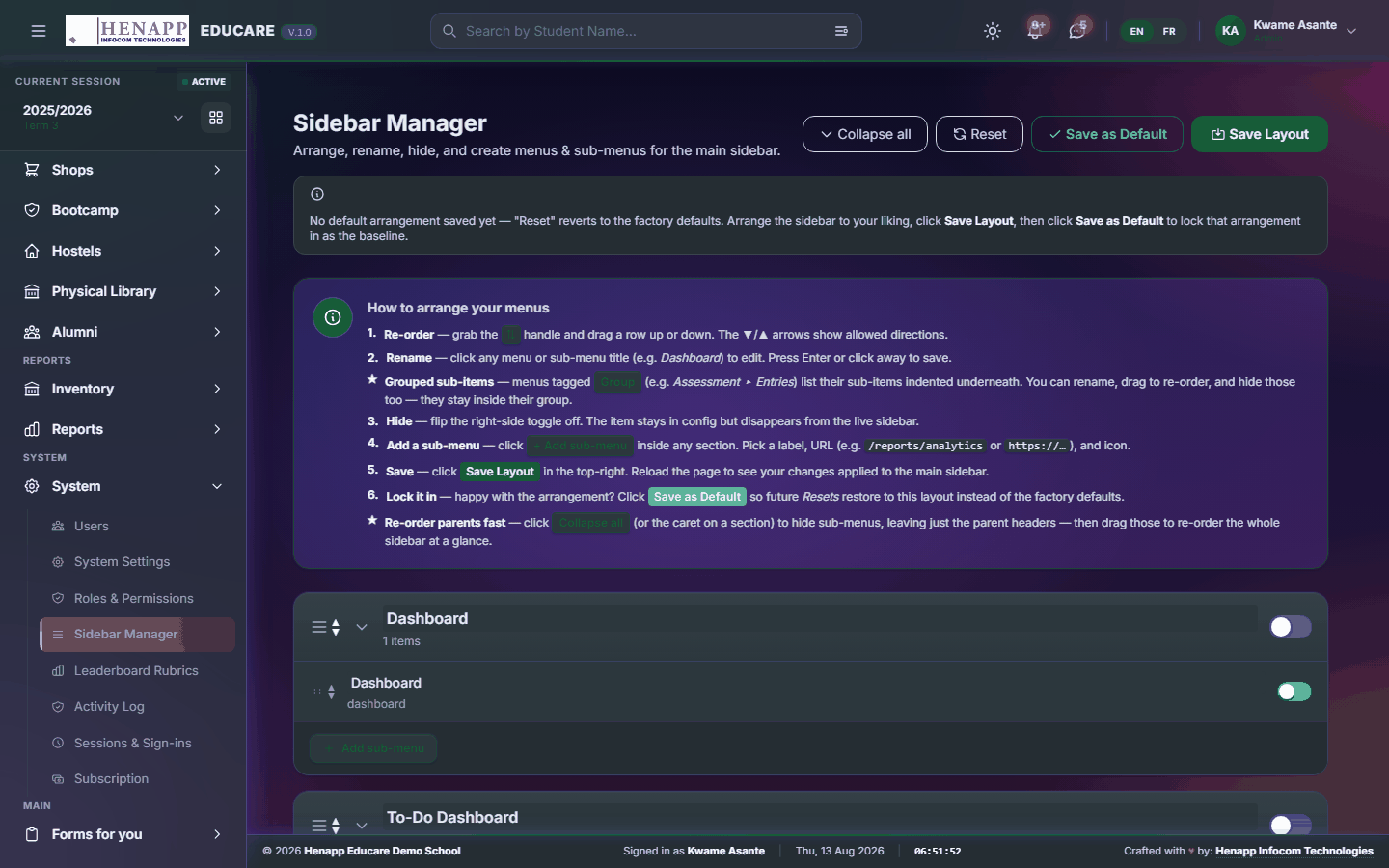
How to use it
- Open System → Sidebar Manager.
- Drag a section to reorder it.
- Turn a section or an item off to hide it from everybody.
- Rename an item where your school uses different wording.
- Add a custom link — a school handbook, an external system — with its own name and address.
- Save. Reset to defaults restores the shipped arrangement.
Turning an item off here removes it from the sidebar, not from the system. Someone with the address can still reach the page. To actually withhold a feature, remove the permission under Roles & Permissions.
66.5 Leaderboard Rubrics
How leaderboard positions are scored — what earns points, and how many.
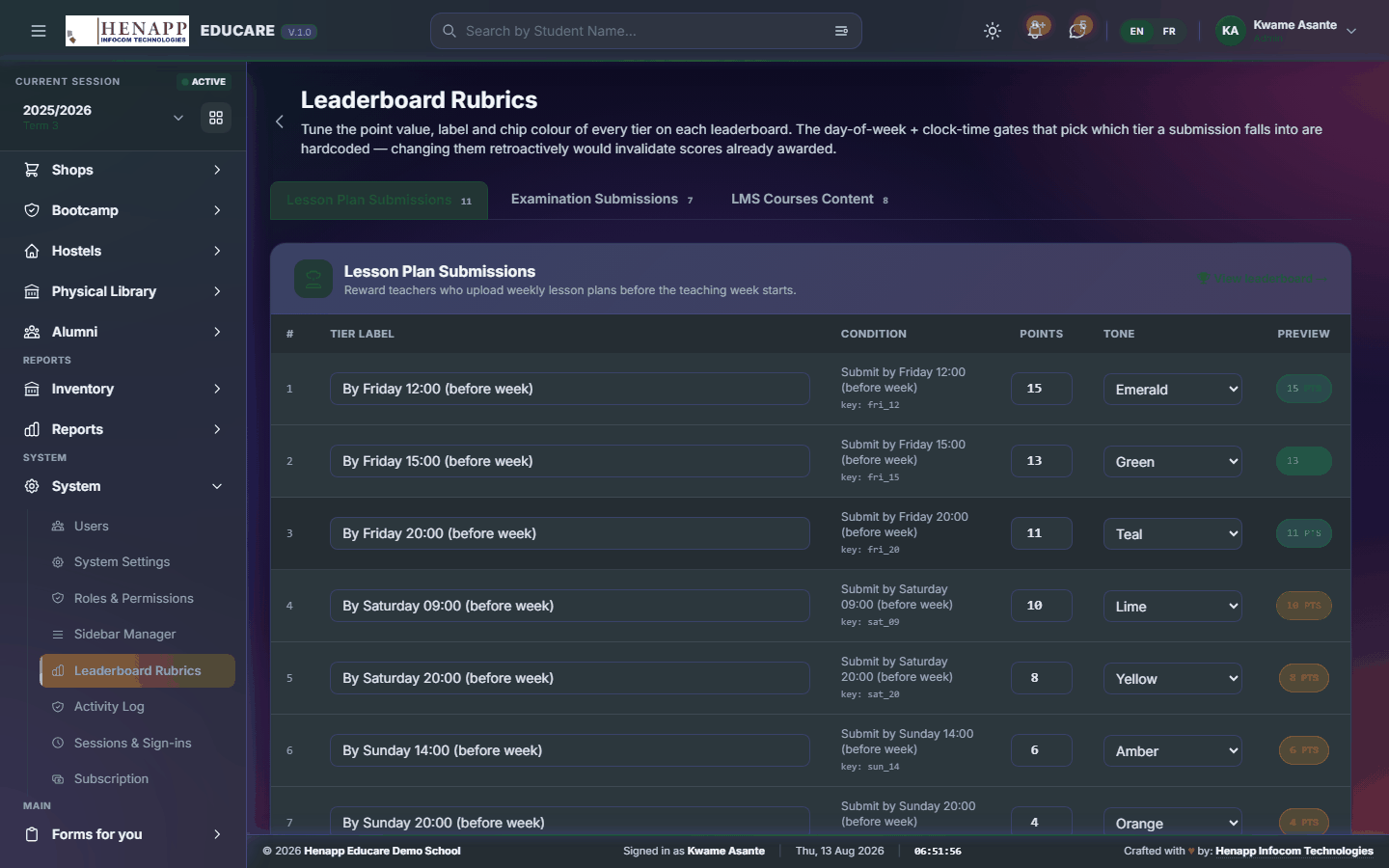
How to use it
- Open System → Leaderboard Rubrics.
- Choose the leaderboard.
- Set the points for each measured activity.
- Save. Standings recalculate against the new rubric.
66.6 Activity Log
The record of what was done in the system, by whom, and when.
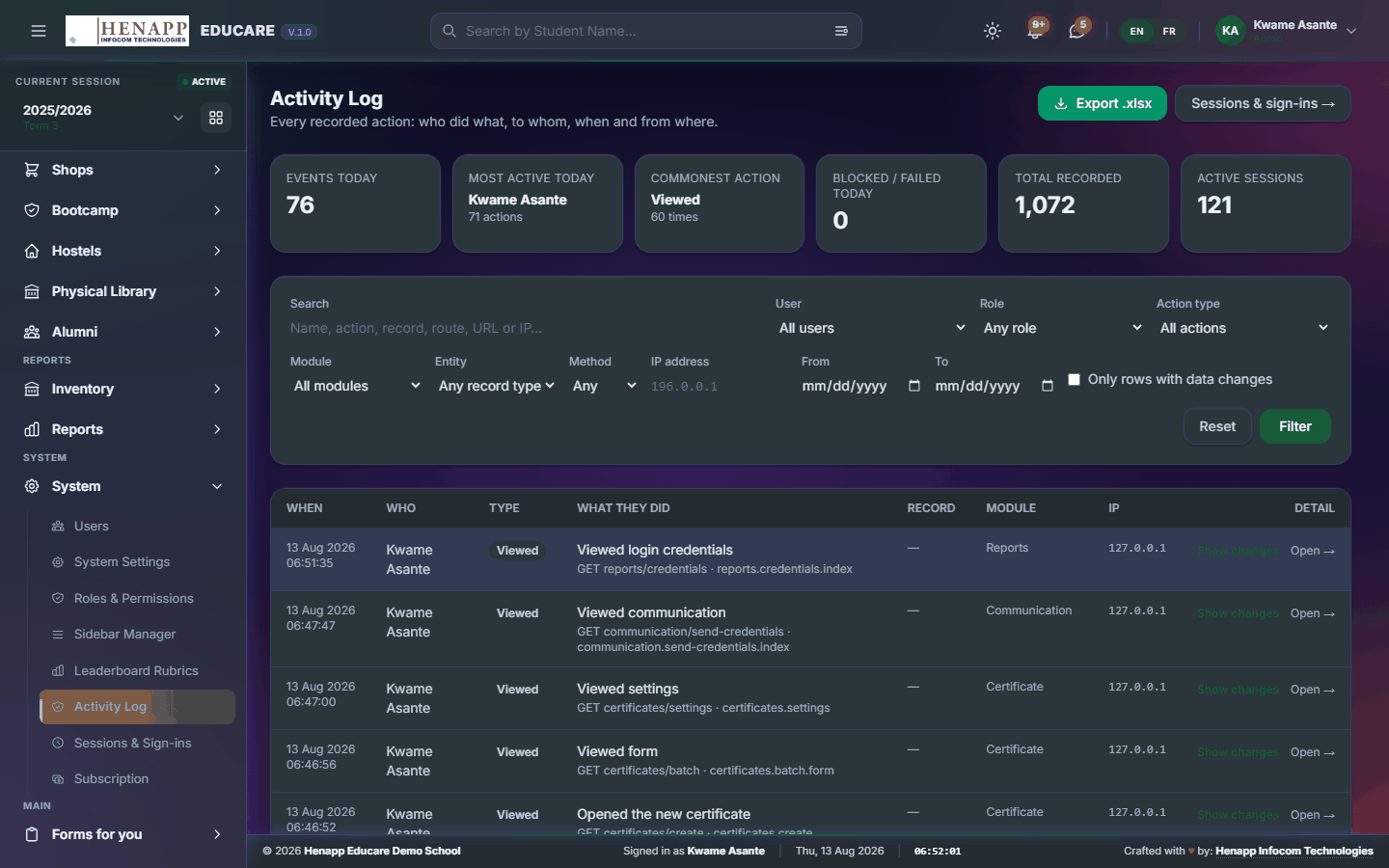
How to use it
- Open System → Activity Log.
- Filter by user, date or type of action.
- Open an entry to see exactly what changed.
- Use it to answer questions about who altered a record and when.
Some entries are recorded against no user. Those are scheduled or console tasks running on their own, not an anonymous person.
66.7 Sessions & Sign-ins
Who is signed in and from where, plus failed sign-in attempts.

How to use it
- Open System → Sessions & Sign-ins.
- Read the active sessions and their devices.
- End a session where an account may be compromised.
- Check the failed attempts for signs of someone trying to guess a password.
66.8 Subscription
Your school's subscription — the plan, its renewal date and its limits.
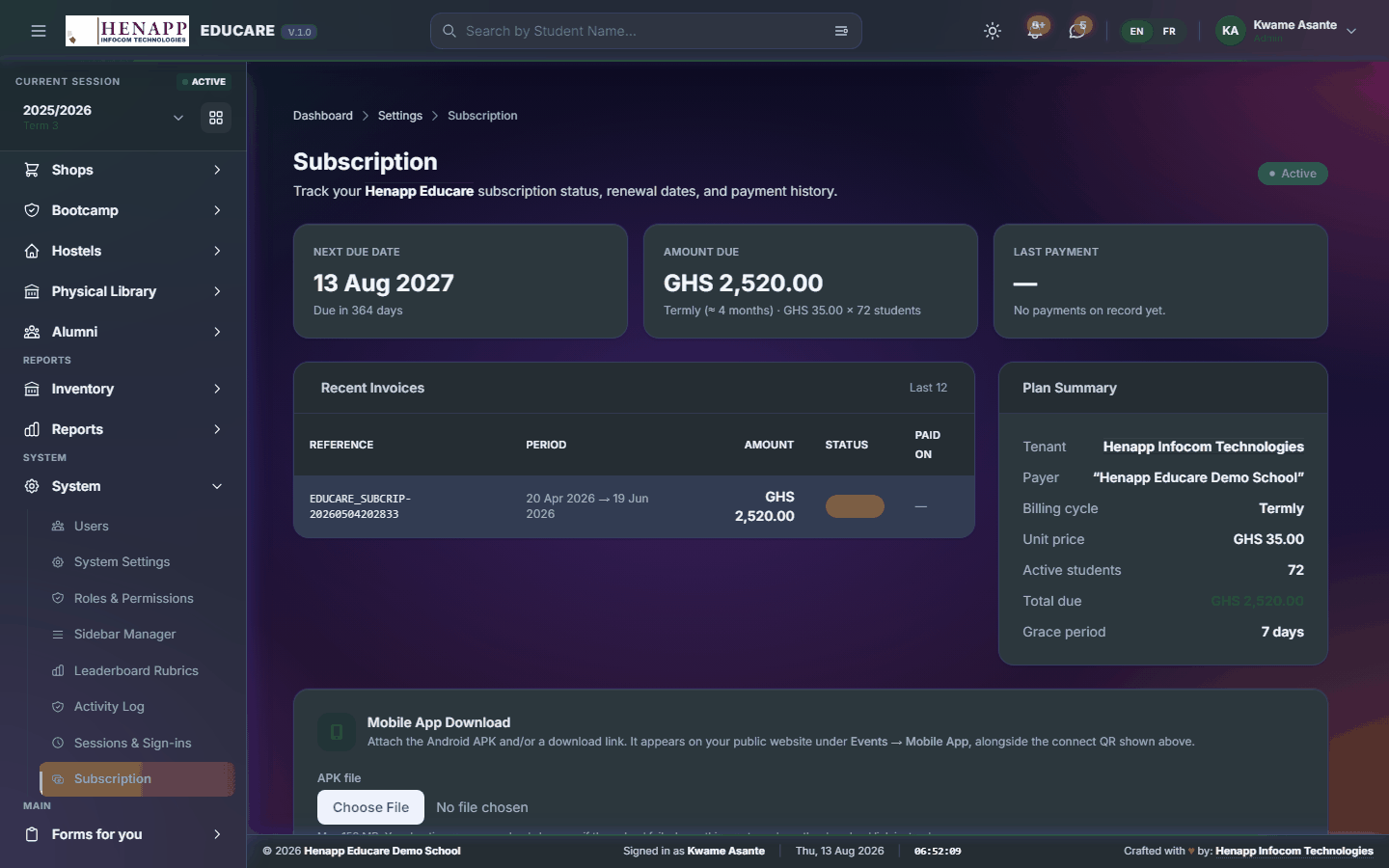
How to use it
- Open System → Subscription.
- Read the plan, its expiry and your usage against the limits.
- Contact your provider to change or renew it.
67. Getting help
If a page does not behave as this guide describes, or you believe you are missing a menu you should have, contact your school office first — most access questions are settled by an administrator adjusting your role.
- A menu is missing — your role does not include it. Ask an administrator.
- A list is empty — check the academic year and term in the top bar before anything else.
- A page refuses to load — sign out, sign back in, and try once more before reporting it.